
In this post, we are going to talk about the new Windows Update Expiration Policy. Updates are essential for any Windows system to get the best out of your PCs. These different types of Windows Updates enhance the overall performance of the system with up-to-date software, drivers, features, security, and much more. Additionally, these also address bugs and glitches in Windows and fix them. Microsoft has also made the process of installing updates a lot easier and more convenient for its users. For example, Windows Updates now come in a smaller size in the new Windows builds in comparison to previous builds, decreasing the overall installation time. Microsoft continually adds improvements to its services in one way or another.
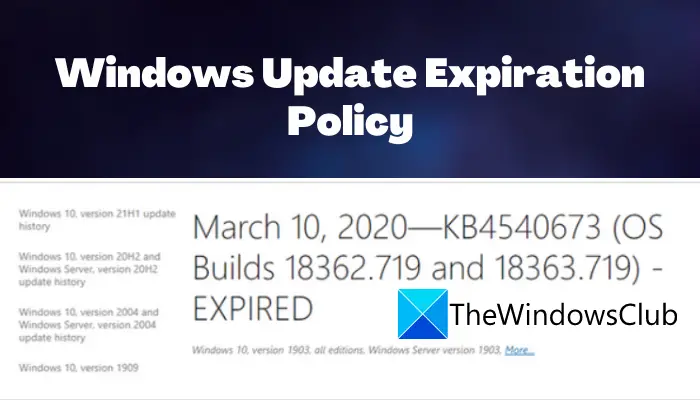
Every month, Microsoft releases two to three updates for each supported Windows platform. These updates hold security patches, bug fixes, stability improvements, new features, and quality-of-life improvements. An individual update has a Knowledge Base (KB) ID that refers to details and articles associated with a particular update. Now, you might have noticed some updates labeled as “EXPIRED” in your Windows Update Catalog. If you are wondering what exactly does it mean, here is your answer. We are going to explain the Windows Update Expired policy in detail in this post.
Windows Update Expired
With multiple Windows updates, a backlog of updates is created that enlarges the size of update packages. However, most of the Windows updates are cumulative. This essentially means that the updates contain both previous and new updates released for Windows. So, with cumulative updates, you can download and install the latest updates on your PC. Now, the old updates become redundant and occupy some space on your system. To tackle this issue, Microsoft retires the old updates and flag them as Expired. Thus, you see an EXPIRED notice on the older and retired Windows update packages.
Windows Update Expiration Policy
You still receive the latest updates even when older updates are retired or expired. It also ensures that users experience improved performance with reduced scan times and faster user experiences. Also, it eliminates the risk of deploying older updates when newer and more security updates are available. All in all, expiring older Windows updates guarantees that you have installed the most recent updates on your PC.
How often are update packages expired?
Microsoft reviews the published Windows update packages and evaluates them for expiration periodically. They have a set of criteria and benchmarks to expire old Windows updates. Once the update packages reach their expiration date, the updates are flagged as Expired in your Windows Update Catalog.
If some old Windows updates haven’t met the criteria for expiration or haven’t been evaluated yet, Microsoft doesn’t flag them as retired until new updates are available to replace them.
Read: This build of Windows will expire soon – Insider build error
Are there any Windows update packages that cannot be expired?
Microsoft doesn’t flag security-only update packages as expired for old Windows versions including Windows 8.1, Windows Server 2012 SP2, Windows Server 2012, Windows 7 SP1, Windows Server 2008 R2, and Windows Server 2008 SP2. This is because the updates are not cumulative and they hold only one month’s worth of fixes.
Besides that, an old Windows update package is not expired in case a newer update package has a dependency on it until there is a newer package superseding the older update.
How can I find out if a Windows update has expired?
In case a Windows update package is expired or retired, an “EXPIRED” word is affixed to the title of the release note article which is associated with that particular Windows update on support.microsoft.com. An expiration notice will also be attached at the top of the article informing you that the specific KB is not available from Windows Update, Microsoft Update Catalog, or other release channels.
For users of Windows Server Update Services (WSUS), a banner is displayed at the top of the details pane if a specific Windows update has expired.
Note: This policy only applies to Windows updates. Updates for other Microsoft software or firmware may have different policies and should be considered separately.
How do I fix Windows will expire soon?
If you are getting a “Your Windows license will expire soon” prompt in Settings while Windows 11/10 is activated, you can try running Windows Activation Troubleshooter or uninstall the product key and then re-enter the product key. Besides that, you can also rebuild the Tokens.dat file and then activate Windows again. Additionally, run a specific command in the Command Prompt to resolve the issue.
What do I do if the Windows update fails?
In case the Windows update fails, first try running the Windows Update Troubleshooter tool. If that doesn’t resolve the issue, you can try restarting Windows Update-related services, running SFC and DISM scans, or disabling your antivirus software.
That’s it!
Now read:
- What happens when Windows Build reaches expiration date.
- Disable Automatic Windows Activation popup in Windows 11.
