
If your system cannot download Windows Update and shows you the message “Error encountered,” this article will help you. The Windows Update Error encountered message can appear at any time during the update download. There can be multiple causes of this error, such as corrupted Windows Update Components, internet connection issues, or low disk space. This article covers the possible causes and fixes for this error.
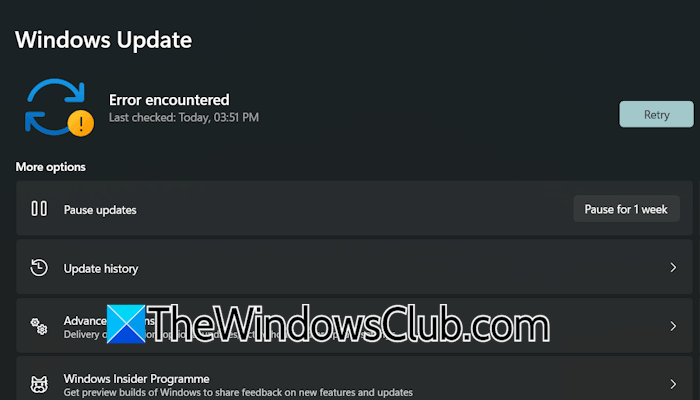
Fix Windows Update “Error encountered”
Use the following fixes if you cannot download Windows Update due to the Error encountered message.
- Restart your computer and try again
- Run Windows Update Troubleshooter
- Reset Windows Update Components
- Disable the third-party antivirus
- Check the disk space
- Turn off VPN or Proxy (if applicable)
- Reset your network
- Use Microsoft Update Catalog
All these fixes are explained in detail below.
1] Restart your computer and try again
Sometimes, Windows Update issues occur due to a minor glitch. Restarting the computer works in such cases. Restart your computer and download the update again.
2] Run Windows Update Troubleshooter
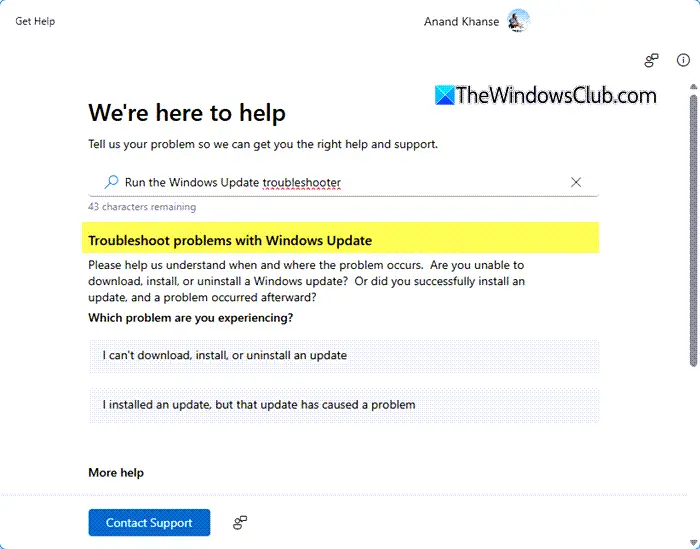
Windows Update Troubleshooter is an automated tool that helps users fix Windows Update problems. Run this tool and see if it helps. In Windows 11, you can run the Windows Update troubleshooter through Settings or the Get Help app.
3] Reset Windows Update Components
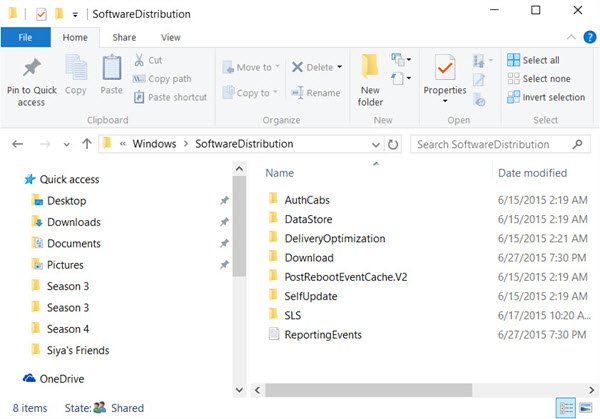
Windows Update Components are the background services and system files that help Windows check for updates, download them, and install them properly. If these components get corrupted, Windows encounters issues while downloading and installing updates. In such a case, resetting the Windows Update Components can fix the issue.
4] Disable the third-party antivirus
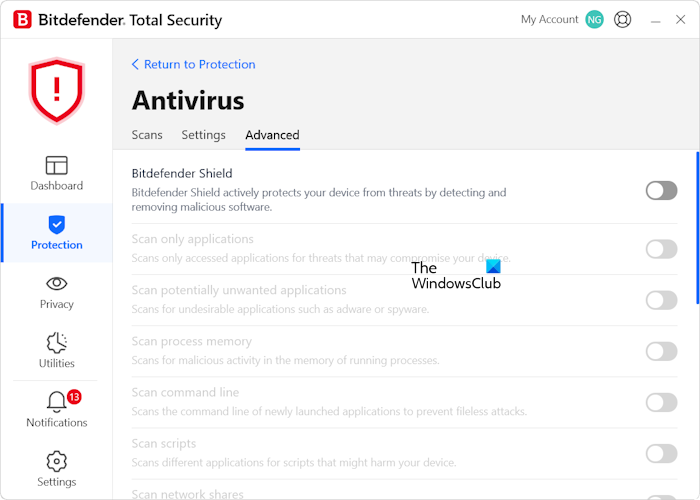
Sometimes, a third-party antivirus conflicts with Windows Updates, resulting in an error when attempting to download or install Windows Updates. If you use a third-party antivirus, disable it temporarily and then run Windows Update again. If the error does not occur, you can enable your antivirus again after installing the update.
5] Check the disk space
Your system should have at least 10 GB of free space on the C drive to install Windows Updates successfully. If your C drive has less than 10 GB of space, try to free up space. For this, you can use the built-in tool, Disk Cleanup. If Disk Cleanup does not free up enough space on your C drive, you have to delete unwanted files from your C drive. For this, you can use a third-party disk analyzer tool, such as WizTree. If the tool shows a huge size of the Windows folder, you can delete some files from that folder to free up some space. Windows folder is a crucial folder of the Windows OS. Deleting files from this folder can make your system unstable. Therefore, it is important to know which files you can delete from the Windows folder.
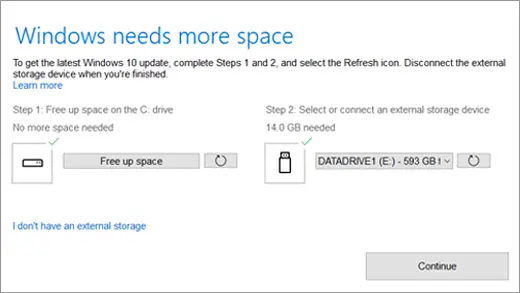
If you cannot free up the required space from your C drive, you can still update Windows using an external storage drive with at least 10 GB of free space. Before using the external storage drive, back up all the data from it. Follow these steps:
- Connect an external storage device with at least 10 GB of free space.
- Go to the Windows Update page in Windows 11 Settings.
- If you don’t have enough free disk space to install updates, you should see an option on the Windows Update page called Fix Issues. If so, select it. This will launch a tool that lets you update your PC using an external storage device.
- Select the external storage device and click Next or Continue.
- Once the installation is complete, you can remove the external storage device.
6] Turn off VPN or Proxy (if applicable)
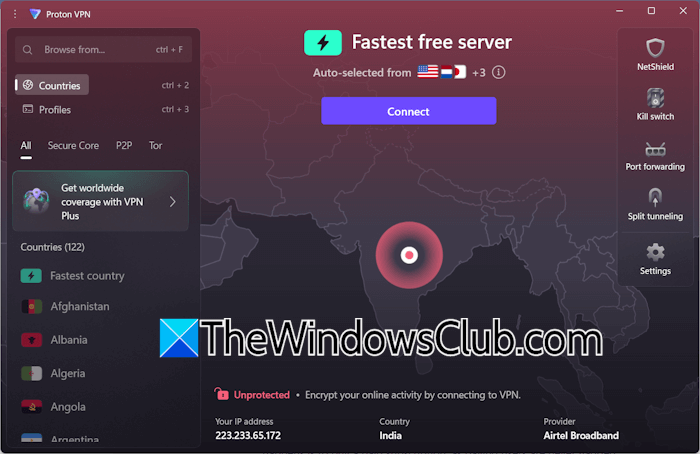
VPN makes the connection secure by encrypting the internet traffic. However, it slows the internet connection, causing issues with some applications and Windows Update. If you use a VPN or proxy, disable it and run Windows Update again.
7] Reset your network
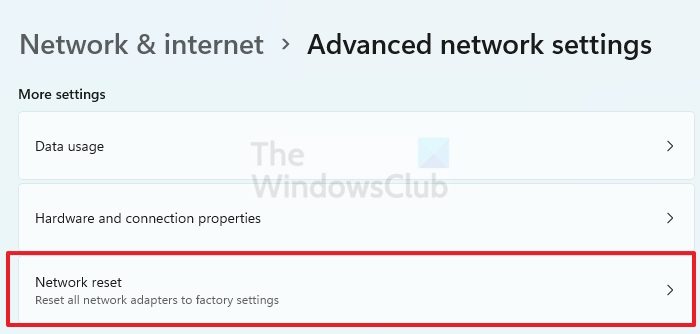
The issue might be occurring due to network issues. A Network Reset helps fix some common network issues on a Windows computer. During this action, Windows reinstates all the network adapters and sets networking components to their default values. Before proceeding, save all your pending work, as Windows will automatically reboot after 5 minutes to apply the changes.
8] Use Microsoft Update Catalog
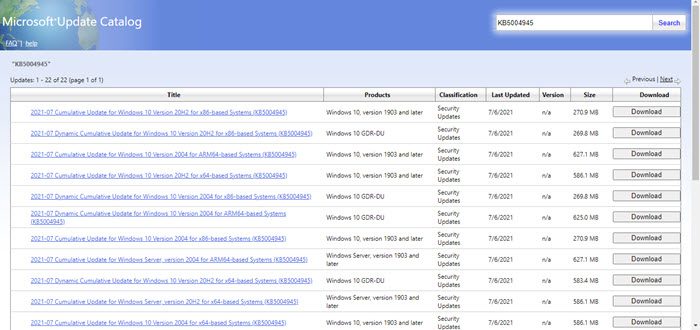
If you know the KB number of the failed Windows Update, you can use Microsoft Update Catalog to install it manually.
That’s it. I hope this helps.
How to fix Windows 11 update problems?
To fix Windows 11 Update problems, you can try some fixes, like running the Windows Update troubleshooter, resetting the Windows Update Components, disabling your third-party antivirus, freeing up space on your C drive, repairing the corrupted system image files, etc. However, some Windows Update errors require additional fixes.
Is TPM 2.0 required for Windows 11?
Yes, TPM 2.0 is officially required to install and run Windows 11. It securely stores encryption keys and certificates, and prevents unauthorized access during malware or ransomware attacks. However, installing Windows 11 without TPM 2.0 is also possible using a third-party tool, such as Rufus, but it is not recommended.
Read next: Windows Update Installer encountered an error.
