
In this post, we will show you how to fix a Windows 11 Update slow download issue. If your Windows 11 Update is taking a very long time to download, you are not alone. Many users have reported that Windows updates download very slowly, even with a fast, stable internet connection.
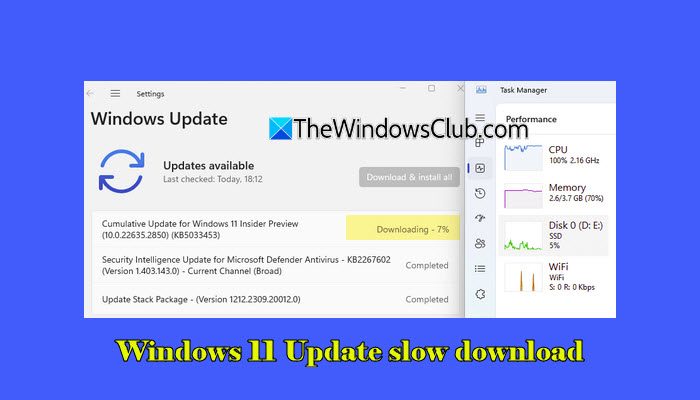
This can be frustrating, especially when you are trying to install an important update, but the download gets stuck or takes hours to finish. In this article, we will explain the common reasons behind these slow downloads and share effective troubleshooting steps to speed them up.
Why is my update downloading so slow?
Windows 11 updates may download slowly due to several factors, including server congestion, a weak or unstable internet connection, Delivery Optimization limits, or issues with the Windows Update cache. In some cases, VPNs, proxies, or security software can also affect download speed.
Windows 11 Update slow download [Fix]
Speed up Windows 11 update download! If Windows Updates are slow to download in Windows 11/10, you can make Windows Updates download faster using these tips.
- Reset Windows Update components
- Turn off bandwidth limits in Delivery Optimization
- Restart Windows Update & Background Intelligent Transfer services
- Disable VPN or Proxy temporarily
- Restart modem or switch to another network
Let us see this in detail.
Note: Before you try the advanced fixes, run the Windows Update Troubleshooter. It can automatically check for and fix basic issues that may be affecting Windows Update.
1] Reset Windows Update components
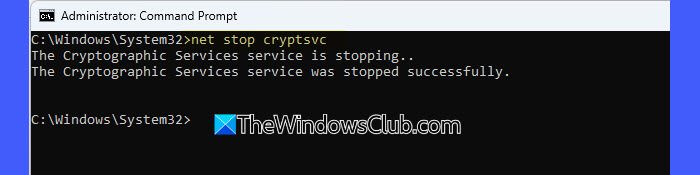
Update components are the services and temporary folders that Windows uses to download and install updates. This includes the SoftwareDistribution and Catroot2 folders, where Windows stores update files.
Resetting these components involves manually stopping the Windows Update services, renaming the SoftwareDistribution and Catroot2 folders, and then restarting the services. When these folders are renamed, Windows automatically creates new ones and starts using them for new update files. This removes any damaged or stuck update files that could be slowing down the download or causing the update to freeze.
Open Command Prompt as administrator. Run these commands one by one:
net stop bits
net stop wuauserv
net stop appidsvc
net stop cryptsvc
The above commands stop all Windows Update services. Next, run the following commands:
ren %systemroot%\SoftwareDistribution SoftwareDistribution.old
ren %systemroot%\System32\catroot2 catroot2.old
The above commands rename the SoftwareDistribution and Catroot2 folders that store temporary update files.
Next, restart the services by running the following commands:
net start bits
net start wuauserv
net start appidsvc
net start cryptsvc
Reboot your PC and check for updates again.
Note: This is a simplified version of the full Windows Update components reset. It covers the core steps that fix slow or stuck updates for most users. If the problem continues, you can follow the complete reset procedure, as described in our detailed guide.
2] Turn off bandwidth limits in Delivery Optimization
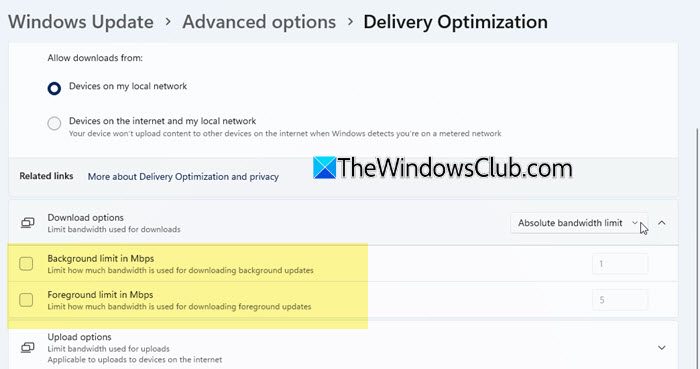
Windows Update Delivery Optimization (WUDO) is a feature that manages how fast updates and apps download on your PC. It includes bandwidth limits that control how much of your internet speed Windows can use for downloading updates. If these limits are turned on, Windows Update may download extremely slowly, even when your internet is fast.
Turning off these limits lets Windows use your full internet speed, helping updates download much faster.
Press Win + I to open the Settings app. Go to Windows Update. Click Advanced options.
Under Additional options, select Delivery Optimization. Under Download options (or Advanced options > Download settings), make sure the Background limit and Foreground limit options are unchecked for whichever mode is selected (Absolute bandwidth limit or Percentage of measured bandwidth).
Note: If you want Windows Update to stay fast during your active hours but use less internet at other times, you can also limit update bandwidth only during specific hours.
3] Restart Windows Update & Background Intelligent Transfer services
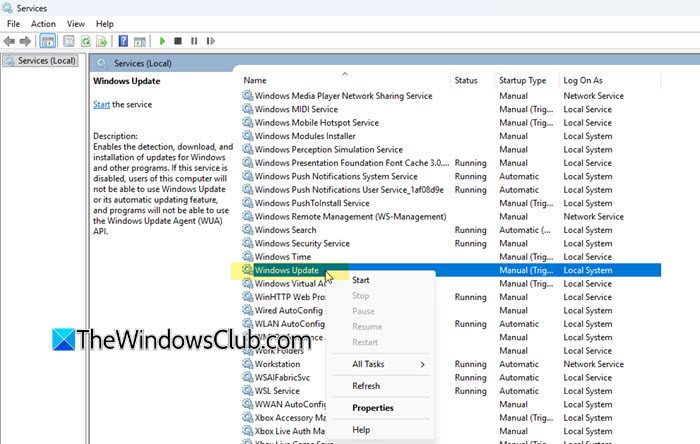
Windows relies on several background services to download and install updates. The two most important ones are:
- Windows Update service (wuauserv)
- Background Intelligent Transfer Service (BITS)
Sometimes these services get stuck, freeze, or fail to respond. When that happens, update downloads may become very slow or stop progressing. Restarting these services gives them a fresh start, which often fixes slow or stuck Windows Update downloads.
Press Win + R, type services.msc, and press Enter.
In the Services window, find the Windows Update service. Right-click it and select Restart. If Restart is greyed out, click Stop, wait a few seconds, then click Start.
Repeat the same steps for BITS.
Close the window and check for updates again.
4] Disable VPN or Proxy temporarily
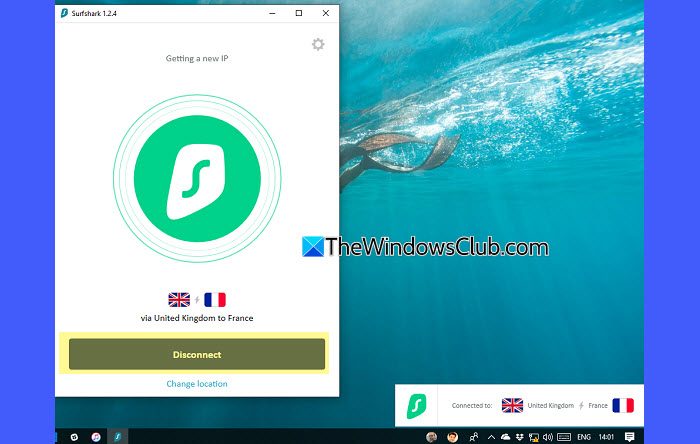
Several users have reported that Windows Update downloads become slow or get stuck when they are connected to a VPN or using a proxy. Turning them off temporarily often restores normal download speed and helps the update complete faster.
In most VPN clients, like NordVPN, ExpressVPN, ProtonVPN, you’ll see a button to Disconnect if your PC is currently connected to a VPN server. You can also turn it off from Windows Settings by going to Settings > Network & Internet > VPN, selecting your active VPN connection, and clicking Disconnect.
To disable Proxy, open Settings, go to Network & Internet, and select Proxy. Under Manual proxy setup, turn off the Use a proxy server option. If you use an automatic configuration script, turn that off as well.
5] Restart modem or switch to another network
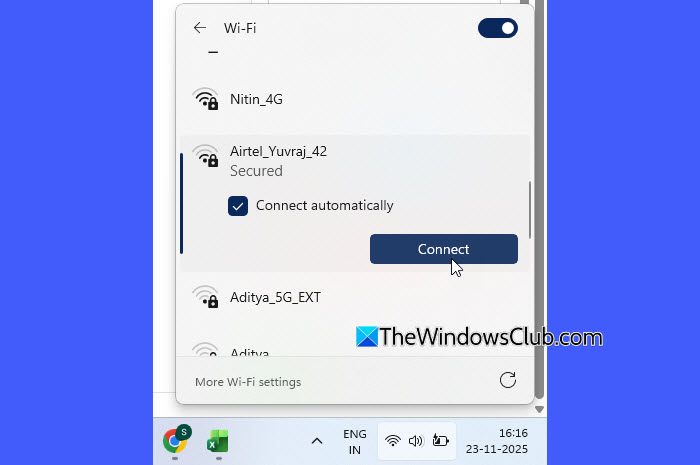
At times, the problem isn’t with Windows but with your Wi-Fi or internet connection. Restarting your modem or switching to another network often clears temporary connection issues and helps Windows Update download faster.
Turn off your modem/router using the power button or unplug it. Wait for 30 seconds. Turn it back on and wait until all the lights stabilize. Connect your PC again and try downloading the update.
You can also try connecting your PC to another network, such as your phone’s mobile hotspot, to see if the Windows Update download speed improves.
I hope this helps.
How to speed up Windows 11 Update download
To speed up Windows 11 update downloads, disable bandwidth limits in Delivery Optimization, reset the Windows Update cache, and ensure you’re on a stable high-speed connection. You should also turn off VPNs and close background apps that consume bandwidth.
Windows 11 Update slow install
Sometimes the download completes quickly, but the installation phase takes a long time. This usually happens when your PC is applying large feature updates, optimizing files, or installing cumulative patches. Slow storage, low disk space, or background apps can also delay installation. In many cases, the update is still running in the background even if the percentage doesn’t move. Restarting the PC or running the Windows Update Troubleshooter often helps.
Windows 11 Update taking too long to restart
If Windows 11 update is taking too long to restart, you should wait patiently for a while. If it takes more than 30 minutes, press Ctrl+Alt+Del to check responsiveness and disconnect external devices. If it doesn’t progress after an hour, force a restart by holding the power button, then boot into Safe Mode and run Windows Update Troubleshooter. Clear the SoftwareDistribution folder cache, restart Update services and then try again and see if that helps.
Just one Windows Update is very slow to download
If only one specific update is taking a very long time to download, it is usually due to temporary server congestion or a problem with the update package itself. In such cases, the most effective fix is to reset the Windows Update cache. You can also manually download that update from the Microsoft Update Catalog if it continues to download slowly.
Read: Fix 0x800f0986 Windows Update error.
How to fast update Windows 11?
To speed up Windows 11 updates, make sure your internet is stable. Remove any bandwidth limits and ensure no VPN or proxy is active. Also, restart Windows Update services and clear the update cache. After this, the update usually downloads much faster.
Read Next: Windows 11 Feature Update Stuck at 0 or 100 % downloading.
