
Some users encounter the 0x800f0993 Windows Update error while installing an update. Reports suggest that this error occurs while installing a Security Update. However, some users also reported encountering this error while upgrading to a newer version of Windows 11. A Windows Update error can occur for several reasons, such as corrupted Windows Update Components, third-party antivirus software, or corrupt system image files. If you encounter this error while installing a Windows Update or upgrading to a newer version of Windows 11, the solutions provided in this article will help.
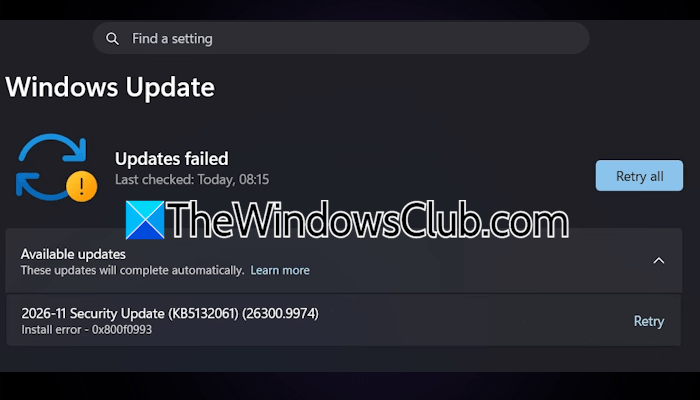
Fix Windows Update Error 0x800f0993
Use the following fixes for the 0x800f0993 Windows Update error:
- Run the Windows Update Troubleshooter
- Repair your system image files
- Reset Windows Update Components
- Install the update manually from the Microsoft Update Catalog
- Temporarily disable your antivirus
- Perform an In-place Upgrade (if applicable)
- Reinstall your current Windows version
All these fixes are explained in detail below. But before proceeding, restart your system and download the update again. Sometimes, issues occur due to a minor glitch that requires only a restart to get fixed.
1] Run the Windows Update Troubleshooter
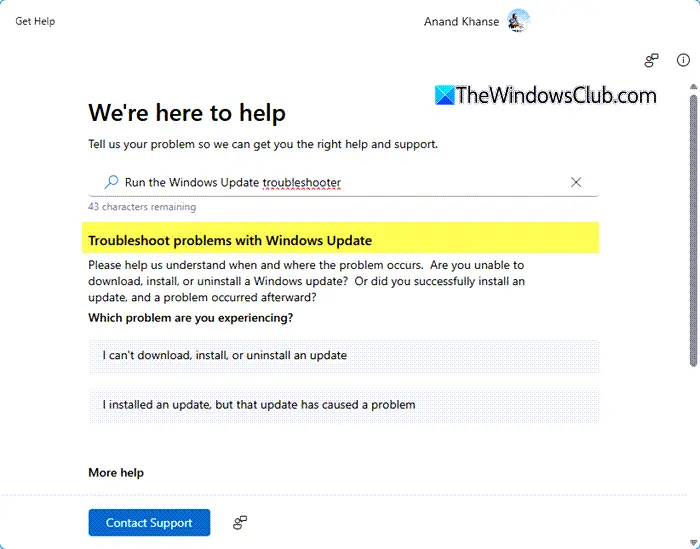
Windows Update Troubleshooter is an automated tool in Windows 11 that helps fix Windows Update issues. You can run it through the Get Help app or via Windows 11 Settings. Open Windows 11 Settings and navigate to System > Troubleshoot > Other troubleshooters. Click Run next to Windows Update. It will launch the Windows Update Troubleshooter.
2] Repair your system image files
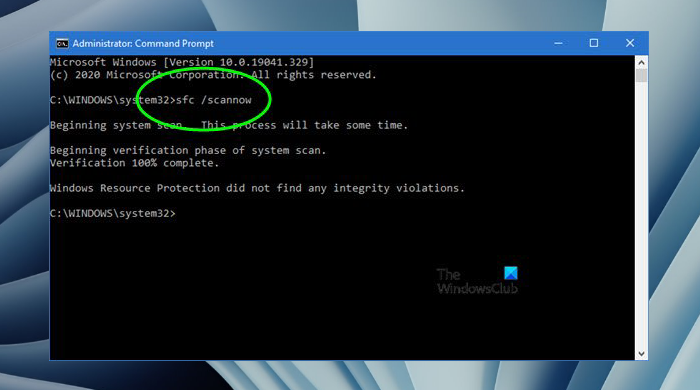
Corrupt system image files can also cause Windows Updates to fail. Your system might have some corrupt files, causing this problem. To confirm this, use the built-in tools to scan your computer for system file corruption. First, run an SFC scan. When the SFC scan is completed, run the DISM scan. These scans will take time. Therefore, do not interrupt them.
3] Reset Windows Update Components
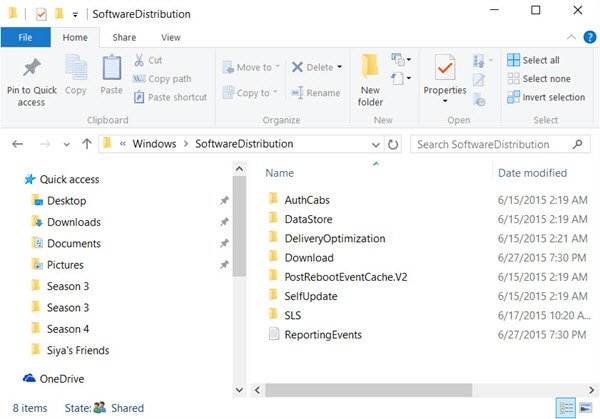
If the System File Checker and DISM could not find any system file corruption or the issue persists even after repairing the corrupted system image files, resetting the Windows Update Components can help. This action clears the corrupted temporary Windows Update files, which conflict with the Windows Update services and cause the update to fail.
4] Install the update manually from the Microsoft Update Catalog
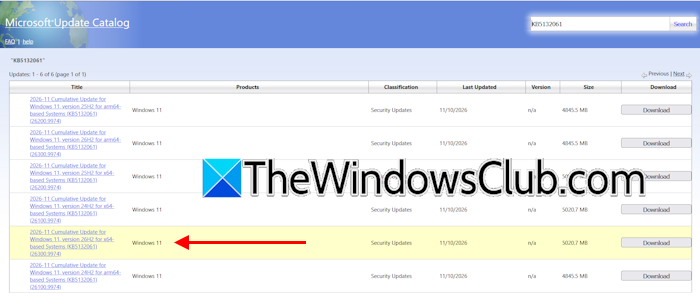
Microsoft Update Catalog is an official Microsoft website where you can manually download Windows Updates. When a Windows Update fails to install, you can download the same update from this website and install it manually. Each Windows Update has a unique KB number, such as KB5132061. This KB number is displayed in Windows Settings when an update is available. To download the failed Windows Update manually, visit the Microsoft Update Catalog website and search for the update using that KB number. You will see multiple results. Based on your system’s architecture, download the right Windows Update. For example, if your system has x64 architecture, download the update released for x64-based systems.
5] Temporarily disable your antivirus
Your antivirus might be causing the Windows Update to fail. To confirm this, temporarily disable your antivirus. If this works, and the error does not occur this time, you can enable the antivirus again after installing the Windows Update.
6] Perform an In-place Upgrade (if applicable)
Microsoft is also providing Windows 11 upgrades through Windows Updates. Some users encountered the 0x800f0993 Windows Update error while installing the newer version of Windows 11 through Windows Update. If this happens to you, you can perform the in-place upgrade. An In-place Upgrade installs Windows on the current operating system. Therefore, all your files and apps remain preserved. However, before proceeding, we suggest you back up all your important files.
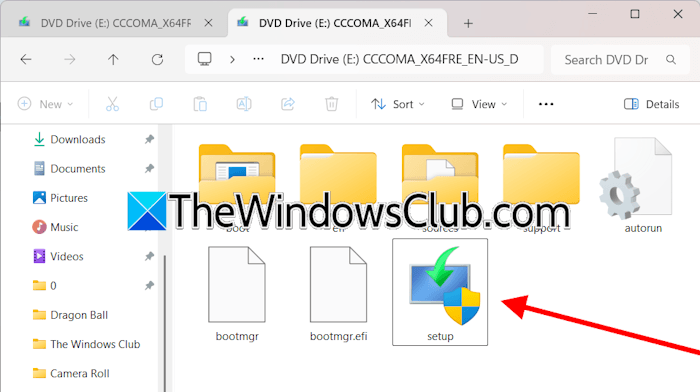
To perform an In-place Upgrade, download the Windows 11 ISO from the official Microsoft website and mount it in File Explorer. When it is mounted successfully, you will see the ISO file as a separate drive. Open that drive, and you will see a setup file. Double-click on the Setup file to install Windows 11 latest version. After upgrading to the newer version of Windows 11, eject the mounted Windows 11 ISO.
7] Reinstall your current Windows version
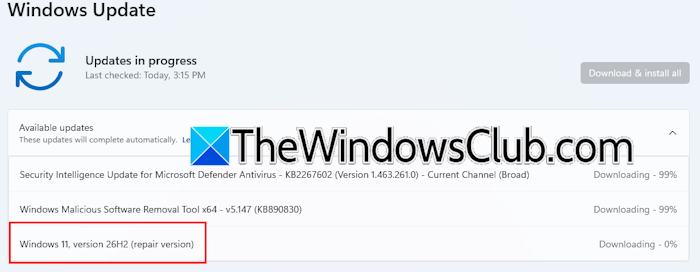
Fix problems using Windows Update is a new feature in Windows 11 that downloads and installs a repair version of Windows. This option is useful when you are having issues with your system. All your apps, settings, and files will be preserved during the installation. You can try this and see if it helps. To use this feature, open Windows 11 Settings and go to System > Recovery. Now, click the Reinstall now button next to the Fix problems using Windows Update option.
After reinstalling the operating system, check for updates manually and see if you can install the update without an error.
That’s it. I hope this helps.
How can I fix the error code 0x80070003 in Windows Update?
If you encounter the 0x80070003 Windows Update error, repair your system image files using the built-in tools, System File Checker and DISM. If that doesn’t work, reset Windows Update Components and update your device drivers. You can also try running the Windows Update Troubleshooter.
How to fix a corrupted Windows Update?
You can fix the corrupted Windows Update by repairing your system image files. To do this, run the SFC and DISM scans. You can also use the Windows Update Troubleshooter to fix corrupted Windows Update files.
Read next: We couldn’t complete the updates, Undoing changes.
