
There are multiple ways to update Windows 11 or Windows 10. You can use a USB drive, follow the regular way, but when you fall short of storage space, you will need to find another way. The best way is to clear your Windows of all unnecessary files, or change the folder where the Update files are downloaded. However, if neither of these is possible, you can also update Windows 11/10 using External Storage.
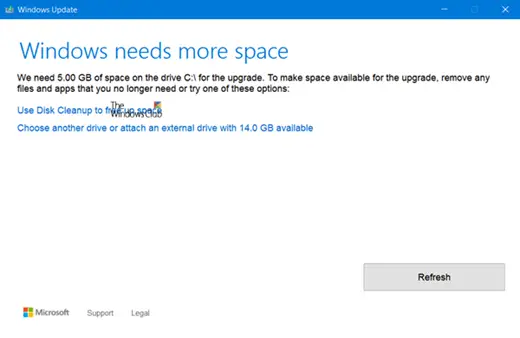
Updates are available, but we temporarily need some space to download.
Windows needs more space to update
When you do not have enough space on your hard drive for the update, Windows will automatically ask you to connect an external drive. It will then temporarily extend the space on your hard drive while the update is in progress.
How to update Windows using an External Storage
It is interesting to note that his option is not available in the settings, but only shows up when you try to free up space when the Windows Update sends you storage space notification.
You can select either I want to use external storage instead of or I don’t have an external storage on the lower-left side of the window.
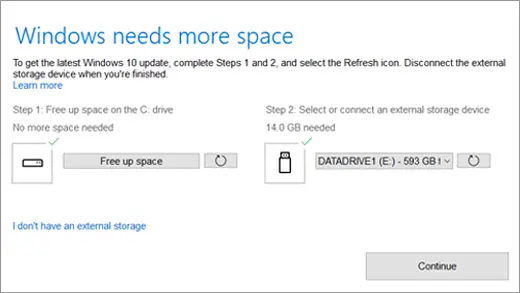
Step 1: Free up space
You should know one thing about Windows Update. The primary storage will always need a minimum amount of free space. The external drive is used to make sure the space used to download the update is moved. This tip helps when you need space to download the updates and have minimal space on your C drive for the update.
You will see a wizard window pop-up when the storage is really low on space.
So let’s clear some space first.
- Click on Free up space.
- It will scan your drives and offer you a list of files occupying space.
- If you clear enough files, the mark will go green. Then you will be all set to update without using an external drive. But if you cannot, it’s time to connect an external drive with a lot of free space.
You could also disable Hibernation and delete the Hiberfil.sys file, if the space problem is critical on your System Drive.
Step 2: Connect External Drive
- Connect your external storage device. Wait a little, and it will appear in the drop-down list under Step 2 in the image.
- A green checkmark will appear next to the storage drive icon if the external storage device has enough free space.
- Select Continue to finish installing the update.
Updating Windows using an External Drive is a rare situation. Most of us have enough storage space on our PCs to take care of the Windows 11/10 Update. However, the option will come in handy when needed.
Hope you find this tip useful!
Related error: Windows Update Not enough disk space.
Can I use an external hard drive to update Windows?
Yes, you can use an external hard drive to update Windows, however this option will be offered to you when running Windows Update. Connect the drive to your computer, and select it from the options in the update wizard. Follow the on-screen instructions to complete the installation, as explained in this post.
Can I use an external hard drive for Windows installation?
You can install Windows on an external hard drive using the “Windows To Go” feature, allowing for a portable setup. However, it’s designed for temporary use, and not all Windows versions support it. Standard installations usually require an internal drive unless you use third-party tools to circumvent this restriction.
What do I do if there isn’t enough disk space for the update?
If there isn’t enough disk space for an update, use external storage solutions like a USB drive, SD card, or external hard drive. Transfer files to free up space temporarily. Also run the Disk Cleanup Tool to clear up disk space.
