
When updating Windows 11 or Windows 10 if you are running into low storage space problem, it simply means that there is not enough disk space on the drive where Windows 11/10 has been installed. When Windows 11/10 downloads the update packages, it extracts them in a separate folder which means there should be enough space on that drive for the update to start. Since Windows does not check systems for adequate space requirements before it initializes, users only become aware of the issue when the update process kicks off. In this post, we will help you resolve Windows update issues on devices with low storage space.
Your computer needs a required update but you don’t have space available for the download
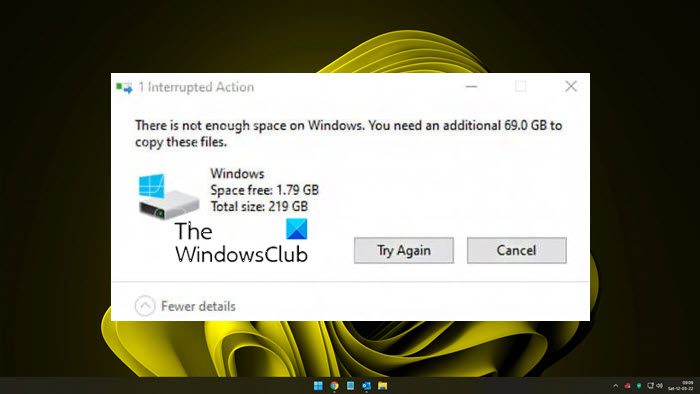
On Windows 11/10 thin clients or embedded systems that have limited storage space when you run Windows Update, the update initialization may fail. This is because Windows Update does not check systems for adequate space requirements before it initializes. So you need to manually make sure that you have enough disk space available.
Windows Update Not enough disk space
If your computer needs a required update but you don’t have space available for the download, Windows Update displays Not enough disk space message. Take these steps to address the issue.
1] Clean Up Temporary Files
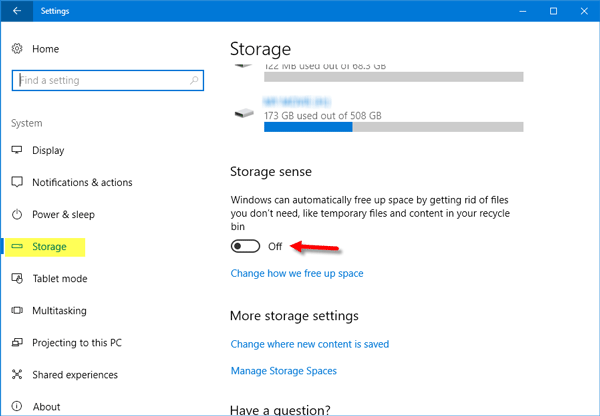
Windows 11/10 comes with Storage Sense feature which can either automatically clean all the temporary files from your computer or you can do it manually.
Alternatively, you may use the Disk Cleanup Tool. Just make sure that the options to delete Windows Upgrade log files and Delivery Optimization files are checked.
When running manually, make sure to check folders like the download, where you keep downloading files. This will make sure you are not deleting important files.
You could also disable Hibernation and delete the Hiberfil.sys file, if the space problem is critical on your System Drive.
2] Delete files from Download Folder
If you are manually deleting everything, first make sure to back up important files that you may have downloaded in that folder. We all have that bad habit of keeping files in that folder and reusing them from there, but it’s always a bad idea to keep the files there. Once you have made sure, delete the files from there. You can use SHIFT + DEL to permanently remove the files after selecting all of them.
We would highly recommend you change the Download folder destination to some other drive to make sure it doesn’t occupy space in your primary drive.
3] Change Windows Update Folder Location
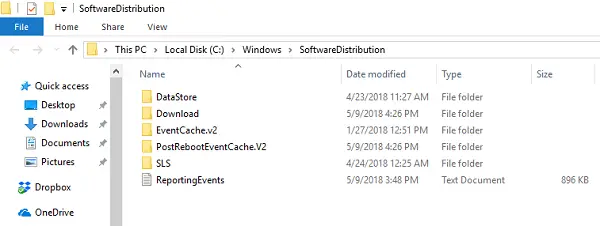
If you cannot create some space on your primary drive, you can change the location of the Windows Updates folder where Windows downloads all the files for updating the OS. Chances are that you will have at least one drive that will have enough space for the update to complete.
4] Empty your Recycle Bin
Files that are deleted from the computer go to the Recycle Bin first. If you haven’t emptied it for some time, those files are still occupying space. Make sure to right-click on the bin, and empty it. We recommend you automatically empty the recycle bin from time to time.
5] Uninstall apps and software you don’t use anymore
This is something which I do every week. I keep installing a lot of software for either testing or just out of curiosity, only to never use it again. You can go to Programs & Features and uninstall them one by one. If you have installed from the Store, you can view the installed programs and then choose to uninstall.
If you are not able to uninstall them, you can boot your Windows into Safe mode, and then uninstall the applications in Safe Mode.
5] Move Files to another drive
It’s a common thing to do, but if you haven’t really thought about it, move large-sized files into another drive from the primary drive.
6] Reduce on-drive files from Cloud Services
If you are using a lot of cloud backup services like OneDrive and Dropbox, you may want to reduce the number of files you have it on your drive. Most of them come with the option where you can check off folders from the list. You can also choose to move the destination of those cloud services to another drive on your computer.
Related read: Windows Update needs more space– Update Windows using an External Storage.
Here are more tips that will help you free up disk space. I hope these tips will help you resolve Windows 11/10 update issues on devices with low storage space.
What do I do if there isn’t enough disk space for the update?
If there isn’t enough disk space for the update, use an external storage device such as a USB drive, SD card, or external hard drive to temporarily free up space by transferring your files from the system drive. Also, follow the suggestions laid down in this post.
Why does my computer say there is not enough disk space when there is?
When your computer says there is not enough disk space despite having space, it could be due to disk corruption, file corruption, or hidden files consuming space. To resolve, run the ChkDsk Tool and the Disk Cleanup tool. Also, check for large hidden files.
