
Storage Sense in Windows 11 is a great way to manage your computer’s storage. When configured, it can automatically empty the Recycle Bin, delete temporary files, and perform other tasks to organize your storage. In this post, we show you how to turn on, configure and use Storage Sense in Windows 11 to free up disk space by automatically or manually deleting junk files.
Clean up Hard Disk using Windows Settings
Windows offers a built-in solution that occasionally clears occupied space. Even if you do not want to clean up, you can clearly understand what is occupying space on the system drive.
Use Win+I keyboard shortcut to open Windows Settings. Then select System and then click on Storage. The following section will detail the C drive, or the System drive.
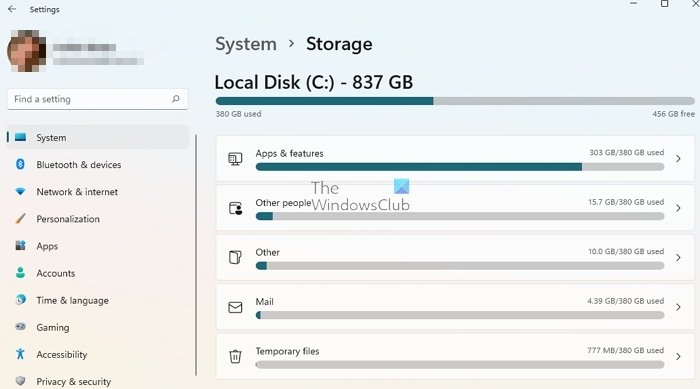
Windows will first display a list of all connected storage, and you need to click on it to see a detailed view.
To manually clear the space or find out what is occupying the storage, click on the drive, and Windows will reveal a categorized view. You can see the space taken by Apps, System Reserved, Other people, mail, documents, temporary files, etc.
Clicking on any item opens another panel with a button that lets you manage that item and the disk space it occupies.
To delete the temporary junk files, scroll down to the Temporary Files option and click on the opportunity. The next panel will open.
The options available for removing four different types of temporary files will be listed. Select Remove files to clean up the unwanted files. Depending on what is available for deletion, you will see the following options for cleaning up four categories of files from your disk drive:
- Temporary Files
- Downloads Folder
- Empty Recycle Bin
- A previous version of Windows
- Windows Update Cleanup
- System error memory dump files
- Delivery optimization files
- Windows Upgrade log files
- Microsoft Defender Antivirus
- Thumbnails
- Temporary Internet Files
- Temporary files
- System error minidump files
- Windows error reports and feedback diagnostics
- DirectX Shader Cache
- Temporary Windows Installation Files.
Please note that the option to clean up files would not appear on your computer screen if there’s no previous version of Windows on your system. Select the files you want to delete and then press the Remove files button.
What is the Cleanup Recommendations feature?
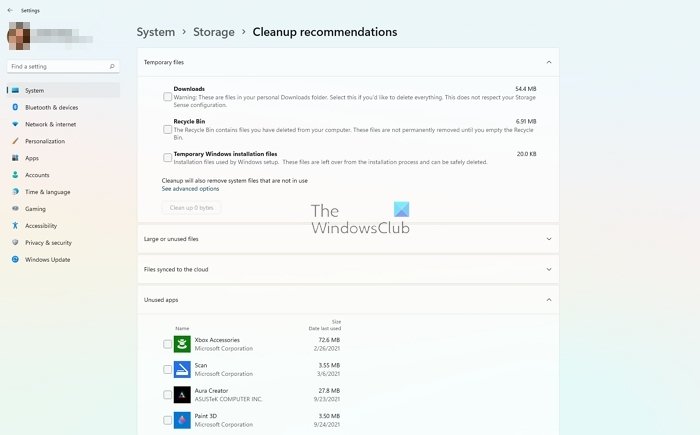
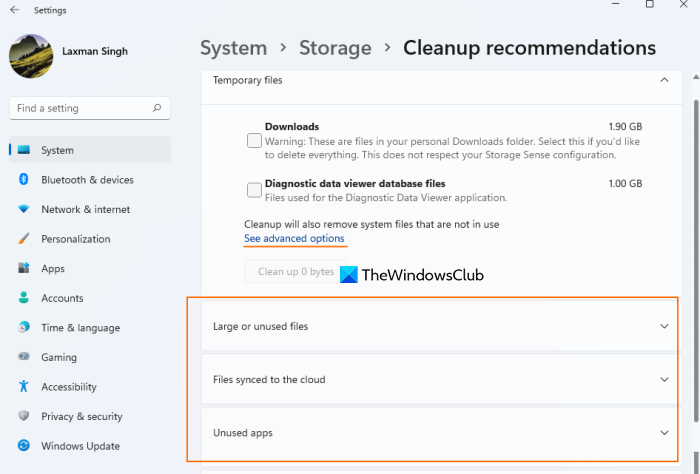
If you find it difficult to figure out what to delete, cleanup recommendations can be handy. In the Storage section, they will recommend which folders you can empty, including large or unused files, files that are in sync with the cloud, and unused apps you have barely used. Make your selection, and then it will delete the file and app.
How to view Storage of Other Drives
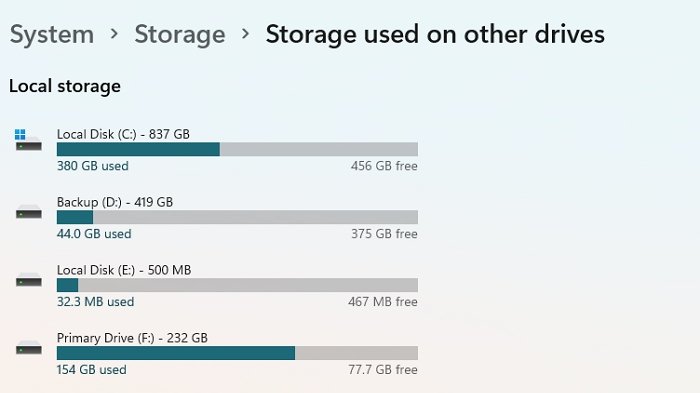
While on Windows 10, you will see your drives listed along with the disk space that has been used right up front, Windows 11 is different. You need to expand the Advanced storage settings panel and then click on Storage used on other drives. Select the drive you would like to know more details like the nature of stored files and the disk space they consume.
What is Storage Sense?
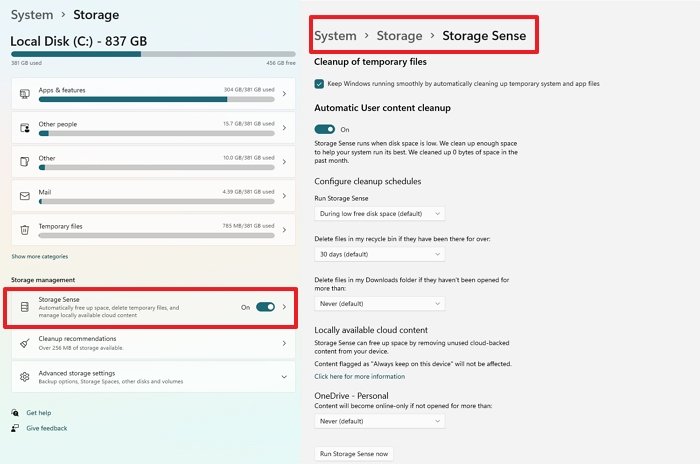
This feature automatically clears files from predefined folders that Windows considers emptyable. Storage Sense only triggers when disk space is low. It empties the recycle bin, downloads the folder and OneDrive. All this can be configured under Settings > Storage Sense.
Use Storage Sense in Windows 11 to free up disk space
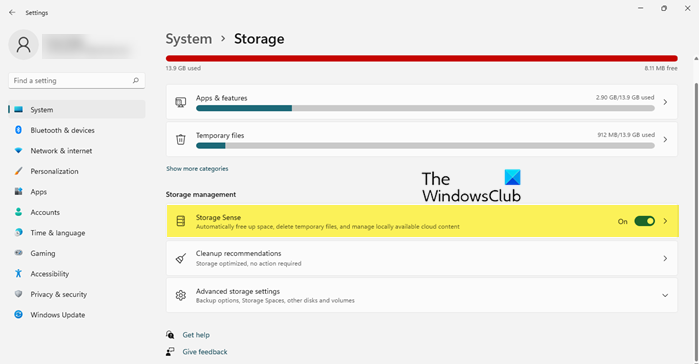
Enable Storage Sense on your Windows 11
First of all, you have to enable Storage Sense on your Windows 11 computer from the Settings app. Follow the given steps to do the same.
- Open Settings by Win + I or from the Start Menu.
- Make sure that you are on the System tab and click Storage.
- Now, use the toggle to enable Storage Sense.
Alternatively, you can also search out “Storage Sense” from the Start Menu and then enable the toggle.
Either way, you will see a pop-up near the taskbar of Storage settings, just click Enable and you will be good to go.
Configure Storage Sense
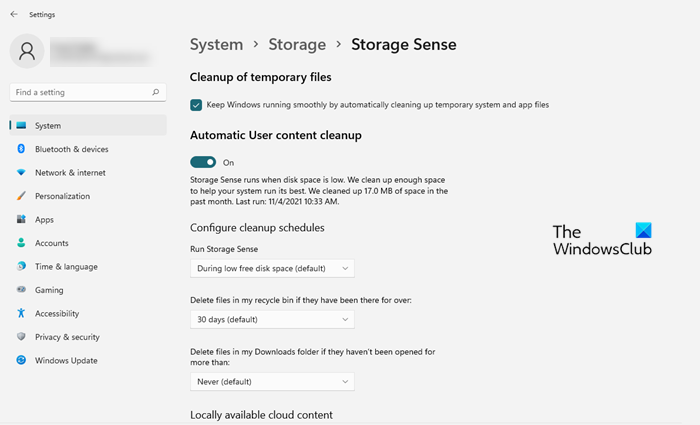
Now, let us configure Storage Sense, change its settings and make it work the way you want. To do that, click on Storage Sense after enabling the same. Now, you will see the following options.
- Cleanup of temporary files: You can enable this toggle if you want Storage Sense to delete temporary files.
- Automatic User content cleanup: To run Storage Sense automatically.
- Run Storage Sense: From here you can select when you want to run Storage Sense. The options are:
- Every day
- Every week
- Every month
- During low free disk space (default)
- Delete files in my recycle bin if they have been there for over: Select the lifespan of your bin files, after which they ought to be deleted by Storage Sense. The options are:
- Never
- 1 day
- 14 days
- 30 days
- 60 days.
- Delete files in my Download folders if they haven’t been opened for more than: To delete redundant downloads. The options are:
- Never
- 1 day
- 14 days
- 30 days
- 60 days.
- Locally available cloud content: To clean up unused items from your Cloud Storage. The options are:
- Never
- 1 day
- 14 days
- 30 days
- 60 days.
Related: How to delete Files older than X days in Windows
Run Storage Sense manually
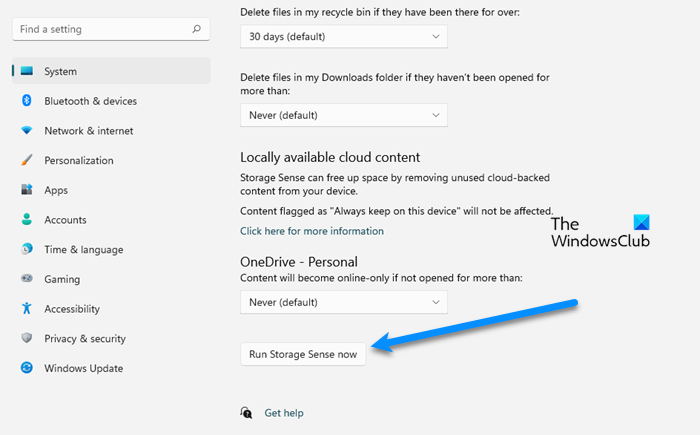
If you want to run the Storage Sense manually, just click on the Run Storage Sense now button.
Storage Sense Cleanup Recommendations
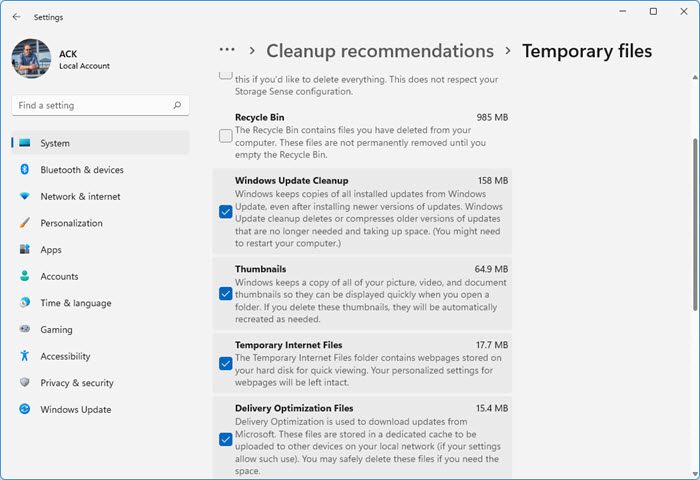
When on the Storage page, scroll down a bit and click on Cleanup Recommendations. Windows will show you a list of junk and temporary files that you can safely delete.
There are mainly four sections under Cleanup recommendations that you can access to find and clean temporary items and other data to free up disk space. These are:
- Temporary files: Using this section, you can select locations from which temporary and other files can be removed to free up disk space on your Windows 11 computer. By default, this section shows only Downloads, Diagnostic data viewer and database files, and Recycle Bin. But you can access the See advanced options and select all the other locations for cleaning temporary files and other data. Available locations are:
- Windows Update Cleanup: Cleaning the copies of installed updates can help you gain disk space is GBs
- Temporary files stored by Microsoft Store apps or programs in specific folders
- Temporary Internet Files
- DirectX Shader Cache
- Delivery Optimization Files (used for) downloading updates from Microsoft, etc.
- Unused apps: If some apps are not being used for a very long time and occupying the disk space unnecessarily, then a list of those apps is visible in this section. You can select those apps and perform the clean-up action for your Windows 11 PC
- Files synced to the cloud (if any)
- Large or unused files: Here, you will see items and select those items that you don’t want anymore.
Free up storage space on other drives in Windows 11
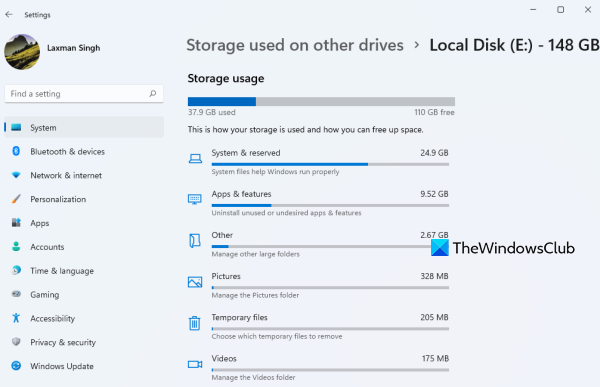
Windows 11 Storage Sense feature is pretty good. However, this feature works for the system drive only (C drive or the drive where you have installed Windows) and not the other drives. So, if you want to free up space on other drivers in Windows 11, then use the following steps:
- Open the Settings app using Win+I hotkey
- Select the System category
- Access the Storage page
- Expand the Advanced storage settings in the Storage management section
- Click on the Storage used on other drives option
- Select a drive.
Now you will be able to see the storage space used by different categories (Apps, Pictures, Temporary files, Music, Documents, etc.) in the selected drive and access any category to take further action.
Read: Other people is taking up storage space on Windows 11
How to remove Temporary files in Windows 11
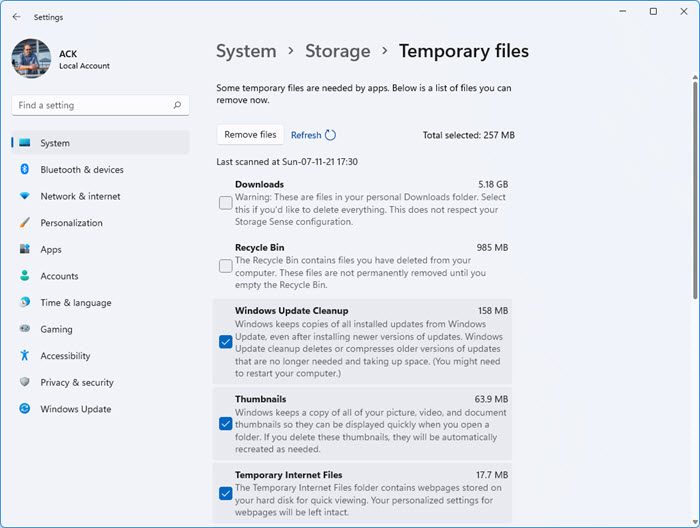
To remove Temporary files in Windows 11, you have to follow the given steps.
- Open Settings.
- Go to System > Storage > Temporary files.
- Now, you can select the Temporary files that you want to delete and click Remove files.
Wait a few minutes; Windows will automatically clean up your system.
This post will help you if Storage Sense is not working on Windows 11.
TIP: Read here about the Storage Diagnostic Tool in Windows. It is a command-line tool that allows System Administrators to collect and analyze storage-related data.
How do I find out how big my Hard Drive is in Windows 11?
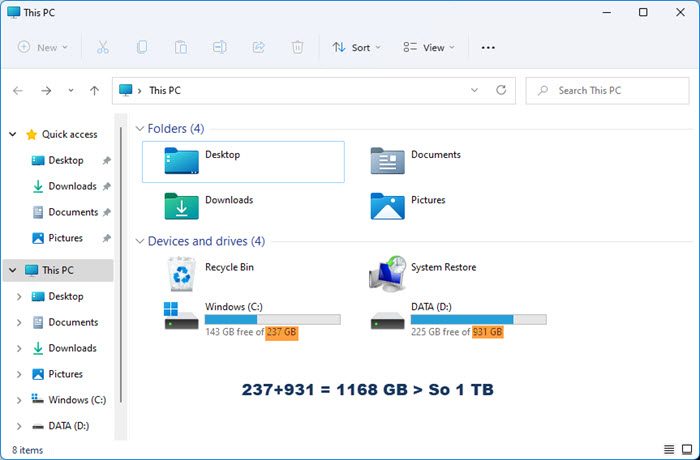
The easiest way to find the size of your Hard Drive is to open File Explorer, see the figures listed for each partition, and add them. You will learn how big your Hard Drive is.
How do I free up disk space on Windows 11?
If you want to free up disk space on Windows 11, one of the best and most recommended options is to use the Storage Sense feature. It helps to automatically clean temporary app and system files, copies of installed updates, etc. You can configure it to run daily, monthly or at other intervals and set other options. This post covers all the steps to enable, configure, and use Storage Sense in Windows 11.
Related reads:
- How to Disable Storage Sense using Registry or Group Policy Editor
- Automatically delete Junk files using Storage Sense
- Stop or Make Storage Sense delete files from Downloads folder using Registry or Group Policy Editor.
How do you find Storage Sense, as compared to the Disk Cleanup Utility or third-party software to clear up junk files? Let us know in the comments.
