
If you encountered a scenario in which Windows 11 was deactivated after a Disk Clone, this guide is for you. Users clone their hard disk, usually from HDD to SSD, for better performance, but in the process, their system fails to register the new hardware as the same device, causing activation issues.
Windows 11 deactivated after Disk Clone
When Windows is activated, Microsoft links your license, whether it’s a digital license or a product key, to a unique hardware fingerprint of your computer. This fingerprint is mainly based on core components such as the motherboard. Cloning your drive is meant to copy all your data exactly, but Windows can sometimes treat the new drive as if you’ve made a major hardware change. Because of this, the system may not recognize the license on the cloned drive, and the operating system may deactivate itself.
Since your Windows 11 is deactivated after Disk Clone, you can follow the solutions and workarounds mentioned below.
- Use Windows 11 Activation Troubleshooter
- Sign in with your Microsoft Account
- Alter the serial number of your hard disk
- Contact Microsoft Support
Let us talk about them in detail.
1] Use Windows 11 Activation Troubleshooter
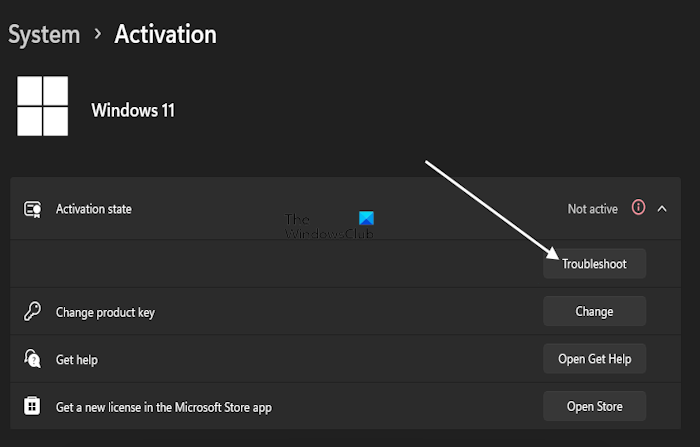
First, we will use the built-in Activation Troubleshooter to resolve this issue. It will identify the cause of this issue and then work to fix it automatically. To do so, follow the steps below.
- First of all, go to Settings > System.
- Click on Activation.
- If Windows shows Not activated, click Troubleshoot.
- The troubleshooter will attempt to match your digital license with the new hardware signature. You can even write “Activate Windows after Hardware Change” if you see an option to do so.
Finally, check if your issue is resolved.
Read: How to activate Windows 11 after Hardware change
2] Sign in with your Microsoft Account
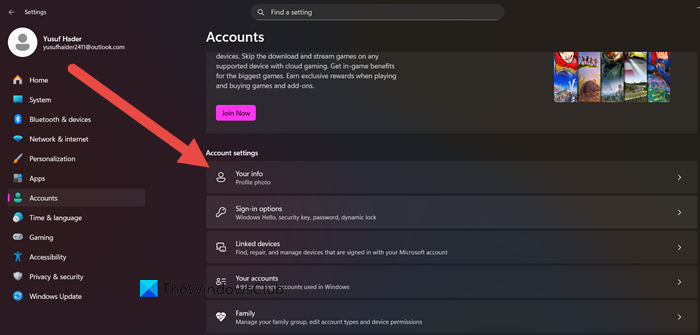
Microsoft stores your Windows 11 license in the cloud and links it to your Microsoft account. When you sign back in with the same account after a hardware change, Windows can match the digital license to your device and automatically reactivate, ensuring your system remains genuine without needing to re-enter the product key.
- Hit Win + I to open Settings.
- Go to Accounts > Your info.
- Make sure you are signed in with the same Microsoft account used during the original activation.
- Now, go back to Settings > System > Activation.
Windows should automatically detect the license tied to your account and reactivate.
Note: Linking your license to your Microsoft account before hardware changes makes recovery much easier.
3] Alter the serial number of your hard disk
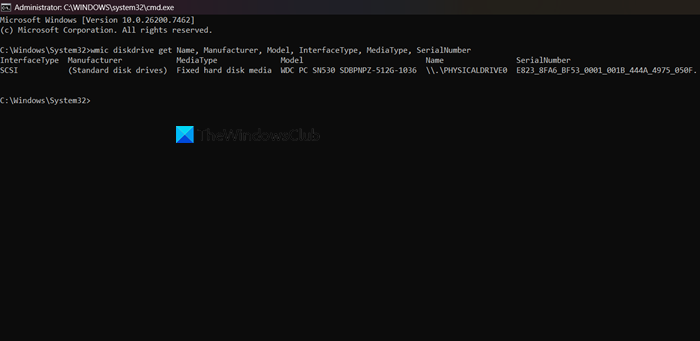
Windows uses the hard drive’s serial number as part of its hardware signature when verifying activation. After cloning, if the new drive has a different serial number, Windows may treat it as a hardware change and fail to recognize the license. By modifying the cloned drive’s serial number to match the original, you align the hardware signature with what Microsoft expects, allowing Windows to reactivate successfully.
First of all, open the Command Prompt as an administrator on your computer and then run the following command to check the serial numbers of all your hard disks on the computer.
wmic diskdrive get Name, Manufacturer, Model, InterfaceType, MediaType, SerialNumber
Windows does not offer a built-in option to change the hardware serial number of a disk directly. However, tools like Hard Disk Serial Number Changer and similar utilities let you modify the volume serial number through a user-friendly interface. To use one of these tools, install it, select the target drive, and enter the new serial number. After applying the changes, restart Windows to finalize the updates.
4] Contact Microsoft Support
If reactivation fails after cloning your drive or making hardware changes, you can resolve the issue by contacting Microsoft Support.
Open Settings > System > Activation, then select Get help or launch the Get Help app. From there, choose Contact Support and explain the situation, such as replacing major components or moving to a new drive. Microsoft’s support team can manually verify your license and reactivate Windows remotely, which is especially useful when automatic methods do not work.
Hopefully, these solutions will resolve your issue.
Windows 11 deactivated after hardware change
If your Windows 11 has been deactivated after a hardware change, enter your Product Key manually again and see if that works. If not, run the Activation Troubleshooter and re-link your license, if required. If your license is linked to your Microsoft account, select I changed hardware on this device recently in the troubleshooter and then choose your device from the list and reactivate. This post offers more suggestions on how to activate Windows 11 after a hardware change.
Read: Fix MAK Activation errors and issues in Windows 11
How do I reactivate my Windows 11?
To reactivate Windows 11, open Settings > System > Activation and review your current activation status. If Windows indicates it is Not activated, select the Troubleshoot option to launch the Activation Troubleshooter. This tool can often automatically restore your license without further input.
Ensure you are signed into Windows with the Microsoft account associated with your digital license. If you are using a product key instead, you may re-enter it when prompted. Should these steps prove unsuccessful, you can contact Microsoft Support directly via the Get Help app. A support representative can then verify your license details manually and assist in reactivating your Windows installation remotely.
Read: Windows Activation Error 0x80004005 or 0x8004FE33
What is 0xc000000e after disk clone?
The error code 0xc000000e after a disk clone indicates a Windows boot failure, meaning the system can’t find the necessary files to start. This often occurs due to corruption or misconfiguration of the Boot Configuration Data (BCD) file during cloning. Other causes may include incorrect BIOS/UEFI settings or issues with the cloning software. To fix it, you typically need to repair the BCD or adjust your BIOS settings in a Windows recovery environment.
Also Read: Fix 0xC004F211, 0xC004F213 Windows Activation Errors.
