
Many users connect to the internet on Windows 11/10 PC using a VPN. This means your region could be different from your actual Windows 11/10 region. If you are facing issues updating your PC in this kind of environment, then this definitive fix will help you resolve error 0x800F0922 on Windows 11/10. You need to follow the suggested tips. The exact error message could be:
- There were some problems installing updates (0x800F0922)
- Windows failed to install the update with error 0x800F0922
- Windows could not search for updates, Code 0x800F0922 Windows Update encountered an unknown error.
- Something didn’t go as planned. No need to worry – undoing changes. Please keep your computer on.
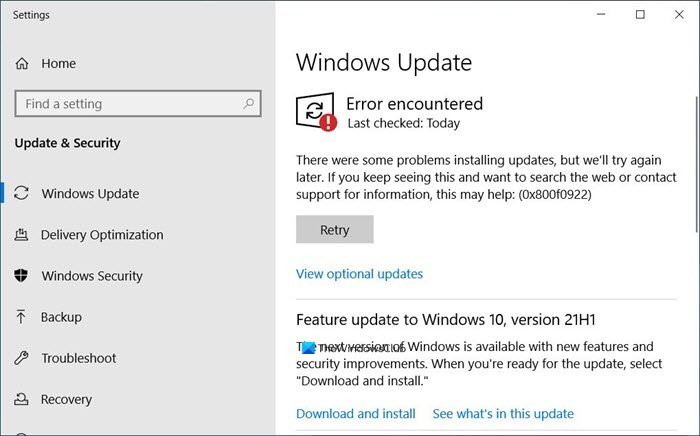
What is error 0x800f0922?
Error 0x800f0922 occurs when downloading Windows Updates. It usually occurs if you download Updates in a VPN environment or if you have less than 500 MB in the system-reserved partition.
Fix 0x800F0922 Windows Update Error
To fix Windows Update error 0x800F0922 in Windows 11/10, run the Windows Update Troubleshooter and see and if that does not help, follow these troubleshooting suggestions:
- Delete $WinREAgent folder
- Update UEFI/BIOS
- VPN issues
- Less space on your System Reserved partition
- Corrupted System Image
- Run Windows Update Troubleshooter.
Let’s see how we can resolve this.
1] Delete $WinREAgent folder
If the Update fails to install, delete the C:\$WinREAgent folder. It is a Hidden folder and you will have to unhide it first.
After restarting your computer run Windows Update and see if it installs. Some users trying to install KB5034765 have faced this issue.
2] Update UEFI/BIOS
If you receive this error while trying to install KB5012170 the Security update for Secure Boot DBX, you may wait for Microsoft to release a new update or use this workaround to install the failed Update/s. This issue can be mitigated by updating the UEFI/BIOS to the latest version before attempting to install the Update/s.
3] Disable VPN
The straightforward solution for the VPN environment is to turn off the VPN and then try running the update again. If you are using a VPN software that works using their software, just exit it completely or log off from its account. In case you are using Windows inbuilt VPN, just turn it off or delete all the settings you have created. While we do understand that you may need to use a VPN to access a work network, if Windows Update is stuck, you need to disable it. I would suggest doing this when you are not working. During that time, the update files will download, and the installation will be complete.
Read: Package failed to be changed to the Absent state 0x800f0922 in Windows
4] Free up Space in the System Reserved partition
System Reserved partition is part of your hard disk which is created when Windows is first installed on it. It stores the Boot Configuration Database, Boot Manager Code, and Windows Recovery Environment and reserves space for the startup files.
The error could also mean there isn’t enough free space in the System Reserved partition. So the option is to increase the space on this partition either using a third party disk partition software or if you are good at command-line skills, and know disk manager level stuff, follow our guide on how to expand the System reserved partition.
It’s a complex process so make sure you have taken a backup of all your data on the PC. If something goes wrong with this partition, you may not be able to boot into the system at all. Using third-party software is your best option as they offer easy UI to get this problem resolved.
5] Run DISM
Open an elevated command prompt, type the following and hit Enter.
dism.exe /online /cleanup-image /scanhealth
Once the operation completes successfully, type the following, and hit Enter.
dism.exe /online /cleanup-image /restorehealth
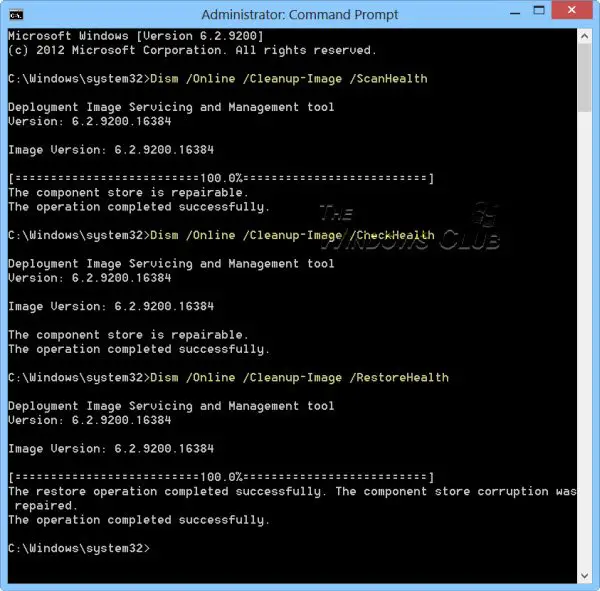
Restart your computer and run Windows Update again.
6] Run Windows Update Troubleshooter
In case this does not help, you can try the Windows Update Troubleshooter.
All the best!
Update fails to install with Error 0x800F0922
If a Security Update fails to install with Error 0x800F0922, you may see an error message Something didn’t go as planned, Undoing changes, when installing KB5089549.
As a result of this issue, you might see log entries similar to the following in C:\Windows\Logs\CBS\CBS.log, indicating insufficient free space on the EFI System Partition:
- SpaceCheck: Insufficient free space
- ServicingBootFiles failed. Error = 0x70
- SpaceCheck: <value> used by third-party/OEM files outside of Microsoft boot directories
Microsoft suggests the following workarounds:
Allow the update to install by modifying an ESP registry setting.
Open Command Prompt as an administrator.
Run the following command: reg add “HKLM\SYSTEM\CurrentControlSet\Control\Bfsvc /v EspPaddingPercent /t REG_DWORD /d 0 /f”
Restart the affected device.
Retry installing the update.
Mitigate the issue by using Known Issue Rollback (KIR)
This issue is mitigated using Known Issue Rollback (KIR). The resolution has already propagated automatically to consumer devices and non‑managed business devices. Restarting your Windows device might help the resolution apply more quickly.
How to fix .NET Framework 3.5 error 0x800f0922 in Windows?
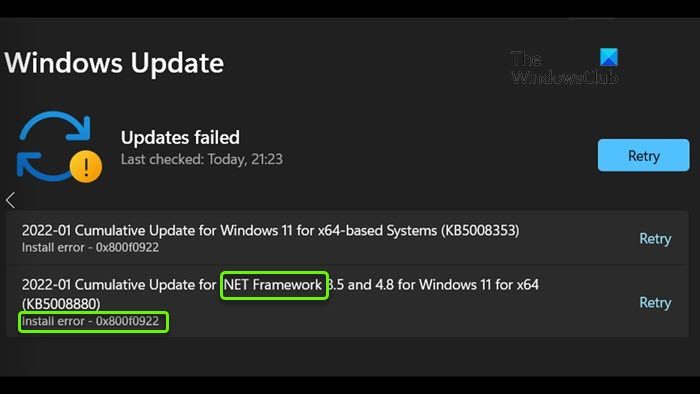
To fix the 0x800F0922 .NET Framework installation error, Turn Windows Features on or off, Uninstall Microsoft .NET Framework 4.6 or higher, Use the DISM command to install Microsoft .NET Framework 3.5. Download .NET Framework 3.5 from the official website of Microsoft or Perform an In-place Upgrade.
How do I get rid of Windows Update error?
To resolve a Windows Update error, run Windows Update Troubleshooter, clear the contents of the SoftwareDistribution folder and then try and see. If this does not help, install the Windows Update in Clean Boot State and see.
Similar: Fix Microsoft Print To PDF error code 0x800f0922.
