
If, during the installation of a Cumulative Update, you encounter error 0x800f0831 on a Windows Server or on a Windows 11/10 client, then this post is intended to help you. In this post, we will identify the potential causes of this error and provide solutions you can try to address it.
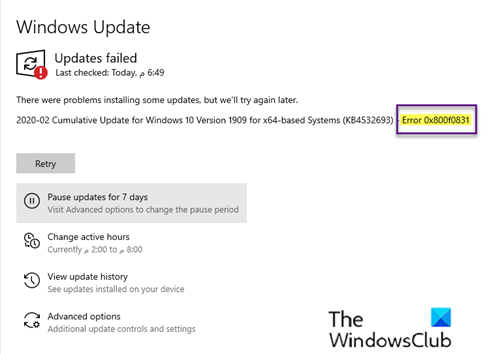
Upon investigation, the most common cause of this error message is a missing manifest for the previous update package. In other words, the WU (Windows Update) component is unaware of what was most recently installed, so it refuses to install new update packages.
You can also encounter this issue if Windows Update service is disabled or a missing .NET 3.5 Framework. Another potential cause of this error 0x800f0831 is whereby the Windows client machine cannot communicate with Windows Update servers. This can be due to system file corruption or VPN connections or Proxy servers.
Fix Windows Update error 0x800f0831
If a Feature Update or Cumulative Update has failed with error code 0x800f0831, on Windows Server or Windows 11/10 client machines, then here are some suggestions that may help you.
- Run Windows Update Troubleshooter
- Manually install the Feature or Cumulative update
- Uninstall the VPN client or remove the Proxy server (if applicable)
- Set the status of Windows Update to Automatic
- Enable .NET Framework 3.5
- Install .NET Framework 3.5 via Command Prompt
- Run SFC & DISM scans
- Perform System Restore
- Perform a Reset, In-place upgrade repair or Clean install
Let’s take a look at the description of the process for each of the listed solutions.
Fix Install error 0x800f0831 in Windows 11
1] Run Windows Update Troubleshooter
This solution requires you to run the Windows Update Troubleshooter and see if that resolves the error. If this doesn’t work, you can continue with the next solution.
2] Manually install the Feature or Cumulative update
This solution requires you manually download the Cumulative Update from Microsoft Update Catalog and then install the package. To install a Feature Update, you may use Windows Update Assistant. On successful installation, the error will no longer appear.
3] Uninstall the VPN client or remove the Proxy server (if applicable)
A VPN client or a Proxy server could trigger this error due to some kind of interference that ends up blocking communications between your Windows client machine and the Windows Update server. In this case, you can try uninstalling your VPN software via the Programs and Features applet in Windows or remove any proxy server from your computer and see if that resolves the issue.
4] Set the status of Windows Update to Automatic
If the computer that’s experiencing the failed Windows Update installation is part of a shared domain, it’s possible that a network policy or a 3rd party system optimizer tool has ended up disabling the main service responsible for the updating function. In this case, you can get the issue resolved by setting the Windows Update service Startup Type to Automatic and force start the Windows Update service.
Here’s how:
- Press Windows key + R.
- In the Run dialog box, type services.msc and hit Enter to open Services.
- In the Services window, scroll and locate the Windows Update service.
- Double-click on the entry to edit its properties.
- Make sure that the option under the Startup type menu in the service’s properties window is set to Automatic from the drop-down. Confirm any dialog boxes which may appear when changing the startup type.
- Click Apply > OK to save changes.
- Restart the computer.
On boot, check whether the issue is resolved. If the startup type for Windows Update was already set to Automatic and this didn’t resolve the issue, proceed to the next solution.
5] Enable .NET Framework 3.5
If you’re encountering error 0x800f0831 when trying to install a cumulative update, you should check whether the .NET 3.5 framework is disabled. Cumulative update installation processes are more complex and might fail unless all required dependencies are enabled. In this case, you can try using the Windows Features menu to ensure that .NET 3.5 framework is enabled.
6] Install .NET Framework 3.5 via Command Prompt
If enabling the .NET 3.5 framework via the Windows Features menu was unsuccessful, you can try to force the installation yourself by installing the missing framework from an elevated Command Prompt.
First, you’ll need a Windows Installation media. Then you can follow the instructions below to force the installation of .NET Framework 3.5 from an elevated CMD prompt.
Insert the Windows installation media into your computer.
Press Windows key + R.
In the Run dialog box, type notepad and press CTRL + SHIFT + ENTER to open Notepad with admin privileges.
Copy and paste the syntax below into Notepad.
@echo off
Title .NET Framework 3.5 Offline Installer
for %%I in (D E F G H I J K L M N O P Q R S T U V W X Y Z) do if exist "%%I:\\sources\install.wim" set setupdrv=%%I
if defined setupdrv (
echo Found drive %setupdrv%
echo Installing .NET Framework 3.5...
Dism /online /enable-feature /featurename:NetFX3 /All /Source:PLACEHOLDER:\sources\sxs /LimitAccess
echo.
echo .NET Framework 3.5 should be installed
echo.
) else (
echo No installation media found!
echo Insert DVD or USB flash drive and run this file once again.
echo.
)
pause
Note: Replace PLACEHOLDER in the syntax with the letter of the drive that’s currently holding the installation media.
Save the file with a name and append the .cmd file extension – eg; InstallDOTnet3.5.cmd.
Now, right-click the file and choose Run as administrator from the context menu.
Next, click Yes at the confirmation prompt and wait for the process to complete.
Once the .NET 3.5 Framework is installed, restart your computer and check whether the Cumulative Update error 0x800f0831 is resolved at the next startup. If not, continue with the next solution.
7] Run SFC and DISM scans
If you’re still grappling with the error it’s most likely that the issue is actually caused by some kind of system file corruption. In which case, you can run the SFC/DISM scan and see if that helps.
The SFC/DISM is a utility in Windows that allows users to scan for corruptions in Windows system files and restore corrupted files.
For ease and convenience, you can run the scan using the procedure below.
Press Windows key + R.
In the Run dialog box, type notepad and hit Enter to open Notepad.
Copy and paste the command below into the text editor.
@echo off
date /t & time /t
echo Dism /Online /Cleanup-Image /StartComponentCleanup
Dism /Online /Cleanup-Image /StartComponentCleanup
echo ...
date /t & time /t
echo Dism /Online /Cleanup-Image /RestoreHealth
Dism /Online /Cleanup-Image /RestoreHealth
echo ...
date /t & time /t
echo SFC /scannow
SFC /scannow
date /t & time /t
pause
Save the file with a name and append the .bat file extension – eg; SFC_DISM_scan.bat.
Repeatedly run the batch file with admin privilege (right-click the saved file and select Run as Administrator from the context menu) until it reports no errors.
Restart your PC.
On boot, check whether the issue is resolved. If not, continue with the next solution.
8] Perform System Restore
If you only started noticing this Cumulative Update error 0x800f0831 recently after a driver or update installation, or after an unexpected machine shutdown, and none of the pending updates are installed, it’s likely that a recent system change has caused this inability to install updates. In this case, you can try System Restore (Caveat: any changes like application install, user preferences and anything else made after the snapshot that you’ll be reverting to was created will be lost) and see if that helps.
To perform System Restore, do the following:
- Press Windows key + R.
- In the Run dialog box, type rstrui and hit Enter to open up the System Restore Wizard.
- Once you arrive at the initial screen of System Restore, click Next to advance to the next window.
- At the next screen, start by checking the box associated with Show more restore points.
- After you’ve done this, select a point which has an older date than the one in which you first started to notice the error.
- Click Next to advance to the next menu.
- Click Finish and confirm at the final prompt.
At the next system startup, your older computer state will be enforced. If the issue persists, you can try the next solution.
9] Perform a Reset, In-place upgrade repair or clean install
At this point, if the Cumulative Update error 0x800f0831 is still unresolved, it’s most likely due to some kind of system corruption that cannot be resolved conventionally. In this case, you can try Reset, In-place upgrade repair or Clean install to reset every Windows component.
Hopefully, any of these solutions should fix the issue for you!
