
If you have failed to upgrade Windows 10 to Windows 11 update has failed with error codes 0xC1900101 – 0x30018, then this post may shed some light on the subject.
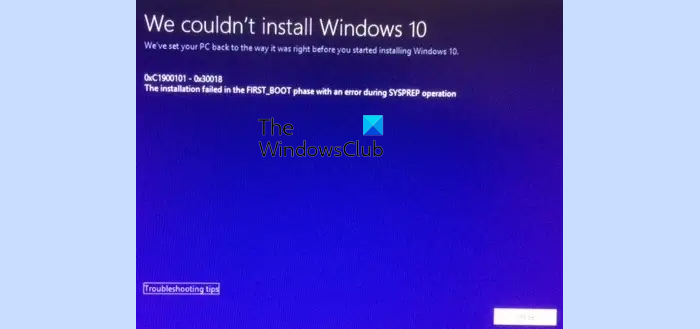
The message you see could be:
We couldn’t install Windows. We’ve set your PC back to the way it was right before you started installing Windows 11/10. 0xC1900101 – 0x30018. The installation failed in the FIRST_BOOT phase with an error during SYSPREP operation.
This problem was first noticed when users who wanted to upgrade from Windows 8.1 or Windows 7 to Windows 11/10 encountered it. Microsoft had responded to this issue, stating that:
We are currently working with our partner companies to help update problematic drivers whenever they are identified. We understand that the inability to easily identify the incompatible driver can be incredibly frustrating and we are sorry for the inconvenience.
However, some users are still experiencing this issue when trying to update Windows 11/10.
What causes Error 0xC1900101 – 0x30018 during Windows Upgrade?
- Outdated or incompatible graphics, network, and storage drivers.
- Third-party security software is interfering with the setup.
- Insufficient disk space
- Corrupted system files.
- BIOS/UEFI misconfiguration
- Outdated firmware.
- Peripheral devices like USB drives, printers, and external HDDs can cause issues.
Fix Error 0xC1900101 – 0x30018, The installation failed in the FIRST_BOOT phase
The Sysprep or System Preparation Tool is basically meant to automate the deployment of the Windows operating system. Given this bit of information, here is what you may try:
1] Run SFC and DISM scans
Run System File Checker and DISM to repair corrupt System Image.
2] Remove incompatible software
Some software like DAEMON Tools, TuneUp, Folder Locker software, etc, are known to interfere. Uninstall them and see if it helps. Make sure you unlock your folders first. Also, disable your antivirus software and Firewall temporarily.
3] Remove USBs
Remove all connected USB devices – this excludes the keyboard.
4] Check hidden log files
If you are well-versed in Windows, you may take a look at these hidden log files. They may offer some direction to work on:
- $Windows.~BT\sources\Panther
- $Windows.~BT\sources\Rollback
5] Use Media Creation Tool
If nothing helps, if you received this error while using Windows Update, use the Media Creation Tool and see if that makes the installation go through.
All the best!
Related errors:
- The installation failed in the FIRST_BOOT phase with an error during MIGRATE_DATA operation
- The installation failed in the FIRST_BOOT phase Error 0x800707E7 – 0x3000D
- The installation failed in the FIRST_BOOT phase with an error during BEGIN_FIRST_BOOT operation
- The installation failed with an error during MIGRATE_DATA operation, Error Code 0x80070004 – 0x3000D.
