
TLS or Transport Layer Security is an encryption protocol. It is designed such that communication through TLS remains secure and private. In this post, I will explain what TLS handshake is and how to fix the TLS handshake if you face issues.
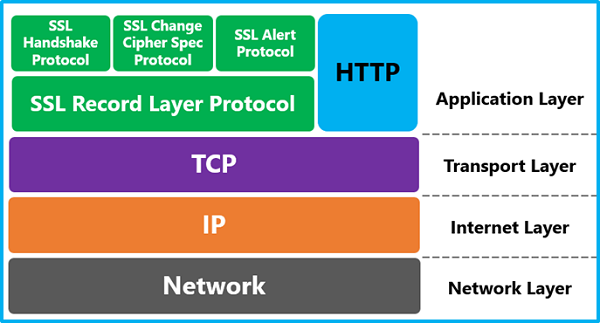
Before we discuss the TLS handshake, let’s first understand when TLS occurs. Every time you access a website or application over HTTPS, TLS is used. When you access emails, messages, and even VOIP, it uses TLS. You should know that HTTPS is an implementation of TLS encryption.
What is TLS handshake
A handshake is a form of negotiation between two parties. Just as when we meet people, we shake hands and then proceed with whatever else needs to be done. On similar lines, the TLS handshake is a form of acknowledgment between two servers.
During the TLS handshake, the servers verify each other and establish encryption, as well as exchange keys. If everything is authentic and as expected, more data exchange will take place. There are four major steps:
- Specify which version of TLS will be used for communication.
- Choose which encryption algorithms will be used
- Authenticity is verified using public key and the SSL certificate authority’s digital signature
- Session keys are generated and exchanged
In layman’s terms, they first say hello, then the server offers a certificate that the client needs to verify. Once the verification is complete, a session is generated. A key is created through which data is exchanged during the session.
Read: Difference between TLS and SSL encryption methods.
How to fix TLS Handshake Failed
You cannot do anything if there is a server-side issue, but if you are having a problem with the browser, it can be fixed. For example, if the server offers a certificate that cannot be authenticated, you cannot take any action. However, if the problem is a mismatch of the TLS protocol, then you can change it from the browser.
- Check if the system time is correct
- Check for Man in the middle problem
- Change TLS Protocol in Windows
- Delete Browser Profile or Certificate Database
- Reset Browser.
There are many more reasons why the TLS handshake can fail, depending on the scenario. Here are some ways to fix TLS; however, before that, always use these rules to filter out the problem.
- Check with different sites, and if the problem remains.
- Switch to multiple network connections, i.e., WiFi or Wired
- Change network, i.e., connect to a mobile hotspot, a different router or even try a public network
1] Check if the system time is correct
It is the primary reason why the TLS handshake fails most of the time. The system time is used to test whether the certificate is valid or expired. If there is a mismatch between the time on your computer and the server, it can cause certificates to appear expired. Set the time to automatic to ensure it is accurate.
Now visit the website again, and check if it has fixed the TLS handshake
2] Man in the middle problem
There is one rule: if it’s happening for one site, then it’s a security software problem, but if it’s happening for all the websites, then it’s a system problem.
The security software or browser extension on your computer may be intercepting TLS connections and modifying them, which results in a problematic TLS handshake. It is also possible that a virus on the system is causing all the TLS problems.
Some browser extensions change proxy settings, and it may cause this problem.
In either case, you need to fix your computer or security software. The best way to further verify this is by using another computer and opening the same website or application that was causing the problem.
3] Change TLS Protocol in Windows
Windows 10 and earlier versions of Windows centralize the protocol settings in the system. If you need to change the TLS version, you can do it using Internet Properties.
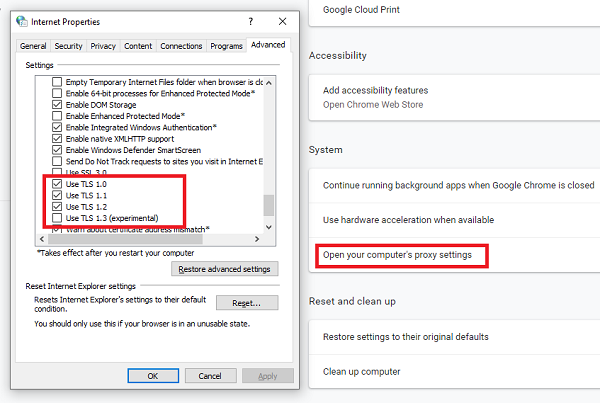
- Type inetcpl.cpl in the Run prompt and hit Enter key.
- Once the Internet properties window opens, switch to the Advanced tab.
- Scroll to the end to find the Security section, and here you can add or remove TLS.
- If the website is looking for TLS 1.2, and it is not checked, you need to check it. Similarly, if someone is experimenting with TLS 1.3, you need to check it.
- Apply to save, and try opening the same website again.
While Chrome and Edge utilize Windows Features, Firefox, including its certificate database, manages independently. Here is how to change the TLS protocol in Firefox:
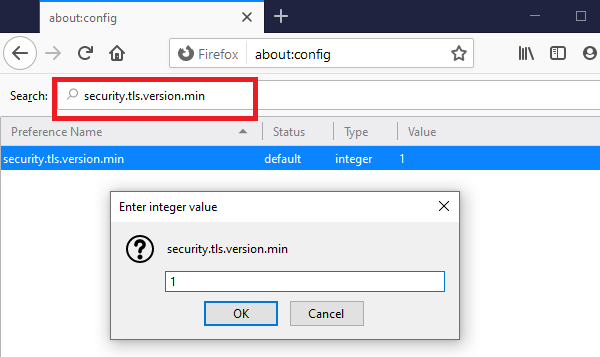
- Open Firefox, type about:config and press Enter
- In the search box, type TLS, and locate security.tls.version.min
- You can change it to:
- 1 and 2 to force TLS 1 and 1.1
- 3 to force TLS 1.2
- 4 to force a maximum protocol of TLS 1.3.
Read: How to disable TLS 1.0.
4] Delete Browser Profile or Certificate Database
Every browser maintains a database for certificates. For example, every Firefox profile has a cert8.db file. If you delete the file and a restart resolves the issue, then the problem is likely related to the local certificate database.
Similarly, in Windows, when using IE or Edge, the Certificate Manager is responsible, or you can go to the edge://settings/privacy and click on Manage HTTPS/SSL certificates and settings. Delete certificates and try again
If you cannot find the database, delete the profile and try again.
4] Reset Browser
It’s the last resort if you are having an issue with one of the browsers. You can choose to uninstall completely and then reinstall or reset the browser using the inbuilt feature. Follow the links to reset Chrome, Microsoft Edge, and Firefox.
Lastly, while you can browse a website even if the certificate is invalid, be cautious not to perform any transactions with the website. Neither should you use a credit card, nor should you enter your account password.
We hope these tips were easy to follow and that you were able to resolve the TLS issue on your browser or your computer. I have tried my best to offer you enough solutions, but honestly, TLS is extremely vast, and more solutions may be available.
How do I fix TLS handshake failure?
To resolve the TLS handshake failure issue in your browser, please verify your date and time settings first. Then, you might need to clear your browser cache and update your browser to the latest version. Additionally, you can disable your browser extensions and check if this resolves the issue. Next, you can temporarily disable your antivirus and firewall.
What happens if TLS handshake failed?
A TLS handshake failure indicates that you are unable to access a particular website. As it is responsible for establishing a connection between your computer and the server, you cannot access a website when a TLS handshake fails to establish the connection. As there could be several reasons that cause this problem, you need to go through the aforementioned tips and tricks to resolve it.
