
Call of Duty Warzone is one of the finest free-to-play first-person shooter games. The game comes with many improvements and replaces the Verdansk map. The game has many fans and players across the world. Gaming communities loved the game, and many challenges were held online. Players are reporting that they are unable to launch Warzone Pacific. In this guide, we have a few solutions that can help you if Warzone Pacific won’t launch on Xbox or PC.
The possible reasons for the Call of Duty Warzone Pacific not launching are:
- System requirements are not met
- Corrupt Game files
- Corrupt DNS Cache
- Outdated or corrupt Graphics Driver
We need to implement fixes based on the possible causes and resolve. Let’s see how we can fix the issue and launch the game.
Fix Warzone Pacific won’t launch on Xbox or PC
If you are unable to launch Call of Duty Warzone Pacific on Xbox or PC, try these methods to fix it.
- Make sure your PC meets the minimum requirements
- Update Game to the latest version
- Allow the Game through Firewall
- Use Game Mode
- Run the Game as Administrator
- Rebuild the Game Files
- Verify the Integrity of Warzone Pacific
- Flush DNS Cache on PC
- Clear Cache on Xbox
- Edit Warzone’s Config file on PC
- Update Graphics Drivers
- Reinstall Warzone
Let’s get into the details of each method.
1] Make sure your PC meets the minimum requirements
Warzone Pacific is a graphics-centric game; thus, your system must fulfill the minimum requirements to run the game without any issue. The developers of the games or programs set minimum requirements for it to run smoothly on our PC. We need to make sure our PC meets the same. If the minimum system requirements of Warzone Pacific are not met, the game won’t launch.
Recommended requirements of Call of Duty Warzone Pacific:
- CPU: Intel Core i5-2500K or AMD Ryzen R5 1600X Processor
- RAM: 12 GB
- OS: Windows 11/10 64 Bit or later
- GPU: Nvidia GeForce GTX 970 4GB or GTX 1660 6GB or AMD Radeon R9 390 or AMD RX 580
- Available Space: 175 GB
- VRAM: 4096 MB
If your PC does not meet the system requirements, do upgrade your PC. If your PC is fine for the game and still the issue persists, follow the fixes below.
2] Update the Game to the latest version
The error might also have been caused by outdated game files or versions. The bugs in the previous updates may also be the cause. The latest updates will have fixes for them. You need to update it to the latest version to be able to play it without any issues.
To update Warzone on PC:
- Launch Battle.net program
- Open Warzone and select Options
- Click on Check for Updates
- If there are any updates available, it will download and install.
- Relaunch the game after the update
To update Warzone on Xbox:
- Press the Xbox button on the Xbox console
- Select My games & apps
- Then, select the Updates tab
- Check for any pending updates and install them.
3] Allow the Game through Firewall
The very first thing that can be interfering with the launch of Warzone Pacific is Windows Firewall. As a solution to it, you will have to allow the game through Firewall. To do so, follow the below steps.
- Close the Windows key to open the Start Menu.
- In the search bar, type Windows Security, and press Enter.
- Click on Firewall & network protection.
- In the following window, choose to Allow an app through the Firewall option.
- Tap on Change Settings.
- Check both the Public and Private boxes next to Warzone Pacific.
Save the changes and exit the window. Open the game and check if the problem is fixed.
4] Use Game Mode
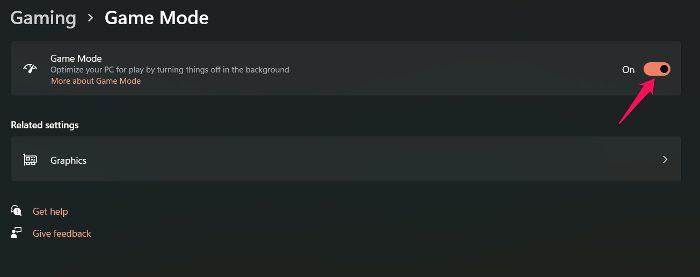
Windows comes with a dedicated gaming mode feature called Game Mode. It automatically disables all unnecessary background-running applications to offer a better in-game experience. So, if the problem is caused by unnecessary applications running in the background, running the game with the game mode feature enabled can be the best thing you can do. Here are the steps you need to follow.
- Press the Windows + I shortcut key to open the Settings menu.
- Tap on the Gaming option present at the left panel of the screen.
- Tap on Game Mode, and disable the same in the following window.
That’s it. Open the game, and check if the problem is fixed.
5] Run the Game as Administrator
Sometimes, not granting the game administrative privileges can also be the reason for the issue mentioned. Thus, make sure to allow all the administrative rights to Warzone Pacific before launching it on your system. To do so, follow the steps below.
- Right-click on the Warzone Pacific shortcut icon and choose the Properties option.
- Click on the Compatibility tab, and check the Run this program as an administrator option.
- Click on Apply > OK.
Launch the game, and check if the problem is fixed or not.
6] Rebuild the Game Files
If the game files have been corrupted or are missing, then you’ll also face the launch problem. As a solution, you will have to rebuild the game files to fix the issue. Here are the steps you need to follow.
- Launch Battle.net and select Call of duty from the list.
- Click on the gear icon present next to Play, and choose Show in Explorer.
- Delete all the files. Do not delete the folder.
- Again, open the Battle.net client and choose Warzone Pacific.
- Navigate to Options > Scan and Repair.
The repair process will take some time. Once it’s completed, launch the game. It will automatically start downloading the corrupted and missing files. Check whether the problem is fixed.
7] Verify the Integrity of Warzone Pacific
This solution is for users experiencing issues launching the game via Steam. Here are the steps you need to follow.
- Open the Steam Client and go to Library.
- Right-click on the Warzone Pacific and select Properties.
- Select the Local Files tab.
- Now, click on the Verify Integrity of Game Files option.
8] Flush DNS Cache on PC
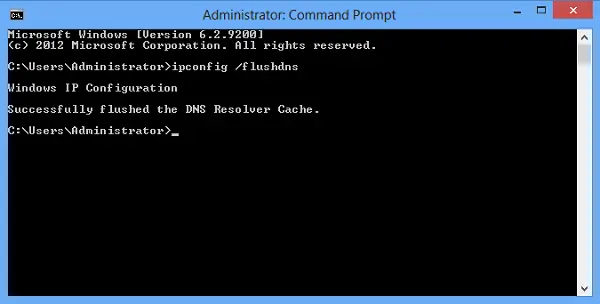
The corruption of the DNS cache on your PC might also cause the issue. You need to flush DNS cache to resolve the issue and play the game. To flush DNS cache:
- Open Command Prompt as an administrator
- Type ipconfig /flushdns and press Enter
It will automatically flush the DNS and fix the issue.
9] Clear Cache on Xbox and PC
The cache built on your Xbox might also cause the issue. Clearing the cache on Xbox can fix the issue and let you launch Warzone Pacific easily.
To clear the cache on Xbox,
- Turn off your Xbox console
- Once the indicator lights are off unplug the power brick from your console
- Wait for a minimum of 30 seconds
- Plugin the power brick and turn on your console
To clear the cache on PC:
- End all the Blizzard Processes in the Task Manager
- Open Run command
- Type C:\ProgramData\ and press Enter
- Delete the Battle.net folder
- Then, run the Battle.net and update the game again
Clearing the cache can fix a lot of issues with programs and games. Try launching Warzone Pacific on your devices and see if it is fixed.
10] Edit Warzone’s Config file on PC
The Config file of Warzone might also cause the issue as it is responsible for the pre-loading of game features like textures, graphics, etc. If the file is not configured properly, the game won’t launch. To edit the Config file to resolve the game launch issue,
- Open Run command
- Type documents and press Enter
- Open Call of Duty folder and open Players
- You will find Config.cfg in the Players folder. Right-click and select Edit
- Select Notepad to open the File.
- Once the Config file is opened in Notepad, find the following text.
setcl -1836731280 - Change its value from 1 to 12 and save the file. If you don’t find that, you need to add it and set its value to 12
Then launch Warzone Pacific again and see if it works properly.
11] Update Graphics Drivers
Outdated or corrupted graphics drivers on your PC might also prevent you from launching Warzone Pacific. You need to update the graphics drivers to the latest version.
To update graphics drivers,
- You may check for Driver Updates via Windows Update to update your drivers
- You may visit the manufacturer’s site to download the drivers.
- Use a free driver update software
- If you have the INF driver file already on your computer then:
- Open Device Manager.
- Click the driver category to expand the menu.
- Then choose the relevant driver and right-click on it.
- Select Update Driver.
- Follow the on-screen wizard to complete the update to your audio drivers.
After updating the graphics drivers, restart your PC. See if Warzone Pacific is now launching fine.
12] Reinstall Warzone
The final way to fix the issue is to reinstall the Warzone on your PC and Xbox. It will fix all the issues that are affecting the launch of Warzone Pacific.
To reinstall Warzone on PC,
- Launch Battle.net program
- Select the Call of Duty Warzone icon and click on the drop-down arrow button beside the play button.
- Then, select Uninstall
- To install again, go to the Call of Duty Warzone game tab and select Install
To reinstall Warzone on Xbox,
- Select My games & apps on the Home screen
- Then go to Games
- Select Call of Duty Warzone and press the Menu button
- Select Uninstall and then Uninstall all
- Then, go to the Ready to install tab and install the game again.
You should now be able to launch Warzone Pacific without any issues or errors.
These are the different ways you can use to fix the issues affecting the launch of Call of Duty: Warzone Pacific on Xbox and PC.
Read: Fix Call of Duty Warzone Freezing or Crashing on Windows PC.
Why is Warzone Pacific not working on Xbox?
There might be many reasons that are causing the issue. It may be due to corrupt games files, outdated game versions, outdated console firmware, or network issues. You need to implement fixes based on the possible causes of the issue. You can employ the above fixes to resolve the issue and play the game.
Why can’t I start Warzone on my PC?
To start Warzone on your PC, your PC must meet the minimum system requirements of Call of Duty Warzone. They are laid out by the game’s developers. Then, the game should be up to date, the graphics drivers should be up to date, and your internet connection should be working fine.
Why is Warzone Pacific not loading on PC?
There can be multiple reasons why version Pacific is not loading on your PC. From outdated graphics card drivers, missing or corrupted game files, lack of administrative privileges, to the Windows firewall, anything can interfere with the smooth launch of Warzone Pacific. Thankfully, it’s very easy to get rid of either of these problems.
What is error code 48 on Warzone?
Error code 48 in Warzone prevents players from logging in to the game. Regardless of the device, the issue can originate on PC as well as consoles. Error code 48 primarily indicates that the system failed to apply the downloaded updates to the game.
