
If Vivaldi browser keeps crashing on Windows 11 or Windows 10 PC, you can resolve the issue by following these suggestions. There are several reasons the Vivaldi browser might crash on your computer. Here, we have consolidated some of the common causes and solutions to fix the issue.

Vivaldi browser keeps crashing on Windows 11
If Vivaldi browser keeps crashing on Windows 11/10, follow these steps to resolve the issue:
- Update browser
- Close unnecessary apps
- Scan PC with adware removal tool/antivirus
- Install 64-bit browser on Windows 11
- Toggle Hardware (GPU) Acceleration
- Disable all extensions and check
- Reset browser
- Reinstall browser
Before you proceed, clear Cache and Browsing Data of your Vivaldi browser.
1] Update browser
This is the first thing you need to do when the Vivaldi browser keeps crashing or freezing on your Windows 11/10 computer. If you haven’t updated your browser in a long time, update it as soon as possible. Whether you use Windows 11 or Windows 10, the process is the same. You need to open the Vivaldi browser and click on the Vivaldi logo visible in the top-left corner.
Then, select Help and click on the Check for Updates option.
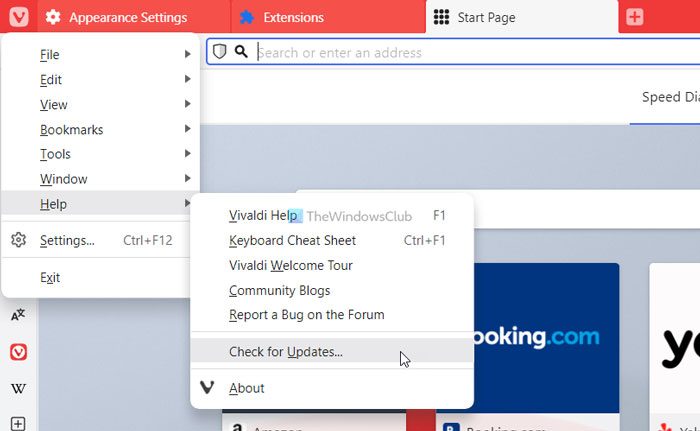
It starts searching for updates immediately. If an update is available, you can find the instruction to download and install it on the screen.
2] Close unnecessary apps
To run a browser or any other program on your computer, you need enough RAM (memory) and resources. If your computer doesn’t have enough RAM and you often open multiple heavy-weight apps at the same time, you may encounter this issue. That is why it is highly recommended to close all the unnecessary apps using Task Manager and check if it resolves the issue or not.
3] Scan PC with adware removal tool/antivirus
Sometimes, adware or malware can also cause the same issue on your computer. They often change or tweak various settings and internal files to use the browser in their favor. That is why it is suggested to scan your PC with an adware removal tool and antivirus. You can use AdwCleaner to remove adware from your computer. On the other hand, you can use these free antivirus software to remove malware and virus.
4] Install 64-bit browser on Windows 11
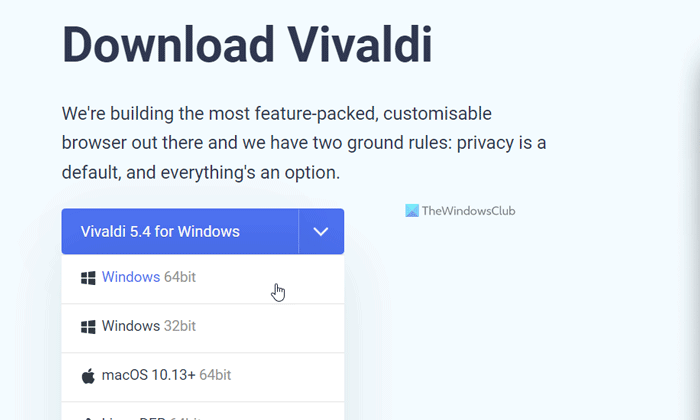
Although Windows 10 is available in 32-bit and 64-bit architectures, Windows 11 is available only in 64-bit architecture. If you try to use the 32-bit version on a 64-bit Windows 11 machine, you might encounter the problem mentioned above. That is why it is recommended to download the 64-bit version of the Vivaldi browser for Windows 11.
5] Toggle Hardware (GPU) Acceleration
Graphics rendering issues can force the browser to crash.
Open Vivaldi Settings > Performance and toggle Hardware Acceleration on or off.
See which helps.
6] Disable all extensions and check
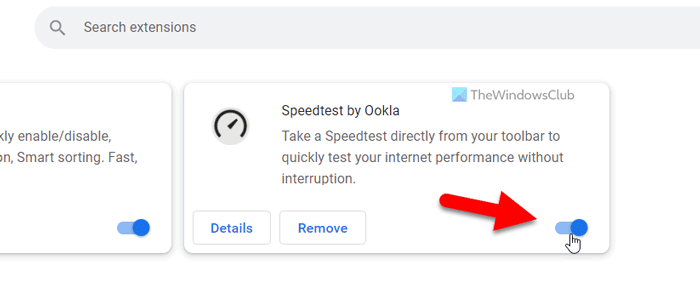
To disable extensions in the Vivaldi browser, follow these steps:
- Open the Vivaldi browser.
- Enter this in the address bar: vivaldi://extensions
- Toggle the respective buttons to disable extensions.
Then check whether this resolves the issue. This way, you can identify the problematic browser.
7] Reset browser
Resetting the Vivaldi browser on your computer is not difficult.
First, open the browser, click on the Vivaldi logo, and select Settings from the menu.
Make sure you are in the General tab. If so, scroll down to the bottom and click on the Reset General Settings to Default button.
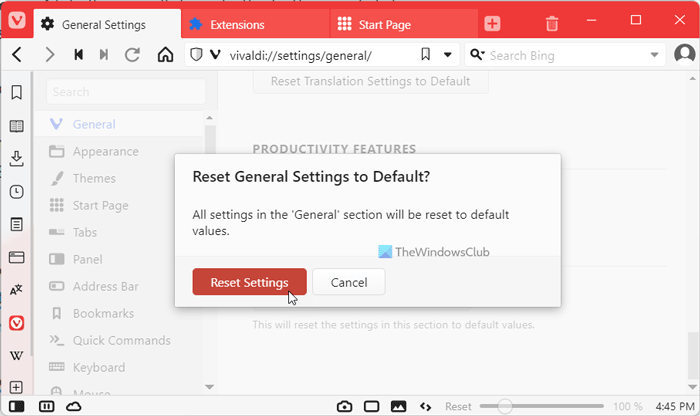
Then, confirm the change by clicking on the Reset Settings button.
You need to repeat the same steps in all the tabs, including Appearance, Themes, Start page, Tabs, Panel, Address Bar, etc.
Read: Microsoft Edge browser hangs, freezes, crashes
8] Reinstall browser
This is probably the last solution you can try to get rid of this issue. However, you need to use third-party software uninstaller to remove all the leftovers. After that, download the latest version of the Vivaldi browser and install it.
That’s all! Hope these solutions have worked for you.
Read: Google Chrome is Freezing or Crashing
Why does my browser keep crashing?
There could be several reasons why your browser keeps crashing. From insufficient memory to adware, anything could be responsible for this error. However, you can troubleshoot this issue on Windows 11 and Windows 10 PCs by following the solutions above.
Read: Firefox freezes, hangs or unresponsive
How do I update my Vivaldi browser?
To update your Vivaldi browser, follow the first solution mentioned in this article. In other words, open the browser and click the Vivaldi logo. It must be visible in the top-left corner. Then, select the Help option and click on the Check for Updates option. Your browser starts searching for updates and installs it if anything is available.
