
Leo is an AI assistant built into the Brave browser. It can answer questions, generate content, summarize webpages, analyze documents, and help with other tasks without requiring you to open a separate AI chatbot. In this guide, we will show you how to enable and use Leo AI in the Brave browser on a Windows 11/10 PC.
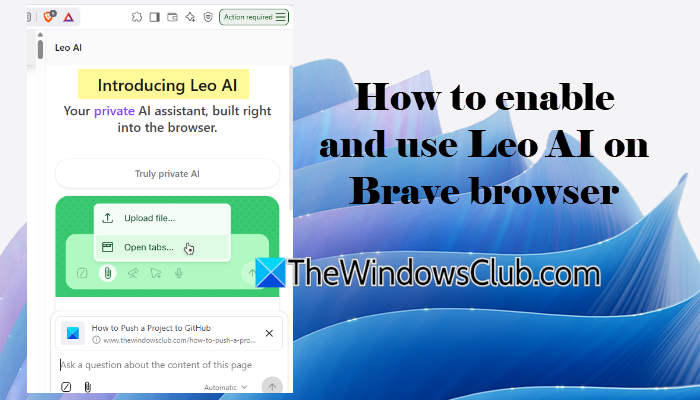
How to enable and use Leo AI on Brave browser on Windows PC
To enable and use Leo AI on the Brave browser, follow these steps:
Update Brave Browser
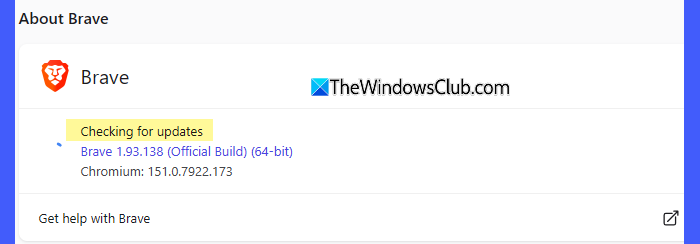
To access Leo AI, make sure that Brave is updated to the latest available version.
Open Brave and click the Menu button in the top-right corner. Select Help > About Brave. Brave will automatically check for available updates and install them.
After the updates install, restart the browser (or your PC) for the changes to take effect.
Enable Leo AI from Settings
Leo AI is built into the Brave browser, and you can access it through the Leo icon in the browser toolbar, sidebar, or website context menu. If the Leo icon is not visible, you can enable it from Brave Settings.
Open Brave and click the Menu button in the top-right corner. Select Settings.
Enable Leo AI in the toolbar: Go to Appearance > Customize your toolbar. Under Navigation, turn on the toggle for Leo AI. The Leo icon will then appear in the browser toolbar.
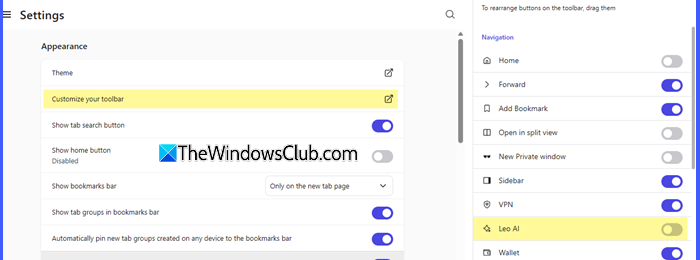
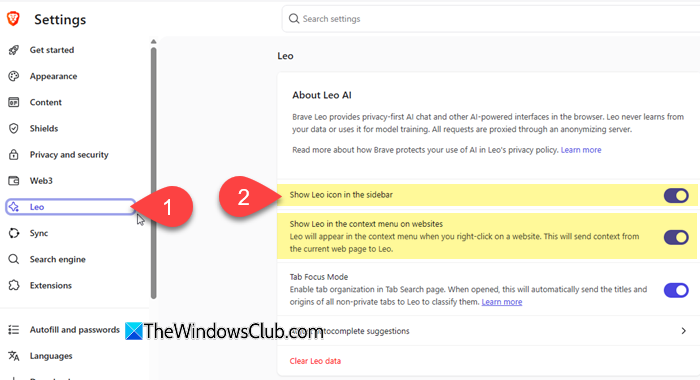
Enable Leo AI in the sidebar: Select Leo from the left pane of Brave Settings. Turn on the toggle for Show Leo icon in the sidebar.
Enable Leo AI in the context menu: Go to Settings > Leo and turn on the toggle for Show Leo in the context menu on websites. Once enabled, you can right-click webpage content to access Leo AI tools.
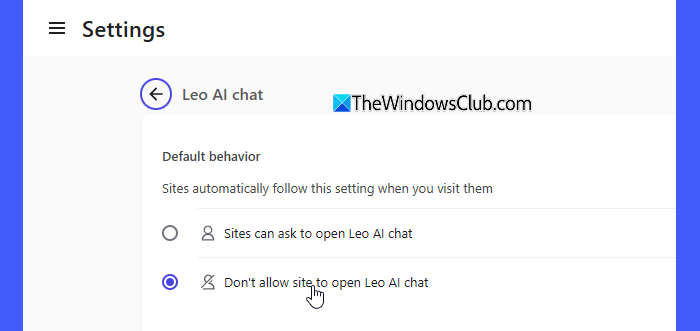
Brave also includes a Leo AI Chat permission under Privacy and security. This setting controls whether websites can ask to open Leo AI Chat. If you want websites to be able to request access to Leo, select Sites can ask to open Leo AI chat. To prevent websites from opening Leo, select Don’t allow site to open Leo AI chat.
Open and use Leo AI
Once Leo is enabled, there are several ways to open it.
Method 1: Use the Leo sidebar icon
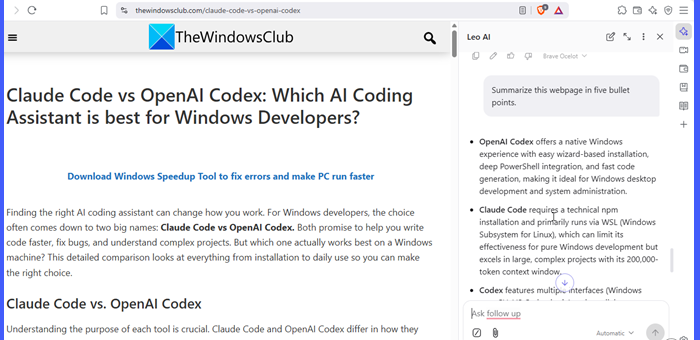
Click the Leo icon in the Brave sidebar. The Leo chat panel will open next to the webpage. Enter your question in the message box and press Enter.
For example, you can ask:
“Summarize this webpage in five bullet points.”
You can then ask follow-up questions based on the same conversation.
Method 2: Use the address bar
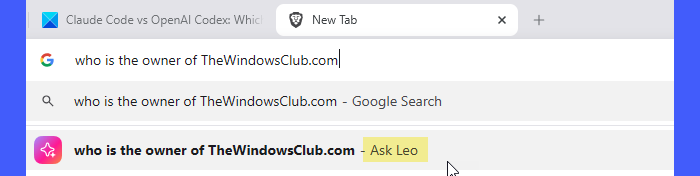
You can also start using Leo directly from the Brave address bar.
Type your question in the address bar and select Ask Leo from the suggestions.
Brave provides this as one of the quickest ways to access Leo without opening another page.
Method 3: Right-click a webpage
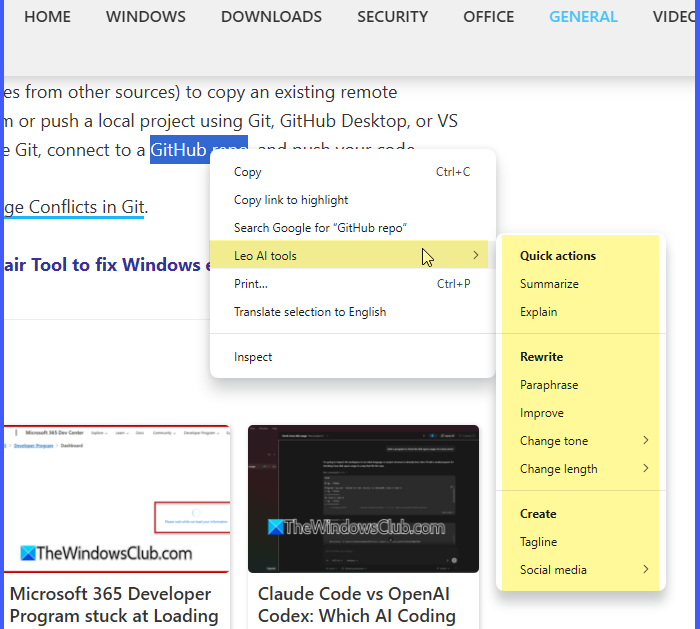
Select the desired text on a webpage and right-click it to open the context menu. Hover over Leo AI tools to view the available options, such as Summarize, Explain, Paraphrase, Improve, Change tone, and more. Select an option based on what you want Leo to do with the selected text.
Enable Tab Focus Mode in Leo
Tab Focus Mode is a productivity feature that uses AI to organize your open tabs based on what you are looking for.
For example, if you are planning a vacation and have dozens of tabs open for flights, hotels, travel guides, and personal work, you can describe what you are looking for, such as “vacation planning”. Tab Focus Mode analyzes your open tabs and identifies the ones that are relevant to your request. It goes beyond simple keyword matching and uses the context of your tabs to determine which ones are most relevant to the topic or task you specify.
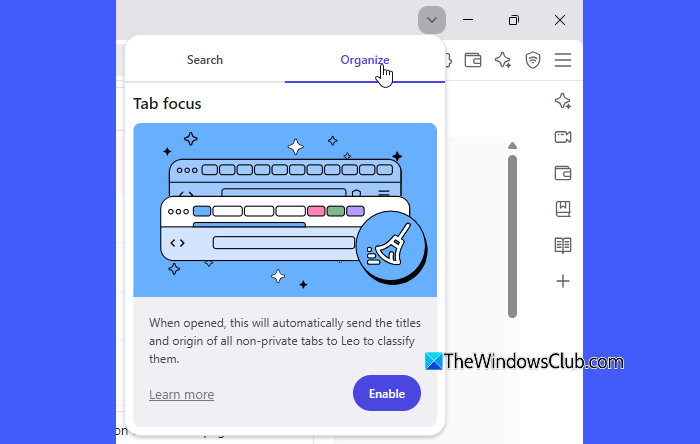
To enable Tab Focus Mode, go to Settings > Leo and turn on the toggle for Tab Focus Mode. To access it, click the Tab Search icon in the browser toolbar and switch to the Organise tab.
The first time you use Tab Focus Mode, Brave will ask you to opt in to the feature. Once enabled, you can describe the topic or task you want to focus on, and Leo will organize your open tabs accordingly.
Choose a different AI model
Leo provides default models for new conversations and tab focus. To change them, go to Settings > Leo > Personalization. Click the dropdown next to Default model for new conversations or Default model for tab focus. Select the model you want to use.
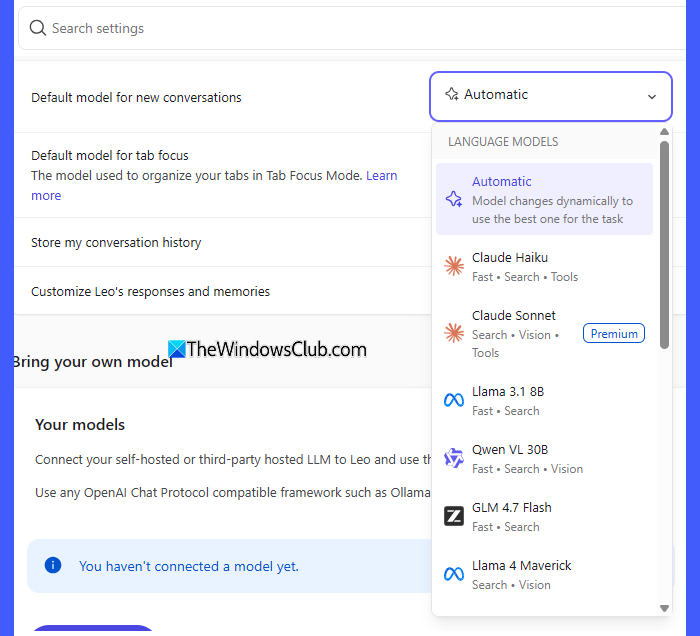
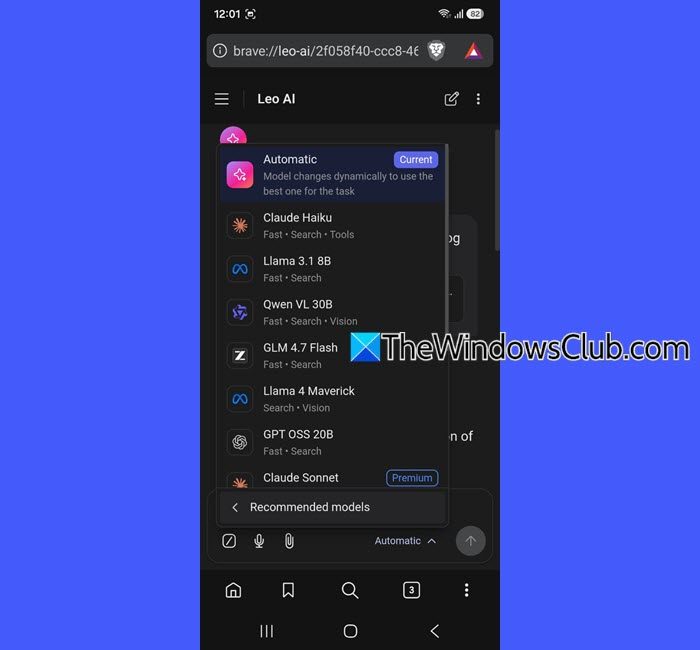
Leo provides access to models from providers such as Claude, Llama, and Qwen. The Automatic option allows Leo to select a suitable model dynamically for the task. The exact models available can change as Brave updates Leo, and some models may be available only to Leo Premium users.
Use Leo with Brave Search
As mentioned earlier, you can access Leo AI directly from the address bar in Brave. This enables Leo to use information from Brave Search to provide richer and more up-to-date answers. This can be useful for questions where the information may have changed recently. When Leo uses Brave Search, the response can include a link to the relevant search results so that you can investigate the information further.
However, you should still verify important information using reliable and authoritative sources. Like other AI assistants, Leo can sometimes produce inaccurate or misleading information.
If this option is not available in your Brave browser, you can enable it from the Experiments page.
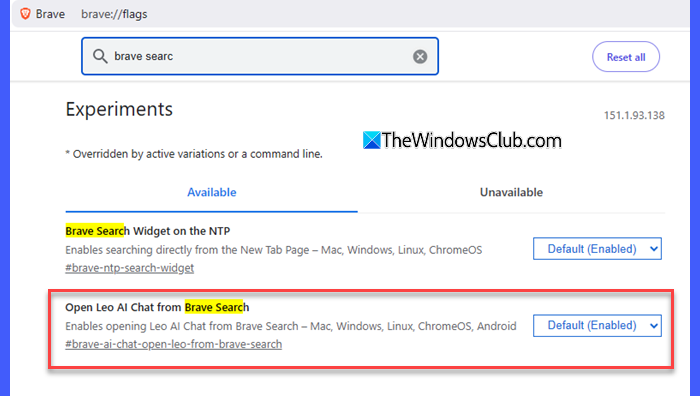
Open Brave and enter brave://flags in the address bar. Type Brave Search in the search box. Find Open Leo AI Chat from Brave Search. Click the dropdown next to it and select Enabled.
Click Relaunch to restart Brave. After Brave restarts, you can use the address bar to start a Leo AI conversation directly from Brave Search.
How to enable and use Leo AI in Brave browser on Phone
Leo AI is built into the Brave browser on both Android and iPhone; however, the ways to access Leo differ slightly between the two platforms.
On Android, you can access Leo AI in three ways:
From the Main menu: Open Brave, tap the Menu button, and select Leo AI.
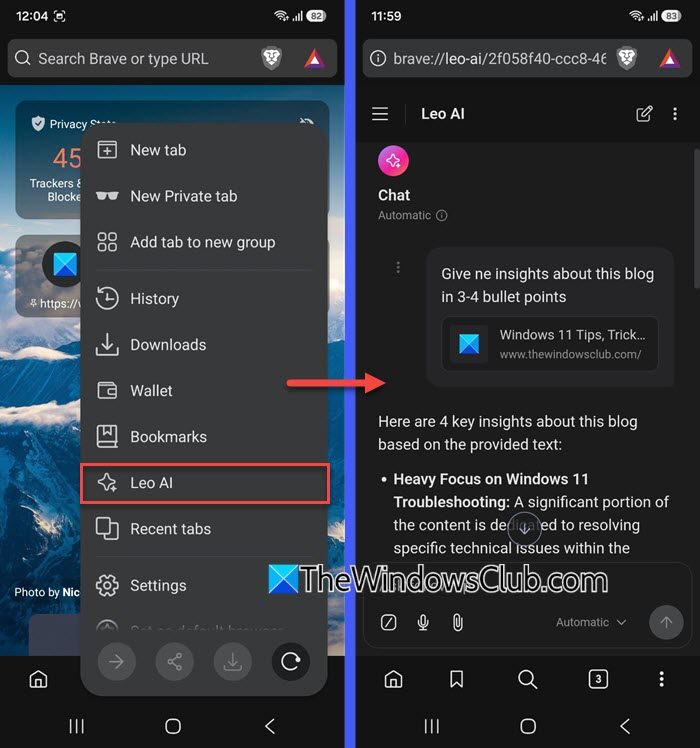
From the address bar: Tap the address bar and select Ask Leo AI while typing your query.
From the quick search engines bar: Tap the Leo icon in the quick search engines bar to launch Leo.
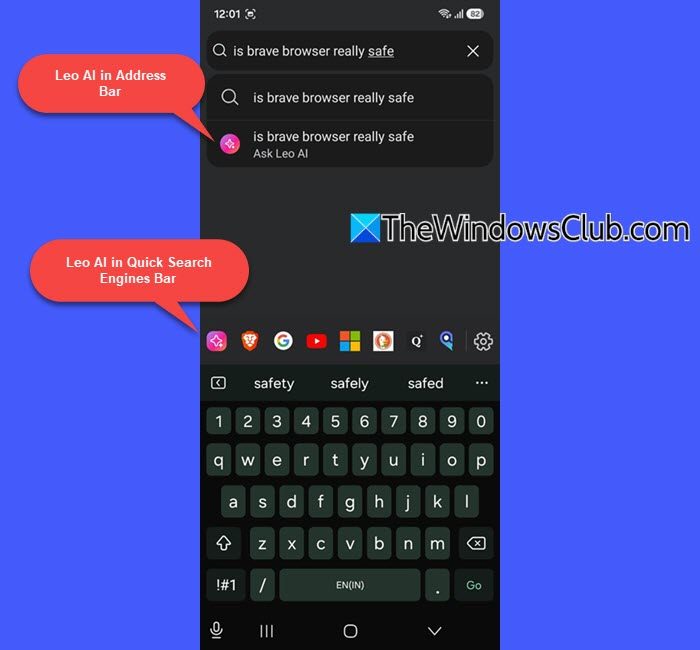
Once Leo opens, type your question or prompt in the text box and tap the Send button. You can also use the model selector to choose a different AI model for your conversation.
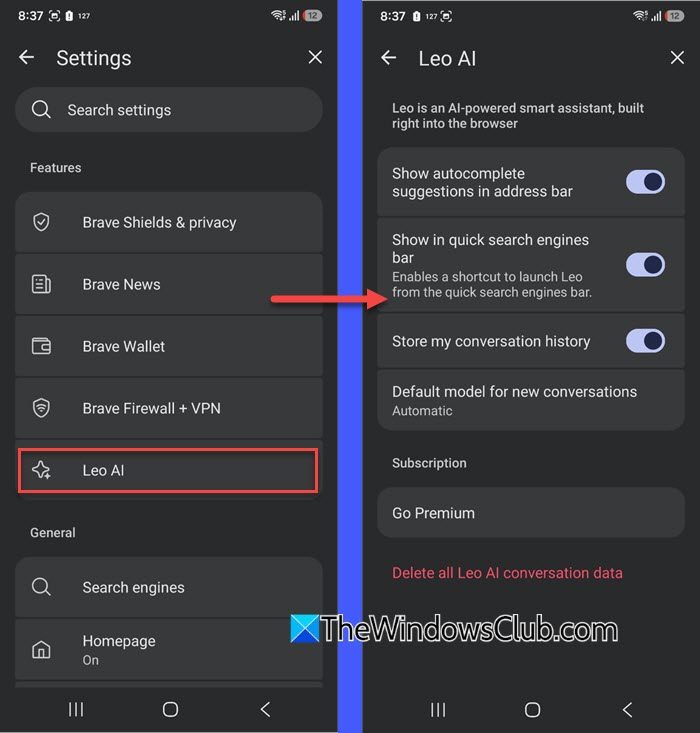
To manage Leo’s settings, open Settings and tap Leo AI under the Features section. Here, you will find several options to control how Leo works. For example, you can add or remove Leo from the quick search engines bar, save your conversation history, or upgrade to Leo Premium for higher usage limits.
On iPhone, you can access Leo AI from the Main menu or the quick search engines bar. Open Brave and tap the Menu button, then select AI Chat.
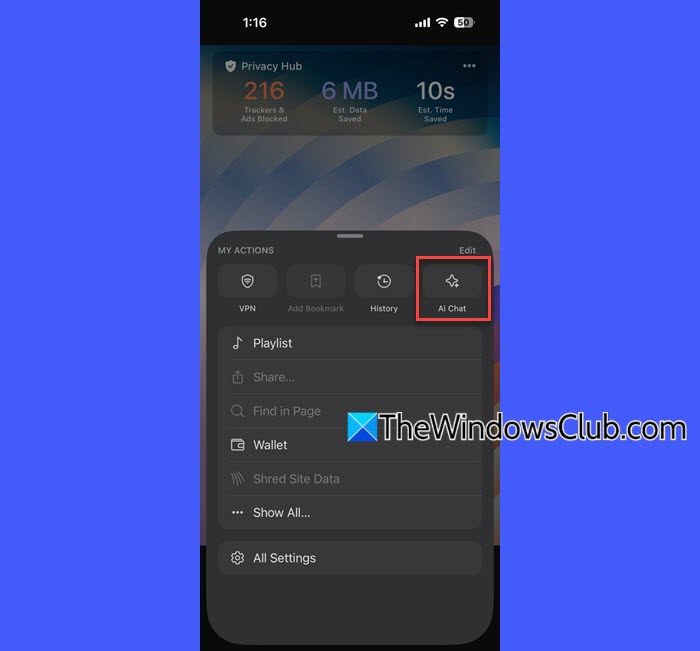
Alternatively, tap the Leo icon in the quick search engines bar to open the Leo chat. After opening Leo, enter your question or prompt and tap the Send button.
That’s all! I hope you find this useful.
Read: Brave Web Browser Review: Is it better, safer, more private?
Is Brave Leo AI safe?
Brave is a Chromium-based browser that makes several changes to reduce data collection and tracking. Leo follows the same privacy-first approach. It does not collect identifiers that can be linked to you, such as your IP address, and does not store or retain prompts, responses, context, or personal data on its servers. It may temporarily cache large prompts to improve performance, but it deletes them within minutes. It also does not use your conversations to train AI models. However, like any AI assistant, Brave Leo AI is not completely risk-free.
Is Leo AI in Brave free?
Brave Leo is available as a free tier with limited usage and access to selected AI models. You do not need to create an account or sign in to use it. Brave also offers Leo Premium, a paid subscription that provides access to more models, higher usage limits, and early access to new features.
Read Next: Brave browser not opening or working on Windows 11.
