
If you are unable to set a BitLocker password in Windows 11/10, here is how you can troubleshoot the issue. We have listed all the scenarios so that you can relate to them and fix them easily.

Why are you unable to set BitLocker password?
If you are unable to set a BitLocker password, these could be the reasons:
- Your computer has a bug. It generally happens when you use the Beta or Dev versions.
- You are using the built-in Administrator account.
- You are not using an administrator account.
- Your computer doesn’t have TPM, or it is disabled in the BIOS.
- You have set the Group Policy incorrectly.
- Your Registry Editor settings are incorrectly set.
- There are some issues with your system files.
Unable to set BitLocker password in Windows 11
If you are unable to set BitLocker password in Windows 11/10, follow these solutions:
- Use a different administrator account
- Check TPM status
- Check Group Policy settings
- Check Registry Editor
- Use SFC scan and DISM
- Update Windows
To learn more about these solutions, continue reading.
1] Use a different administrator account
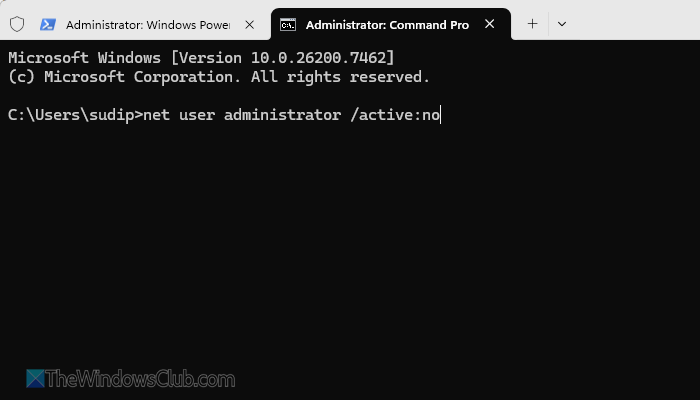
If you only have the built-in administrator account and try to enable BitLocker with it, it may not work. To use BitLocker, you must have an administrator account, which you must create manually.
In other words, you need to disable the built-in administrator account and create a new administrator account.
To disable the built-in administrator account in Windows 11, open the Command Prompt or the Command Prompt instance in Terminal with administrator privileges and enter this command:
net user administrator /active:no
However, if you use the PowerShell instance, enter this command:
Disable-LocalUser -Name “Administrator”
Once done, create a new administrator account in Windows 11. You can use the Windows Settings panel to get the job done.
After creating the new administrator account, log in to it and try setting up BitLocker.
2] Check TPM status
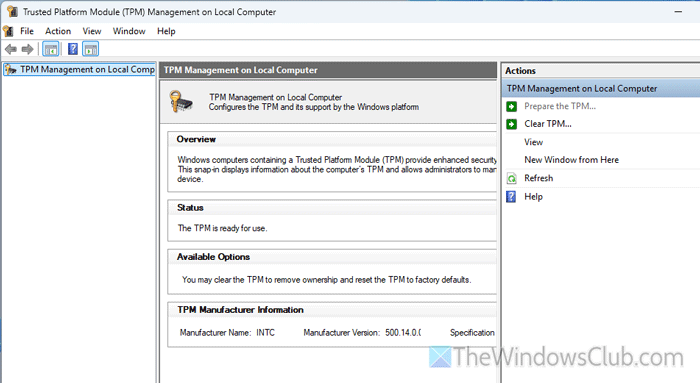
TPM, or Trusted Platform Module, is a security module that is required for BitLocker. If you have some issues with the TPM, there is a high chance that it might not work.
To check if TPM is installed or not, press Win+R, type tpm.msc, and hit Enter button. If it shows a message like Compatible TPM cannot be found, you must check the BIOS.
In the BIOS, you can find an option called Trusted Platform Module (TPM) that must be enabled. If not, enable it manually.
Alternatively, it is suggested to use the TPM Diagnostics Tool. It generates a report to help you fix common TPM-related problems.
Read: TPM missing or not showing in BIOS.
3] Check Group Policy settings
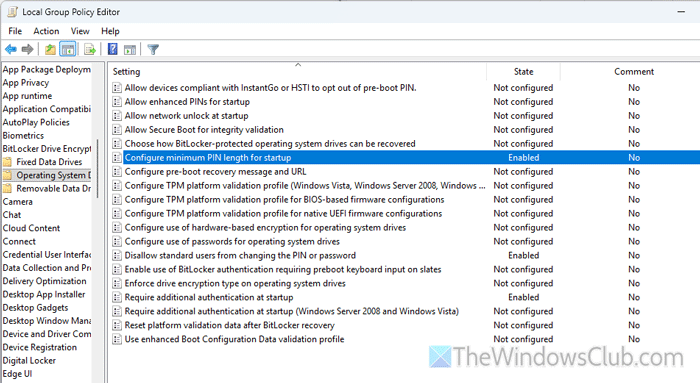
There are a few Group Policy settings that must be set up correctly. Otherwise, there is a high chance of getting this problem on a Windows 11 PC. These settings are:
- Require additional authentication at startup
- Disallow standard users from changing the PIN or password
- Configure minimum PIN length for startup
To check the status of these settings, open the Local Group Policy Editor and navigate to this path:
Computer Configuration > Administrative Templates > Windows Components > BitLocker Drive Encryption > Operating System Drives
Double-click on each setting and check it minutely. However, if you are not sure, it is recommended to use the factory defaults. For that, choose the Not Configured option.
4] Check Registry Editor
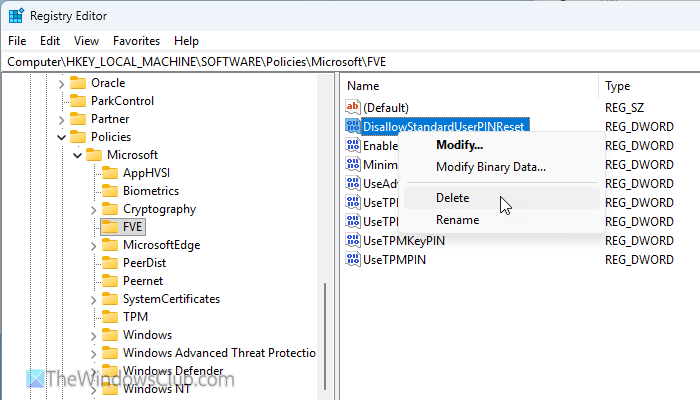
All of the aforementioned Group Policy settings can also be set via Registry Editor. If you have made changes to the registry files, you may encounter this error. Therefore, open the Registry Editor and verify the status of these settings.
Navigate to this path:
HKEY_LOCAL_MACHINE\SOFTWARE\Policies\Microsoft\FVE
If you find a REG_DWORD value named MinimumPIN, delete it.
Apart from these, if you find any of these REG_DWORD values, it is suggested to delete them:
- DisallowStandardUserPINReset
- EnableBDEWithNoTPM
- UseAdvancedStartup
- UseTPM
- UseTPMKey
- UseTPMKeyPIN
- UseTPMPIN
Once you are done, restart your computer, log in to your administrator account, and check the BitLocker settings.
5] Use SFC scan and DISM
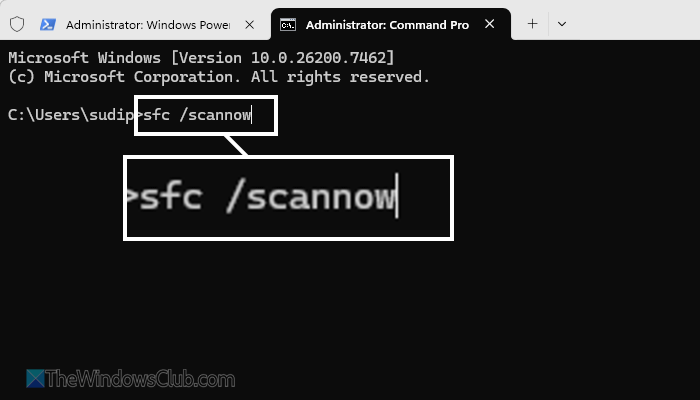
At times, this problem may arise when your system files are corrupt. If so, you can get it fixed by runningthe DISM (Deployment Image Servicing and Management) tool and the SFC (System File Checker) scan. However, it is suggested to run the System File Checker first.
For that, open the Terminal with administrator privileges and enter this command:
sfc /scannow
For your information, it takes some time. Do not interrupt in the meantime.
However, if this scan doesn’t fix the issue, it is suggested to run the DISM tool. For that, open Terminal with administrator permissions and enter this command:
Dism /Online /Cleanup-Image /ScanHealth
If it finds any issues, you can use this command to fix:
Dism /Online /Cleanup-Image /RestoreHealth
Note: In case you are confused between SFC and DISM, you can go through this article to know when to use which first.
Read: Fix corrupted Windows Update system files using DISM Tool
6] Update Windows
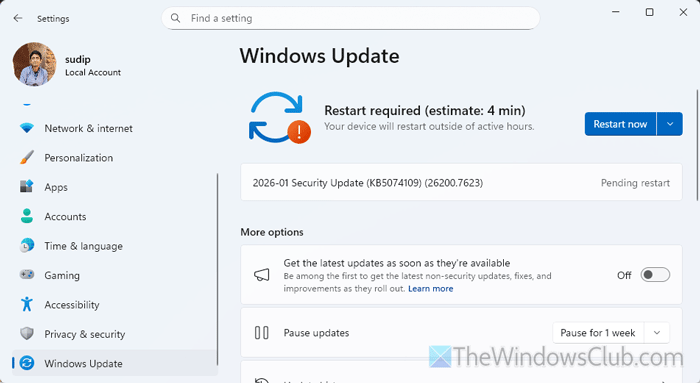
To update Windows 11, follow these steps:
Press Win+I to open Windows Settings and go to the Windows Update section. If any update is pending, download and install it accordingly.
It is suggested that the drivers be updated as well. For that, go to Advanced options > Optional updates. If any update is available, tick the corresponding checkbox and download it.
Read: BitLocker missing or not showing in Windows 11
Why can’t I set a BitLocker PIN?
The main reason why you can’t set a BitLocker PIN or password is that your password doesn’t meet the minimum requirements. Apart from that, the TPM’s disability and incorrect Registry Editor and Group Policy settings could also cause the same issue.
Read: How to install and enable BitLocker on Windows Server
Why is my BitLocker password not working?
If your BitLocker password is not working, you must check the CAPS Lock, special characters, etc. Apart from that, you must verify whether all the buttons on your keyboard are working. Lastly, you can check the aforementioned Group Policy and Registry Editor settings to resolve it.
