
BitLocker is a built-in Windows 11 security feature that protects user data through full-disk encryption. To unlock a BitLocker-encrypted drive, you need to enter the 48-digit recovery key. For some users, the BitLocker recovery key is not working on Windows 11/10. This prevents users from accessing data stored on their BitLocker-encrypted hard drive. This article outlines the steps you can follow to resolve the issue.
BitLocker Recovery Key is not working on Windows 11
If the BitLocker recovery key is not working on your Windows 11 computer, follow these suggestions to troubleshoot and fix the issue.
- Preliminary fixes
- Try to unlock the drive with CMD
- Enable or disable Secure Boot
- Use a third-party tool
- Perform a clean installation of Windows
All these fixes are explained in detail below:
1] Preliminary fixes
Before you dive into advanced troubleshooting steps, try these preliminary fixes and see if any of these help:
- Check your keyboard: The problem may be related to your keyboard. If the issue is happening on a drive other than the C drive, launch Notepad and test your keyboard. If you are locked out of your system, test your keyboard by connecting it to another working computer. Alternatively, use another working keyboard or an on-screen keyboard.
- Match the recovery key ID: Every BitLocker recovery key has a unique ID. If you are locked out of your system, you will see a recovery key ID on the BitLocker screen. Match that recovery key ID with the recovery keys saved in your Microsoft account. This will let you know whether you are using the right recovery key.
- Verify the keys in your Microsoft account: If you have multiple computers that support BitLocker drive encryption and use different Microsoft accounts to back up recovery keys for different computers, verify that you are in the right Microsoft account. The BitLocker recovery key for the affected PC may be stored in another account. Check each relevant account to find the key associated with your PC.
2] Try to unlock the drive with CMD
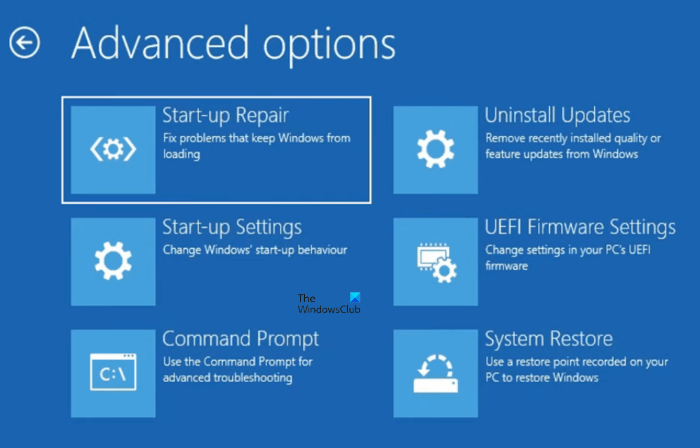
Try to unlock the BitLocker-encrypted hard drive with Command Prompt. If you are locked out of your system, you can run the required command in the Windows Recovery Environment. Since you cannot access Windows 11 Settings, you have to interrupt the normal boot process to enter WinRE. For this, follow these steps:
- Press and hold the power button to force shut down your PC.
- Turn on your system. When you see the Windows 11 or your computer manufacturer’s logo, press and hold the power button immediately until your computer shuts down.
Repeat the above steps until you see the “Preparing automatic repair” message on your screen. Now, you are in the Windows Recovery Environment. Navigate to Troubleshoot > Advanced options > Command Prompt. When the Command Prompt window appears on the screen, run the following command:
manage-bde -unlock C: -rp <recovery password>
Replace <recovery password> in the above command with the correct BitLocker recovery key and C with the correct hard drive letter. If you see the output message “The command has been successfully completed,” the next step is to disable BitLocker protectors. This step is necessary because it prevents the drive from getting locked again after you restart your PC to exit Windows Recovery Environment. Use the following command:
manage-bde -protectors -disable C:
Replace C with the correct drive letter in the above command. If the drive other than C is locked, you should be able to log in to your system. In this case, you can use the Control Panel to disable BitLocker drive encryption on the targeted drive after unlocking it.
3] Enable or disable Secure Boot
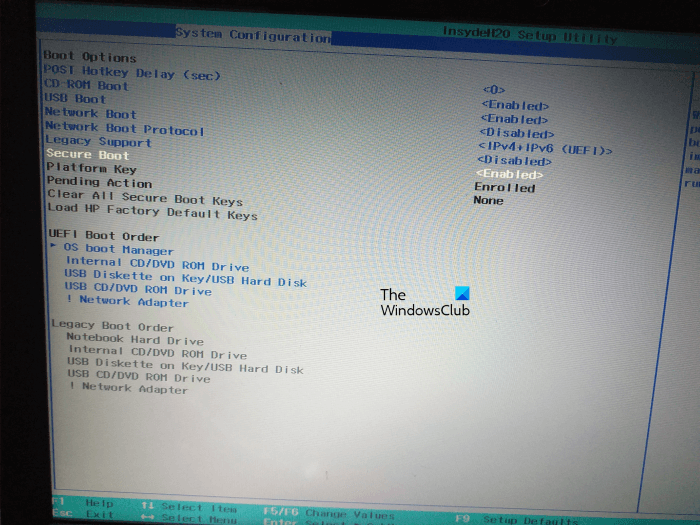
If the BitLocker recovery key is not working and you are locked out of your system, you can try bypassing the BitLocker screen by enabling or disabling Secure Boot. Enter the BIOS and locate the Secure Boot option. Toggle the option to enable or disable Secure Boot. This fix worked for many users. So, you can try this trick.
Read: BitLocker asking for Recovery Key after Windows Update
4] Use a third-party tool
You can also use a third-party tool, such as EaseUS Data Recovery software, to unlock the BitLocker-encrypted hard drive. Download and install EaseUS Data Recovery software on your system. Launch the tool and select BitLocker Drive from the left pane. Click Start, select the locked drive, and click Unlock and Recover. Type the recovery key and click Unlock. If you do not have the recovery key or the recovery key does not work, click Try Automatically Unlock. The software will take a few minutes to unlock your drive. Now, you can recover data.
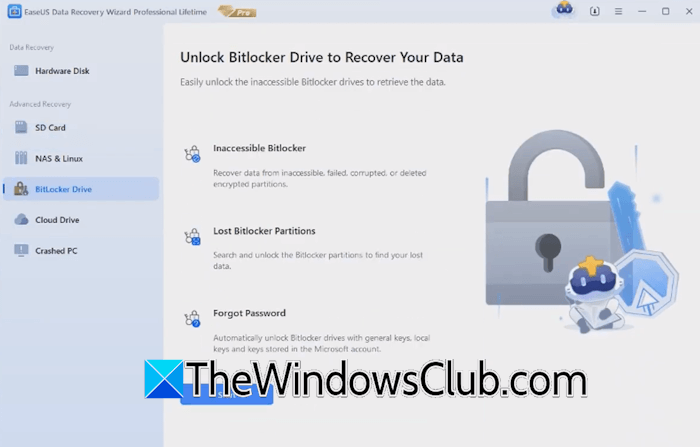
This method won’t work if the C drive is locked because you are locked out of your system. In this case, you need another working computer. Power down the affected computer and carefully disconnect the C drive. If you are not good at this, it is better to get a professional’s help. Now, connect the C drive externally to the working computer. Install and use the software to unlock that drive. To connect an internal hard drive as an external drive to another computer, use a compatible external USB enclosure.
5] Perform a clean installation of Windows
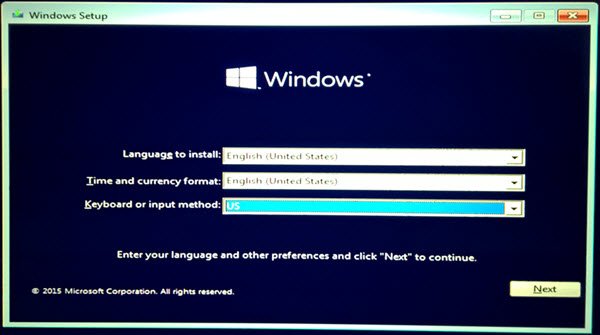
If the problem persists and you are locked out of your system, the last resort is to perform a clean installation of Windows. This will erase all data on the hard drive partition you select for the Windows installation. Therefore, select the right C drive partition.
There is also a way to recover data from an unbootable PC using the Windows Recovery Environment. The time required to recover the data depends on how much data you need to recover.
That’s it. I hope this helps.
How do I get a 48-digit recovery key for BitLocker?
Windows creates the 48-digit recovery key for BitLocker when you enable BitLocker encryption on your hard drive partition(s). You can use Command Prompt to view your BitLocker recovery keys by executing the following command:
manage-bde -protectors -get C:
Replace C with the correct drive letter in the above command. Another way to view your recovery keys is via the Control Panel. Launch the Control Panel and navigate to System and Security > Device Encryption. Click Backup your recovery key. Now, you can upload the recovery keys to your Microsoft account and save them to your PC as a PDF.
Why isn’t my BitLocker recovery key showing up in my Microsoft account?
If the BitLocker recovery key is not showing in your Microsoft account, you might have logged into another Microsoft account, or you might not have backed up the recovery key to your Microsoft account yet. Sign in to the right Microsoft account to view your BitLocker recovery keys.
Read next: BitLocker keeps asking for Recovery key at startup.
