
In this article, we will see what you can do if BitLocker is asking for a Recovery Key after a Windows Update.
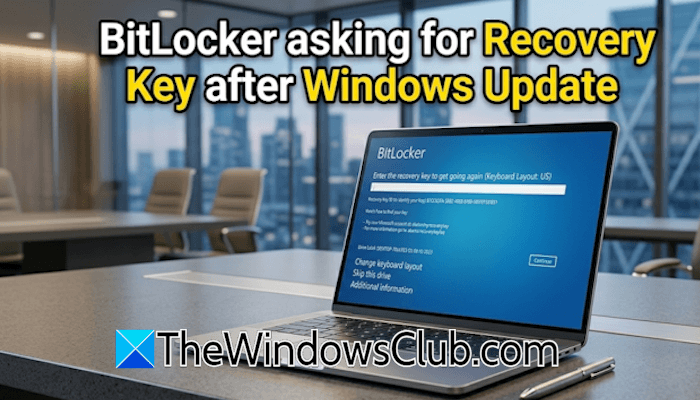
BitLocker asking for Recovery Key after Windows Update
If BitLocker asks for the Recovery Key after a Windows Update and you cannot boot into Windows, this article will help you troubleshoot and resolve the issue.
The April 2026 Update for Windows 11, with KB number KB5083769, has triggered the BitLocker login screen for some users. Now, the affected users cannot boot into Windows because their systems display the BitLocker screen at startup. The only way to boot into Windows 11 is to enter the BitLocker Recovery Key. Here, we will talk about the following two scenarios, the solutions will apply to any Windows Update that is causing such problems for you.
- If you have installed Windows Update with KB5083769 and cannot boot into Windows.
- If you have not installed Windows Update KB5083769 yet.
Installed the Windows Update KB5083769
Some users who installed Windows Update KB5083769 are experiencing this problem. According to Microsoft, this occurs on devices with an unsupported BitLocker Group Policy configuration. Users with such devices must enter the BitLocker Recovery key on the first restart after installing the update.
This issue affects only a limited number of systems in which ALL of the following conditions are met. These conditions are unlikely to be found on personal devices not managed by IT departments.
- BitLocker is enabled on the OS drive.
- The Group Policy “Configure TPM platform validation profile for native UEFI firmware configurations” is configured, and PCR7 is included in the validation profile (or the equivalent registry key is set manually).
- System Information (msinfo32.exe) reports Secure Boot State PCR7 Binding as “Not Possible“.
- The Windows UEFI CA 2023 certificate is present in the device’s Secure Boot Signature Database (DB), making the device eligible for the 2023‑signed Windows Boot Manager to be made the default.
- The device is not already running the 2023-signed Windows Boot Manager.
Finding the BitLocker Recovery Keys
If you are locked out of Windows, here is how you can get the BitLocker Recovery Key to unlock your C drive and boot into Windows.
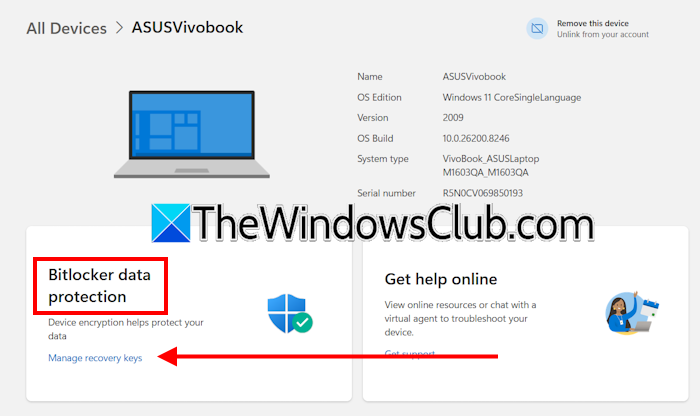
- On another working computer or your mobile phone, launch your favorite web browser.
- Visit account.microsoft.com.
- Sign in with the same Microsoft account or the account containing the BitLocker Recovery Keys for your PC.
- Navigate to Devices.
- Select your device from the list of devices displayed.
- Click Manage recovery keys link under the BitLocker data protection section.
You will find your recovery keys there. If no recovery keys exist there, it means you did not back them up earlier. In such a case, you can try a workaround to find the recovery keys on your disk.
If you don’t have the BitLocker Recovery Key
If you don’t have the BitLocker Recovery Key in your Microsoft account but remembered saving it somewhere on your disk, try this. This method will only work if the targeted drive partition is not locked by BitLocker.
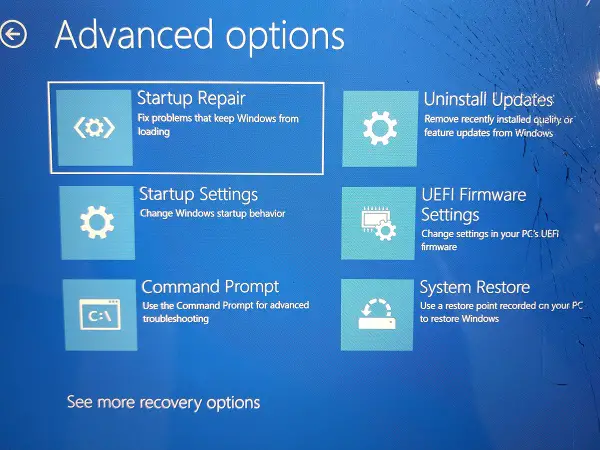
Press the Esc key to get more recovery options. Or, if you see the Skip this drive option, select it. After selecting the Skip this drive option, you will be in Windows Recovery Environment. Now, select Troubleshoot > Advanced Options > Command Prompt. Type notepad.exe and hit Enter.
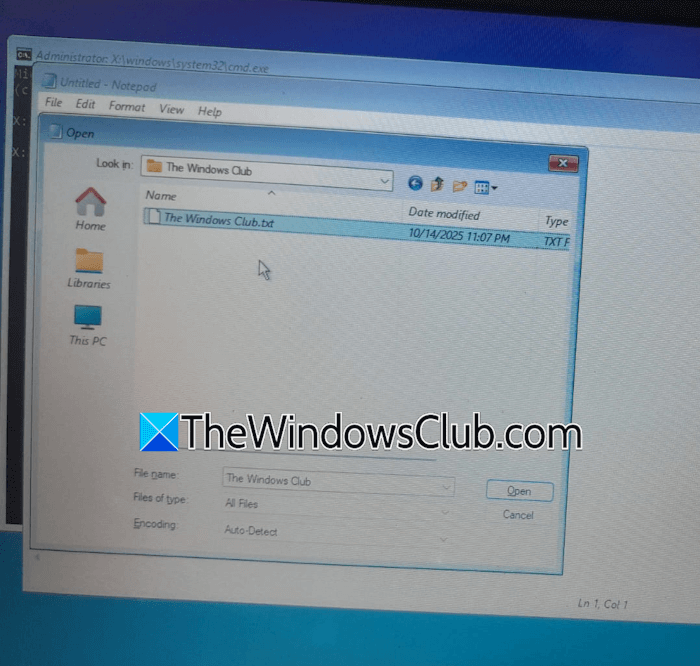
Notepad will appear on your screen. From here, you can access your hard drives. Click File > Open. Select This PC. After that, you will see all your hard drive partitions. Open the hard drive partition on which you have saved the BitLocker Recovery key. Select All Files in the Files of type drop-down to view all files on your hard drive partitions. Once you find the file, connect a USB flash drive and copy that file to the USB flash drive. Now, open the file on another working computer, and you will be able to get the BitLocker Recovery Key.
Toggle Secure Boot and TPM
First, recover all your important files through Windows Recovery Environment. After that, enter your system BIOS and find the Secure Boot and TPM settings. Toggle those settings, i.e., if they are enabled, disable them, and if they are disabled, enable them. Restart when you are done and see if that works for you.
If nothing works, reset your BIOS to the default and see if it works.
The last option
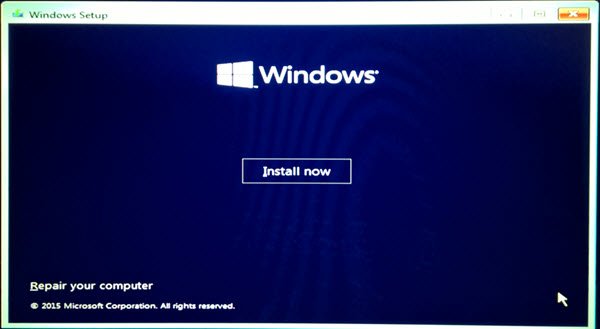
If you still cannot get the Recovery key, the last option is to perform a clean installation of Windows. During the clean installation, select the correct drive, as this will erase all the data from the hard drive partition selected for Windows installation. You will need a working computer to create a bootable USB flash drive with Windows installation media.
If you have not installed the Windows Update KB5083769 yet
If you have not installed Windows Update KB5083769 yet, you can prevent this issue by using this workaround.
Remove the Group Policy configuration before installing the update. Follow these instructions:
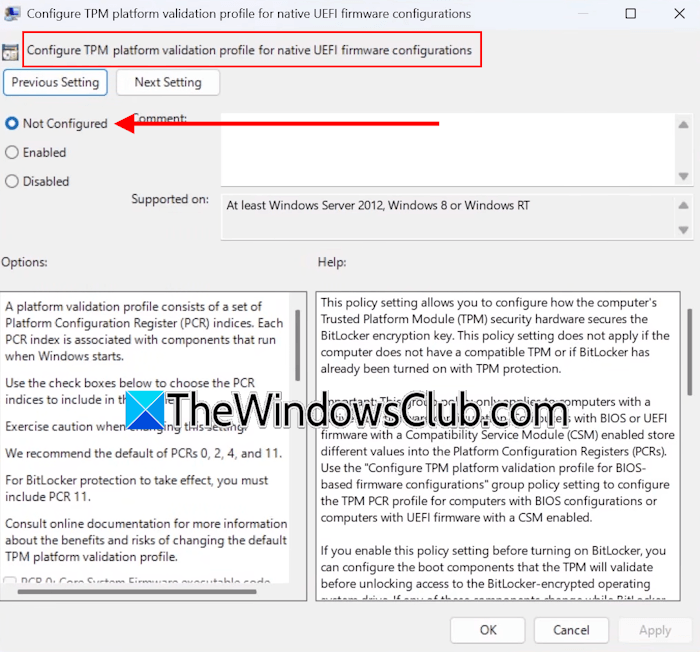
- Open Group Policy Editor.
- Navigate to Computer Configuration > Administrative Templates > Windows Components > BitLocker Drive Encryption > Operating System Drives.
- Set the “Configure TPM platform validation profile for native UEFI firmware configurations” to “Not Configured“.
- Click Apply, then click OK to save changes.
Now, launch Windows PowerShell as an administrator and run the following commands one by one. Press Enter after typing each command.
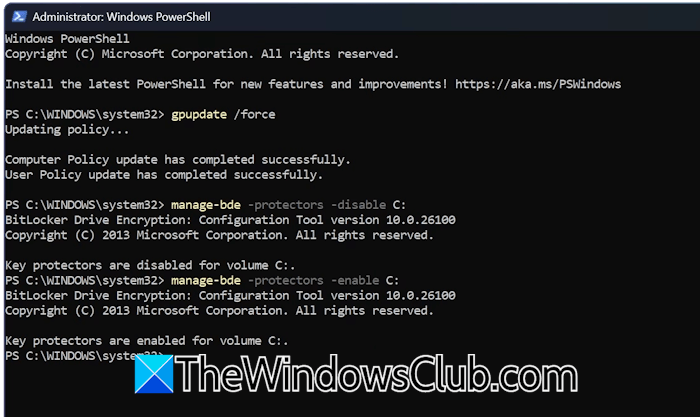
gpupdate /force

manage-bde -protectors -disable C:

manage-bde -protectors -enable C:
Replace the drive letter in the commands above with the one on which BitLocker is enabled. If it is enabled on C, use the commands as they are.
Now, you can install the update.
Microsoft also recommends that Enterprises apply the KIR (Known Issue Rollback) before installing the update. This option is for the customers who cannot remove the PCR7 group policy before deploying the update.
I hope this helps.
Also read: BitLocker keeps asking for Recovery key at startup.
HP computers stuck in BitLocker recovery loop after BIOS update
Although Microsoft installs the latest Secure Boot Certificates through Windows Update, in some cases the certificates cannot be installed. The respective message is displayed in Windows Security.
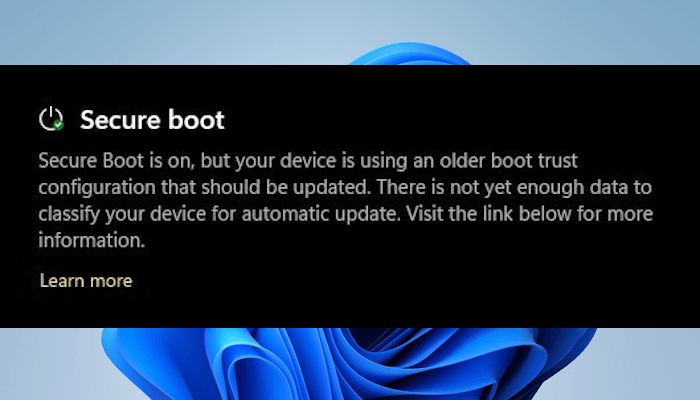
Look at the following Windows Security messages regarding the Secure Boot Certificates:
Secure Boot is on, but your device is affected by a known issue. To reduce risk, Secure Boot certificate updates are temporarily paused while Microsoft and partners work toward a supported resolution. The update will resume automatically once resolved.
and
Secure Boot is on, but your device does not support the automated Secure Boot certificate update due to hardware or firmware limitations. Contact your device manufacturer for assistance.
If you see the first message in Windows Security, you can wait for a few days and keep installing Windows updates. The certificates should be installed automatically. If this does not happen, you have to contact your computer’s manufacturer. However, if you see the second message in Windows Security, the only option to fix this issue is to contact the device manufacturer’s support.
In response to the error or warning messages displayed in Windows Security, computer manufacturers also start releasing BIOS updates. These BIOS updates make users’ computers compatible with the latest certificates, so Windows Updates can easily install them.
A BitLocker issue has also been reported in some HP commercial and workstation computers after installing the early April 2026 BIOS updates. This update triggered the BitLocker recovery screen. Entering the right password on affected HP computers allows users to boot into Windows. However, their computers boot to the same BitLocker recovery screen again after reboot.
The following HP computers are affected due to this BIOS update:
- All HP Commercial Notebooks
- All HP Commercial Desktops
- All HP Workstation Computers
The new Secure Boot certificates may fail to apply when this BitLocker issue occurs. To verify the status of this process, check the UEFICA2023Status and UEFICA2023Error registry values. If the UEFICA2023Status registry value remains in an “In Progress” state over time and the UEFICA2023Error registry value shows any number higher than 0, then the update process has failed. Open the Registry Editor and navigate to the following path:
Computer\HKEY_LOCAL_MACHINE\SYSTEM\CurrentControlSet\Control\SecureBoot\Servicing
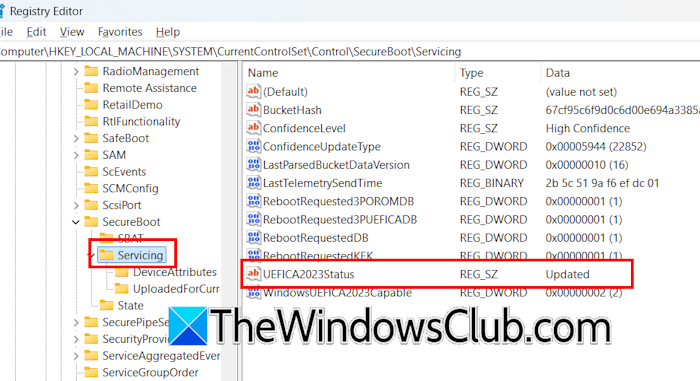
You will see any one or both of the above-mentioned registry values on the right side.
To resolve the BitLocker and Secure Boot Certificates issues, follow the steps provided below. Before you make any changes, disable BitLocker.
- Turn on your HP computer and immediately press the F10 key repeatedly to enter the HP BIOS. If the F10 key does not work, refer to the user manual of your HP computer to know the right BIOS key.
- Once you see the BIOS Home page, navigate to the Security tab.
- Select the Secure Boot Configuration from the menu options.
- On the Secure Boot Configuration page, enable the following certificate settings:
- Windows UEFI CA 2023
- Microsoft Option ROM UEFI CA 2023
- Microsoft UEFI CA 2023
- Enable MS UEFI CA Key
- Navigate to the Main menu.
- Select Save changes and Exit.
Your computer should boot into Windows normally, and the BitLocker issue should be resolved. After enabling the above-mentioned BIOS settings, the Secure Boot Certificates will not be installed immediately.
The installation of Secure Boot Certificates on a computer may take time to complete. If you leverage the Secure Boot Certificates through Windows Updates, it may take time for Windows Update to finalize 2023 certificates and bootloader file changes on a system.
Once the BitLocker issue has been resolved and the latest Secure Boot Certificates have been applied to your system, disable the following three BIOS settings. However, if you use third-party option ROMs, bootloaders, or EFI applications, skip disabling these three BIOS settings.
- Microsoft Option ROM UEFI CA 2023
- Microsoft UEFI CA 2023
- Enable MS UEFI CA Key
Hope this helps.
Read: BitLocker Recovery Key not working on Windows 11
What is Known Issue Rollback in Windows?
Known Issue Rollback (KIR) is a Windows servicing mechanism designed to quickly undo non-security bug fixes that unintentionally cause regressions. Instead of removing the update entirely, Microsoft keeps older code paths in the system and can re-enable them through a cloud-delivered policy. This rollback is applied automatically on the next reboot, so most users will never notice the issue or the fix. KIR is not used for security updates, since reverting those would reintroduce vulnerabilities.
For enterprises, Microsoft provides Group Policy files in related KB articles so IT admins can manage rollbacks themselves. Diagnostic data helps track the success of these rollbacks across devices, ensuring stability until a corrected fix is released. Overall, KIR ensures that Windows devices remain secure and productive by minimizing disruption when updates inadvertently cause problems.
Can I skip the BitLocker recovery key?
Unfortunately, you cannot skip the BitLocker recovery screen, as this is for your device’s security. Windows displays this screen when it detects some hardware changes or firmware updates. This is an attempt to save your data from unauthorized access. In some cases, toggling Secure Boot and TPM in the BIOS works. However, in most cases, you need to enter the recovery key to boot into Windows.
Can I recover data without the BitLocker recovery key?
If your C drive is locked with BitLocker and other drives aren’t, you can recover data from other hard drive partitions. For this, you need to enter the Windows Recovery Environment. This process will take time based on the amount of data you want to recover. However, if all your hard drive partitions are locked, you will be in an unfortunate situation, as you cannot recover your data.
Read next: Check BitLocker Drive Encryption Status.
