
If you want to install BitLocker on Windows Server, here is how you can do that. This article will help you install, enable, and uninstall BitLocker on Windows Server 2025/2022/2019 using three different methods: using Server Manager, Windows PowerShell, and the DISM module.
What is BitLocker?
BitLocker is a security feature that helps you encrypt your drives. Whether it is your hard drive, an external USB drive, or multiple hard drives, you can encrypt them with BitLocker. You can find BitLocker on Windows 11 and Windows 10. The same thing can be obtained on Windows Server as well.
How to install BitLocker on Windows Server using Server Manager
To install BitLocker on Windows Server using Server Manager, follow these steps:
- Open Server Manager on your Windows Server.
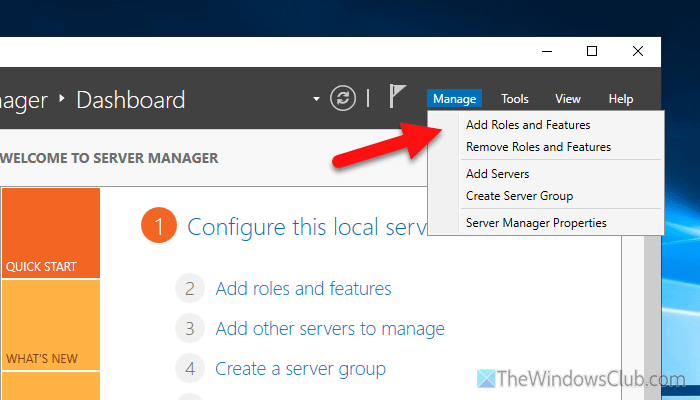
- Click on Manage > Add Roles and Features.
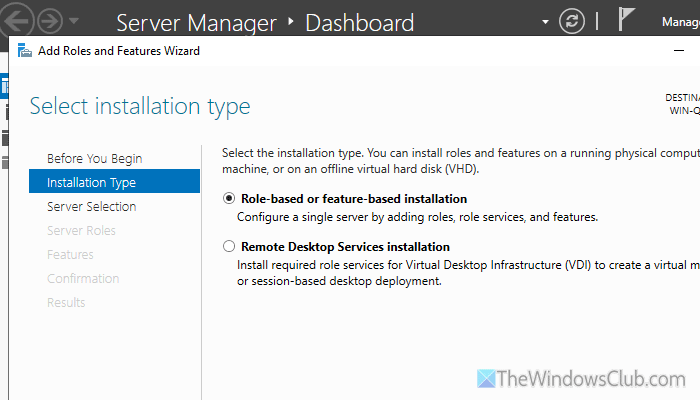
- Select Role-based or feature-based installation in the Installation type tab.
- Select the Select a server from the server pool option and choose a server from the pool.
- Tick the BitLocker Drive Encryption checkbox in the Features tab and click Next.
- Tick the Include management tools checkbox and click on Add Features.
- Tick the Restart the destination server automatically if required checkbox and click on Install option.
To learn more about these steps, continue reading.
First, open the Server Manager on your computer and click on Manage > Add Roles and Features.
In the Installation Type tab, choose the Role-based or feature-based installation option and click the Next button.
Select the Select a server from the server pool option in the Server Selection tab and choose a server on which you want to install BitLocker. Do not make any changes in the Server Roles tab and click the Next button. Then, tick the BitLocker Drive Encryption checkbox.
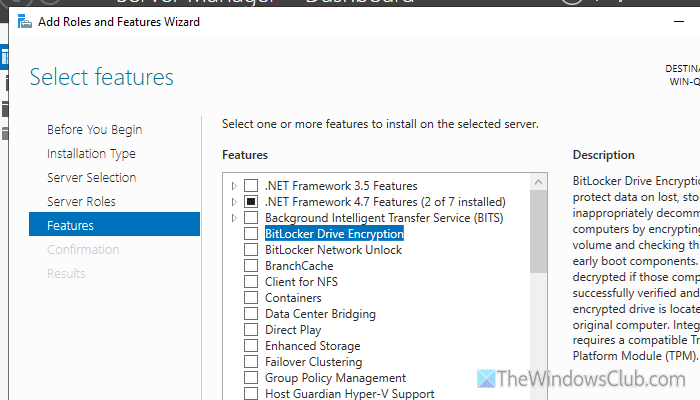
It will ask whether you want to install all BitLocker features. It is suggested to tick the Include management tools checkbox and click the Add Features button.
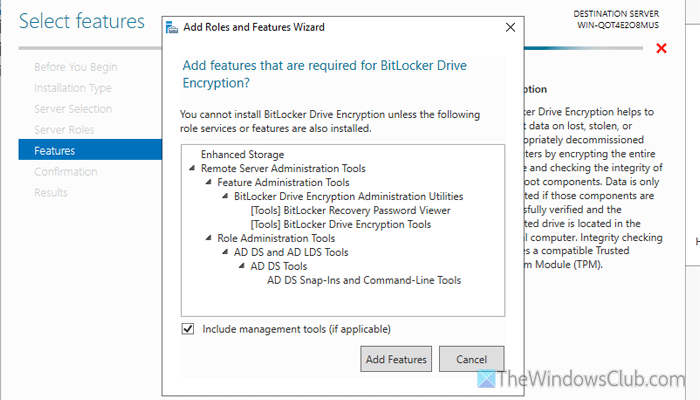
After clicking the Next button, tick the Restart the destination server automatically if required checkbox and click on the Install option.
Once done, it will take a few minutes to complete the installation. As mentioned earlier, it will restart your Windows Server automatically. Following that, you will be able to access BitLocker on your computer.
How to install BitLocker on Windows Server using PowerShell
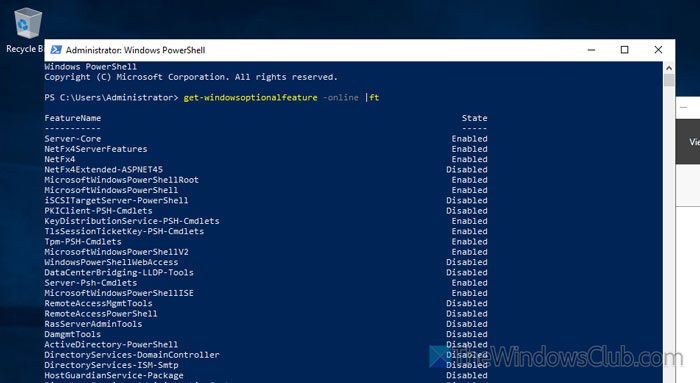
To install BitLocker on Windows Server using PowerShell, follow these steps:
- Open PowerShell on your Windows Server.
- Enter this command: Install-WindowsFeature BitLocker -IncludeAllSubFeature -IncludeManagementTools -Restart
To know more about these steps, keep reading.
First, open Windows PowerShell on your Windows Server. Then, enter this command:
Install-WindowsFeature BitLocker -IncludeAllSubFeature -IncludeManagementTools -Restart
For your information, it will install a full version of BitLocker with all the management tools. Once done, you can check the status by using this command:
Install-WindowsFeature BitLocker -WhatIf
Note: After completing the process, it restarts your server. It is recommended to save your work before it does so.
How to install BitLocker on Windows Server using DISM module
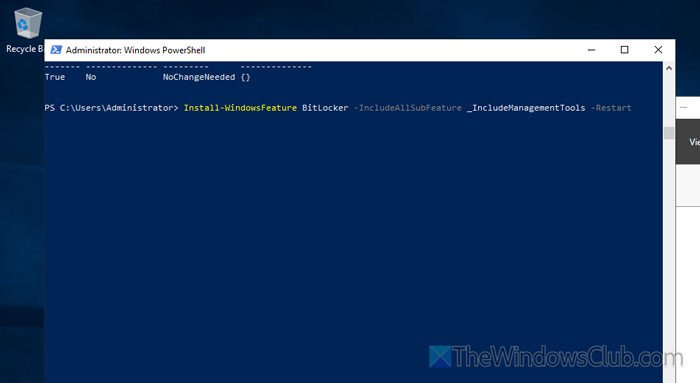
To install BitLocker on Windows Server using the DISM module, follow these steps:
- Open Windows PowerShell on your computer.
- Enter this command to find the status: Get-WindowsOptionalFeature -Online | ft
- Enter this command for a full installation: Enable-WindowsOptionalFeature -Online -FeatureName BitLocker -All
Let’s delve into the steps in detail.
First, open Windows PowerShell and enter this command to check the status of the feature:
Get-WindowsOptionalFeature -Online | ft
If BitLocker and BitLocker-Utilities features are disabled, use this command:
Enable-WindowsOptionalFeature -Online -FeatureName BitLocker -All
However, if you want to install the management tools, enter this command:
Enable-WindowsOptionalFeature -Online -FeatureName BitLocker, BitLocker-Utilities -All
The only problem with this method is that it doesn’t restart your server, which is mandatory to complete the installation. That said, you must restart your server once the installation is complete.
No matter which method you follow, you can search for “BitLocker” in the Taskbar search box once the restart is done. Following that, you will be able to set things up as per your requirements. In case you don’t know, you can follow this guide to set up and configure BitLocker on your computer.
How to uninstall BitLocker from Windows Server using Server Manager
To uninstall BitLocker from Windows Server using Server Manager, follow these steps:
- Open Server Manager on your computer.
- Select Manage > Remove Roles and Features.
- Select the desired server in the Server Selection tab.
- Remove the tick from the BitLocker Drive Encryption checkbox in the Features tab.
- Tick the Remove management tools checkbox and click the Remove Features button.
- Tick the Restart the destination server automatically if required checkbox and click the Remove button.
To learn more about these steps, continue reading.
To get started, open the Server Manager and select Manage > Remove Roles and Features. Go through the same first two steps as you did while installing BitLocker. Then, go to the Server Selection tab and choose the server from the pool.
Next, remove the tick from the BitLocker Drive Encryption checkbox in the Features tab. Following that, tick the Remove management tools checkbox and click the Remove Features button.
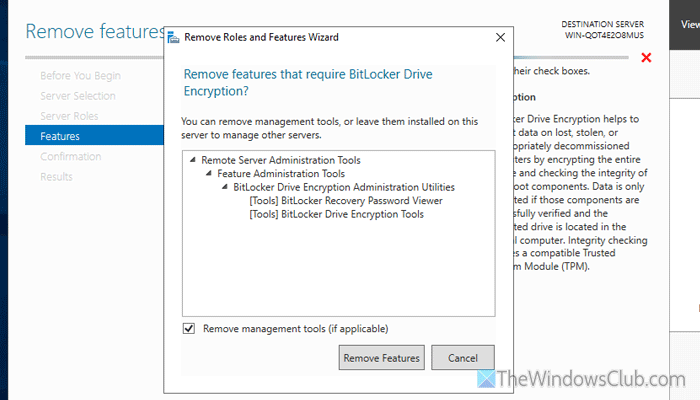
Note: If you have a plan to install BitLocker again in the future, do not remove all the features. Otherwise, you can make a complete uninstallation.
Finally, tick the Restart the destination server automatically if required checkbox and click the Remove button.
Read: Turn On or Off the use of BitLocker on Removable Data Drives in Windows 11
Can you enable BitLocker on Windows Server?
Yes, you can enable BitLocker on Windows Server using three methods: Server Manager, Windows PowerShell, and the DISM module. You can open Windows PowerShell and execute this command for a full installation: Install-WindowsFeature BitLocker -IncludeAllSubFeature -IncludeManagementTools -Restart.
Read: Unable to set BitLocker password in Windows 11
Does Server 2025 have BitLocker?
Yes, Windows Server 2025 has BitLocker. You can find BitLocker on Windows Server 2025, Windows Server 2022/2019, etc. On the other hand, the same feature is available on Windows 11 and Windows 10. However, if you want to use BitLocker, you must install the modules using Server Manager or Windows PowerShell.
Read: Enable or Disable BitLocker for encrypted Data Drives in Windows.
