
If you are working with Active Directory through PowerShell and see an error such as Unable to find a default server with Active Directory Web Services running, the problem is usually not with the PowerShell command itself. Windows is trying to locate a domain controller that provides Active Directory Web Services (ADWS), but it either cannot find one, cannot connect to it, or the service is not running. In this post, we’ll show you what you can do to resolve the issue.
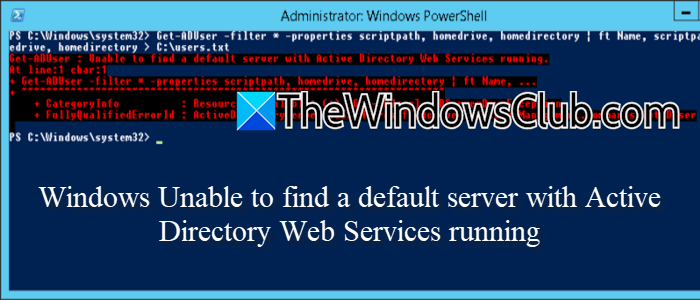
Windows unable to find a default server with Active Directory Web services running
Active Directory PowerShell does not communicate with a domain controller using only the normal LDAP connection. The Active Directory module uses Active Directory Web Services to perform many of its management operations. ADWS normally runs on a domain controller and listens on TCP port 9389. Microsoft states that ADWS is installed automatically when the AD DS or AD LDS role is added on supported Windows Server versions. When you run Get-ADUser administrator in PowerShell, it needs to discover an appropriate domain controller. If DC Locator cannot find a DC advertising ADWS, or the client cannot reach the discovered DC on TCP 9389, you can receive the following error.
Unable to find a default server with Active Directory Web Services running
Several different things can produce what looks like the same error.
If Windows can’t find a default server with Active Directory Web Services running, follow the solutions below.
- Start the Active Directory Web Services service
- Check whether port 9389 is reachable
- Check whether the client can actually discover an ADWS-enabled domain controller
- Check whether ADWS is missing from the domain controller
Let us talk about them in detail.
1] Start the Active Directory Web Services service
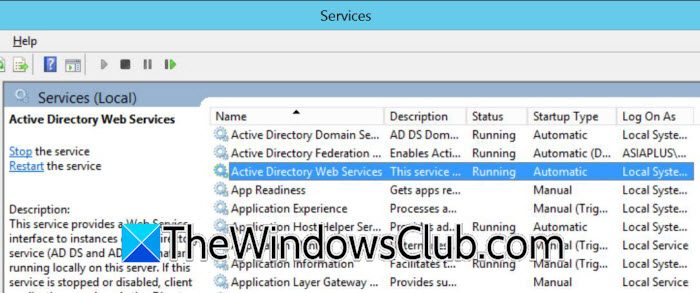
If ADWS is installed but stopped or disabled on the domain controller, we will have to start it on the server. To start the Active Directory Web Services service, follow the steps mentioned below.
- Log in directly to your domain controller.
- Now, press Windows + R.
- Now, type services.msc and Press Enter.
- Look for Active Directory Web Services.
- Then, double-click the service and set Startup type to Automatic.
- If the service is stopped, click Start.
Click Apply and then OK.
You can also do this from an elevated PowerShell window:
Get-Service ADWS
You should see something similar to:
Status Name DisplayName
------ ---- -----------
Running ADWS Active Directory Web Services
If it is stopped, run the following command.
Start-Service ADWS
Then make sure it starts automatically by executing the following command.
Set-Service ADWS -StartupType Automatic
Now test from the client using the following commands.
Get-ADDomainController -Discover -Service ADWS
If a domain controller is returned, try your original command again Get-ADUser administrator.
Now, check if your issue persists.
2] Check whether port 9389 is reachable
ADWS can run perfectly on the domain controller while the client cannot reach it. ADWS uses TCP port 9389. A Windows Firewall rule, network firewall, security appliance, or routing problem can prevent the connection.
First, find the name of a domain controller.
Get-ADDomainController -Discover
Suppose the result gives you DC01.contoso.com, from the computer where the PowerShell command is failing, run Test-NetConnection DC01.contoso.com -Port 9389 and look at TcpTestSucceeded.
If you get TcpTestSucceeded : True the client can reach ADWS on that DC.
If you get TcpTestSucceeded : False, you have a connectivity problem.
On the domain controller, check whether anything is actually listening on 9389.
netstat -ano | findstr :9389
You should see a LISTENING entry.
You can get more detail with netstat -anob | findstr 9389.
If ADWS is running but port 9389 is not listening, restart the service Restart-Service ADWS, and then check again.
If the service is listening but Test-NetConnection still fails, check the Windows Firewall on the domain controller. Microsoft notes that domain controllers normally have an Active Directory Web Services (TCP-in) firewall rule.
You can check it with Get-NetFirewallRule -DisplayName "*Active Directory Web Services*"
Do not simply disable the entire Windows Firewall as a permanent fix. Find the rule or network device that is blocking TCP 9389.
3] Check whether the client can actually discover an ADWS-enabled domain controller
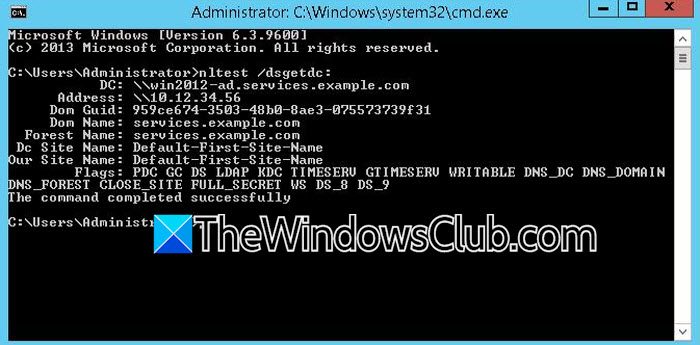
ADWS can be running, and port 9389 can be open, but Windows may still be unable to discover the correct domain controller. This is where DC Locator and DNS become important. Microsoft recommends using nltest to determine whether Windows can locate a domain controller advertising the Web Services capability.
From the computer where the error occurs, open Command Prompt or PowerShell and run the following command to determine your domain name.
$env:USERDNSDOMAIN
You can also check whoami; suppose your domain is thewindowsclub.com, run the command nltest /dsgetdc:thewindowsclub.com /ws /force. The /ws option specifically asks DC Locator for a domain controller providing Web Services. If it succeeds, you should get information about a domain controller. You can also try nltest /dsgetdc:thewindowsclub/ws /force using the NetBIOS domain name.
If nltest cannot find a DC, check DNS next:
nslookup thewindowsclub.com
Also check the DC’s hostname nslookup DC01.thewindowsclub.com. The returned address should point to the correct domain controller.
If your computer is using an external DNS server such as 8.8.8.8 or your ISP’s DNS, that is a major red flag in an Active Directory environment. Domain-joined machines should normally use the organization’s internal AD DNS infrastructure so they can resolve the AD-specific records required for DC discovery.
After correcting DNS, clear the local DNS cache ipconfig /flushdns, then try nltest /dsgetdc:contoso.com /ws /force again.
4] Check whether ADWS is missing from the domain controller
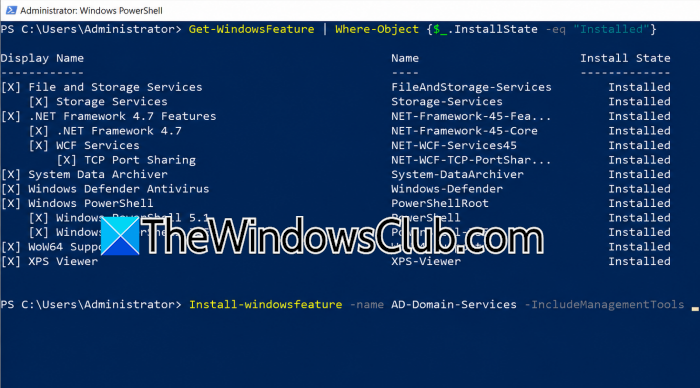
If you open services.msc and Active Directory Web Services isn’t there at all, this is a different problem from a stopped service. ADWS is installed automatically with the AD DS or AD LDS server roles on supported Windows Server versions. Therefore, its complete absence may indicate that the server isn’t configured with the expected directory-service role or that the installation is damaged.
Follow the steps mentioned below to do the same.
On the suspected domain controller, check whether the AD DS role is installed using the command: Get-WindowsFeature AD-Domain-Services.
A normal domain controller should show the feature as installed.
You can also check whether the ADWS executable exists Test-Path "C:\Windows\ADWS\Microsoft.ActiveDirectory.WebServices.exe"
If it returns True, the ADWS program exists.
If it returns False, and the ADWS service is also missing, verify the server’s AD DS installation before trying to repair individual services.
Check the role Get-WindowsFeature AD-Domain-Services.
If AD DS is not installed, install the required server role Install-WindowsFeature AD-Domain-Services -IncludeManagementTools.
Do not run this command blindly on an existing production domain controller. If AD DS is already installed but ADWS is missing, investigate the Windows Server installation and Event Viewer first rather than attempting to recreate the domain controller role.
That’s it!
Read: How to backup and restore Active Directory in Windows Server
How do I turn on Active Directory Web Services?
To turn on Active Directory Web Services, open Services on your Windows Server by pressing Windows + R, typing services.msc, and pressing Enter. Find Active Directory Web Services in the list, right-click it, and select Properties. Set Startup type to Automatic, then click Start if the service is stopped. Click Apply and OK. You can also run Start-Service ADWS in an elevated PowerShell window to start it.
Read: How to restore Active Directory from a Windows Server Backup
How to enable Active Directory Domain Services in Windows 11?
You cannot install the Active Directory Domain Services (AD DS) server role directly on Windows 11. AD DS is a Windows Server role, so you need Windows Server to create or manage a domain controller. On Windows 11, you can install RSAT: Active Directory Domain Services and Lightweight Directory Services Tools instead. Go to Settings > System > Optional features > View features, search for RSAT, select the Active Directory tools, and click Install.
Also read: Active Directory Users and Computers not responding.
