
In this post, we will see, what is Known Issue Rollback (KIR) on Windows and how to deploy Known Issue Rollback (KIR) using Group Policy on Windows 11 and Windows Server.
One constant on Windows 11 is its regular updates. Updates keep our devices secure, add new features, fix bugs, and more. With regular updates, we may still encounter bugs or unintended errors that make the PC hard to use. Sometimes, they may make the PC vulnerable to external threats. Microsoft publishes a list of known issues for each Windows 11 update. To mitigate this, Microsoft has introduced the Known Issue Rollback (KIR) feature. In this guide, we explain what Known Issue Rollback (KIR) is and how to deploy Known Issue Rollback (KIR) using Group Policy in Windows 11 and Windows Server.
What is Known Issue Rollback (KIR) on Windows?
Microsoft rolls out multiple Windows updates every month. With these updates, users may encounter issues that come with the update. When this happens, users or IT admins used to have limited options: skip the update, wait for a new update to fix the issue, or uninstall the entire update. This leaves devices in a limbo of uncertainty due to security and compliance concerns. To address this issue, Microsoft introduced KIR (Known Issue Rollback), a solution that lets users stay secure and compliant without skipping or uninstalling updates. Microsoft introduced the solution with Windows 10, version 2004.
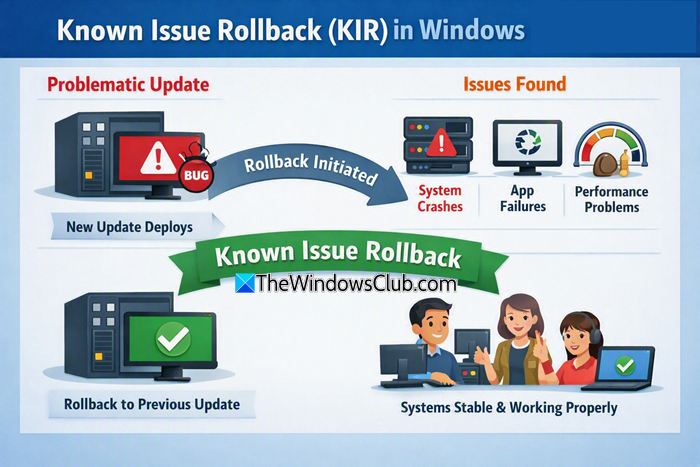
Known Issue Rollback (KIR) helps admins or users to troubleshoot and mitigate the effects of bad parts of a Windows update. It makes Windows more reliable for organizations. When deployed, KIR removes or reverts the Windows update issue by mitigating only the problematic part, functionality, or feature of a Windows update. It reverts the problematic part to the previous state. The KIR technology is available for all supported Windows versions on all Enterprise-managed and retail or consumer devices.
When a user or admin deploys KIR on a supported device, the KIR infrastructure uses group policies and service-delivered metadata to decide whether to run the new code or the previous code. This is determined using the built-in runtime feature flags. If the policies or metadata indicate an issue with a specific change in the Windows update, it reverts to the older code behavior.
One important thing to note is that KIRs apply only to non-security updates.
How does Known Issue Rollback work for consumers (end-users)?
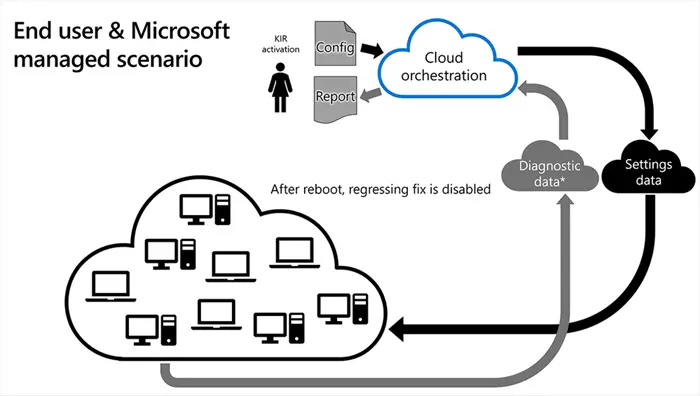
When Microsoft decides to rollback a bug fix in an update because of a known issue, configuration changes are made in the cloud. Devices connected to Windows Update or Windows Update for Business are notified of this change and it takes effect with the next reboot. According to Microsoft, the following is what happens next with your system:
While these devices would still require a reboot, in most cases we have identified and published a rollback before most end user devices would have had the chance to even install the update containing the issue. In other words, most end users will never see the regression!
How does Known Issue Rollback work in the Enterprise?
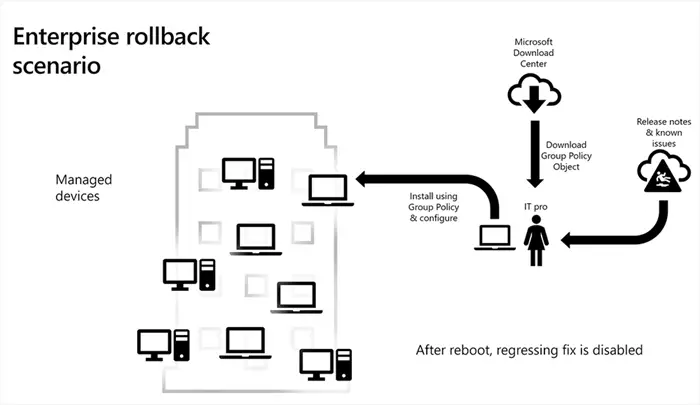
For a Known Issue Rollback, Microsoft will publish a specific Group Policy on the Download Center that IT administrators can use to configure and apply a rollback policy within an enterprise. The Windows Update KB article and release notes include a link to the Group Policy as a mitigation for a “Known Issue.”
Microsoft further states:
In the KB article, we describe the issue and related information to help you and your IT administrators make informed choices. Our customer service teams are also aware of the Known Issue Rollback system and will be able to work with customers to identify problems with monthly updates and in turn coordinate a rollback if necessary.
Essentially, devices that have opted to provide Microsoft with diagnostic data and specific information about which code-path is being exercised, this data from both the end-user and enterprise scenario helps Microsoft learn how well the rollback is succeeding in the ecosystem.
Let’s see how to configure Group Policy to activate KIR on managed devices.
Deploy Known Issue Rollback (KIR) using Group Policy in Windows Server
When a Windows non-security update causes an issue, Microsoft identifies it and generates a KIR (Known Issue Rollback). They announce it in the Windows Health Dashboard along with all the information and links to download the KIR. If you are a non-enterprise user, the KIR is applied automatically without your intervention. You can deploy the KIR in the following ways.
- Deploy KIR to a single device using Group Policy
- Deploy KIR to devices in a hybrid Microsoft Entra ID or AD DS domain using Group Policy
- Deploy KIR using a Microsoft Intune ADMX policy to managed devices
Here’s the detailed process for each method.
1] Deploy KIR to a single device using Group Policy
When you want to deploy KIR to a single device, make sure you have administrative privileges on the device. Then, visit the Microsoft Windows Release Health website in a web browser. Check your Windows version. See Known issues, Resolved issues, and Release notes to download the KIR .msi file.
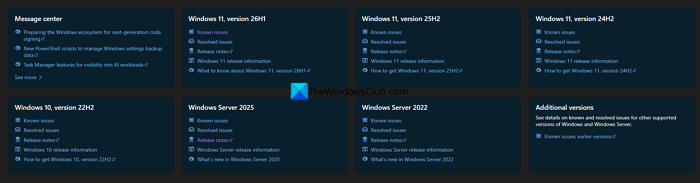
Make sure the downloaded file name matches the OS version you have on your device. Then, run the .msi file on your device. It will install a KIR policy definition in the Administrative Template.
Open the Local Group Policy Editor. Navigate to:
Local Computer Policy > Computer Configuration > Administrative Templates > KB (article number) issue (issue number) Rollback > Windows 11/10, Version (number).
Right-click the policy and select Edit. Then, check Disabled and click OK.
Restart your device to apply the changes.
2] Deploy KIR to devices in a hybrid Microsoft Entra ID or AD DS domain using Group Policy
Deploying a KIR to devices in a hybrid Microsoft Entra ID or AD DS domain involves four steps. First, download the KIR .msi files from Microsoft Windows Release Health that suit your current Windows version. Visit the Windows Release Health website and check the KIR release information, known issues, and resolved issues, and identify the operating system versions you have to update. Then download the KIR .msi files you need to update the computer you use to manage Group Policy for the domain, and run the .msi files. It installs the KIR policy definition in the Administrative Template.
The second step is to create a Group Policy Object (GPO). Open the Group Policy Management Console on the computer and navigate to Forest: DomainName > Domains. Find your domain name and right-click on it. Select Create a GPO in this domain, and link it here. Name the GPO to resemble the KIR issue number, and click OK.
Now configure the GPO. Right-click the newly created GPO and select Edit. In the Group Policy Editor, navigate to the following path.
Your Newly Created GPO Name > Computer Configuration > Administrative Templates > KB (article number) Issue (number) Rollback > Windows 11/10, Version (number).
Then, right-click the policy and select Edit. Check Disabled and click OK to save the changes.
The newly created Group Policy Object (GPO) must apply to managed devices in a hybrid Microsoft Entra ID or AD DS domain within 90 to 120 minutes. You can use gpupdate manually on the individual managed devices to check for updated policies. Restart each affected device after the GPO updates successfully.
3] Deploy KIR using a Microsoft Intune ADMX policy to managed devices
Microsoft Intune is mobile device management (MDM)- based, and Group Policy Objects (GPOs) are not compatible with it. We have to use Intune custom settings for ADMX ingestion and configure ADMX-backed MDM policies to perform KIR. Check for known issues, resolved issues, and release notes, and identify which operating system versions you need to update. Then, download the KIR policy definition .msi files from the device to the device you use to manage Microsoft Intune.
Run the .msi files to install the KIR policy definition in the Administrative Template. They are installed by default in the following location.
C:\Windows\PolicyDefinitions
Now, you have to create a custom configuration profile for each OS of your managed devices in Microsoft Intune. Visit the Microsoft Intune admin center and sign in with your credentials. Navigate to:
Devices > Configuration profiles > Create profile. Select Windows 10 and later as the Platform.
For Profile, select Templates> Custom. Then, click Create.
Enter the Basics, like Name and Description. The name should be easily identifiable for the policy in the future. It should indicate which KIR resolves which issue. The description must have more details of the same. Then, click Next.
Now, navigate to the following path and open the ADMX file in a text editor.
C:\Windows\PolicyDefinitions
The ADMX file in a text editor must look like the following.
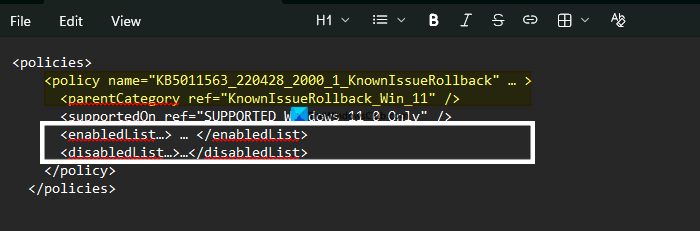
Get the values of policy name and parentCategory from the ADMX file that you opened in the text editor.
Click Add in the Configuration settings. Enter Name and Description as suggested earlier.
In the OMA-URI, enter the following string by replacing ADMX Policy Name with the policy name value you got from the ADMX file.
./Device/Vendor/MSFT/Policy/ConfigOperations/ADMXInstall/KIR/Policy/<ADMX Policy Name>
Then, select String as the Data type. In the Value section, copy and paste the entire ADMX file content that you have opened in the text editor. Click Save.
It is time to add a custom configuration setting to set a new KIR activation policy. To do that, go to Configuration settings and select Add. Then, enter a Name and Description. In the OMA-URI, enter the following string by replacing the <Parent Category> with the value you got from the ADMX file. Replace the ADMX Policy Name with the same name you used in the earlier step.
./Device/Vendor/MSFT/Policy/Config/KIR~Policy~KnownIssueRollback~<Parent Category>/<ADMX Policy Name>
Set the Data type to String. In the Value section, enter <disabled/>.
Click Save and Next.
Now, assign the devices where you want to activate the KIR activation custom configuration file. Go to the Assignments settings and select Add all devices. Then, click Next. You need to set the Applicability rules for KIR activation. Go to Applicability Rules, create an applicability rule, and enter the following properties.
- Rule: Select Assign profile
- Property: Select OS Version
- Value: Enter the Min and Max OS version numbers. You can get the OS version numbers by running the winver command in the Command Prompt. The format of the version must be 10.0.MMMMM. Replace MMMMM with your version. For example: Min OS version: “10.0.22000” and Max OS version: “10.0.22001”
Then, click Next. Review the custom configuration file, then select Create. It will now be applied to all Microsoft Intune-managed devices. To monitor it, navigate to Devices > Configuration profiles, and select an existing profile. Click the Overview tab. Under the Profile assignment status, you can see Succeeded, Error, Conflict, Pending, or Not applicable statuses.
Is there a way to fix a broken feature from a new Windows Update?
If you see an error or a broken feature after a Windows update on a work computer or managed device, you can fix it by deploying a KIR. You must have administrative privileges to do so. Contact your organization’s admin or IT team to deploy a KIR for your device, which will fix the broken feature and revert it to the previous version.
Read: How to configure Quick Machine Recovery Settings in Windows 11.
