
Windows devices we use get associated with the Microsoft account we use. A Microsoft account lets us control our PC security, including the encryption and decryption of local drives using BitLocker. Having many Windows devices associated with one Microsoft account could become a reason for confusion, especially when we stop using a PC, or have sold or discarded a PC, it would be a hassle with the data. If you are unable to remove a Windows PC from Microsoft account, follow this guide.
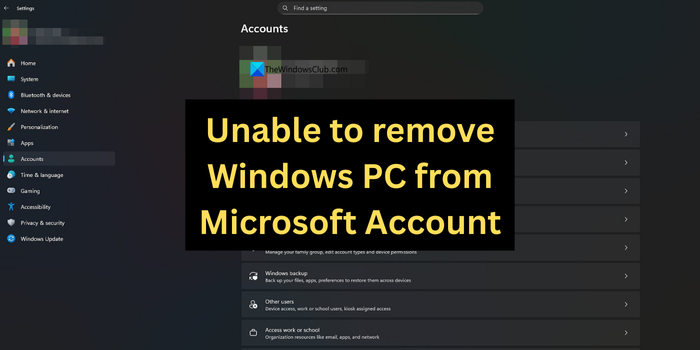
Unable to remove Windows PC from Microsoft Account
Removing a Windows PC from Microsoft account is a simple process. If you are unable to do so for any reason, follow the methods below.
- Remove it through Microsoft Account on Web
- Remove from Windows Credentials
- Switch to local account
Let’s get into the details of each method.
1] Remove it through Microsoft Account on Web
When you find it difficult to remove a device from your Microsoft account or delink it, or you do not find the button to do so, the easiest way is to remove it on the web. If you have sold your device and do not have access to it, you can use this method.
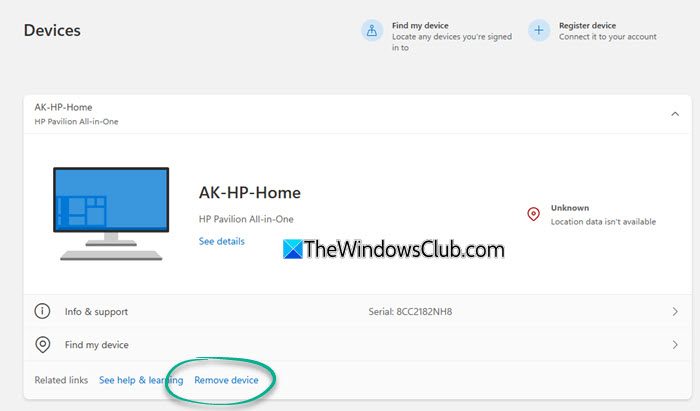
Open a web browser on your PC, and visit accounts.microsoft.com. Sign in with your Microsoft account and select Devices on the side menu. You will find the list of devices associated with your Microsoft account. Expand the device you want to remove. Then, click Remove device.
It will open a Remove your device pop up. Check the button beside I’m ready to remove this device and click Remove.
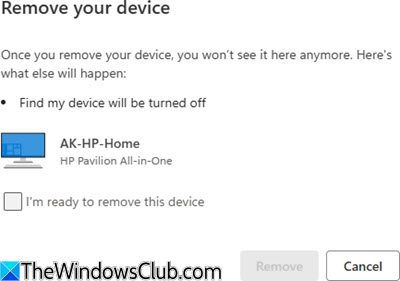
The device will now be removed from your Microsoft account.
2] Remove from Windows Credentials
If you have access to the Windows PC you want to remove from the Microsoft account, you can remove it via Windows Credentials in the Control Panel. The account credentials associated with your Microsoft account are stored in Windows credentials. If you remove the account, it automatically disassociates from the Microsoft account.
To remove a Microsoft account from Windows Credentials, open the Control panel by searching for it in the Start menu. Click User Accounts. In the User Accounts options, select Manage Windows Credentials.
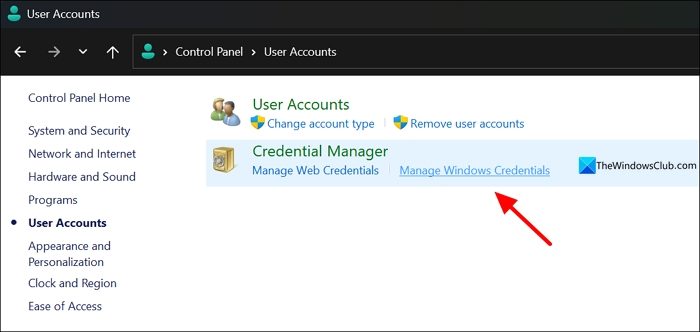
You will see your Microsoft account details under Generica Credentials. Expand each one to see the details. Remove everything that mentions the email associated with your Microsoft account.
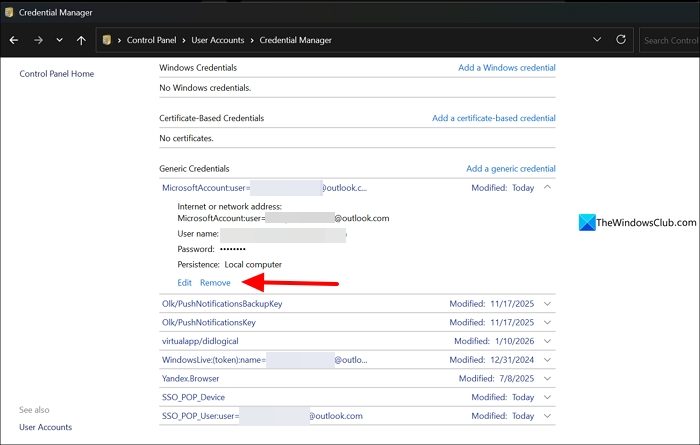
It will remove the device from your Microsoft account.
Read: Manage Stored Usernames and Passwords in Windows
3] Switch to local account
Microsoft gives us options to use Microsoft account or a local account to Sign in to a Windows PC. It enables easy access too. When you find it difficult to remove a Windows device from your Microsoft account, you can just switch sign in options from Microsoft account to local account. Open the Settings app, click Accounts, and select Your info. Under Account settings, click Sign in with a local account instead.
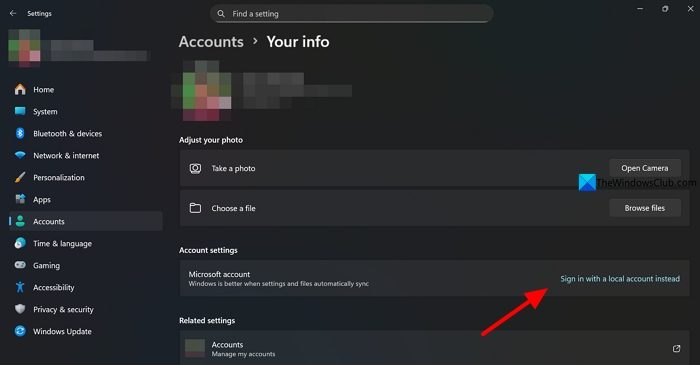
Complete the switching process by following the on-screen instructions to Sign out of the Microsoft account and setting up a local account.
If you cannot see the “Remove device” option on your Microsoft account earlier, this method enables it. After switching to a local account, you can return to the devices page on your Microsoft account and remove it easily.
Read: How to remove Work or School account in Windows 11
How to check if Windows is linked to Microsoft account?
To check if a Windows PC is linked to a Microsoft account, open a web browser and visit accounts.microsoft.com. Then, sign in with your Microsoft account credentials. Click Devices in the sidebar menu. It shows all the devices linked to the Microsoft account. If you want to remove a device, click on the device to expand and then select Remove device.
How do I fully remove a Microsoft account from a PC?
To remove a Microsoft account from your PC, unlink it by removing it from your account. Then, remove the remnants of the Microsoft account from the Windows Credentials. Change the sign-in method from Microsoft account to local account. Make sure you sign out of all Microsoft-related apps, such as OneDrive and Microsoft 365. Then reverify to see if you can use your Windows PC without a Microsoft account.
Read: Benefits of using Microsoft Account in Windows 11.
