
If you are unable to add a webpage to the Collections in Microsoft Edge, here is how you can fix the issue in Windows 11. As there could be numerous reasons, we have consolidated some of the most common reasons and solutions to help you resolve your problem.
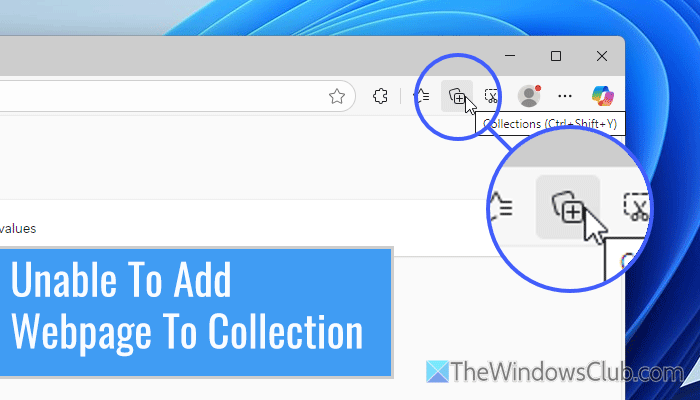
What is Collections in Microsoft Edge?
In simple terms, the Collections feature in the Microsoft Edge browser allows you to store all your favorite webpages and synchronize them with your Microsoft account, enabling you to access them from any device. Whether you want to save a YouTube video page or a simple webpage containing some interesting news, you can store it in the Collections panel.
How to use Collections in Microsoft Edge?
To use the Collections feature in Microsoft Edge, open a webpage that you want to store. Then, press Ctrl+Shift+Y and click the Start new collection button.
Unable to add webpage to Collections in Microsoft Edge
Follow these instructions if you are unable to add a webpage to Collections in Microsoft Edge:
- Ignore pages with restrictions
- Check your Microsoft account login
- Update the browser
- Disable all extensions
- Try in InPrivate mode
- Clear cache and cookies
- Repair and Reset browser
To learn more about these solutions, continue reading.
1] Ignore pages with restrictions
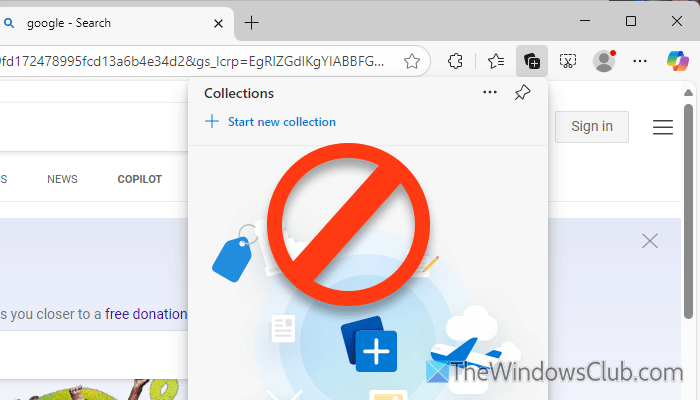
Some pages cannot be added to the Collections. It occurs when the website employs internal restrictions or JavaScript to prevent users from performing specific tasks. If you come across such a page, you should ignore it, as there is nothing you can do.
Read: Copy and paste not working in Edge
2] Check your Microsoft account login
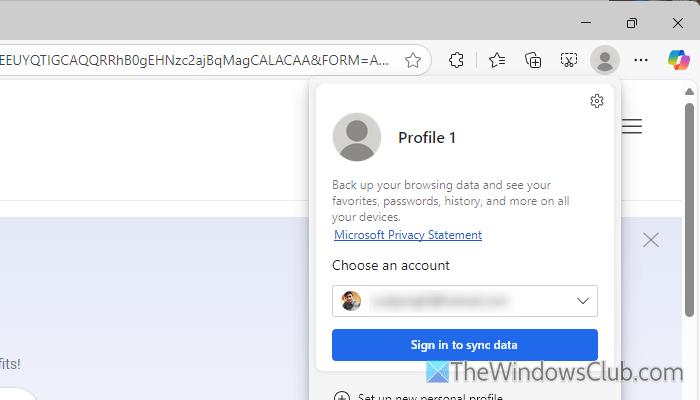
If you aren’t logged into your Microsoft account, it is suggested that you do so. As Edge allows you to synchronize all stored pages across multiple devices, it also depends on your Microsoft account.
Read: Cannot sign into Edge with Microsoft account
3] Update the browser
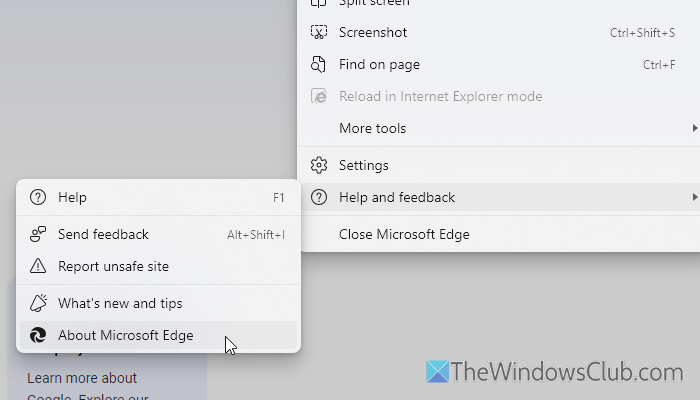
If you haven’t updated your browser for a long time, it is suggested to do so. To update your Edge browser, open the browser and click on the three-dotted icon. Then, select Help and feedback > About Microsoft Edge.
After that, it checks for the available update. If an update is available, you need to download and install it.
Read: Cannot Download, Install or Update Edge browser
4] Disable all extensions
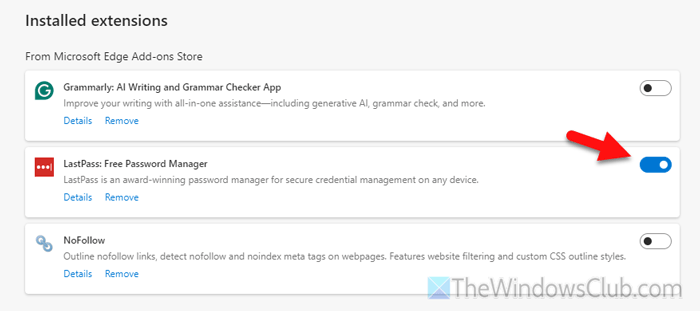
At times, this problem may arise due to some conflict between extensions. To ensure this, you can disable all extensions and check if it resolves the issue. If it does, you can enable one extension at a time to find out the culprit.
Read: How to update all Microsoft Edge extensions at once
5] Try in InPrivate mode
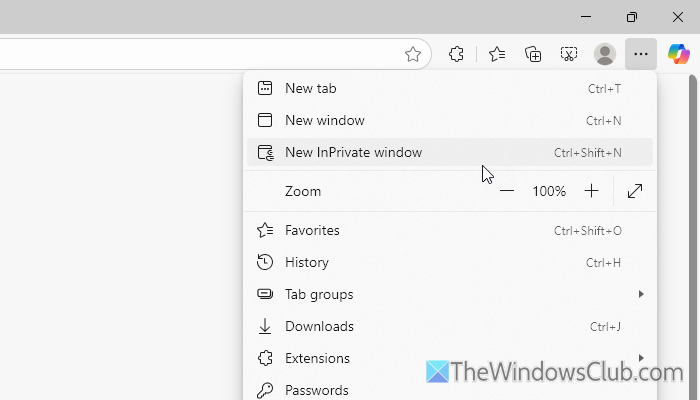
If the regular Edge window displays the error above, it is recommended to try using InPrivate mode. In InPrivate mode, all extensions and other settings revert to their factory defaults. If any of the internal settings are causing this error, you can determine this by following the solution below.
Read: Create a shortcut to open Edge browser in InPrivate mode
6] Clear cache and cookies
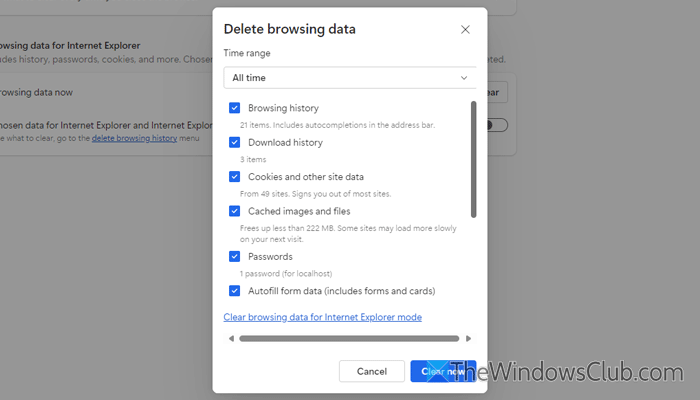
To clear cache and cookies in the Edge browser, follow these steps:
First, open the Edge browser, click on the three-dotted icon, and select Settings. Then, go to Privacy, search, and services.
Click on the Clear browsing data option and click on the Choose what to clear button.
Next, select the All time option, and tick all the checkboxes. Finally, click the Clear now button.
Read: How to clear Cache and Cookies in Microsoft Edge
7] Repair and Reset browser
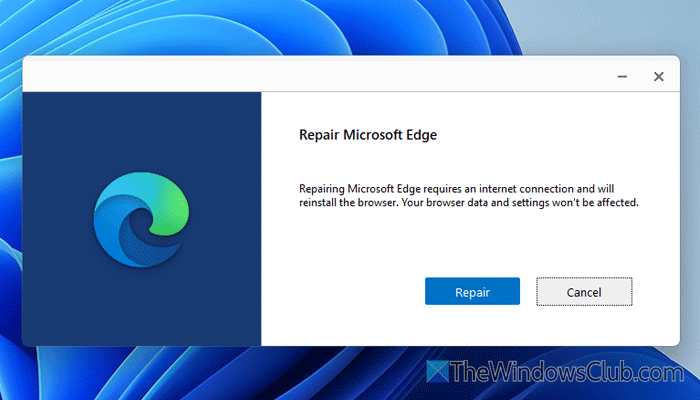
To repair the Edge browser, follow the instructions:
First, open the Windows Settings panel by pressing Win+I. Then, go to Apps > Installed apps, click on the three-dotted icon of the Microsoft Edge, and select Modify.
After that, click on the Repair button.
However, if it doesn’t fix the issue, you can reset your browser. For that, open the Settings panel and click on the Reset settings option. Then, click on the Restore settings to their default values option and click on the Reset button.
How to pin a website to a browser in Microsoft Edge?
To pin a website in Microsoft Edge, you have two options: Bookmark and Collections. Both of them work pretty flawlessly, and you can synchronize them across multiple devices if you use your Microsoft account.
Read: How to save all open Tabs or Pages as Favorites in Edge.
