
This post lists the top 5 Vertical Video Editors for Windows, powered by AI. Vertical videos dominate social media platforms like Instagram (Reels and Stories), YouTube (Shorts), etc. These are highly effective for creators to improve engagement on mobile devices, enhance user experience, and grab attention. While there are some video editor apps (like InShot, YouCut, etc.) available for mobile devices, creators feel the need to create and edit vertical videos from their desktop or PC. Keeping this in mind, we have created this list. With the AI-powered features included in these vertical video editors, you can make high-quality content and save hours by automating time-consuming tasks.
What is a Vertical Video Editor?
A Vertical Video Editor tool or app helps to create and edit videos in portrait mode (or vertical alignment). The view is in vertical or portrait orientation, so the video is taller than it is wide, which is optimal for mobile viewing. You can generate a vertical video with a 9:16 aspect ratio (1080*1920 pixels), which is the common and most suitable size for mobile devices and ideal for YouTube Shorts, Facebook Stories, Instagram Reels, etc. Depending on the vertical video editor tool, you can change the aspect ratio to 4:5, 3:4, use pre-designed templates, crop and resize videos, use AI-powered tools, edit horizontal videos to optimize them for mobile viewing, and more.
Top 5 Vertical Video Editors for Windows, Powered by AI
Below is a list of the top 5 AI-powered vertical video editors for Windows:
- DaVinci Resolve
- Microsoft Clipchamp
- OpenShot Video Editor
- Kapwing
- Canva’s AI Video Editor.
1] DaVinci Resolve
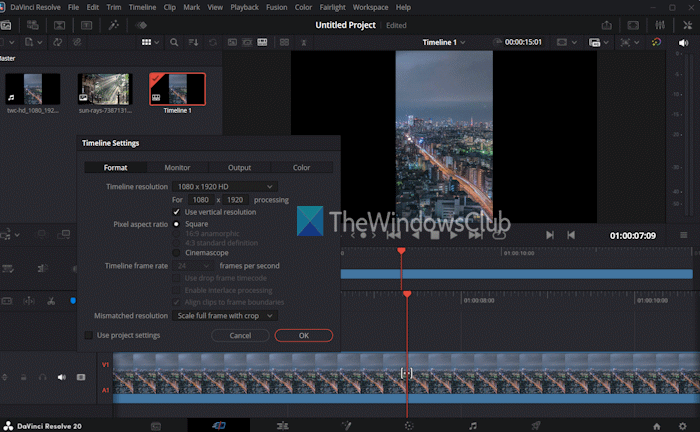
DaVinci Resolve is a very popular and powerful cross-platform tool used by high-end professionals for films and TV shows, and individuals. It combines non-linear editing (NLE), color grading and correction, audio post-production, motion graphics, and visual effects all in one place. You can also collaborate with others at the same time on the same project. Vertical video editing can also be done with ease on its interface. It is divided into pages to have a dedicated workplace for each task. It has:
- Cut and Edit pages for video editing
- Color page for color correction
- Fusion page for motion graphics and visual effects
- Fairlight page for audio, and
- Media and Deliver pages for adding and organizing media and output.
While the interface looks complicated, it’s actually user-friendly. You can create a timeline to organize and edit audio and video clips. From the Timeline Settings, you can use Vertical resolution, Pixel aspect ratio, and other options for generating a vertical video. It includes an AI IntelliScript feature to create a new timeline based on a text script, an AI Multicam SmartSwitch to assemble your timeline based on the speaker detection and camera angles, an AI Audio Assistant to analyze your audio, an AI Animated Subtitles to animate words as spoken, etc. You can select one or more clips and use the right-click menu to access AI tools.
It comes with a standard version (DaVinci Resolve), which is free to use, and a paid version (DaVinci Resolve Studio). The free plan is sufficient for multi-user collaboration, color, motion graphics, VFX, HDR grading, 8-bit video formats, and creating and editing vertical videos. But, for using advanced AI tools (including AI spatial noise reduction, magic mask, text-based editing, optical blur, etc.), higher resolution support, and other premium tools, the Studio version is required.
Related: Best Free AI Video Generators
2] Microsoft Clipchamp
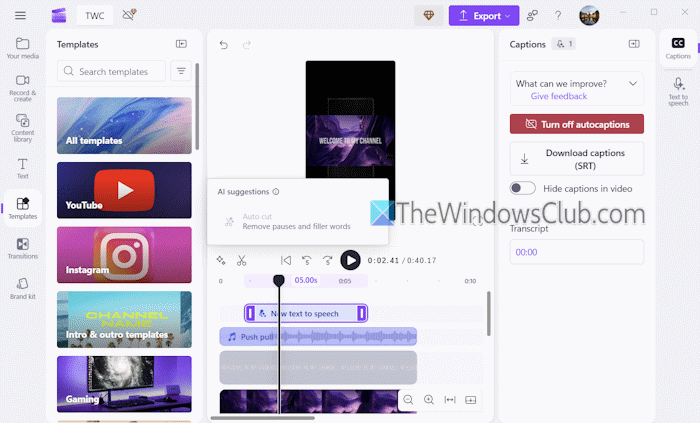
Microsoft Clipchamp is a native app in Windows 11 and a pretty good vertical video editor for Windows with free usage and AI tools. While other tools put restrictions and include a watermark, its free plan lets you use all available AI video editing tools and AI audio editing tools without any limits. You can also export videos without a watermark and up to 1080p HD video resolution.
Microsoft Clipchamp lets you create a vertical video from scratch manually or create a video with AI. The Auto compose feature uses AI models to generate a suitable video based on your input media. The entire process to generate a vertical video completes in four easy steps:
- Add your media files
- Select a video style (elegant, editorial, stylish, etc.)
- Select the output aspect ratio (Portrait or Landscape)
- Select a music style and font, and
- Export the output.
If that doesn’t work for you, you can continue editing using the Edit in timeline button. There, you can use templates, AI silence removal or Auto cut feature to remove pauses and filler words, AI voiceover generator (or text-to-speech generator), Video transcript generator, and other tools.
When the editing is done, select the output size (Classic 4:3, Portrait 2:3, Vertical 9:16, Social 4:5, etc.), and export the output. If there are any visual gaps (or black frames) in the video, you can also automatically or manually delete them.
3] OpenShot Video Editor
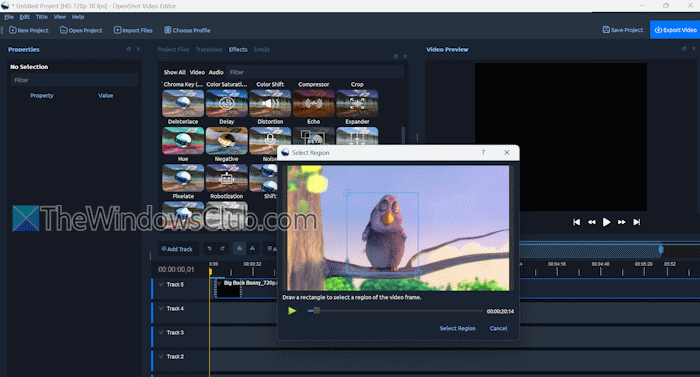
OpenShot Video Editor is a free and open-source software for Windows. Unlike other tools, it includes mainly three AI effects to automate related tasks. You can use its Stabilization feature to calculate camera motion/shake and eliminate it. In addition, there’s a Tracker for motion tracking that can draw a box around any element and continue tracking the coordinates. An Object Detection AI feature is also available to detect objects (e.g., people) in a video. You can also draw boxes around objects and add text labels.
Apart from AI effects, it supports Chroma Key (Green screen) for background removal, Alpha Mask, Crop, Delay, Parametric EQ, Distortion, and other non-AI effects. Once you have added media files to your project and to the timeline, you can access the Effects menu to use these features. The Transition effects and Emojis can also be added to your video.
When you are done editing the video, press the Export Video button. Select a video profile in any of the available vertical aspect ratios (like FHD Vertical 1080p 59.94 fps, FHD Vertical 1080p 60 fps, HD Vertical 720p 30fps, etc.) and save your video.
4] Kapwing
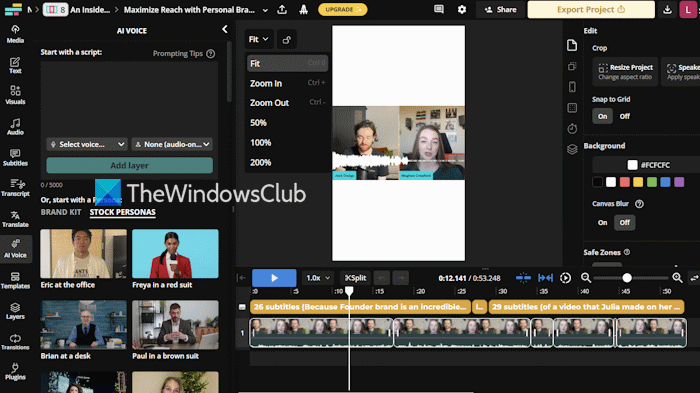
Kapwing is one of the best AI video generators and vertical video editors for Windows. This web-based tool brings a separate AI Video Editor to generate high-quality vertical video (9:16, 4:5, or 1:1 aspect ratio), unlimited exports, edits, 4K video quality, longer videos up to 120 minutes, customizable video templates, unlimited cloud storage to store projects, and more.
There’s a flagship AI feature called Smart Cut to automatically edit videos just by asking. You can upload and edit dozens of recordings together, reorder clips, remove white noise, and delete silences in dialogues without hassle, and save hours.
This AI-powered vertical video editor also comes with an AI clip maker to automatically generate short clips (by extracting the best parts of a long video), video blur, text-to-speech generator (with AI-powered voices), smart cropping tool to frame video content, AI-powered video background removal (including audio), auto subtitles, and other tools.
While the free plan includes unlimited video exports, it adds a watermark, limits exports to 4 minutes at 720p, and restricts the use of AI tools. It is good to give a try to the free plan to play around, and then you might think of upgrading to the Pro plan. You can access this tool from kapwing.com.
Also read: How to use Google Vids AI Video Editor?
5] Canva’s AI Video Editor
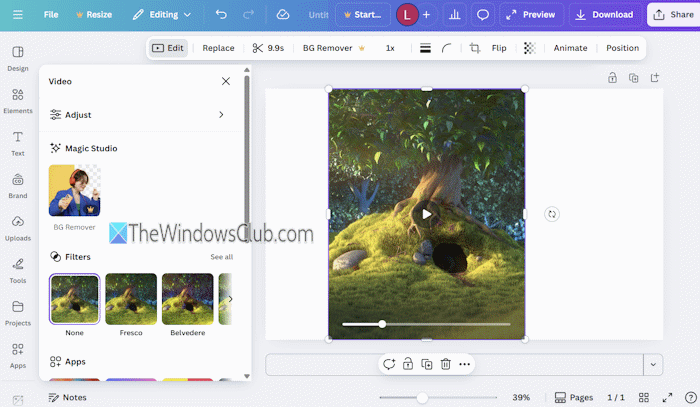
Canva is a well-known graphics design platform. It offers a feature-rich AI Video Editor with multi-layered timeline editing, AI design tools (with free access), and Premium AI tools.
You can create a vertical video from the start or use video templates. While working on a video, you can use the Crop option to select an aspect ratio (4:5, 9:16, 3:4, etc.) and rotation angle. You can also play/preview your video and export it without a watermark using the free plan. However, the free plan offers limited access to AI tools.
Its AI-powered features include:
- Highlights to generate short clips from your videos
- Magic Media to generate a video using a text prompt
- Magic Background to auto-generate a background that adapts to your design
- Generative Fill
- Beat Sync to automatically match video footage beats to music
- Magic Write to create a voiceover script
- Magic Animate
- Magic Resize
- Video Background Remover
- AI voiceovers (to turn text into professional AI-powered voiceovers), and more.
That’s all.
Now read: How to use AI in Canva
Does Microsoft have an AI video generator?
Yes, Microsoft provides Bing Video Creator (an AI-powered tool) to generate 5-second videos with your text prompt using Sora quickly. It comes with Standard creation and Fast creation speeds. While the standard creation is available for free, you need to use Microsoft Rewards points for the Fast creation. You can use Bing Video Creator with a personal Microsoft account (and not with a Microsoft Entra ID).
Read next: How to create a video with Copilot AI.
