
Google Vids is an AI‑powered video editor that lets you easily create, share, and publish videos for work, education, or quick storytelling. It works much like Google Slides, but with video and AI built in. You build your project in a slides‑like interface, insert images, videos, or animations, then add a script and voiceover, and Google Vids stitches everything into a polished video. In this post, we’ll show you in detail how to use Google Vids AI Video Editor.
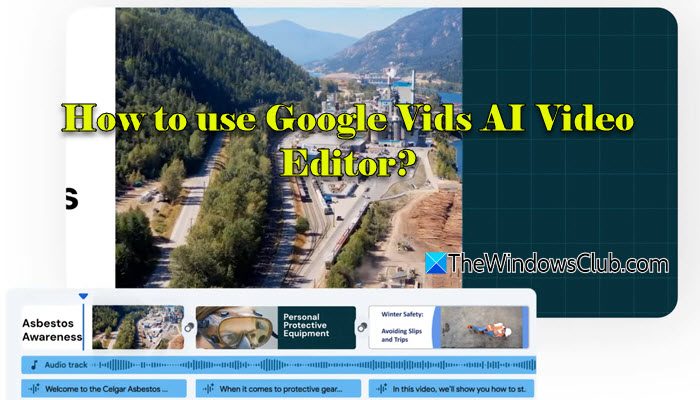
How to use Google Vids AI Video Editor?
To use Google Vids AI Video Editor, you need to follow these steps:
- Open Google Vids
- Start a project
- Add scenes, content manually
- Use Gemini AI to create your video
- Add voiceover
- Share and collaborate
- Download or Export
Let us see this in detail.
Note: Google Vids is currently available on Business and Enterprise Workspace plans, and Google AI Pro and Ultra plans (click here to learn more about Google Vids availability).
1] Open Google Vids
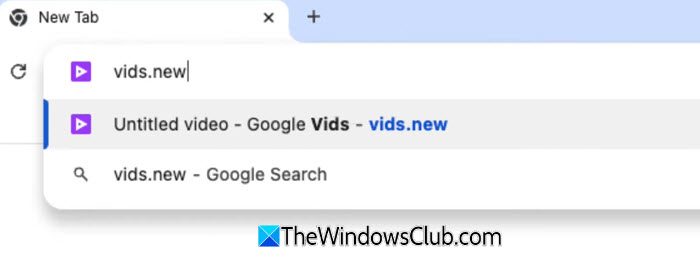
Open your browser and log in with your Google Workspace or Google AI account. Then, navigate to Google Vids from the apps menu.
You can also type vids.new in your browser’s address bar to start a new project instantly (make sure you’re signed in with an account that has access).
2] Start a project
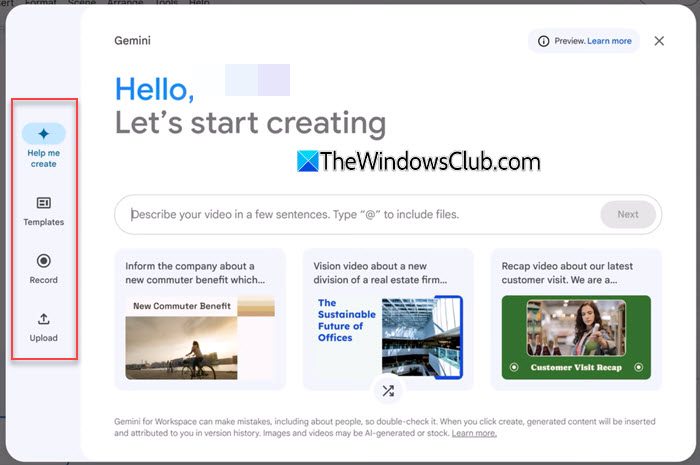
On the prompt window, you’ll see several options:
- Help me create: If you have a Gemini license, you can type a topic or prompt, and Gemini will generate a draft outline and scenes for you.
- Templates: Pick from ready‑made templates like explainer, training, interview, project update, etc.
- Record: Record yourself or your screen.
- Upload: Upload existing media such as video clips or images.
Or, you can simply close the prompt window and begin with an empty project
3] Add scenes, content manually

Once your project is open, you can start building scenes by inserting different types of elements into them. Use the Insert menu at the top or the toolbar on the right to add text (titles/captions), images, stock videos, GIFs, etc. You can also record your own footage (via webcam) or capture your screen directly into the project.
Every scene has a default length (the first one is usually 5 seconds), but you can extend or shorten scenes and adjust when individual elements appear or disappear by dragging their layers in the timeline at the bottom. You can also add transitions between the scenes to make the switch look natural and visually appealing.
4] Use Gemini AI to create your video

The biggest advantage of Google Vids is that Gemini AI does a lot of the heavy lifting for you. It gives you a strong starting point, letting you focus on your story while it handles the structure and initial content.
When you create a new Vid, choose ‘Help me create‘ in the prompt window. Then type in a topic or prompt (or select a file), and Gemini will instantly generate a draft script along with a suggested scene outline. From there, you can simply tweak the text, swap or add media, and adjust the flow.
Beyond generating scripts and scene outlines, you can transform text into AI‑generated video clips with Veo 3, creating high‑quality eight‑second footage from a prompt, and use Imagen 4 (Google’s best image generation model) to create stunning, photorealistic custom images directly inside Vids.
5] Add voiceover
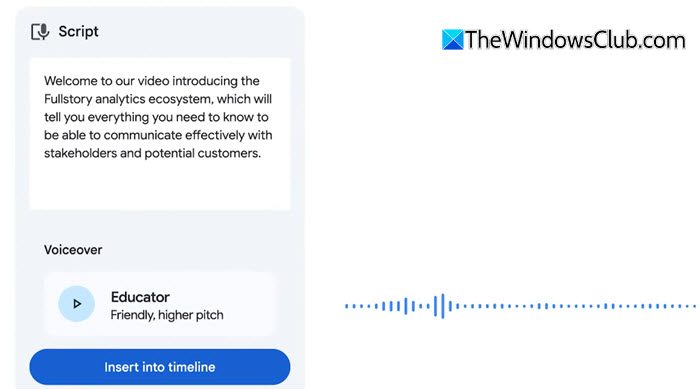
There are two ways to add a voiceover to a scene. If you plan to record it yourself, click the Scripts option in the toolbar, type what you’ll say for that scene, and then click the Record myself button to record your narration.
Alternatively, click the Generate the voiceover (in the Scripts panel) button to have Gemini turn your script into an AI‑generated voiceover.
To add background music or sound effects, you may use the Insert > Stock media option.
6] Share and collaborate
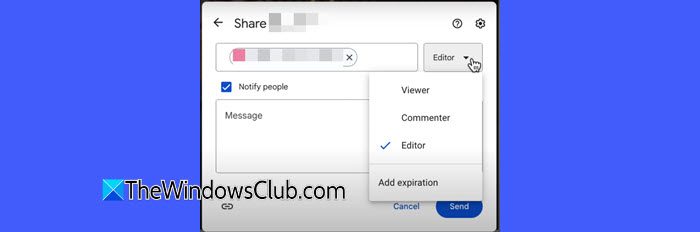
Once your video is ready, you can easily share it just like other Google Workspace files. Click the Share button at the top‑right corner, type and select names to share with, choose whether people can view, comment, or edit, and send them the link.
Since Google Vids works in the cloud, multiple people can collaborate in real time. Your teammates can suggest edits (via comments), replace media, or update scenes while you watch the changes happen instantly.
8] Download or Export
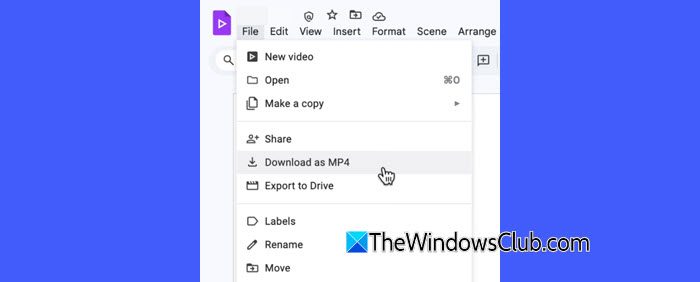
When your video is ready, you can save it for use outside Google Vids. Click File > Download as MP4 to get it in a standard video format on your device, or choose Export to Drive to save it directly to Google Drive for easier sharing or future edits.
That’s all! I hope you find this useful.
Read: How to create video with Copilot AI.
Does Google have an AI video editor?
Yes, Google now offers an AI-powered video editor called Google Vids. It’s part of Google Workspace. It allows you to create, edit, and share videos without requiring advanced editing skills. You can also use Gemini in Vids to create an initial video storyboard with only a prompt and a file from your Drive.
What is the limit on Google Vids?
Google Vids currently supports creating videos up to 10 minutes long, so any clip longer than that needs to be trimmed before use. You can import audio or video clips of up to 35 minutes or 4 GB, but again, only 10 minutes of it can be used in a project. Each project can include up to 50 video clips and 50 audio clips, including music, sound effects, and voiceovers.
Read Next: How to Generate AI Videos using Google Veo 2.
