
A lot of users have reported that The Quarry keeps crashing, lagging or freezing on their Windows 11/10 PC. The issue has been noticed not just on inferior computers but also on some superpowerful systems, so it would be fair to say that the issue is not because of incompatibility. However, it’s worth checking the system requirements if you are not aware of them. In this post, we’ll show you how to fix this issue.
The Quarry keeps freezing, crashing or lagging on Windows PC
If The Quarry keeps crashing, lagging or freezing on your PC then use these solutions to resolve the issue.
- Update the Graphics driver
- Run the game as an administrator
- End background tasks
- Run The Quarry on the Dedicated Graphics Driver
- Change power settings
- Disable Antivirus software
- Disable the overlay app
- Repair game files
- Update the game
Let’s start with the first solution.
1] Update the Graphics driver
Outdated Graphics drivers can cause compatibility issues in your game. You need to update the Graphics Driver from time to time. Most of the time, it is updated along with Windows; however, if it is not updated, try any of the following methods.
- User free driver update software
- Go to the manufacturer’s website and download the driver
- Install Driver and Optional Update.
If updating the driver doesn’t resolve the issue, move to the next solution.
2] Run the game as an administrator
More often, games crash because they don’t have proper access to some features of your computer. If that’s the cause, then running the game as an administrator is highly recommended. You can right-click on the launcher or the game and select Run as administrator. Or change their properties to make them always run with the required permissions. The following are the steps to do the same.
- Right-click on Steam or The Quarry.
- Go to Properties and select the Compatibility tab.
- Now tick the box next to Run this program as an administrator.
- Select Apply and click on the OK button to save the change.
This should do the job.
3] End background tasks
Background tasks tend to compete with games; as a result, the game can’t get enough system resources, which will eventually crash it. To end background tasks, here’s what to do:
- Click Ctrl+Shift+Esc to open Task Manager.
- In the Process tab, click on all the tasks that may interfere with game performance.
- Now, click on the End Task option.
- Do this to all of them and close Task Manager.
Restart your PC and the game, and fingers crossed, you won’t have a single complaint, but if you do then check the next solution.
4] Run The Quarry on the Dedicated Graphics Driver
Try running Quarry on the dedicated Graphics Driver because if it is running on the integrated one, it will always crash. To make the change, follow these steps.
- Open Settings by Win + I.
- Go to System > Display.
- Now, scroll down to Related Settings and select Graphics.
- Search for The Quarry. If you can’t find it there, click Browse, navigate to its location and select its EXE file.
- Now, click Options.
- You will see the Graphics Preferences window, select High performance, and click Save.
Finally, open the game and enjoy your experience.
Read: Game not using GPU in Windows 11
5] Change power settings
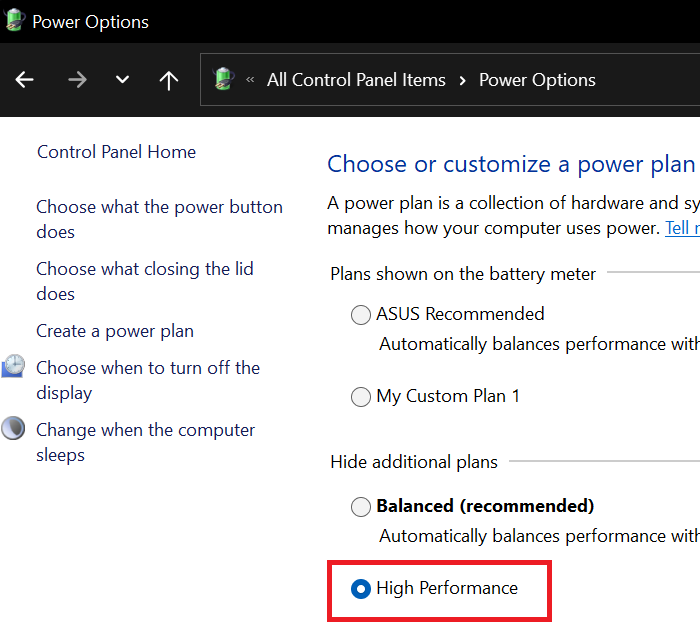
Games with high graphic demands like The Quarry are most likely to crash if power settings are set on the Default option. Default or low settings stop you from having smooth gameplay; therefore, you can set them to meet the requirements. Here’s what you need to do:
- Open Control Panel from the Start menu.
- In Hardware and Sound, click on Power options.
- Switch the settings to High Performance options.
Reboot your PC to make sure the process work. Then look for any issues in your game.
Read: How to enable Ultimate Performance Power Plan in Windows
6] Disable antivirus software
More often than not, antivirus software flags game files as viruses and blocks important game functions, causing compatibility issues. So, temporarily disable your antivirus and check whether the issue persists. If you don’t have a third-party app but Windows Defender, try allowing your game through it.
7] Disable the overlay apps
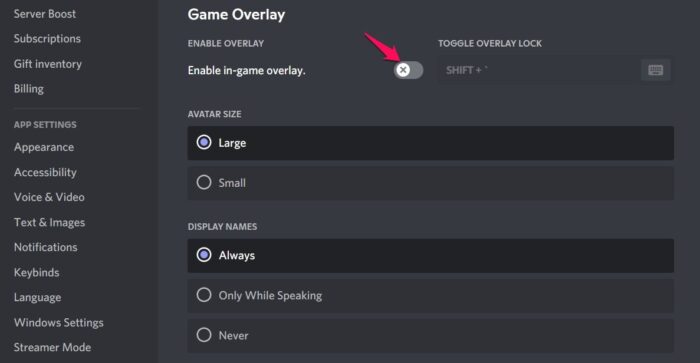
If you are using Discord alongside The Quarry then you may want to disable the overlay of Discord as it has been noted that some games are not able to handle it. Follow the steps below to disable the Discord overlay.
- Open Discord and select the Gear Icon.
- In Activity Settings, click on Game Overlays.
- Switch off the toggle key next to Enable In-game overlays.
Reboot your PC and then play the game smoothly. You should also disable NVIDIA and Steam Overlay.
8] Repair games files
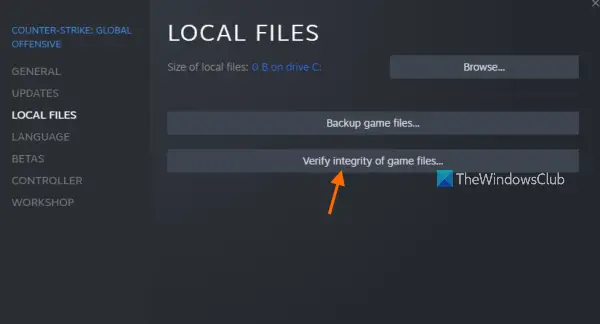
You can’t have the time of your lives if some of your game files are corrupted or missing. And if that’s the deal in this case then execute the following steps:
- Open Steam and navigate to Library.
- Right-click on The Quarry.
- In Properties, click on Local Files.
- Select Verify integrity of game files.
Wait patiently as it may take some time. Once done, turn off your device and restart it again. Launch the game to see whether the issues persist or not. If it does, then try the next solution.
9] Update the game
If none of the above-mentioned solutions worked for you, try updating the game as there may be a bug that can be fixed only by the developers. Usually, Steam will update the game as soon as an update is available, but if that doesn’t work, launch Steam > Navigate to Library > Click on The Quarry > Click on the Update option if available > Restart your PC once done.
Hopefully, there will be no issues while playing The Quarry.
System requirements to play The Quarry
These are the system requirements to smoothly run The Quarry on your PC.
Recommended
- CPU: AMD Ryzen 7 \ Intel Core i9-10900K
- RAM: 16 GB
- OS: Windows 11/10 64-bit
- VIDEO CARD: Nvidia GeForce RTX 2060 / Radeon RX 5700
- FREE DISK SPACE: 50 GB
- DEDICATED VIDEO RAM: 6144 MB
If your computer is meeting the system requirements, you should be good to go.
How to Fix LowLevelFatalError?
LowLevelFatalError in the Quarry means the game isn’t getting enough resources to run. First, check the system requirements and make sure your game is compatible. If it is compatible, check the fourth solution and make sure it is running on the dedicated GPU, not the integrated one. Usually, Windows automatically make your game use the dedicated driver, but if it’s not, you need to force The Quarry to use a dedicated GPU. This should do the job.
Why does my game freeze and crash?
Your game may crash or freeze because of various reasons. Possible causes include incompatibility, corrupted game files, bugs, interfering apps and more. If The Quarry crashes on your computer, try the solutions in this post to fix it. Sometimes, your game may also crash after upgrading to the latest version of Windows 11/10.
Also Read: Fix Game Stuttering with FPS drops in Windows 11.
