
While opening or saving a PowerPoint presentation, if you come across an error message saying The outline is too long to read in its entirety, here is how you can troubleshoot the issue. Since there could be numerous reasons, you can go through all these solutions one by one to fix it.
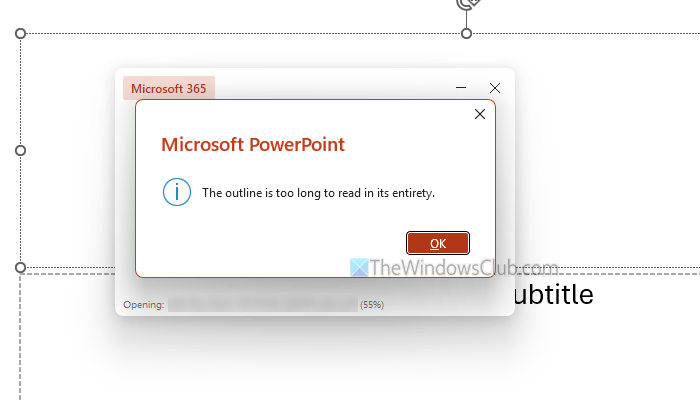
The error message says something like this:
The outline is too long to read in its entirety.
Primary reasons:
- Overuse of slides: Although Microsoft does not set a limit, PowerPoint may show the error above if you include a large number of slides with different fonts and customizations.
- Corrupted PPT file or PowerPoint installation: A corrupted PPT file or a corrupt PowerPoint installation can also cause the same error as above.
- Third-party links: If you include many third-party links in your presentation, there is a high chance of encountering this error, as they may fail to fetch content for threat assessment.
- Compatibility issues: If you create a presentation in Office 2016 or earlier, it may show compatibility issues when opened in Microsoft 365.
The outline is too long to read in its entirety in PowerPoint
To fix The outline is too long to read in its entirety in PowerPoint, follow these solutions:
- Verify file extension
- Repair Office installation
- Disable add-ins
- Remove unnecessary fonts
- Remove third-party links
- Remove unnecessary slides
- Try PowerPoint Online
To learn more about these solutions, continue reading.
1] Verify file extension
You can find mainly two file formats for PowerPoint presentations – PPT and PPTX. The former one is used in PowerPoint 97-2003, and the latter one is used in the latest version of PowerPoint, including Microsoft 365. If you have the PPT file, ask the sender to make it compatible with Microsoft 365 or your version of PowerPoint.
Read: Batch Convert PowerPoint (PPT or PPTX) to PDF on PC
2] Repair Office installation
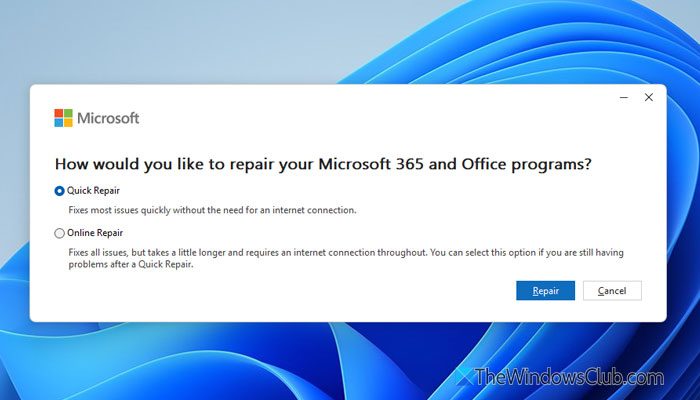
To repair the Office installation, follow these instructions:
- Open the Windows Settings panel.
- Go to Apps > Installed apps.
- Click on the three-dotted button of Microsoft 365 and select Modify.
- Select Quick Repair and click the Repair button.
- If it doesn’t work or fix the issue, select the Online Repair option.
Read: How to Repair Office on Windows 11
3] Disable add-ins
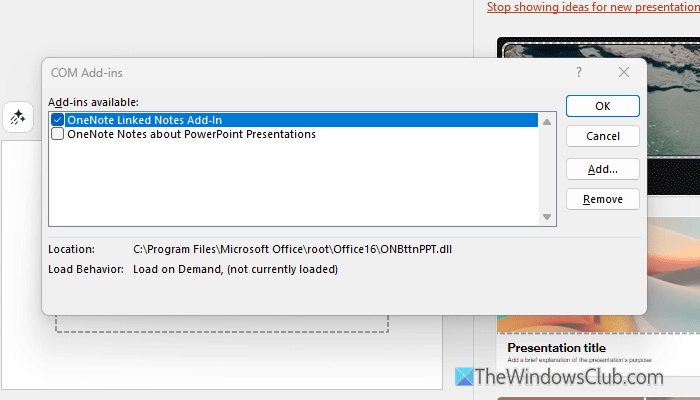
To disable add-ins in PowerPoint, go to File > Options > Add-ins. Click the Go button, select the add-in you want to remove, and click the Remove button.
Read: View, manage, install and remove Add-ins from Office programs
4] Remove unnecessary fonts
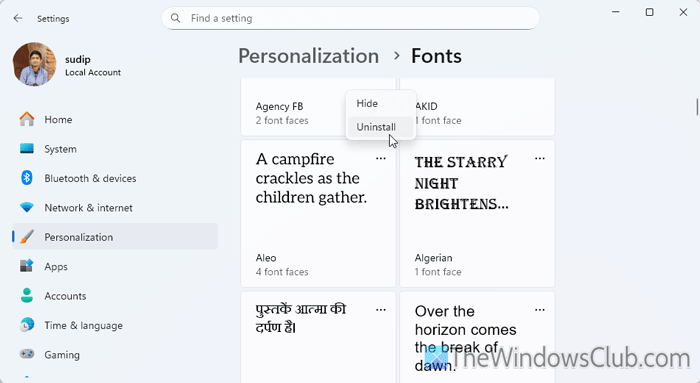
If you have installed many fonts to customize your presentation, it is time to remove the unnecessary ones. To uninstall fonts in Windows 11, you can follow this step-by-step guide.
5] Remove third-party links
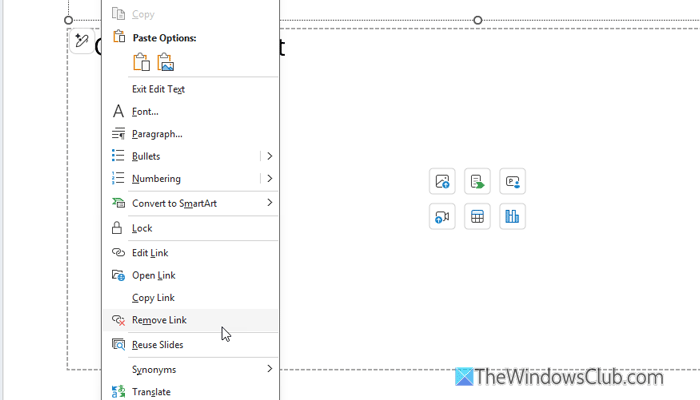
If you have linked a lot of local or online files to your presentation, there is a chance of getting this error. That is why it is suggested to remove all the unnecessary third-party links as soon as possible.
Read: How to Enable or Disable Hyperlink Warnings for Office programs
6] Remove unnecessary slides
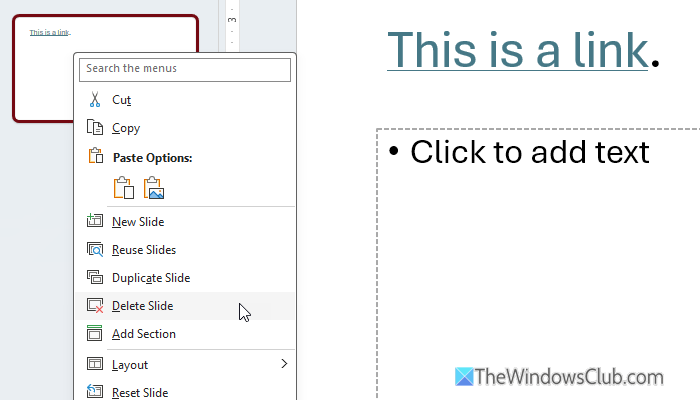
It is the most efficient and working solution that can fix your problem if none of the solutions mentioned above have worked so far. As this problem mainly occurs when you have a large PPT presentation and PowerPoint fails to read the entire file, you can help by splitting it or removing unnecessary slides.
To remove a slide, open the presentation and select the slide you want to remove, right-click on it, and select the Delete Slide option.
Read: How to add and remove Slide Layout in PowerPoint
7] Try PowerPoint Online
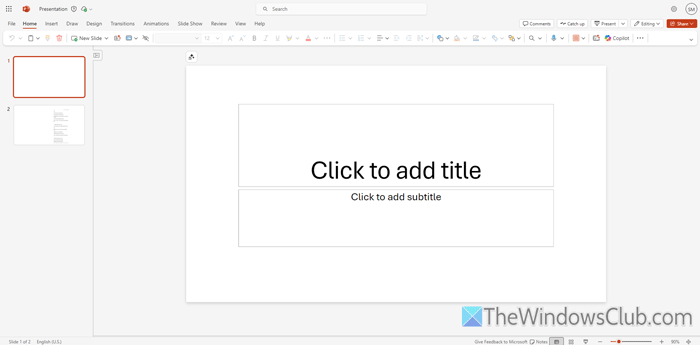
It is the last resort if nothing else works. You can always try the Web version of PowerPoint through OneDrive. It works flawlessly, and you can certainly find most essential features in the Web version. You can upload your PPT to OneDrive and then double-click on it to open the via PowerPoint Online.
Read: PowerPoint is not responding, keeps crashing, freezing, hanging or has stopped working
How to make text more readable in PowerPoint?
To make the text more readable in a PowerPoint presentation, follow these instructions:
- Choose a readable font first.
- Do not overuse words in a single PPT.
- Apply a soothing contrast of color.
- Use a suitable color for text.
How to get rid of Outline in PowerPoint?
To get rid of the outline in PowerPoint, select the shape and go to the Shape Format tab. Head to the WordArt Styles group and click on the Text Outline option. Then, select the No Outline option.
