
When logging in to Windows 11/10 or when trying to open any file (eg; videos, photos, music, Word documents and Excel spreadsheets) of a specific kind on your Windows 10 device, you may be hit with the error prompt The object invoked has disconnected from its clients. Some affected users even see this error message when trying to launch specific applications or programs. In this post, we will provide the most suitable solutions you can try to successfully resolve the issue.
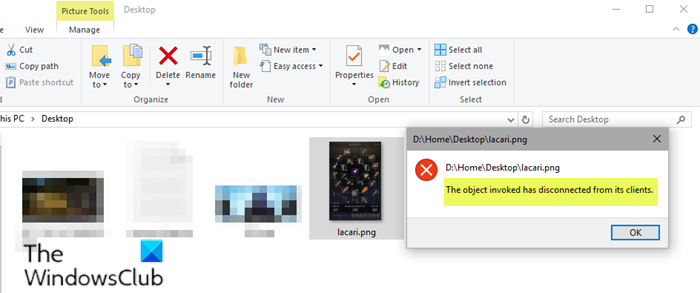
D:\<path-to-file>
The object invoked has disconnected from its clients.
Whenever you get this error message on Windows, it simply means that the specific program assigned to open files of a certain type is unable to do so. The object refers to a particular app on your PC that you have chosen to open the kind of file you’re trying to open. Its clients naturally refers to this file type. The entire error message thus indicates that the files can’t be opened because the program associated with them has been disconnected for some reason.
Other users encounter this error when attempting to save their files, particularly Word and Excel documents. The message appears, and the file can’t get saved. The message looks like this:
Automation error
The object invoked has disconnected from its clients
The object invoked has disconnected from its clients
If you’re faced with this issue, depending on the scenario, that’s during Windows 11/10 logon or when opening files. you can try our recommended solutions in the sections below in no particular order and see if that helps to resolve the issue.
The object invoked has disconnected from its clients when logging into Windows
Without being able to boot Windows to the desktop, troubleshooting becomes much more difficult. However, there are effective methods to resolve this error and regain access to your computer.
1] Perform System Restore
This can happen if you have recently performed an update or installed a newer version of a Windows component or an application. You can try performing System Restore to see if that fixes the issue.
2] Enable Secure Boot and Device Guard
Along with features like Device Guard and Secure Boot, Windows is more secure than any of the previous Windows operating system.
This solution requires you to start your Windows PC with Secure Boot enabled. When triggered, this feature prevents potentially harmful applications, unsigned drivers, and unauthorized .exe files from loading when Windows starts up. If one of these is responsible for the error you’re getting, using Secure Boot should make it disappear.
Do the following:
- Shut your computer down.
- Start your computer up.
On the first screen, you see when your computer boots up, press the designated key on your keyboard to enter the computer’s BIOS/UEFI. This designated key varies from one computer manufacturer to another, but it will always be stated on the first screen the computer displays while booting up, so you can see what key needs to be pressed on that screen if you don’t already know.
- Once you’re in the computer’s BIOS, navigate to the Security tab.
- Locate the Secure Boot option in the Security tab and select it.
- Make sure that the Secure Boot option is enabled.
- Go back to the Security tab, locate and select the Device Guard option.
- Make sure the Device Guard option is also enabled.
- Save the changes you have made to the computer’s BIOS and exit it.
Once done, start your computer up and check to see if the problem still persists.
3] Perform Windows in-place upgrade repair
This solution requires you to try an In-place Upgrade Repair and see if that helps. Otherwise, reinstalling Windows on your device, after you have exhausted all possible options, is the last option you can take to resolve The object invoked has disconnected from its clients when logging into Windows.
The object invoked has disconnected from its clients when opening files
If you can log in to Windows without any problems but encounter an error when you try to open certain file types, you can try the solutions in this section to get rid of the error and regain access to your files.
1] Restart your Windows device
This method also works for when stuck at the Windows login screen with The object invoked has disconnected from its clients error message prominently displayed. If you’ve recently performed an upgrade or update, there might be leftover files that require a restart to be removed.
2] Run SFC scan
This solution requires you to run an SFC scan and see if that helps.
3] Choose a different default program
If you’re getting the error message while trying to open files on your Windows device, the most effective solution you can try is to change the default program or application your computer uses to open those specific files.
The Photo app on Windows is known to trigger this error. If this is the case for you too, you can replace it as the default image-viewing application. If your selection doesn’t resolve the issue, you can set another app as your default photo viewer. You can find several image viewers on the Microsoft Store. Most are free to download.
4] Restart Windows Explorer
To restart Windows Explorer, do the following:
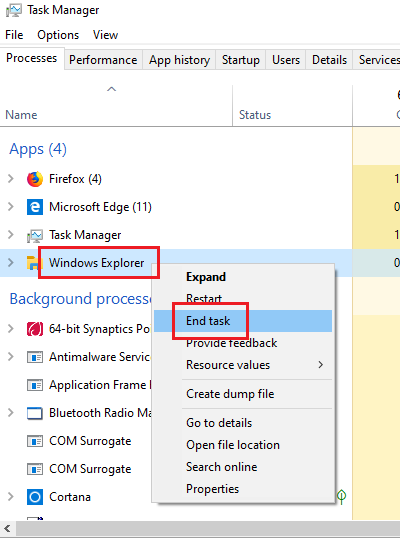
- Press Ctrl + Shift + Esc keys to open Task Manager.
- In the Processes tab of the Task Manager, locate the Explorer.exe or Windows Explorer process.
- Right-click on the process and select End task to force stop the process. Stopping the process might take a while.
- Once the process has been terminated, open Task Manager again. If Task Manager opens in compact mode, click or tap on More details.
- Then, open the File menu.
- Select Run new task.
- In the Create new task window, type
explorer.exeand hit Enter on your keyboard or click or tap OK.
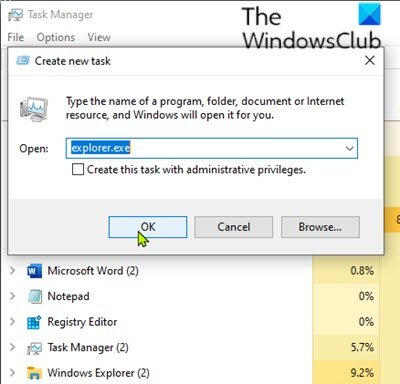
Your computer will restart the explorer.exe process.
After the explorer.exe process has been restarted, check if the issue is resolved.
Hope this helps!
