
Efficiency mode in Task Manager helps Windows reduce the resources used by background processes. However, the option can sometimes appear greyed out, leaving you unable to turn it off for a process that is already running in Efficiency mode. In this post, we will see what you can do if Task Manager Efficiency mode is greyed out in Windows 11.
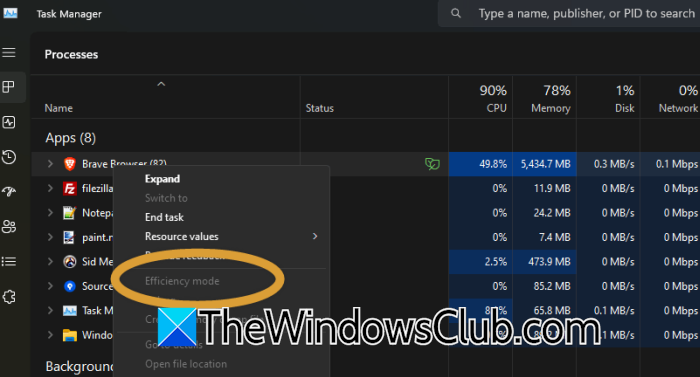
What can cause the Task Manager Efficiency mode to be greyed out in Windows 11?
- If it is a Critical Windows service or background task, you won’t be able to do this as Windows locks this option to protect system stability.
- You may not be able to apply or remove Efficiency mode on a main parent process directly.You will have to expand the tree to check individual sub-processes.
- Some apps or browsers like Microsoft Edge or Google Chrome apply their own EcoQoS power efficiency APIs automatically, which may result in the option being greyed out
- Some applications hardcode their priority flags, preventing manual overrides via the Task Manager interface.
Task Manager Efficiency mode is greyed out in Windows 11
When the Efficiency mode option is not available, Windows might see the selected item as a group of processes or as a protected system process. Microsoft also explains that Chrome and Edge can show the Efficiency mode indicator because they use Windows power-saving features. This issue often occurs when Task Manager displays a group of processes instead of a single one. Windows may limit this option for certain system processes. If the Task Manager Efficiency mode is greyed out, follow the solutions mentioned below.
- Expand the process and disable Efficiency mode
- Check whether Windows is protecting the process
- Disable Power Throttling from the Registry
- Check the application’s own power-saving setting
Let us talk about them in detail.
1] Expand the process and disable Efficiency mode
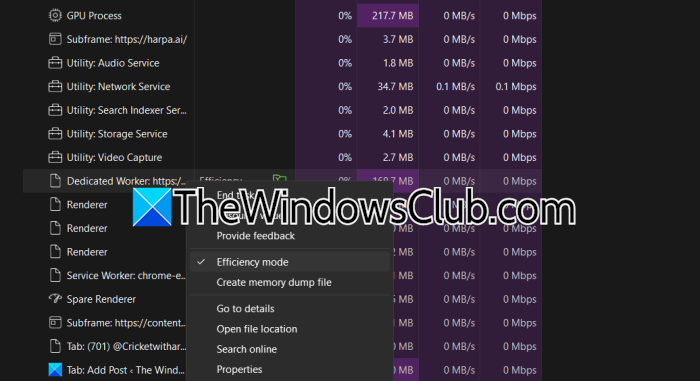
Task Manager groups related processes under one application. When this happens, the Efficiency mode option may be unavailable for the main entry, even though it is enabled for one or more processes underneath it. Therefore, you can expand the process and turn it off individually using the steps mentioned below.
- Press Ctrl + Shift + Esc to open Task Manager.
- Select Processes from the left sidebar.
- Find the application showing the green leaf icon.
- Click the arrow next to the application to expand the process group.
- Right-click one of the individual processes.
- If Efficiency mode is checked, click it to turn it off.
- Repeat the same steps for the other processes in the group.
Once you turn off Efficiency mode for the individual processes, the green leaf icon should also disappear from the main process entry. This approach has been reported to work when the option is greyed out for the parent process.
2] Check whether Windows is protecting the process
Windows does not allow you to change Efficiency mode for every process. Some system processes and process groups are protected because changing their resource management could affect Windows.
Therefore, check whether the problem occurs with one particular process or with every application.
Open Task Manager and right-click another regular application. If Efficiency mode is available there, the greyed-out option is likely related to the original process rather than Task Manager itself.
In this case, there is no need to force the setting through the Registry. Leave the protected Windows process unchanged and check the individual processes underneath it instead.
3] Disable power throttling from the Registry
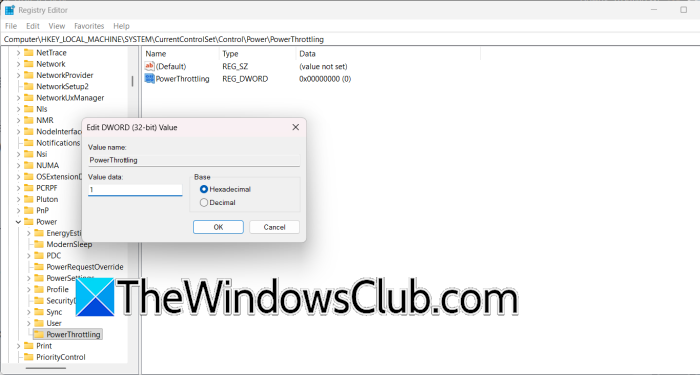
If Windows keeps applying power throttling to regular applications, you can try disabling the Power-throttling feature through the Registry. This does not guarantee that the green leaf icon will disappear from Task Manager, but it can prevent Windows from applying some power-throttling behavior to processes.
Follow the steps mentioned below to do the same.
- Before making the change, create a System Restore point or back up the Registry.
- Press Win + R, type regedit, and press Enter.
- Navigate to:
HKEY_LOCAL_MACHINE\SYSTEM\CurrentControlSet\Control\Power - Right-click Power and select New > Key.
- Name the new key PowerThrottling.
- Select the PowerThrottling key.
- Right-click the empty space on the right and select New > DWORD (32-bit) Value.
- Name the value PowerThrottlingOff.
- Double-click it and set Value data to 1.
- Click OK.
- Restart your PC.
- If the PowerThrottling key already exists, you only need to create or modify the PowerThrottlingOff value.
Keep in mind that this is a workaround, not a guaranteed way to unlock the Efficiency mode option. Some Windows 11 users have reported that the setting had no effect on applications that continued to appear in Efficiency mode. If it still doesn’t make a difference after restarting Windows, you can remove the PowerThrottlingOff value.
Read: Task Manager is blank & not showing processes in Windows 11
4] Check the application’s own power-saving setting
If the green leaf icon appears mainly for a browser, check the browser’s own performance settings as well. Some applications can use Windows power-efficiency features themselves, so changing Task Manager settings may not be enough.
For example, if the problem occurs with Chrome, close the browser and test it with the following command-line switch:
--disable-features=UseEcoQoSForBackgroundProcess
You can add the switch to a Chrome shortcut. Right-click the shortcut, select Properties, and add the switch after the existing text in the Target box.
For example: "C:\Program Files\Google\Chrome\Application\chrome.exe" --disable-features=UseEcoQoSForBackgroundProcess
Click Apply, then OK, and launch Chrome using that shortcut.
Hopefully, the solutions mentioned in this post will resolve the issue for you.
Also read: How to Disable or Enable Efficiency Mode in Microsoft Edge
How to enable Efficiency mode in Task Manager?
To enable Efficiency mode in Task Manager, open it with Ctrl + Shift + Esc, select Processes, and expand the process group you want to manage. Right-click the individual process and select Efficiency mode, or select the process and use the Efficiency mode option in the command bar. If the option is greyed out, Windows may not allow it for that particular process.
My system icon is greyed out in the taskbar. How can I fix it?
If a system or app icon appears greyed out on the Windows 11 taskbar, first restart Windows Explorer from Task Manager, as this can refresh the taskbar without restarting the PC. If the icon is missing or disabled, go to Settings > Personalization > Taskbar and check System tray icons and Other system tray icons. Turn on the icon you want to display, then restart Windows if necessary.
Also Read: Track Power consumption, Increase energy efficiency of Windows.
