
If Task Manager is showing the wrong uptime in Windows 11, here is what you can do to fix the issue. There are several possible causes. We have consolidated the most common ones with quick solutions to help you troubleshoot the issue.
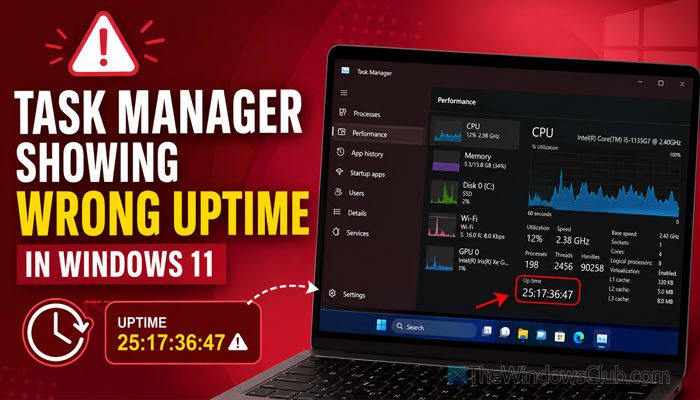
Why is Task Manager showing wrong uptime in Windows 11?
If Task Manager is showing wrong uptime in Windows 11:
- You are not shutting down your computer, or you are hibernating your computer all the time.
- You are not restarting your computer or putting your computer in Sleep mode only.
- Fast Startup is enabled on your computer.
- You might have BIOS issues.
- If you are using Windows Insider, Beta, or Dev Channel, it could be a bug or glitch.
Task Manager showing wrong Uptime in Windows 11
If Task Manager is showing the wrong Uptime in Windows 11, follow these solutions:
- Restart your computer properly
- Fix Restart loop
- Disable Fast Startup
- Verify uptime via WMIC
- Restart Windows Management Instrumentation service
- Check BIOS settings and update it
- Other solutions.
1] Restart your computer properly
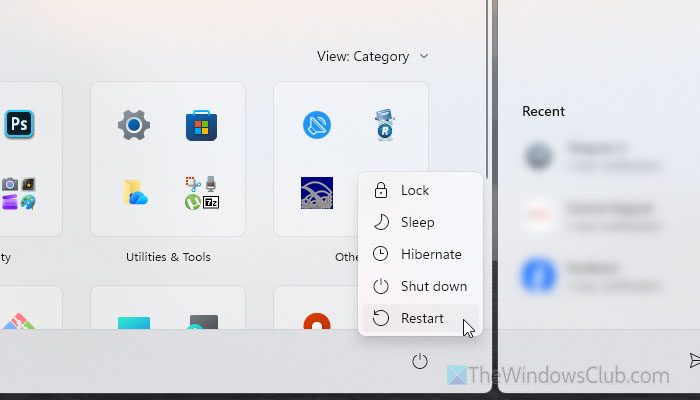
This is the first thing you must do, since the uptime stat fully depends on how you start and restart your computer. If you always hibernate your computer, it won’t reset at all. The same thing happens when you put your computer in Sleep mode. That is why it is very important to restart your computer instead of hibernating or putting it in Sleep mode.
Read: How to disable or enable Hibernate in Windows 11
2] Fix Restart loop
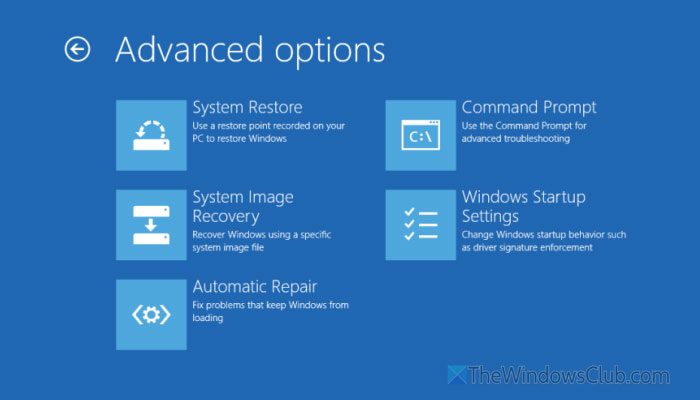
If you are facing a restart or boot loop every now and then, you need to fix it because the uptime resets every time your computer restarts. There are a few things you can go through to fix the endless boot loop problem:
- Use the Automatic Repair tool to fix the startup issue.
- Go to Safe Mode and try fixing your computer from there.
- If you can restart your computer successfully, uninstall recently installed updates.
- Use the System File Checker, as this problem may arise when there are some corrupt system files.
3] Disable Fast Startup
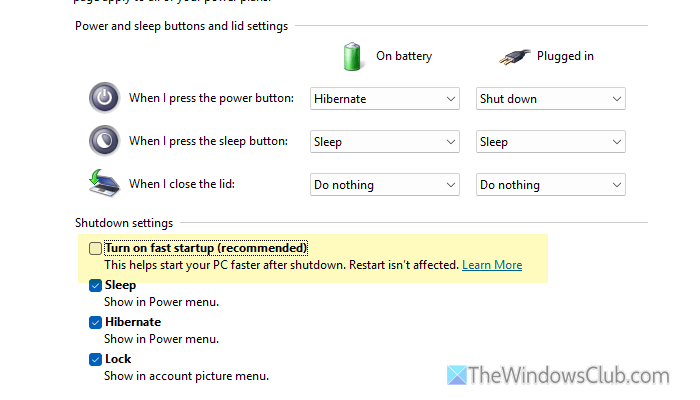
Fast Startup is related to Hibernate functionality, which doesn’t align with your current situation. In simple words, if you use the Fast Startup option, your computer doesn’t really shut down even though you use the shutdown option. That said, it does this to give you a better user experience by starting your computer faster in the future.
To disable Fast Startup in Windows 11, follow these steps:
- Open the Control Panel on your computer and go to the Power Options.
- Click on the Choose what the power buttons do option visible on the left-hand side.
- Click on the Change settings that are currently unavailable option.
- Remove the tick from the Turn on fast startup checkbox and click the Save changes button.
For your information, you can also do this using Command Prompt or Terminal. For that, open the Command Prompt or Terminal instance with administrator privileges and enter this command:
powercfg -h off
Read: Turn on Fast Startup option is missing in Windows 11
4] Verify uptime via WMIC
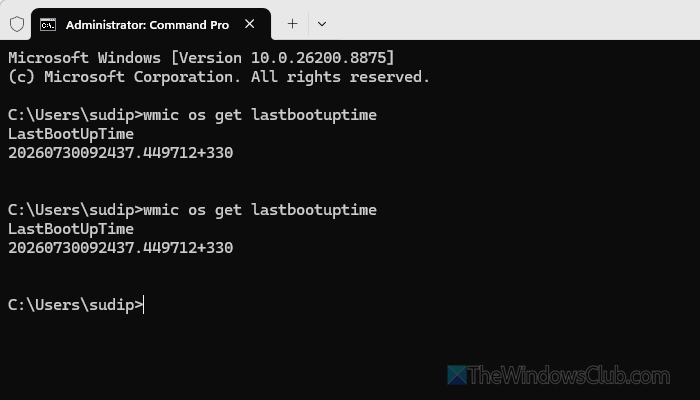
Sometimes, this problem occurs when Task Manager is unresponsive, or when a glitch or bug affects your system. It is a very common scenario for Windows 11 Insider Build users. If you are using a build from the Dev or Beta Channel, it’s also a good idea to verify the original uptime in Terminal.
To do that, press Win+X, select Terminal (Admin), and click Yes on the UAC prompt.
Then, enter this command:
wmic os get lastbootuptime
You will find the uptime as shown in the image. It shows the uptime in this format:
YYYYMMDD-Hour-Minute-Second
Read: How to check Last Shutdown Time or Downtime in Windows
5] Restart Windows Management Instrumentation service
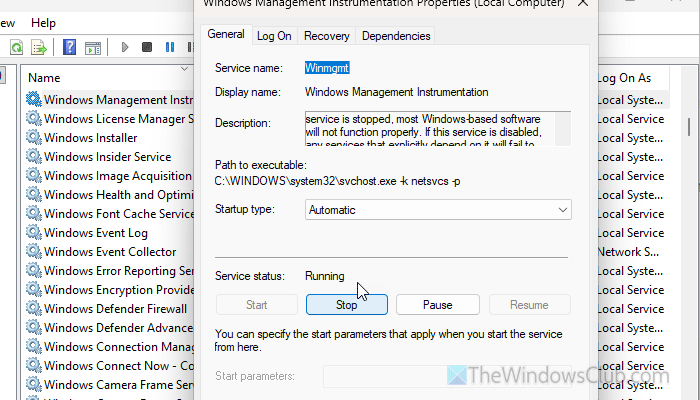
Windows Management Instrumentation service helps Windows-based software connect and may tweak settings to keep your computer running in the background. That is why itis recommended to restart this service to ensure it is working properly.
For that, press Win+R, type services.msc, and hit the Enter button. Double-click on the Windows Management Instrumentation service and click the Stop button. Then, choose the Automatic option from the Startup type dropdown menu, and click the Start button.
Finally, click the OK button to save the change.
Read: How to Repair or Rebuild WMI Repository in Windows 11
6] Check BIOS settings and update it
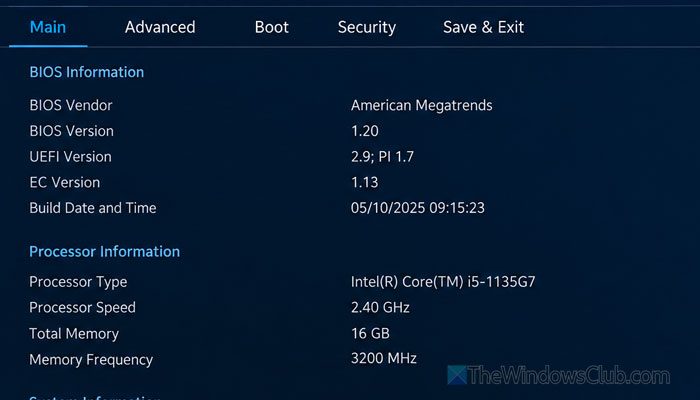
If you recently changed any BIOS settings, reverse them as soon as possible. Also, if an update is available, you can download and install it as well. To update the BIOS in Windows 11, you can go through this detailed guide.
7] Other solutions
- Check Windows updates
- Run SFC
- Disable Hibernate.
Also read: Task Manager not updating in Windows 11
How to reset uptime in Windows 11?
You must do two things to reset uptime statistics in Windows 11.
- Restart your computer. You can use the Start Menu, Alt+F4 menu, or anything else.
- Disable Fast Startup. You must turn it off. Otherwise, the uptime may not reset fully and consistently.
Read: Task Manager crashes when opening Performance tab.
Why is my PC uptime 3 days?
If you continuously put your computer in Sleep or Hibernate mode, it won’t count as a restart. That is why Windows keeps counting that time as total uptime. If you keep doing so, it will keep counting the entire time as uptime.
Is it bad if my CPU uptime is high?
No, a high CPU uptime doesn’t denote anything bad in particular. However, you should know that your PC counts uptime based on how long it has been running. If you do not restart your computer, it may show a very high uptime. In other words, it means that you are continuously using your computer, which may be bad for some CPUs.
