
Windows Task Manager provides more information on processes. You can easily find which application utilizes CPU, Memory, Disk, Network Usage and so on. In this post, we will show you how to disable Task Manager in Windows 11/10 for security reasons.
How to disable Task Manager in Windows 11
You can enable or disable Task Manager in 5 ways:
- Local Group Policy Editor
- Registry Editor
- Ultimate Windows Tweaker
- Windows PowerShell
- Command Prompt.
While we have shown how to disable it, you need to reverse the changes to enable it. Let’s look at the steps for each method.
1] Disable Task Manager via Local Group Policy Editor
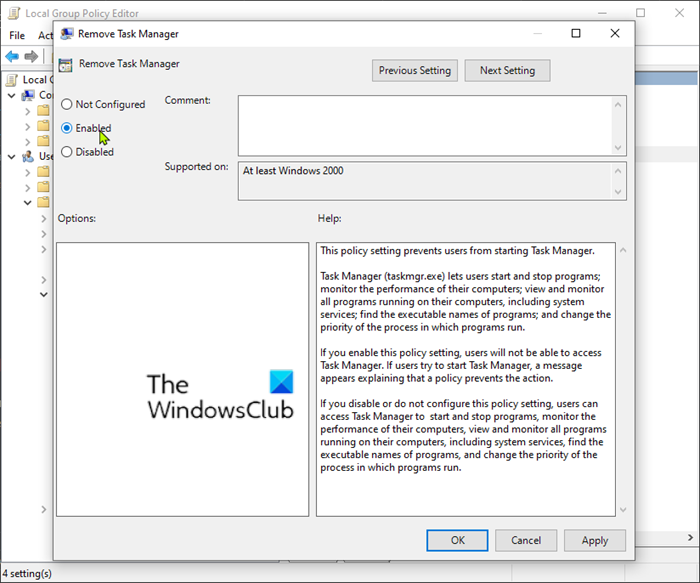
To disable Task Manager via Local Group Policy Editor, do the following;
- Press Windows key + R to invoke the Run dialog.
- In the Run dialog box type gpedit.msc and press Enter to open Group Policy Editor.
- Inside the Local Group Policy Editor, use the left pane to navigate to the path below:
User Configuration > Administrative Templates > System > Ctrl+Alt+Del Options
- On the right pane, double-click on the Remove Task Manager policy to edit its properties.
- In the policy properties window, set the radio button to Enabled.
- Click Apply > OK to save the changes.
2] Disable Task Manager via Registry Editor
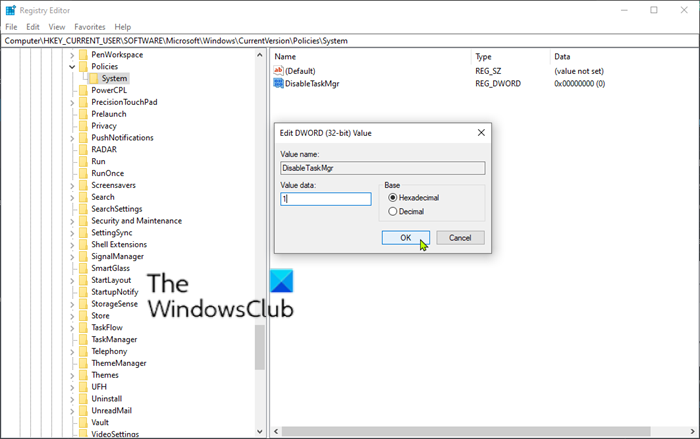
Since this is a registry operation, it is recommended that you back up the registry or create a system restore point as necessary precautionary measures. Once done, you can proceed as follows:
- Press Windows key + R to invoke the Run dialog.
- In the Run dialog box, type regedit and hit Enter to open Registry Editor.
- Navigate or jump to the registry key path below:
HKEY_CURRENT_USER\SOFTWARE\Microsoft\Windows\CurrentVersion\Policies
- At the location, on the left pane, right-click on the Policies folder.
- Select New > Key.
- Name the key as System.
- Next, click on the newly created System key.
- On the right pane, click on the empty area and choose New > DWORD (32-bit Value).
- Name the value DisableTaskMgr.
- Next, double-click the DisableTaskMgr to edit its properties.
- In the properties window, input 1 in the Value data field.
- Click OK to save changes.
Next, navigate or jump to the following registry path:
HKEY_LOCAL_MACHINE\SOFTWARE\Microsoft\Windows\CurrentVersion\Policies\System
- At the location, on the right pane, create the DisableTaskMgr key and set the Value data to 1.
- Exit Registry Editor and restart your computer.
Read: Task Manager is not responding, opening, or disabled by the administrator.
3] Use Ultimate Windows Tweaker

Use our freeware Ultimate Windows Tweaker to do this with a click! You will see the setting under Security & Privacy > Security Settings > Disable Task Manager.
You can also use our free tool FixWin if the Task Manager is not opening quickly.
4] Windows PowerShell
Execute the following in an elevated PowerShell window and restart your computer
To disable:
Set-ItemProperty -Path HKCU:\Software\Microsoft\Windows\CurrentVersion\Policies\System -Name DisableTaskMgr -Value 1
To enable:
Set-ItemProperty -Path HKCU:\Software\Microsoft\Windows\CurrentVersion\Policies\System -Name DisableTaskMgr -Value 0
5] Command Prompt
Run the following in an elevated Command Prompt and restart your computer.
To disable:
reg add HKCU\Software\Microsoft\Windows\CurrentVersion\Policies\System /v DisableTaskMgr /t REG_DWORD /d 1 /f
To enable:
reg add HKCU\Software\Microsoft\Windows\CurrentVersion\Policies\System /v DisableTaskMgr /t REG_DWORD /d 0 /f
These are the ways to disable Task Manager in Windows 11/10.
Is it okay to disable the Task Scheduler?
You can, but you shouldn’t disable Task Scheduler. Windows and other software use this built-in program to run essential background services. For example, Task Scheduler runs a malware scan in the background. If you disable Task Scheduler, these programs will never run. The same applies to Windows updates. So unless you manually check, the expected services will not run and can cause problems.
Is it OK to disable all startup programs?
Technically, yes, it’s safe to disable startup programs. Applications register themselves with Startup, so the services are ready to use once you log in to your PC. However, they can also substantially increase load time as the number grows. A better approach is to choose only what you need and disable the rest of the services. For example, if you often take screenshots, you need the application to start quickly and respond to shortcuts when you log in.
