
If the SSD keeps disappearing and reappearing on your Windows 11 computer, the solutions provided in this article will help resolve the issue. Some users encountered this issue with the second SSD. However, for some users, it is the primary SSD, and they cannot boot into Windows due to this issue.
There can be many causes of this issue, such as loose cable connections, an outdated BIOS, outdated firmware on the SSD, or a faulty SSD.
SSD keeps disappearing and reappearing on Windows 11
Use the following fixes if your SSD keeps disappearing and reappearing on Windows 11:
- Preliminary fixes
- Update your SSD firmware
- Check your SSD status in the Disk Management
- Check the Event Viewer
- Install the right driver
- Reset BIOS
- Update BIOS and chipset driver
- Replace your SSD or seek professional help
All these fixes are explained below in detail.
1] Preliminary fixes
Before proceeding with advanced troubleshooting steps, try some preliminary fixes.
- If your computer sometimes fails to recognize your SSD, it might not be seated properly in the slot. Open your computer case and reseat the SSD.
- One possible cause of this issue is the faulty SSD slot. If your motherboard has more than one SSD slot, insert your SSD into another available slot. If this works, that SSD slot is faulty. Take your motherboard for repair.
- The issue can also be with the cable connecting the SSD to your motherboard. The connections might be loose, or the cable might be faulty. Also, check the connections of other components. Broken cables can cause power fluctuations, leading to the SSD disappearing randomly.
You can also perform a hard reset and see if it helps. Follow these steps:
- Completely turn off your computer.
- Disconnect all peripherals.
- Remove the power cord. If it is a laptop, remove its battery and disconnect the charger.
- Press and hold the power button for up to 45 seconds.
- Connect the power cord or insert the battery (if it is a laptop) and turn on your system.
2] Update your SSD firmware
If this issue is caused by outdated firmware on your SSD, updating it to the latest version can help. The process to update SSD firmware is different for SSDs of different brands. Therefore, visit your SSD manufacturer’s support website to learn the correct process for updating its firmware.
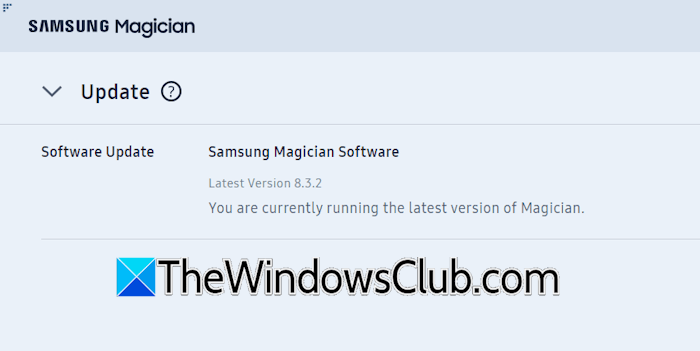
If this is your primary SSD, you can update its firmware only if your PC detects it. However, we suggest avoiding this fix for your primary SSD, as if it disconnects during the firmware update, it will be corrupted and you will lose your data.
If you are updating the firmware of your secondary SSD, back up all the data before proceeding.
3] Check your SSD status in the Disk Management
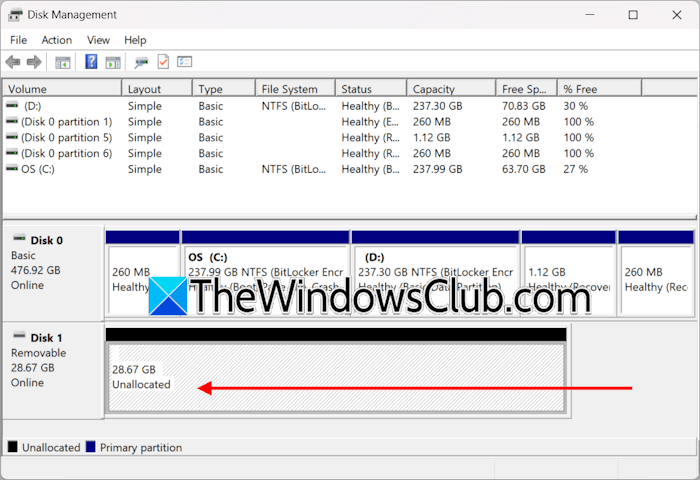
If this is your secondary SSD, you can check its status in Disk Management. Right-click on the Start and select Disk Management. If your SSD is showing an Unallocated space in the Disk Management, this means that your SSD might have been corrupted or infected by malware. In this case, you have to format the SSD and assign a new drive letter to it. This is also an unfortunate situation because it is difficult to recover your data.
You can try some free data recovery tools and see if they can help you recover your data from a corrupted SSD.
4] Check the Event Viewer
Windows records and saves all error and warning logs. You can view these logs in Event Viewer. Since your SSD keeps disappearing and reappearing, you should check the Event Viewer.
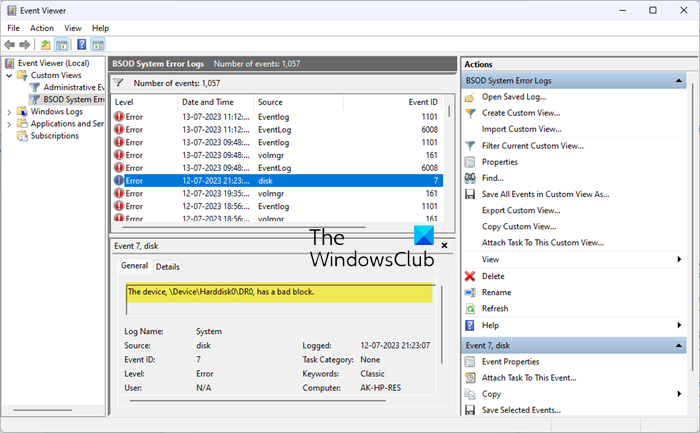
Troubleshoot the issue according to the error message displayed in the Event Viewer. For example, the Event ID The device, \Device\Harddisk0\DR0, has a bad block means your hard drive has bad sectors that need to be repaired, or your hard drive has been corrupted.
5] Install the right driver
The issue might be caused by an incorrect driver for your SSD. Follow these steps to install the right driver for your SSD. Before proceeding, create a system restore point.
- Open the Device Manager.
- Expand the Storage controllers branch.
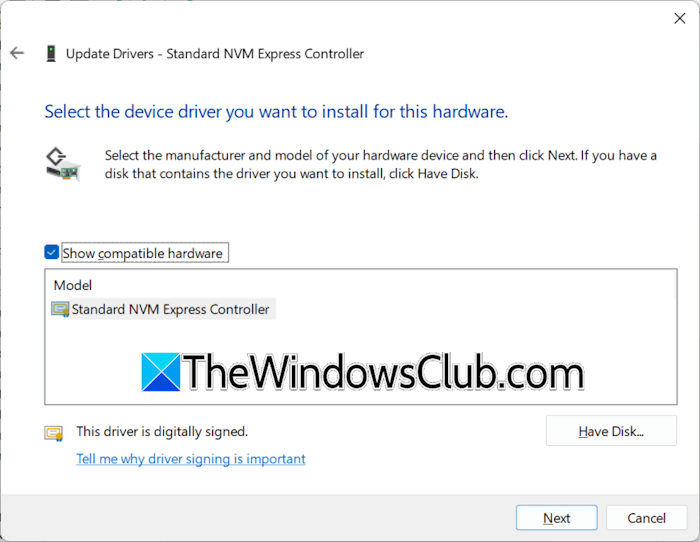
- The driver should be the Standard NVM Express Controller for NVMe SSDs and the Standard SATA AHCI Controller for SATA SSDs. If there is a different driver, right-click on it and select Update driver.
- Click Browse my computer for drivers.
- Select Let me pick from a list of available drivers on my computer.
- Make sure that the Show compatible hardware checkbox is selected. Select Standard NVM Express Controller for NVMe SSD and Standard SATA AHCI Controller for SATA SSD.
- Click Next and follow the on-screen instructions to install the driver.
- Restart your computer.
6] Reset BIOS
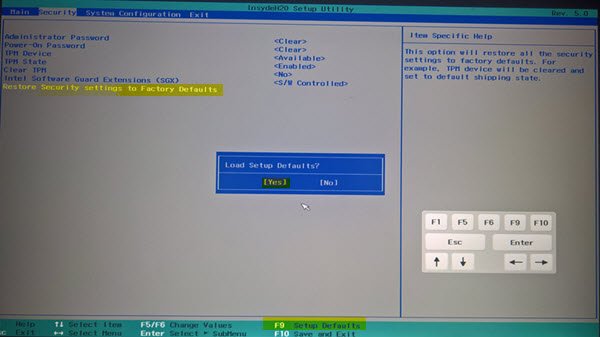
The next fix is to reset your BIOS to the factory default settings. If you do not know the right BIOS key, refer to the user manual of your computer. Before proceeding, we recommend you note down your current BIOS settings, so you can revert changes if resetting the BIOS does not work for you.
7] Update BIOS and chipset driver
If the issue persists, update your BIOS to the latest version. Updating BIOS increases hardware compatibility. Open System Information and check the current version of BIOS. Now, visit the official website of your computer manufacturer and check the BIOS version available there. If an updated version is available, download and install it.

While updating the BIOS, your computer should remain powered on. If you have a laptop, plug in its charger, even if it is fully charged. An interrupted power supply during a BIOS update breaks the motherboard.
We also suggest you update your chipset driver.
8] Replace your SSD
If the problem persists, your SSD might be faulty, or there may be another hardware issue. Contact the manufacturer support or replace your SSD.
That’s it. I hope this helps.
Why does my SSD keep appearing and disappearing?
There might be many reasons why your SSD keeps appearing and disappearing. The most common causes include loose cable connections, a faulty cable connecting your SSD to the motherboard, and a faulty SSD slot. Apart from this, your SSD might be faulty, or there might be another hardware fault.
What are the signs of SSD failure?
The signs of an SSD failure include frequent crashes, slow read and write speeds, system hangs during boot, files won’t open or become read-only, some files vanish automatically, etc. If you notice these signs, back up all your data immediately.
Read next: How to tell if SSD is SATA or NVMe?
