
Some users encountered the “Sorry, something went wrong and Word was unable to start” error when launching Microsoft Word. According to the reports, this error occurs immediately after launching Word, preventing users from editing or creating new documents.
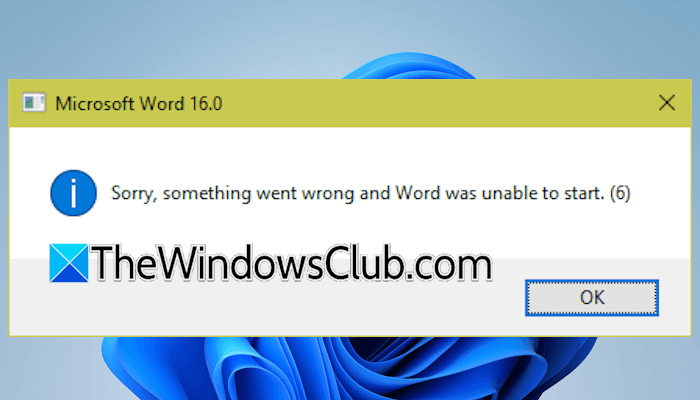
Sorry, something went wrong and Word was unable to start
Use the following fixes for the “Sorry, something went wrong and Word was unable to start” error in Word:
- Update office
- Launch Word in Safe Mode
- Repair or reinstall Office
- Create a new user profile
- Roll back Office to the previous version
All these fixes are explained in detail below. Before proceeding, check for Windows Update manually. Additionally, try launching Word as an administrator. If this works, you can make it always run as an administrator.
1] Update Office
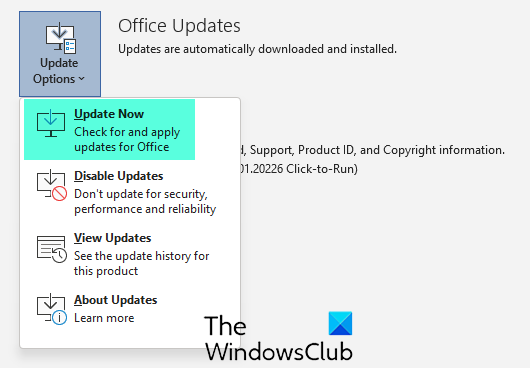
The first step is to update Office to the latest version. There might be a bug causing this error. Hence, updating Office to the latest version can help. Since you cannot open Word, you can use any other Office application to update Office.
2] Launch Word in Safe Mode
If updating Office does not help or you are already using the latest version, the problem might be caused by a faulty or incompatible add-in. To confirm this, launch Word in Safe Mode. If it opens in Safe Mode, it confirms that one of the installed add-ins is likely preventing Word from starting normally.
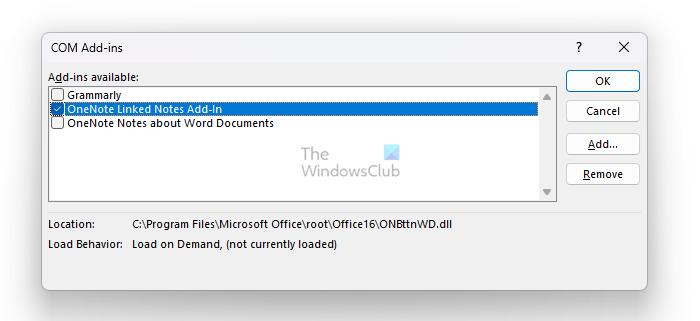
Now, the next step is to find that problematic add-in. For this, follow these steps:
- In Safe Mode, navigate to File > Options.
- Select Add-ins from the left side.
- Select COM Add-ins in the drop-down and click GO.
- Enable one Add-in and restart Word.
When the error reappears, the add-in you have just enabled is the culprit.
3] Repair or reinstall Office

If the error persists, we suggest you repair Microsoft Office. This action will repair the entire Office suite, including the corrupt files. You can run either Quick Repair or Online Repair.
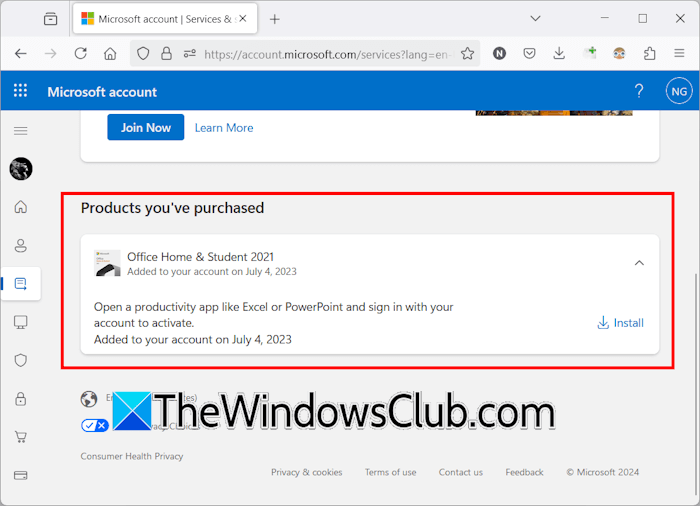
If the error persists even after repairing the Office suite, you can try reinstalling Office. Use a third-party tool like Revo Uninstaller to remove Office completely from your system. Before you proceed, make sure that you have the Office activation key. If you have set up Office properly, you will find it in your Microsoft account. Log in to your Microsoft account in your web browser and navigate to Subscriptions. Scroll down and expand the Products you’ve purchased section. You will see your Microsoft Office there. Download and install it.
4] Create a new user profile
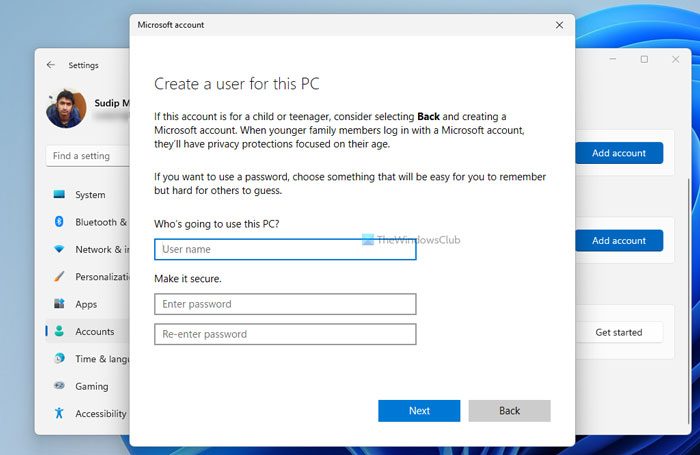
Sometimes, problems occur with a particular user profile on Windows. To confirm this, create a new user profile and see if you can launch Word in that profile. If yes, you can use the new user profile and delete the previous one. If you want, you can also transfer your user profile data to the new profile using a third-party tool, such as Transwiz.
5] Roll back Office to the previous version
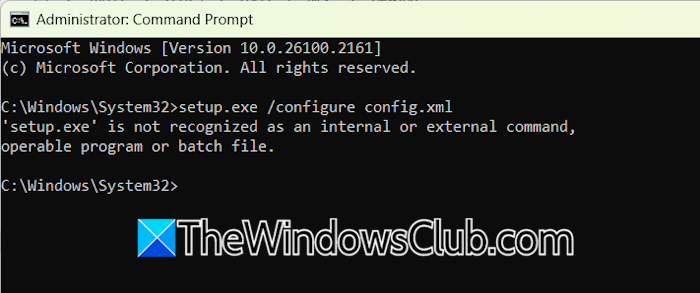
If nothing works, you can roll back Office to the previous version. First, check the current version of Office installed on your system. After that, run a command in the elevated Command Prompt to install the required previous version of Office.
That’s it. I hope this helps.
What is Ctrl + Shift + F5 in Word?
The Ctrl + Shift + F5 shortcut in Microsoft Word allows you to bookmark inside your Word document. When you press this shortcut, a Bookmark dialog box appears that lets you add new bookmarks, navigate to existing ones, and delete them.
How to fix Microsoft Word error 0xC0000142?
If you encounter the error 0xC0000142 with Microsoft Word or any other Office application, update Office to the latest version. If you are already using the latest version of Office, repairing it can help.
Read next: Hyperlinks not working in Word.
