
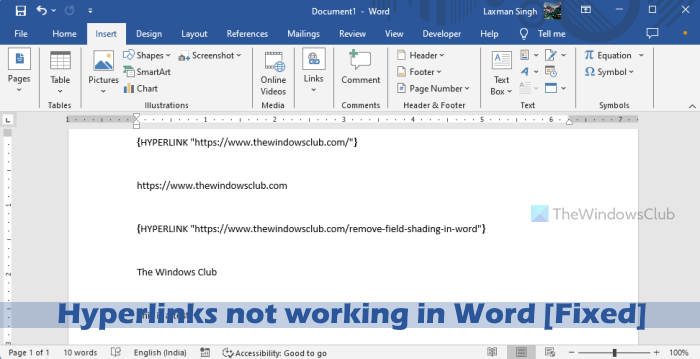
Some users have reported that hyperlinks not working or opening in Word on their Windows 11/10 computer. For some users, instead of the actual hyperlink (say, https://www.thewindowsclub.com/), the hyperlink text appears as {HYPERLINK “https://www.thewindowsclub.com/“} in their Microsoft Word document. As a result, the hyperlink seems invalid or doesn’t work. For some users, the hyperlinked text doesn’t open the URL, and the entered URL isn’t clickable, etc. If you also face this problem, the fixes we cover will be helpful.
Why are my hyperlinks not working on Word?
There could be different reasons why hyperlinks are not working in Word. For example, this can happen if the hyperlink is broken, field codes are enabled in Microsoft Word, or Protected View is enabled for security purposes.
How do I fix hyperlink formatting in Word?
If you want to change or customize the font formatting or style for a hyperlink, font type, font size, hyperlink color, etc., in Word, then first select the hyperlink or hyperlinked text. This will automatically open a formatting menu for that particular hyperlink. There you will see all the options including font, styles, bold, italic, font color, highlight color, etc., that you can use for the hyperlink.
Fix Hyperlinks not working in Word
If hyperlinks are not working in Microsoft Word on Windows 11/10, use the following solutions:
- Use a shortcut key
- Edit or rename hyperlinks
- Disable showing field codes
- Turn off Protected View
- Check the Auto Format setting for Hyperlinks
- Repair Microsoft Word.
Let’s check these solutions.
1] Use a shortcut key
By default, you can use the Ctrl+Left mouse button to open a hyperlink in MS Word. However, if this doesn’t work, you can use Alt+Shift+F9 or Alt+Shift+Fn+F9 to open a hyperlink or hyperlinked text.
Additionally, you can also turn off the Ctrl+Left mouse button setting to open a hyperlink directly. Go to File > More > Options > Advanced. There, uncheck use CTRL + Click to follow hyperlink option under the Editing Options section and press the OK button. Now you can click on a hyperlink to open it.
2] Edit or rename hyperlinks
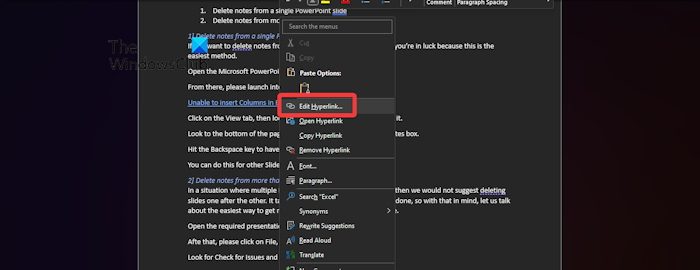
It is possible that a link is not valid, broken, or incorrect. In this case, you need to edit or rename hyperlinks in Word that are causing this issue. Right-click the hyperlink and use the Edit hyperlink option to correct the URL.
3] Disable showing field codes
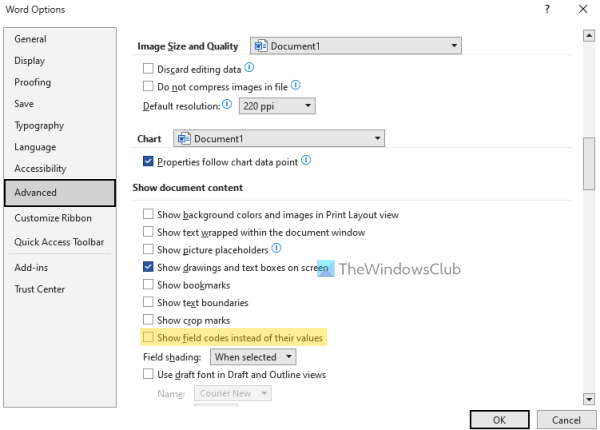
This is one of the best options to fix this problem. If the option to show field codes is enabled in Word, it will display hyperlinks as plain text, with “{HYPERLINK” at the start of each hyperlink in your document. So, this problem can be solved by disabling field codes from showing.
For this, press Alt+F9 (or Alt+Fn+9) or Shift F9 (or Shift+fn+9). You can also manually turn off this setting. Access File > More > Options > Advanced. Under the Show document content section, uncheck the Show field codes instead of their values option, and press the OK button.
Read: Word not displaying images correctly
4] Turn off Protected View
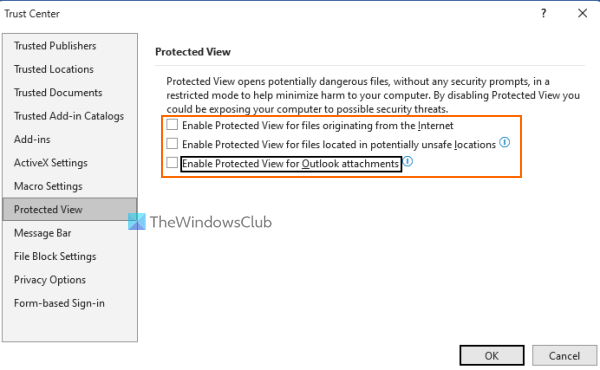
If a Word document is opened in Protected View mode, hyperlinks won’t open. When you try to use the right-click menu or Ctrl+Click option to open a hyperlink, you will receive a security notice. If this is the reason hyperlinks are not working or opening in MS Word, then you should turn off or disable Protected View in Word. This should solve the problem.
5] Check the Auto Format setting for Hyperlinks
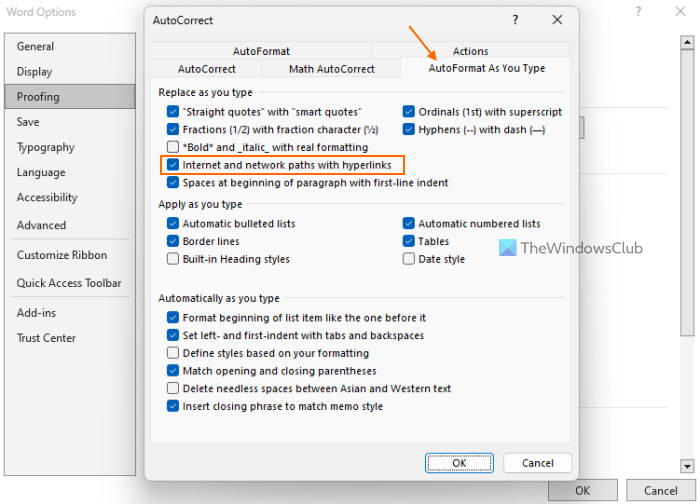
If you copy and paste a website URL or type one manually in MS Word, it automatically turns into a hyperlink. But, if it is added as plain text instead, and this is the issue you face, then you need to check the auto format setting for hyperlinks.
Navigate to File > More > Options > Proofing > AutoCorrect Options button. In the AutoCorrect box, switch to the AutoFormat As You Type tab. Select the Internet and network paths with hyperlinks option and press OK.
Read: Hyperlinks not working in PDF
6] Repair Microsoft Word

If the issue persists and you face a similar issue on other Office products like hyperlinks not opening or working in Excel, then you should repair Microsoft Word and Office products.
I hope these solutions will help.
Now read: Word or Excel hyperlinks are slow to open.
