
If hyperlinks are not working in PDF files on your Windows 11/10 PC, you are not alone. Many users report this issue, and it often appears in different forms. For some, links appear clickable but do nothing, while for others, hyperlinks work correctly in the original Word or Excel file but stop working after converting the document to PDF. In some cases, links open in a browser but not in a desktop PDF reader, or work on a PC but fail on mobile devices.
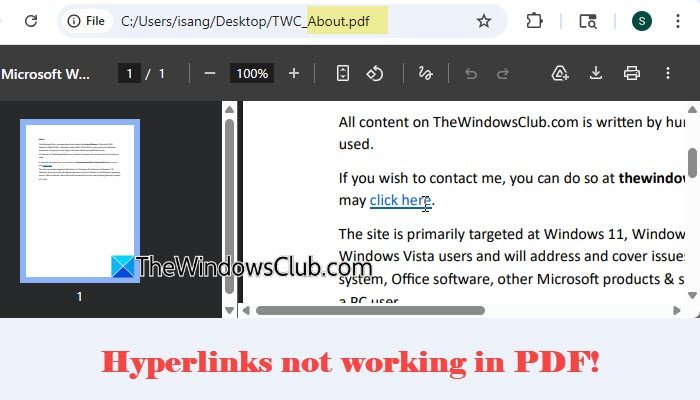
In this post, we will explain why hyperlinks may not work in PDF files and show you how to fix the problem step by step.
Why are my hyperlinks not working after converting to PDF?
Your hyperlinks may not work after converting to PDF if the file was not exported correctly. If you used Print to PDF, it often removes interactive elements like links. This can also happen if the original links were plain text and not properly inserted as hyperlinks. In some cases, the export settings may not include document structure or link preservation.
Hyperlinks not working in PDF
To fix hyperlinks if they are not working in PDF files on your Windows 11/10 PC, use these solutions:
- Export the file correctly as PDF
- Convert the file using a professional PDF converter
- Check for broken or incorrect URL
- Open the PDF in a reliable viewer
- Check PDF reader security settings
- Recreate or repair the PDF file
Let us see this in detail.
1] Export the file correctly as PDF
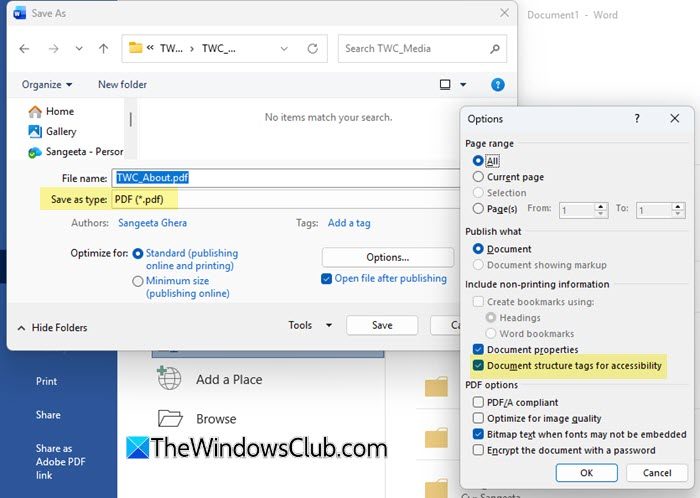
If your document was converted using the Print to PDF option (available in most apps via the Print menu), the links may not work. This is because this method creates a flattened version of your document. To preserve interactivity, you should use the Save As or Export to PDF option.
- Open your document in the original app (Word, Excel, PowerPoint, etc.).
- Click on File and select Save As (or Export).
- Choose the location where you want to save the file.
- In the Save as type dropdown, select PDF (*.pdf).
- Click Options and ensure Document structure tags for accessibility is checked. This helps preserve interactive elements like hyperlinks in the PDF.
- Click Save to create the PDF.
2] Convert the file using a professional PDF converter
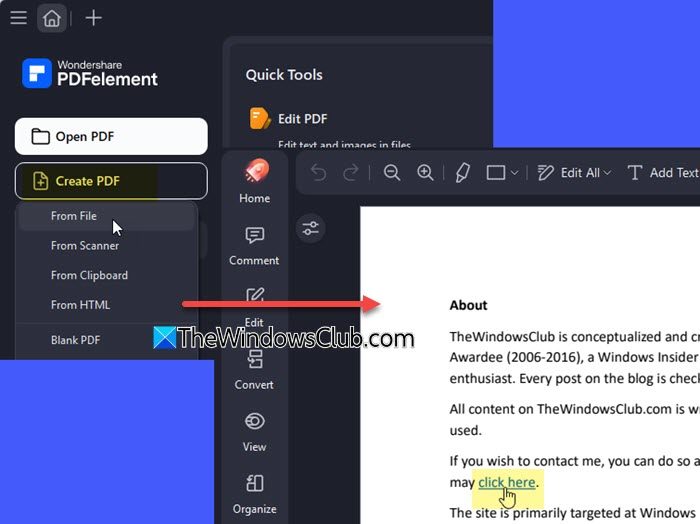
Professional PDF converters are designed to retain hyperlinks, formatting, and document structure more accurately. So, if your current app isn’t converting links properly, using a professional PDF converter can help.
For example, you can use Wondershare PDFelement to export your file to PDF. It is a professionally designed tool that ensures hyperlinks and other interactive elements are preserved during conversion.
- Download and install Wondershare PDFelement on your PC.
- Launch the program and click on Create PDF > From File.
- Browse and select your original document.
- The tool will automatically convert and open it as a PDF.
- Save the file and check if the hyperlinks are working correctly.
3] Check for broken or incorrect URL
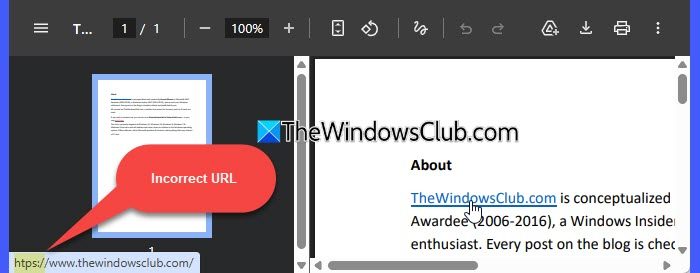
Sometimes, the problem isn’t with the PDF, but with the link itself. Even a minor error in the URL can prevent it from working. If you’re facing issues with PDF links, always verify that the original URLs are correct and working before converting the file. Here are some common URL issues to look for:
- Missing “http://” or “https://” at the beginning
- Leading or trailing spaces in the link
- Unnecessary punctuation (such as commas or full stops) at the end
- Incorrect or outdated web addresses
- Typographical errors or a missing path in the URL
4] Open the PDF in a reliable viewer
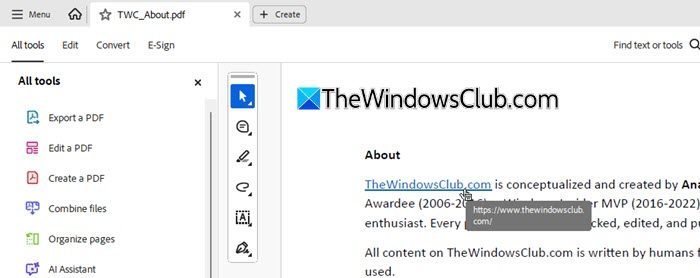
Many users report that hyperlinks do not work in one PDF viewer but function correctly in another. This happens because not all PDF readers fully support clickable links. For example, browser-based viewers or basic PDF apps may have limited functionality compared to full-featured PDF readers.
To rule this out, try opening your PDF in a dedicated PDF reader, such as Adobe Acrobat Reader, Foxit PDF Reader, or Nitro PDF Reader. If the links start working there, the issue is likely with the viewer you were using earlier, not the PDF itself.
5] Check PDF reader security settings
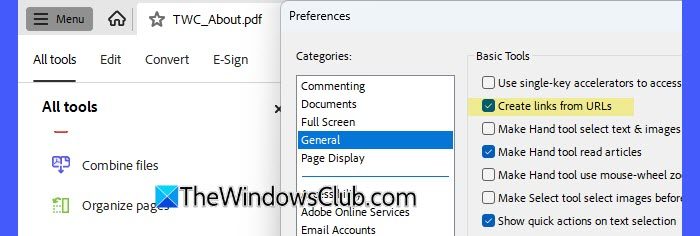
Some PDF readers include built-in security features that can block hyperlinks from opening. These settings are designed to protect your system from potentially unsafe websites, but they can sometimes prevent even safe links from working.
If you are using Adobe Acrobat Reader, try these fixes:
- Go to Menu > Help > Check for updates and install the latest version. Many users report that the issue gets fixed after updating.
- Go to Menu > Preferences > General and enable Create links from URLs. This ensures Acrobat detects and makes links clickable.
- Go to Menu > Preferences > Security (Enhanced) and temporarily relax settings like Protected Mode or Enhanced Security.
If you have Adobe Acrobat Pro, you can also use the built-in Acrobat plugin in Microsoft Word to create PDFs (if your original file is in Word).
Go to File > Options > Add-ins. At the bottom, select COM Add-ins > Go. Check Acrobat PDFMaker Office COM Add-in and click OK.
Then open your Word document. Go to the Acrobat tab in the ribbon. Click Create PDF. This method often preserves hyperlinks and formatting more reliably than standard export options.
After making these changes, restart the application and test the links again.
6] Recreate or repair the PDF file
If hyperlinks are still not working, the PDF file itself may be corrupted or improperly created. This can happen if the file was edited using multiple tools, converted repeatedly, or downloaded incorrectly.
Here are a few signs that the PDF is corrupted:
- Links that worked earlier have suddenly stopped working
- Display or formatting issues in the PDF
- Errors when opening the PDF
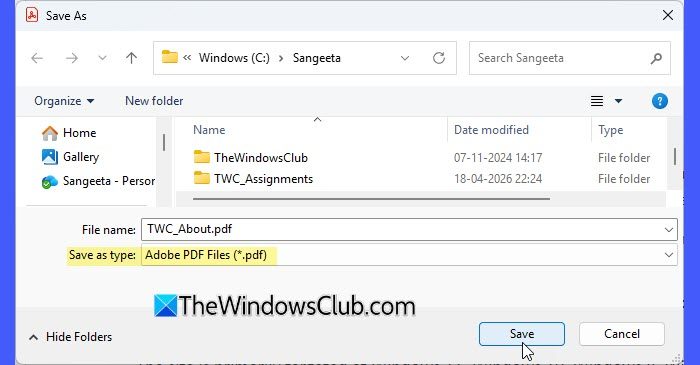
To fix this, go back to the original document and recreate the PDF using a proper export method. If you downloaded the file, try downloading it again. You can also open the PDF and use Save As to create a fresh copy.
Lastly, if hyperlinks work on your PC but not on mobile, the issue is likely due to limitations or a lack of support in the mobile PDF viewer app. To fix this, open the PDF in a reliable mobile PDF app (such as Adobe Acrobat Reader) instead of the default viewer.
I hope this helps.
Read: Add, remove, or edit hyperlinks in PDF files with PDF Link Editor.
How do I enable hyperlinks in a PDF?
To enable hyperlinks in a PDF, make sure the links are properly inserted in the original document using the Insert Link option and not just typed as plain text. Then, export the file using Save As or Export to PDF instead of Print to PDF, as this preserves clickable links.
Read Next: Hyperlinks not working in Word.
