
If the Snipping Tool keeps taking screenshots on your Windows 11/10 computer, use the solutions provided in this article. According to reports, the Snipping Tool automatically captures screenshots and saves them in the OneDrive folder without notifying users, which quickly fills up the OneDrive space. This issue can occur due to several causes, such as incorrect settings, malware infection, etc.
Snipping Tool keeps taking screenshots on Windows 11/10
Use these fixes if the Snipping Tool keeps taking screenshots on your Windows 11/10 computer:
- Change the Accessibility setting
- Change the OneDrive setting
- Scan your system for malware
- Check the issue in the Clean Boot state
- Repair, reset, or reinstall the Snipping Tool
- Did you map your keyboard keys?
- Connect another keyboard
- Create another user profile
- Use an alternative
- Restore your system
All these fixes are explained below in detail.
1] Change the Accessibility setting
First, change the Accessibility setting to disable the screenshot shortcut for Snipping Tool. By default, this feature remains enabled for the Snipping Tool. Follow these instructions:
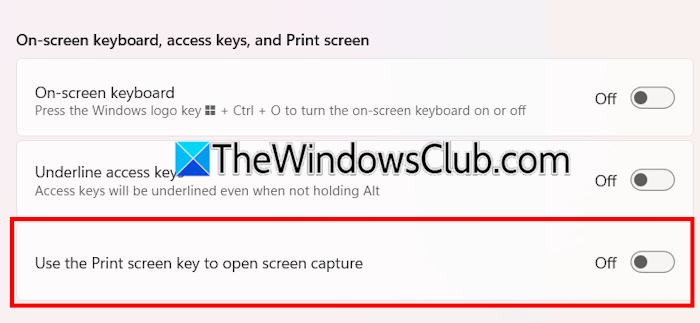
- Open Windows 11 Settings.
- Go to Accessibility > Keyboard.
- Scroll down and disable the “Use the Print screen key to open screen capture.”
2] Change the OneDrive setting
If the Snipping Tool continues to take screenshots and save them in your OneDrive folder, adjust your OneDrive settings.
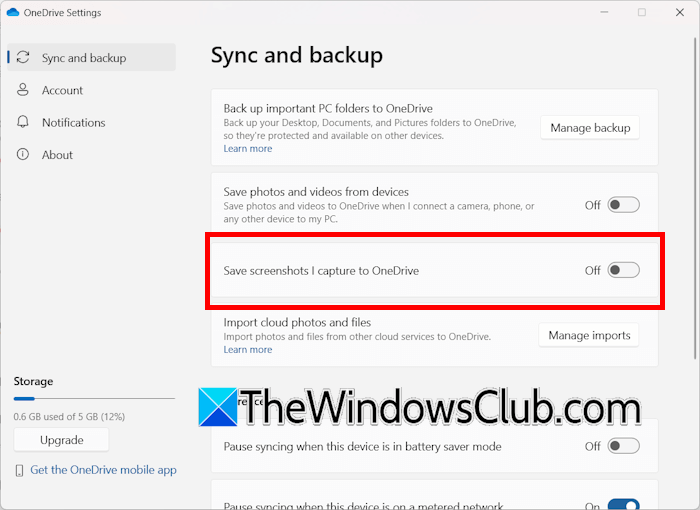
Follow these instructions:
- Click on the OneDrive cloud icon on your Taskbar.
- Click on the gear-shaped icon on the top right side and select Settings.
- Select the Sync and Backup tab from the left side.
- Turn off the “Save screenshots I capture to OneDrive” button.
Now, the screenshots will not be saved to the OneDrive folder. However, the issue may exist. You can check this by pressing the Ctrl + V keys. This will open the clipboard. If your system is still taking screenshots, the screenshots will appear in the Clipboard history. In this case, your system might be infected.
3] Scan your system for malware
Some malicious programs are programmed to take screenshots on a victim’s computer without their knowledge. Such programs also send the captured screenshots to cybercriminals. This issue usually occurs when the victim clicks on a malicious link by mistake.
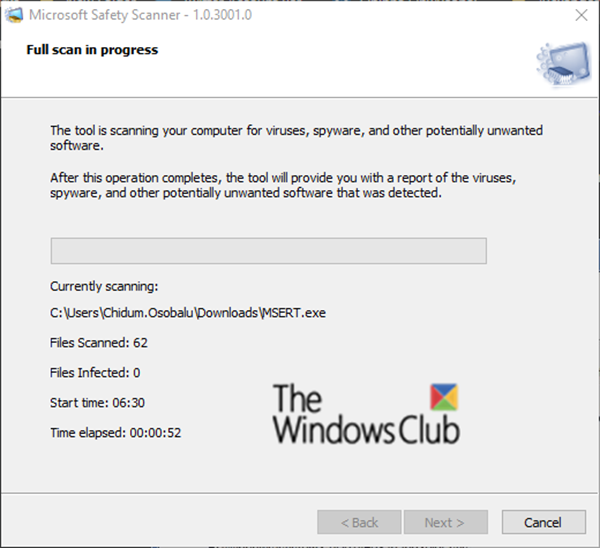
Scan your system with a good antimalware program. If you do not have a paid antimalware program, you can use Windows Defender and Microsoft Safety Scanner. Additionally, you can install free antivirus software to scan your system for malware.
4] Check the issue in the Clean Boot state
A third-party background service might be causing this problem. To check this, you have to boot in the Clean Boot state. But before proceeding, disable all the startup apps, restart your computer, and check if the issue persists.
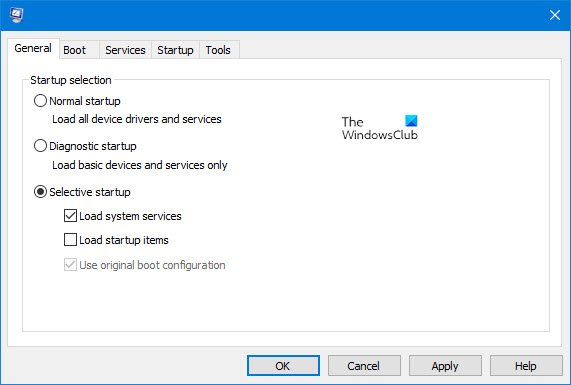
If the issue persists after disabling the startup apps, Open MSConfig and enter the Clean Boot state. If the issue disappears in the Clean Boot state, a third-party service might be responsible for this issue. You need to identify the service and the program to which the service is associated. To do this, enable some third-party services and then restart your computer. If the issue reappears, one of the services you have just enabled is likely the culprit. Now, uninstall the respective app associated with that problematic service. This will also remove that service from your computer.
Read: Snipping tool keeps popping up on Windows 11
5] Repair, reset, or reinstall the Snipping Tool
You can repair the Snipping Tool. This action will repair the corrupted files associated with the Snipping Tool and fix the problem.
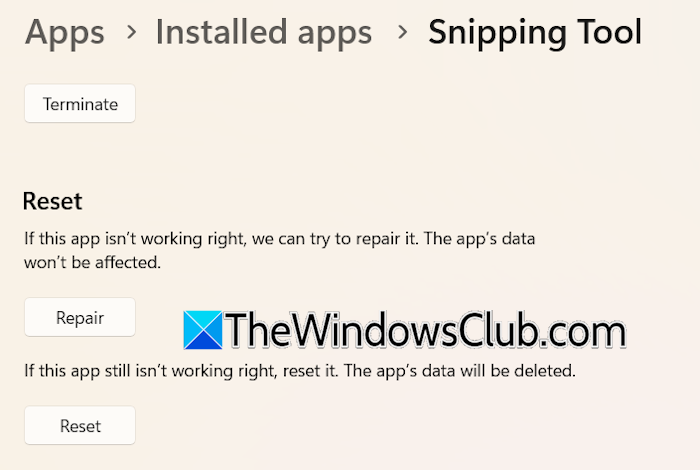
The following instructions will help you:
- Open Windows 11 Settings.
- Go to Apps > Installed apps.
- Search for Snipping Tool.
- Click on the three dots next to the Snipping Tool and select Advanced options.
- Scroll down and click Repair.
Restart your computer. If the issue persists, reset the Snipping Tool. You can also try uninstalling and reinstalling Snipping Tool. The Snipping Tool is available on the Microsoft Store.
6] Did you map your keyboard keys?
Keyboard Mapping software allows you to remap your keyboard keys and assign a different function to them. Typically, keyboard mapping tools are used by gamers. Have you ever used such software? If so, you may have mistakenly assigned the Print Screen function to a specific key on your keyboard. To check this, download and install any free Keyboard Mapping software and check the status of the mapped keys. If you see an incorrect function assigned to a particular key, reset it using that software.
7] Connect another keyboard
The problem may be with your keyboard or its driver. To check this, connect another keyboard and see if the issue persists. If you find your keyboard faulty, replace it. Before replacing your keyboard, reset it and see if the issue persists.
8] Create another user profile
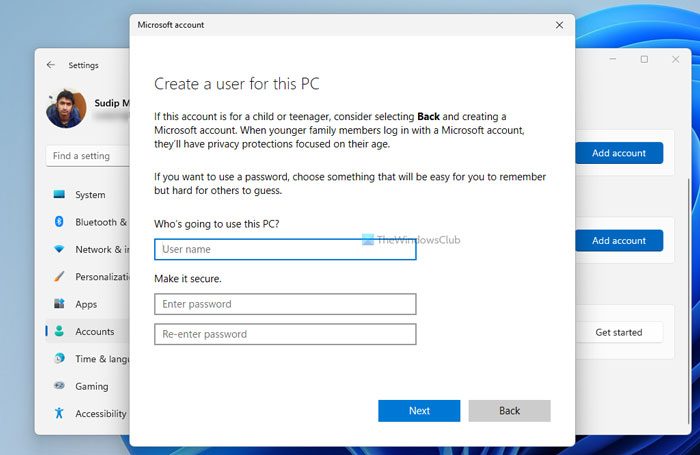
Sometimes, problems are associated with a particular user profile. This might be the case with you. Create a new user profile. Now, log in to that user profile and check if the issue persists. If not, your user profile might have been corrupted. In such a case, you can transfer your user profile data from the previous profile to the newly created profile.
9] Use an alternative
You can also uninstall the Snipping Tool from your PC. If you need to take screenshots, you can install another free third-party tool.
10] Restore your system
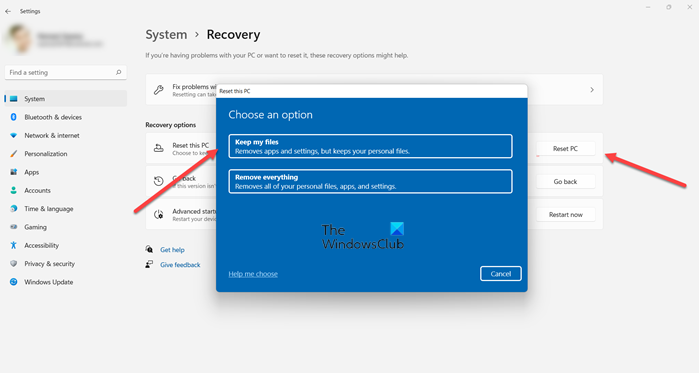
The last resort is to reset your system to the factory default settings. While performing this action, select the Keep my files option, as this will keep your data safe during the reset. However, we recommend you back up all important files before proceeding.
Why is Windows 11 taking screenshots on its own?
If Windows 11 is taking screenshots on its own, your system might be infected. Scan your system with a good antimalware program. You can also use Microsoft Safety Scanner. Other possible reasons for this issue include a conflicting third-party background application or service, keyboard issues, etc.
How do I fix the Snipping Tool on Windows 11?
Snipping Tool saves the captured screenshots to the OneDrive folder by default. If it is not working, check this option in OneDrive settings. If the Snipping Tool freezes or crashes, repair your system image files and update your graphics card driver.
Read next: Snipping Tool screen recorder No sound problem.
