
Windows 11 is a user-friendly operating system. However, the errors we see on them at times make the experience frustrating. If you see errors while opening Notepad or Snipping Tool, this guide is for you. In this guide, we show you how to fix the 0x803F8001 error on Windows 11 with Notepad, Terminal, Calculator or Snipping Tool. Along with this,you may also see File system error (-2143322111). This issue may occur if the Microsoft Store cannot validate app licenses.
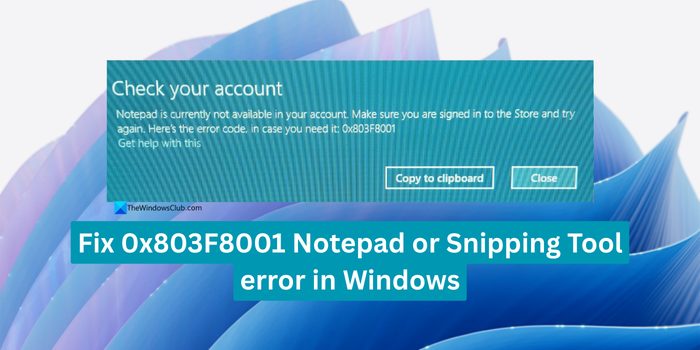
Notepad is currently not available in your account
0x803F8001, ERROR_INSTALL_PACKAGE_NOT_FOUND, means Windows tried to communicate with the Microsoft Store via the COM interface and failed.
App is currently not available in your account, Error 0x803F8001
If you cannot open Notepad, Terminal, Calculator or Snipping Tool on your Windows 11 PC and see error 0x803F8001, follow these suggestions to fix the issue.
- Install the latest updates
- Disable your antivirus program
- Repair or Reset Notepad, Terminal, Calculator or Snipping Tool
- Reset Microsoft Store Cache
- Check your Microsoft account
1] Install the latest updates
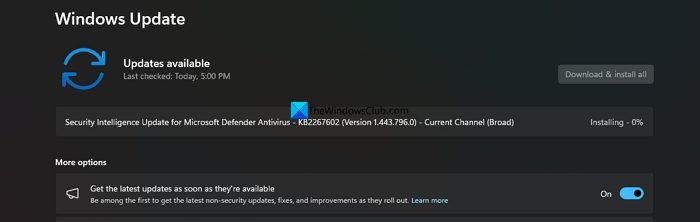
Error 0x803F8001 might have been caused by a bug in a previous Windows or security update. It can only be fixed by installing the latest Windows or Security updates. Open the Settings app on your PC. Click Windows Update on the side menu. Click the Check for updates button. It will look for pending updates and install them automatically if they are minor, such as security updates.
You should also update all your Microsoft Store apps.
After installing the latest updates, you will no longer see the error when opening Notepad or Snipping Tool.
NOTE: Installing Windows Update KB5074109 is known to have fixed this issue. However, this caused another issue where apps might become unresponsive when saving files to cloud-backed storage, including Outlook, which could become unresponsive when accessing PST files stored on Microsoft OneDrive. So Microsoft is recommending that Windows 11 users uninstall this Windows Update if they face this issue.
Read: Fix 0x803F8001 Microsoft Store error
2] Disable your antivirus program
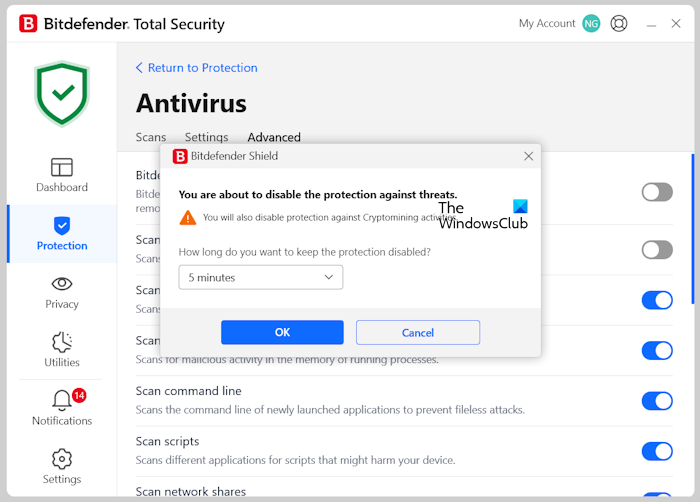
If you have recently installed an antivirus program on your Windows 11 PC and are seeing this error, disable the antivirus app in its settings. Then open the problematic app and see if it works. If it works, uninstall the antivirus program so you don’t see any errors in the future. Windows Defender can protect your PC from most of the threats that we normally see.
3] Repair or Reset Notepad, Terminal, Calculator or Snipping Tool
The error 0x803F8001 with Notepad, Terminal, Calculator or Snipping Tool can be easily fixed by repairing or resetting them in their Settings. If you see the error, right-click on the app in the Start menu and select App settings.
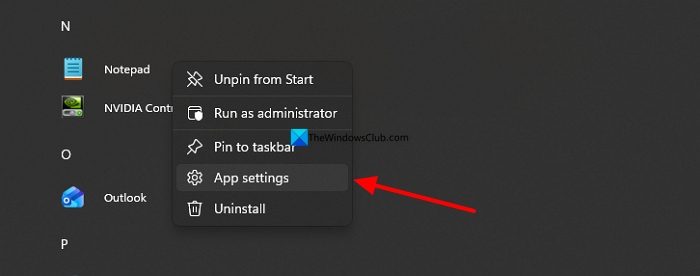
It will open the App settings page on the Settings app. Scroll down to the Reset section on the settings page and click on Repair. Wait for a few seconds until it repairs the app.
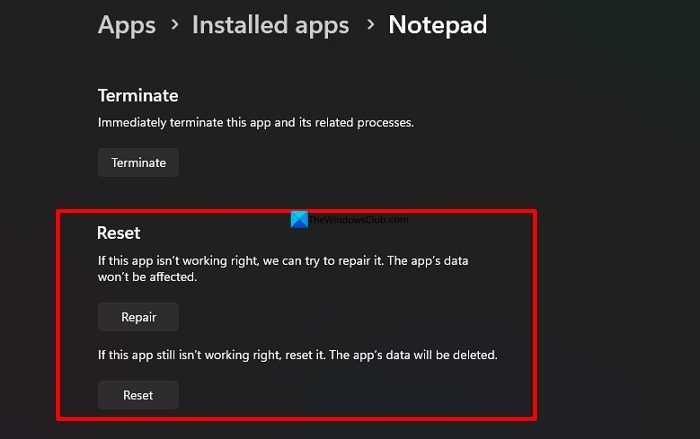
If repairing the app fixes the problem, good; otherwise, click Reset to completely reset the app to its default mode.
The app will now work without errors.
4] Reset Microsoft Store Cache
Sometimes the corrupted Microsoft Cache causes issues with other Microsoft apps, like Notepad or Snipping Tool. You need to reset the Microsoft Store Cache to fix it. Right-click on the Microsoft Store app. It opens the Microsoft Store app settings page. Click Repair under the Reset section. Wait a few seconds while it repairs the app by clearing cache and data.
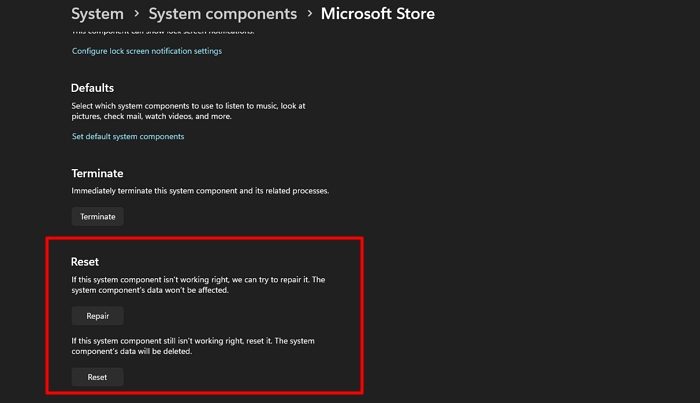
After the process completes, check whether the app opens. If not, click Reset on the Microsoft Store settings page to fix the issue. Then, restart your PC and see if the programs work.
5] Check your Microsoft account
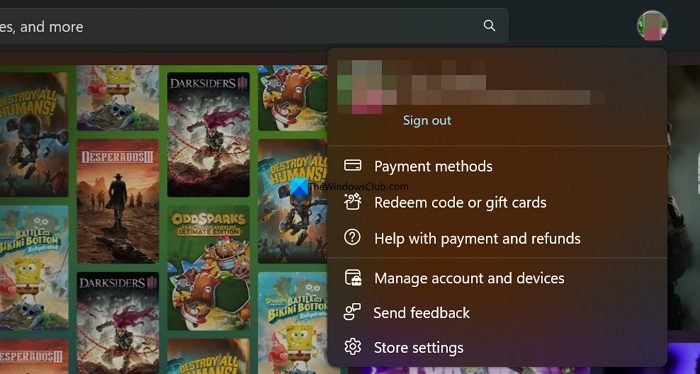
If you have any conflicting Microsoft accounts unrelated to your Windows 11 PC that are connected, you may encounter this error. Open the Microsoft Store, click your Profile picture, and verify your Microsoft account. If a new account is connected, remove it and use the previous Microsoft account you used when setting up your PC. Open the Settings app and click Accounts to make any changes to the accounts on your PC.
Read: Do you own this game or app, 0x803f8001 Xbox error
Terminal is currently not available in your account
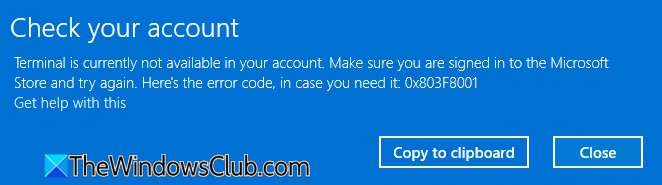
If you see Terminal is not currently available in your account message when you try to open Windows Terminal (or Notepad, Calculator or Snipping Tool), we suggest that you run Windows Update and update all your Microsoft Store apps. Installing Windows Update KB5074109 is known to have fixed this issue. This issue occurs if the Microsoft Store cannot validate app licenses. If this does not help, reset Windows Terminal via Windows Settings and see if that helps.
Notepad not opening with 0x803F8001 error
When you are unable to open Notepad (or any Microsoft app) on your Windows PC and see error 0x803F8001, you can fix it by repairing and resetting Notepad. If it still does not work, reset the Microsoft Store cache in its settings to fix the issue. Also, check for any pending Windows updates and install them.
Read: Minecraft Launcher Error 0x803f8001
Windows 11 will suddenly not allow me to use the Snipping tool – Error 0x803F8001
Unable to use Snipping Tool is a daunting experience on Windows 11 with error 0x803F8001. In such cases, check for any pending Windows or Security Intelligence updates and install them. If it does not work even after that, repair and reset the Snipping Tool app in its settings. Clear the Microsoft Store cache, disable the newly installed antivirus app on your PC, and see if it works.
Read: Paint 3D app not working or opening, 0x803F8001 Error.
