
The Snipping Tool in Windows 11 normally shows a notification after you capture a screenshot. This notification lets you quickly open the captured snip to edit, save, or share it. However, some users have reported that Snipping Tool notifications are not showing on their systems, even though the screenshots are captured successfully. This guide shows you how to fix Snipping Tool notifications if they aren’t appearing on your Windows 11 PC.
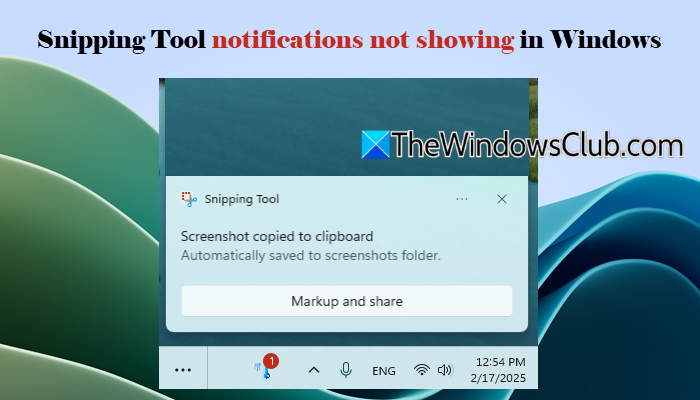
Snipping Tool notifications not showing in Windows 11
If Snipping Tool notifications are not showing on your Windows 11 PC, use these solutions:
- Check notification settings for Snipping Tool
- Turn off Do not disturb
- Check Focus settings
- Repair or Reset Snipping Tool
- Uninstall and reinstall Snipping Tool
Let us see these solutions in detail.
1] Check notification settings for Snipping Tool
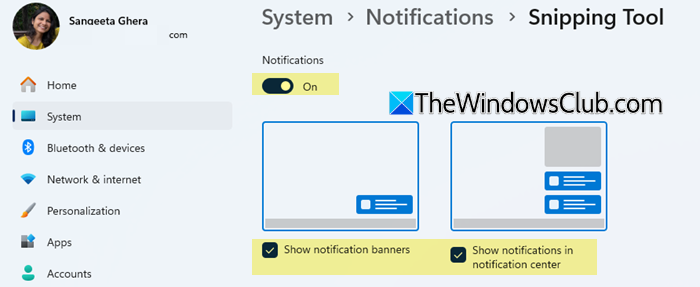
If Snipping Tool notifications are turned off, Windows won’t display the Snipping Tool toast notifications after you take screenshots.
Press Win + I to open Settings. Go to System > Notifications. Find Snipping Tool under Notifications from apps and other senders, and ensure that the toggle next to it is On.
Next, click the right-arrow icon next to the toggle and check these options:
- Show notification banners
- Show notifications in notification centers
The first option determines whether the notification can appear as a pop-up banner and the second option allows it to appear in the Windows notification center. Make sure both options are enabled.
Note: The notification behavior may also depend on how you start a screen capture. When you use the Win + Shift + S keyboard shortcut, Windows may show a Snipping Tool notification after the capture. If you start a snip by clicking the New button inside Snipping Tool, the captured image opens directly in the app, so you may not see a separate notification.
2] Turn off Do not disturb
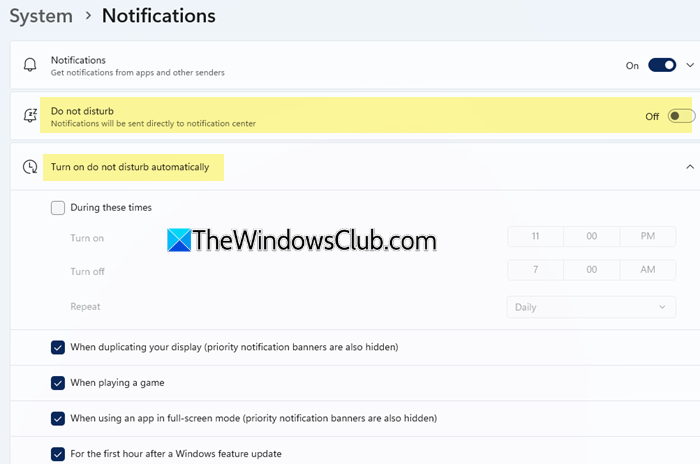
Do not disturb is a Windows 11 notification setting that temporarily silences notifications so they do not interrupt you. If it is turned on, Windows can suppress Snipping Tool notifications and prevent them from appearing as normal pop-up banners.
Open Settings and go to System > Notifications. Under Notifications, make sure the Do not disturb toggle is set to Off.
Also, expand Turn on do not disturb automatically and check whether any of the automatic rules are enabled. Windows can automatically turn on Do not disturb during certain activities, such as playing a game, using an app in full-screen mode, or duplicating the display.
3] Check Focus settings
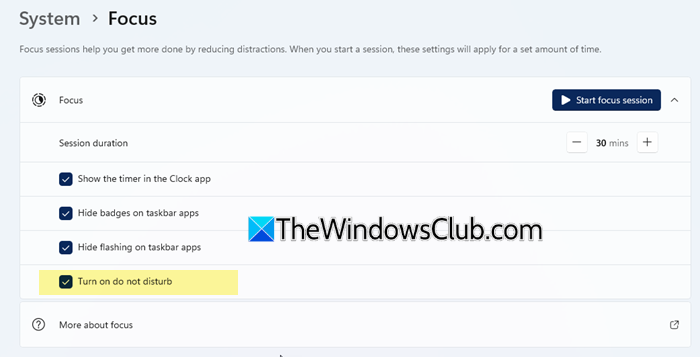
Focus is another Windows setting that can temporarily block notifications for a certain amount of time so that you can concentrate on important work. Since Focus can turn on Do not disturb, it may prevent Snipping Tool notifications from appearing as pop-up banners.
Open Settings. Go to System > Focus. If a Focus session is currently active, click Stop focus session. You can also check the Focus settings and make sure Do not disturb is not being enabled automatically during Focus sessions.
After making these changes, take another screenshot using Win + Shift + S and check whether the Snipping Tool notification appears.
4] Repair or Reset Snipping Tool
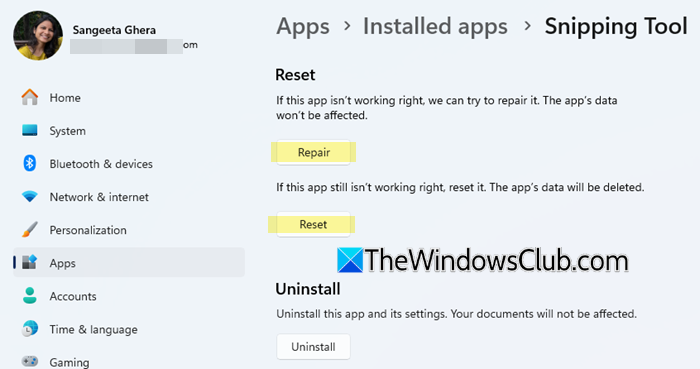
If the issue persists, you can use Windows’ built-in Repair option to fix the app.
Open Settings. Go to Apps > Installed apps. Find Snipping Tool, click the three-dot icon next to it, and select Advanced options.
Under the Reset section, click Repair and wait for the process to complete. Once done, open Snipping Tool and check whether the notification appears when you take a screenshot.
If the problem persists, return to the same page and click Reset. Restart your PC and check Snipping Tool again.
Note: Resetting Snipping Tool restores the app to its default state and may remove its app data. You may need to configure the app again after resetting it.
5] Uninstall and reinstall Snipping Tool
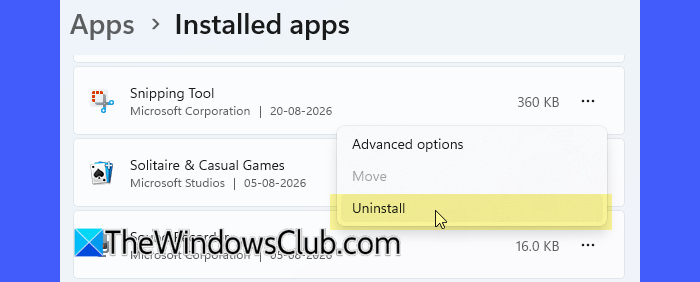
If repairing or resetting does not resolve the problem, try uninstalling and reinstalling the Snipping Tool app. A few users have reported that this solved the issue for them.
Go to Settings > Apps > Installed apps. Find Snipping Tool, click the three-dot icon next to it, and select Uninstall. A confirmation pop-up will appear. Click Uninstall to continue removing the app from your system.
Once uninstalled, restart your PC. Then open the Microsoft Store, search for Snipping Tool, and click Get to install the latest version of Snipping Tool on your Windows 11 PC.
I hope this helps.
Read: Snipping Tool not saving screenshots on Windows.
Why are notifications not showing up in Windows 11?
Windows 11 has a system-wide notification setting, and you can also configure settings separately for individual apps. Check the app’s notification settings first and make sure notifications and banners are enabled. Windows notifications may also not appear if Do not disturb or Focus is turned on. In some cases, the app may also be experiencing a temporary issue.
How do I enable Snipping Tool notifications?
Open Settings > System > Notifications and find Snipping Tool under Notifications from apps and other senders. Turn on notifications and make sure Show notification banners and Show notifications in notification center are enabled.
Read Next: Add Sound to PrntScrn Key and enable Alert for Screenshots in Windows.
