
If you receive error code 0x803F8001 asking “Do you own this game or app” when you launch a game or an app on your Xbox One console, then this post will help you resolve it. Here is the full error message that you will see:
Do you own this game or app? If you have a game disc, insert it now. Otherwise, make sure you’re signed in to Xbox Live. If you don’t have rights for playing it, you’ll need to buy it at Microsoft Store. (0x803f8001)
The error occurs because of usage rights or ownership between your account and the one that owns that app or game. The system is not able to verify and hence shows this error code.

Do you own this game or app, 0x803f8001 Xbox error
Follow these methods one by one, and figure out which one resolves your issue on Xbox One. That way, it will be easier to figure out the problem the next time it happens.
- Insert the Game Disc
- Sign-in to Xbox Live
- Ask the owner to sign-in to Xbox Live
- Check the Xbox Live Status
- Restart the game
- Reboot the Console
- Purchase a digital copy.
Make sure you have a stable internet connection as the verification needs
1] Insert the Game Disc
Disc-based games should remain inserted in the drive of the Xbox Console when you are playing it. It is the only way to verify that you own the game. While Xbox is moving towards digital games, if you bought one of the shelves, that’s how you prove it.
The tip does not apply to the Xbox One S or any console that doesn’t come with a drive.
2] Sign-in to Xbox Live
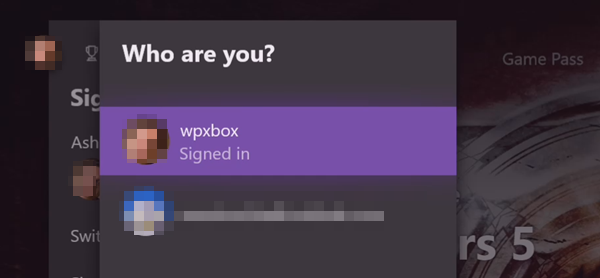
To play a game or use an app, you will have to sign in to Xbox Live. Most of the users set their profile to sign in automatically or use the controller if that’s not the case for you, then:
- Press the Xbox Guide button on the controller
- Navigate to the extreme left to find a list of all profiles
- Select your profile, and sign-in
You may have to enter the passcode if you have enabled it. Relaunch the game, and it should work fine.
3] Ask the owner to sign-in to Xbox Live
Xbox Live allows the owner of a game to share it with the accounts that are on the same console. However, this only works for their Home Xbox. Anyone on the Home Xbox will be able to use the owner’s games if they have signed in to the console. So you need to set the current console as Home Xbox, and the owner of the game or app should sign-in to the console as well.
4] Check the Xbox Live Status
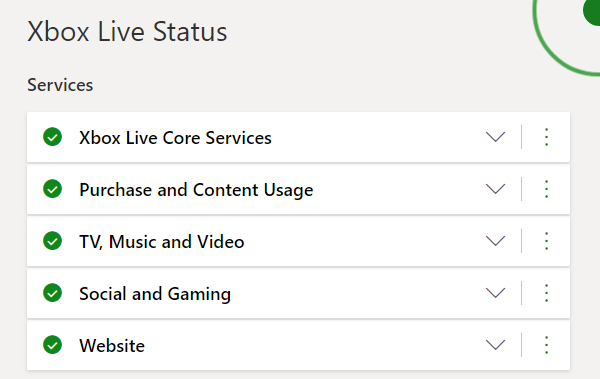
Xbox Services go down often. At times, these services are not abler to verify the Live Status. So it would help if you waited for them to resolve before you can play the game. There are two ways to find the Xbox Live Status:
On the web
Visit the Xbox Live Status web page to check if any of the services are down.
On Xbox One
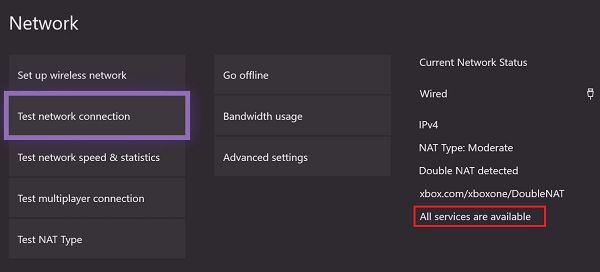
- Press the Xbox Guide button to open the guide menu.
- Select Settings > All Settings > Network > Network settings
- The Xbox Live status information can be found on-screen.
You can also choose to Test a network connection. It will refresh and show the status on the right-hand side. If everything is fine, then you should not see the Error 0x803F8001 on Xbox One again.
5] Restart the game

Xbox preserves game state when you switch to something else. If you have done a long time back, and switch to the game again, then it will verify the ownership. It may fail to validate. Hence the best is to quit the game and relaunch it.
To quit any game on Xbox One, highlight it when on the home screen, and then press the menu (three lines) button on the controller. It will display the game’s context menu. Choose quit. Relaunch it to see if the issue persists.
6] Reboot the Console
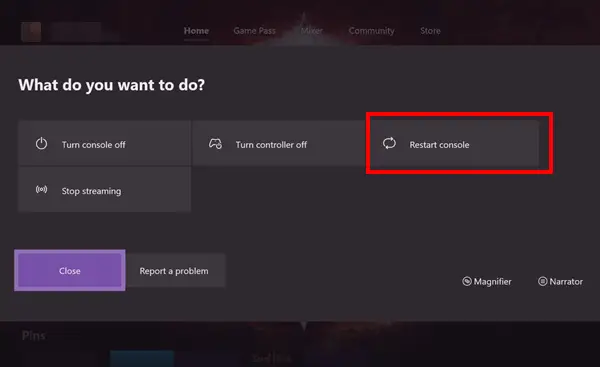
Answer to most of the problems like Windows PC. If nothing is working, restart the console. Press and hold the Xbox Guide button in the center. It will give you the option to restart the console. Select Restart console, and then launch the game when its back.
You can also Power Cycle the Xbox One for better results. Hold the Xbox button on the front of your Xbox One console for till you hear a sound, and the console shuts down. Leave the console for another 2-3 minutes, and then restart it using the controller or the power button
7] Purchase a digital copy of the same game or app
If you have lost the physical disc of the game, you will have to get another disc or buy the digital version. Since the game is available on the console, you don’t need to download it again. Pay for it, and Xbox will stop looking for the physical disc.
I hope these tips resolved error 0x803F8001 when you launch an Xbox One game or app.
