
If the Snipping Tool keeps popping up on your Windows 11/10 computer, the solutions provided in this article will help you. This issue can occur due to several reasons, such as corrupted system image files, a conflicting third-party background application or service, etc.
Snipping Tool keeps popping up on Windows 11/10
Use the following fixes if the Snipping Tool keeps popping up on your Windows 11/10 computer. Before proceeding, we suggest checking for Windows Updates, as issues may sometimes occur due to a minor bug. If an update is available, download and install it.
- Repair your system image files
- Troubleshoot in a Clean Boot state
- Change the Accessibility settings for the Print screen
- Reset, repair, or reinstall Snipping Tool
- Use an alternative
All these fixes are explained below in detail.
1] Repair your system image files

This issue can occur due to corrupt system image files. Therefore, the first step is to repair them. Use Windows built-in tools, System File Checker, and DISM to repair the corrupt system files.
2] Troubleshoot in a Clean Boot state
A third-party background application or service might be conflicting with the Snipping Tool and causing this problem. To check this, disable all the startup apps via the Task Manager and restart your computer. Now, check if the problem persists. If this resolves the issue, you can easily identify the startup app causing the problem by manually enabling each startup app one by one.
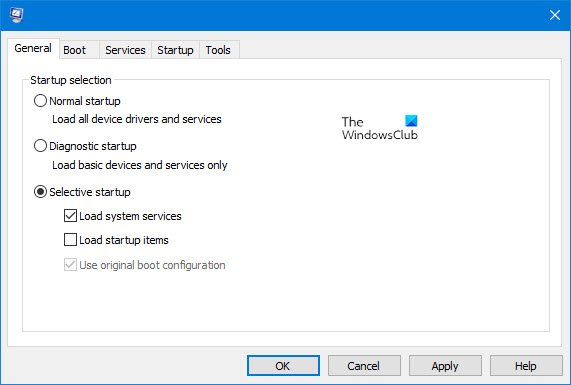
If the issue persists despite disabling the startup apps, a third-party background service might be responsible. Now, open MSConfig and disable all the third-party services to enter the Clean Boot state. Be careful while doing this, as disabling all the services by mistake will get you in trouble, and you will have to reinstall Windows.
If the issue disappears in the Clean Boot state, find the conflicting third-party service causing this problem. To do this, enable some of the services and restart your computer. Check if the issue persists. If yes, one of the services you have just enabled is the culprit. Once you find the conflicting third-party service, check which program it is associated with. Update or uninstall that program.
3] Change the Accessibility settings for the Print Screen
Change the Accessibility settings for the Snipping Tool. Follow these steps:
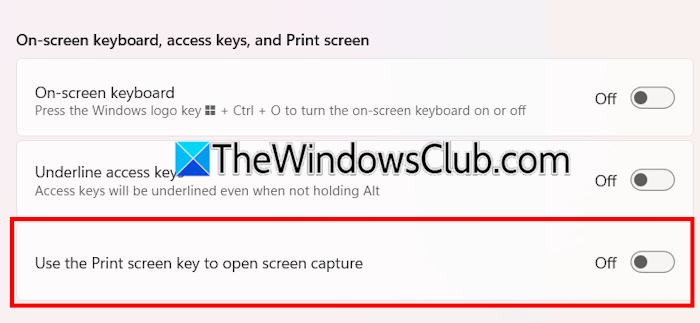
- Open Windows 11 Settings.
- Select Accessibility > Keyboard.
- Turn off the button that says Use the Print Screen key to open screen capture.
4] Reset, repair, or reinstall Snipping Tool
If the issue persists, resetting or repairing the Snipping Tool can help. Follow these steps:
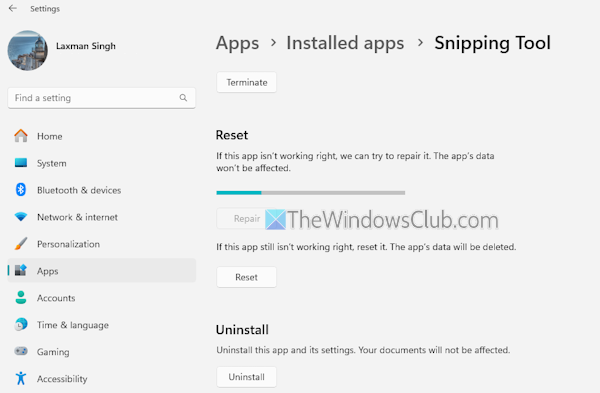
- Open Windows 11 Settings.
- Go to Apps > Installed Apps.
- Search for the Snipping Tool.
- Click on the three dots and select Advanced Options.
- Scroll down and click Repair. If this does not work, click Reset.
If the issue persists, uninstall and reinstall the Snipping Tool. After uninstalling the Snipping Tool, you can install it from the Microsoft Store.
5] Use an alternative
If you do not use Snipping Tool, you can uninstall it. However, if you need a screenshot software, you can use a third-party tool rather than the Snipping Tool. A bunch of free screen capture tools are available for Windows 11/10. You can use any of them.
That’s it. I hope this helps.
How to fix the Snipping Tool shortcut not working?
If the Win Shift S screenshot shortcut is not working on Windows 11, the first step is to clean your keyboard physically. There might be dust buildup beneath your keyboard keys. If this does not work, resetting or repairing the Snipping Tool can help.
How do I stop the Snipping Tool in Windows 11?
If you want to stop Snipping Tool from being the default tool for taking screenshots using the Print Screen key, you can turn off the “Use the Print Screen key to open screen capture” option in Windows 11 Settings.
Read next: Snipping Tool locked up, freezes, or crashes in Windows.
