
If you are unable to format your SD card on a Windows 11/10 PC then this post is sure to help you. SD cards are used to store additional information. Now, you may want to format an SD card to erase all the data from it. However, some users have reported experiencing the problem where their SD card just won’t format. If you are one of those users facing the same issues, this post is for you. In this post, we will discuss some working fixes that should help you format your SD card.
![SD Card won’t format on Windows 11/10 [Fixed]](https://www.thewindowsclub.com/wp-content/uploads/2021/12/SD-Card-wont-Format.png "SD Card won’t format")
Before we discuss the working fixes, let us examine the scenarios that prevent you from formatting your SD card.
Why am I unable to format my SD card?
There can be different reasons that trigger this problem for individuals. Here are the most common causes that prevent you from formatting your SD card:
- In a general scenario, you are most probably to face this issue if you have the write protection enabled on your SD card. Therefore, ensure that write protection is turned off on your SD card to successfully format it.
- It is also possible that there are bad sectors on your SD card that are preventing the SD card from formatting. If the scenario is applicable, repartitioning the SD card should help you fix the problem.
SD Card won’t format on Windows computer
Here are the methods that you can try when SD card won’t format in Windows 11/10:
- Remove Write Protection on SD Card.
- Format SD Card using Command Prompt.
- Format SD Card with Disk Management.
- Repartition your SD Card with DiskPart.
- Use a third-party SD card formatting tool.
1] Remove Write Protection on SD Card
The first thing you should do is try removing write protection from your SD card to resolve the issue. It is most likely that the problem is caused by write protection being enabled on your SD card, which prevents any modification on the SD card. So, if the scenario is applicable, removing write protection on the SD card will resolve the issue.
If you are using a card reader, remove the card and then check that a ‘Lock’ symbol is written on the side. If so, ensure it is not enabled. In case there is no lock switch on the card, you can use Windows built-in DiskPart utility to disable write protection on your SD card. Here is how to do that:
Firstly, open the Run dialog box using Windows + R hotkey.
Now, type diskpart in the Open field and then press Enter. This will open up the Diskpart in Command Prompt.
Next, type the following command to display the list of active disks:
list disk
After that, enter the command below where X is the disk number:
select disk X
Then, write the below command to remove write protection:
attributes disk clear read-only
Finally, press the Enter button and when the process is complete, close the Command Prompt.
Check if you can now format your SD card. If not, you can try the next potential fix to resolve the problem.
Read: Windows was unable to repair the drive – USB, SD Card or Hard Disk.
2] Format SD Card using Command Prompt
If you are unable to format an SD card conventionally, you can try formatting it using Command Prompt. Here are the steps to do that:
Firstly, open the Command Prompt as an administrator.
Now, enter the commands below in CMD one by one:
diskpart
list disk
Next, select your SD’s disk number using the command below:
select disk X
In the above command, X is the SD’s disk number.
After that, enter the command below:
format fs=ntfs quick
This should format your SD card.
If you are still unable to format your SD card, proceed to the next potential fix to resolve the issue.
See: Unspecified error when copying a file or folder.
3] Format SD Card with Disk Management
Disk Management is Windows inbuilt disk and partition management utility. You can also use it to format your SD card. Here are the steps to format an SD card using Disk Management on a Windows PC:
- First, open the Disk Management tool from the taskbar search option.
- Now, select the partition on the SD card which you need to format.
- Next, right-click the partition and tap on the Format option.
- After that, manually enter the volume label, file system, and allocation unit size and press the OK button.
- Finally, confirm the formatting process by clicking on the OK button.
4] Repartition your SD Card with DiskPart
If your SD card has bad sectors, you may encounter an issue formatting the card. If this scenario applies, you should be able to resolve the problem by repartitioning your disk. To do that, you can use the Windows command-line utility DiskPart. It will clean the SD card and generate fresh partitions on it.
Here is how you can repartition the SD card using DiskPart:
Firstly, launch the Command Prompt with administrator privileges as we did in method (2).
Now, enter the commands below in the given order:
diskpart
list disk
select disk X
In the 3rd command, X is the SD card’s disk number that you need to format.
Next, type the below commands and press the Enter button:
clean
create partition primary
After that, to choose the partition you just created, enter the below command:
select partition 1
Then, to make the partition active, type and enter the following command:
active
You can now format the SD card by entering the command below:
format fs=ntfs label=SDCard quick
Now, you can assign the partition a letter to make it appear in File Explorer using this command:
assign letter=h
Finally, exit Command Prompt and see if the drive is active in File Explorer.
Read: Fix Please insert the last disk of the multi-volume set error.
5] Use a third-party SD card formatting tool
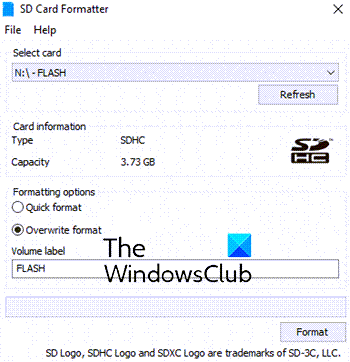
If none of the above methods work, you can try using a third-party SD card formatting tool to format your SD card. It might enable you to format your SD card without any issue. You can try this free software called SD Memory Card Formatter. Just download and install this software and launch it on your PC. After that, format our SD card.
Hopefully, this will enable you to format your SD card successfully without any problems.
How do I fix my SD card not detected in Windows 11?
If the SD card is not detected or recognized on your Windows 11/10 computer, then use a different USB port. You should also check your SD card for write protection and turn it off. If that doesn’t work, then use the CHKDSK system tool, format the SD card (if possible), and test your SD card with a new card reader or on a different computer.
Now read:
