
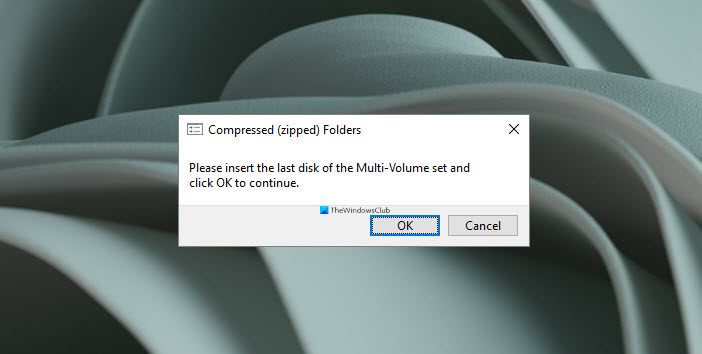
This post will show you how to fix the Compressed (zipped) folders, Please insert the last disk of the multi-volume set error for external drives such as USB flash drives.. USB drives have made it possible for users to manage and store data effectively. They have evolved to a point where they have become bootable devices. However, USB drives also come with complications, which can sometimes lead to errors when connected to a computer.
What causes Please insert the last disk of the multi-volume set error?
Usually, external drives such as a USB flash drive get the error of Please insert the last disk of the multi-volume set. If you encounter this error when inserting a USB drive or any other external device into a Windows PC, you may want to check if it was previously inserted into a Mac system. In such a case, you are likely to get the error. This happens because a Mac PC or macOS creates hidden files on FAT32-formatted drives. Amongst those files, a few zip files are also created on the drive. Most of the time, these files cause an error message to appear. Corrupted zip files can also cause this error to appear. Another reason could be an issue with the USB controller on your PC. The problem with the USB controller may also cause the error message of Please insert the last disk of the multi-volume set.
Compressed (zipped) folders, Please insert the last disk of the multi-volume set
Here are a few solutions you can try to resolve the issue.
- Format the USB flash drive
- Remove the hidden files from the USB flash drive
- Reinstall the USB Controllers
- Remove the SD card or other USBs that you may have inserted or connected
- Use the “Remove Safely” icon on the taskbar
Let us look at these solutions in more detail.
1] Format the USB flash drive
Follow the next steps to format the USB flash drive.
1] Transfer all your files from the USB flash drive to your computer or any other device.
2] Connect the USB drive to your PC.
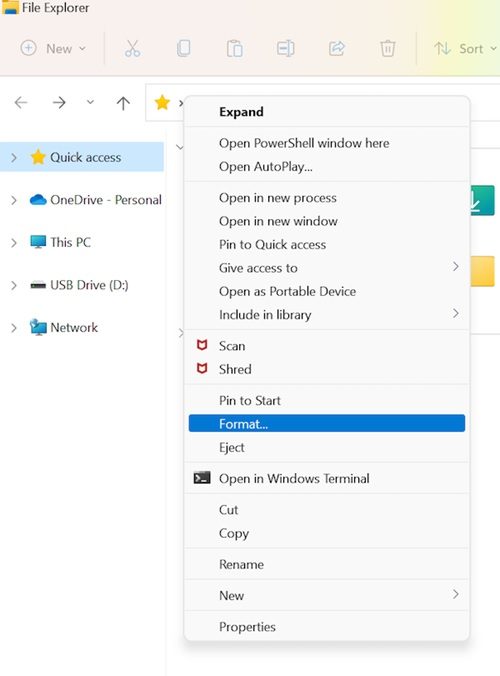
3] Open your File Explorer and select the Devices and Drives section. Right-click on the flash drive and select format.
4] From the Format USB drive window, ensure that the File System is set to FAT32 and check the Quick Format option.
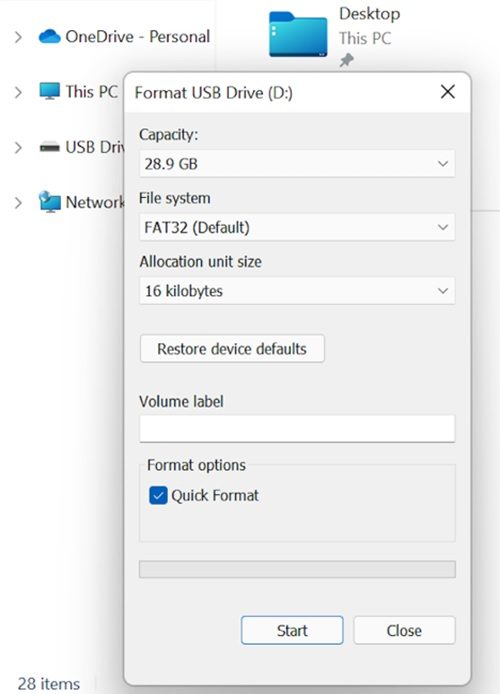
5] You can then click on Start and wait until the format is completed.
6] You can then move the data back to the USB flash drive.
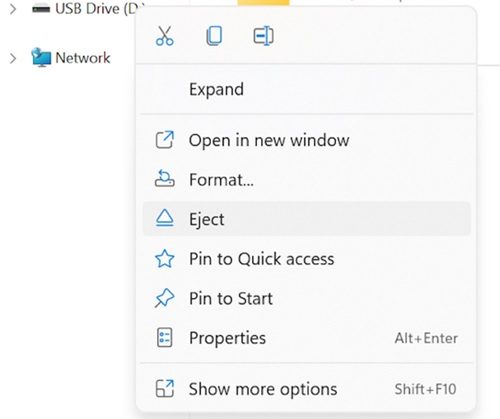
If the error occurs after connecting the USB flash drive to the computer, you can reformat the USB drive using FAT32 to resolve the issue. To prevent the error message, ensure that you click on the USB icon in the taskbar and choose the Eject media option. Try to eject the drive normally and do not remove it without first clicking the Eject option to prevent file corruption.
2] Remove the hidden files from the USB flash drive
Follow the next steps for this solution.
1] You can connect the USB drive to the computer.
2] Open the File Explorer.
3] Select Hidden items under the show/hide section from the View tab. You can check it on the topmost ribbon.
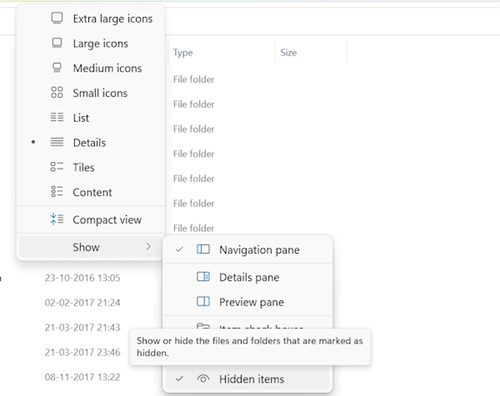
4] You can then open the flash drive with the error and check for files with the .zip extension. If you do not add such a file, then delete it.
5] You can then repeat the steps with all the drives and remove all files with the .zip extension.
6] Restart the system and verify for improvements.
Please note that you may also encounter this error due to hidden zip folders on the drive that were added when the USB drive was connected to another system.
3] Reinstall the USB Controllers
Follow the next steps to resolve this issue.
1] Search for Device Manager in the Windows search bar.
2] Select the device manager and open it.
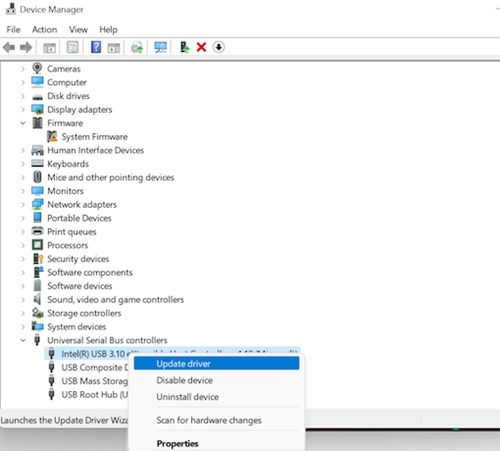
3] Choose “Universal Serial Bus Controllers” and expand it.
4] Then right-click on the Intel host controller and select Update driver.
5] The device manager will then search for any pending update and download and install it for the driver.
6] Once the updated driver is installed, reboot the system and verify for improvements.
You may also be facing the error because of malfunctioning USB controller drivers. It can be fixed by uninstalling or updating the USB controller drivers. You can also try uninstalling the driver for the Universal Bus Controller from the Device Manager. Follow the next steps for this.
1] Select Universal Bus Controller from Device Manager.
2] Then right-click on the Intel Host Controller and select Uninstall device.
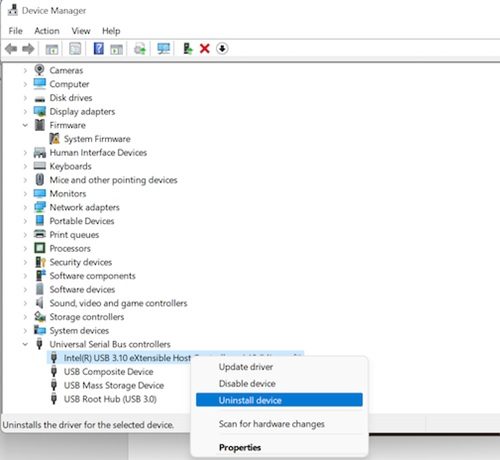
3] Select OK and then confirm.
4] Reboot the system, and Windows will then automatically reinstall the Host Controller drivers.
4] Remove the SD card or other USBs that you may have inserted or connected
Sometimes, the error may occur if an SD card or any other USB device is inserted into the PC. Removing this SD card or the USB device may resolve the issue. Some users have reported that every time they insert a certain SD card into the PC, this error occurs. In such cases, users are advised to move files on the SD card outside and to format the SD card.
5] Use the “Remove Safely” icon on the taskbar
It is one of the oldest and most reliable solutions to resolve this issue. Though modern SSDs are designed for quick removal, they still need some safety precautions. In fact, it is advisable to follow the rules the old school way to make sure the safety of the data on the USB flash drive. Always use the Remove Safely icon on the taskbar before removing the USB device. If your USB has a light on it, then wait until the light stops flashing. If it doesn’t have a light on it, wait for a couple of seconds before removing the USB device from the port. Although it may appear outdated, it has certainly helped many users.
Conclusion
Windows comes with an in-built system file checking tool that can be used to scan the system for corrupted system files and replace them with new ones. The scan may take time so, you can wait till the checker detects and fixes such missing and corrupted files. We hope this guide helps you. Please let us know if you have any suggestions.
How do I fix Compressed zipped folder error?
To fix the Compressed zipped folder error on Windows 11/10, you need to format the USB drive first. Following that, you need to remove all the hidden files from the USB drive and reinstall the USB Controllers. Alternatively, you can also use the Remove Safely option, which appears in the system tray.
