
If the “Restart Office to apply changes to your privacy settings” message keeps popping up on your Windows 11/10 PC, read this post to learn how to fix the issue.
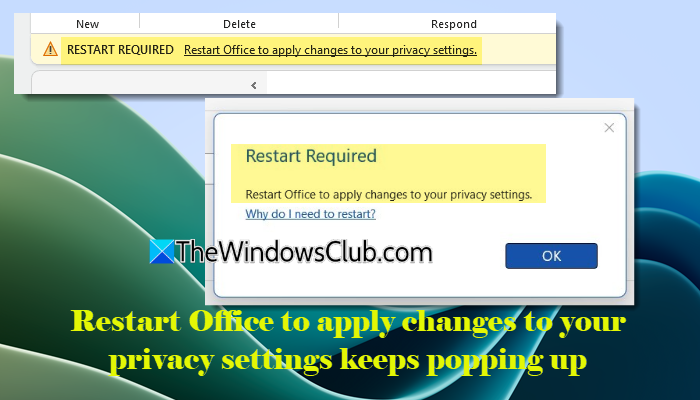
Many users have reported that this message appears whenever they open Word, Excel, Outlook, or other Office apps; often as a yellow banner at the top of the app or as a pop-up dialog, even if they haven’t changed any privacy settings. In many cases, the message disappears after restarting Office, but returns the next time the app is opened. The complete message reads:
RESTART REQUIRED
Restart Office to apply changes to your privacy settings.
The message appears when Office detects that one or more of its privacy settings have changed and need a restart to take effect. However, it may keep reappearing in a loop due to account sync problems, leftover Office components, corrupted profiles, or a glitch in how Office saves these settings.
In this guide, we explain what triggers this message, why it keeps coming back, and the most effective ways to stop it from showing again.
Restart Office to apply changes to your privacy settings keeps popping up
To prevent the “Restart Office to apply changes to your privacy settings” message from popping up on your computer screen, use these fixes:
- Turn off optional connected experiences
- Sign out of all extra Microsoft accounts
- Fully close all Office processes, then reboot
- Repair Office
- Update Office to the latest version
Let us see this in detail.
1] Turn off optional connected experiences
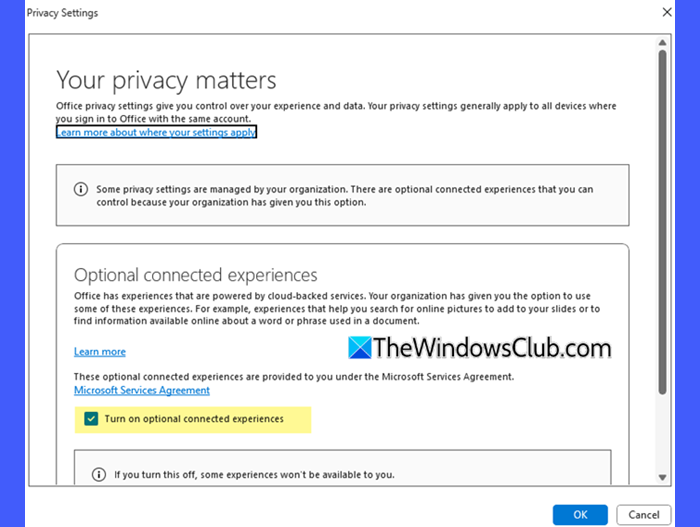
Connected experiences are cloud-based features that enhance Office documents using Microsoft’s online systems. In enterprise environments, some of these features are categorized as “optional connected experiences“. They require additional user consent and may be controlled or restricted by an organization’s admin.
While these features are helpful, they also rely on syncing certain privacy settings between Office, your Microsoft account, and sometimes your organization’s policies. If this sync fails (due to multiple accounts, policy conflicts, corrupted profiles, or leftover Office components), Office may repeatedly detect a change in these settings and show the restart required message every time you open an app.
For many users, simply disabling optional connected experiences immediately stopped the message from reappearing.
Open any Office app. Go to File > Options. In the Excel Options window, select Trust Center from the left pane. Then click Trust Center Settings.
In the Trust Center window, select Privacy Options from the left pane. In the right pane, uncheck Turn on optional connected experiences.
Click OK, close the Office app, and restart it to apply the changes.
In newer Office builds, you can also access this setting by going to File > Account and selecting Manage Settings under Account Privacy.
2] Sign out of all extra Microsoft accounts
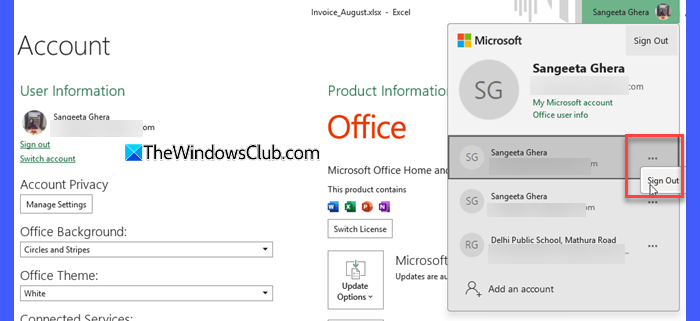
This is one of the most effective fixes for users who switch between personal and work accounts.
Microsoft Office allows you to stay signed in with multiple accounts at the same time. When two or more accounts try to apply different privacy settings to Office, it may repeatedly detect a change and show “Restart required” messages. Signing out of all non-essential accounts helps Office apply the correct settings associated with your active account.
Open any Office app and go to File > Account. Click your profile icon in the top-right corner. You will see a list of all accounts you’re signed in to. Click the three dots and select Sign out next to every account except the main one you want to use.
If OneDrive accounts are listed under Connected Services, remove the ones you don’t need as well. After signing out of the extra accounts, close all Office apps completely and restart them to apply the change.
3] Fully close all Office processes, then reboot
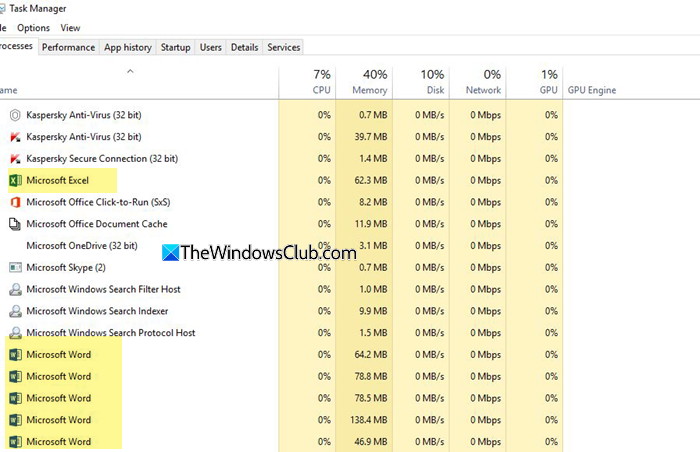
Sometimes the restart-required message reappears because Office background processes continue running even after you close the apps. This prevents the new privacy settings from being saved. To fix this, you need to ensure all Office processes are closed completely.
Open the Task Manager and look for any Microsoft Office-related processes. Select them and click End task. After closing all Office processes, restart your computer. This forces Office to start with a clean session, allowing it to apply the privacy settings correctly. For many users, this simple step stopped the banner from showing again.
4] Repair Office
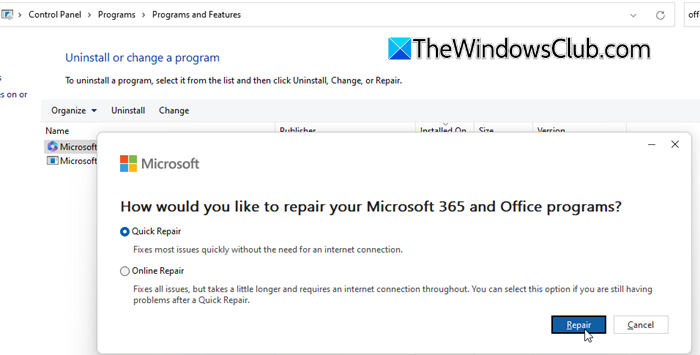
Corrupted Office files or leftover components from older versions can cause the privacy settings to fail when Office tries to apply them. This can cause the restart loop to appear every time you launch an Office app. In many cases, repairing Office resolves configuration issues and prevents the privacy settings message from appearing again.
To repair Office, open Control Panel and go to Programs > Programs and Features. Find Microsoft Office or Microsoft 365, click Modify, and choose either Quick Repair or Online Repair. Quick Repair fixes most basic issues without downloading files, while Online Repair reinstalls Office and is more thorough.
After the repair completes, restart your computer and see if the issue is gone.
5] Update Office to the latest version
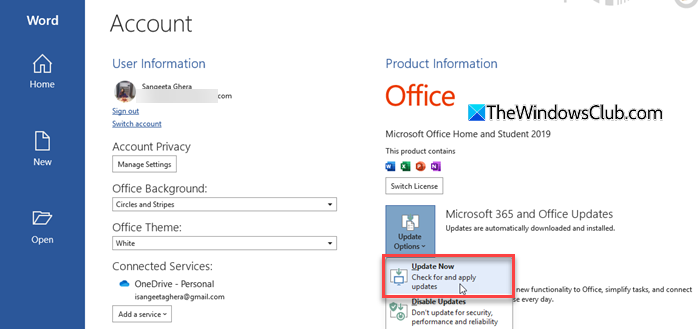
Microsoft earlier acknowledged that a faulty Office update caused the restart-required loop for many Microsoft 365 users. As a temporary workaround, a Microsoft moderator suggested rolling back Office to a previous stable version using the Click-to-Run command-line tool. Microsoft later fixed this issue in newer versions of Microsoft 365 Apps. If you’re still using an older or affected build, updating Office is often enough to stop the message from returning.
To update Office, open any Office app and go to File > Account > Update Options > Update Now. Install the latest available version and restart your Office apps.
I hope this helps.
Read: Disable Office Update notifications in Windows.
How do I change my Office privacy settings?
To access or change your privacy settings, open any Office app, select Account in the bottom-left corner, and select Manage Settings under Account Privacy. In the new Outlook app, go to View > View Settings. In the Settings window, go to General > Privacy and data, then select Privacy settings. This opens the Account Privacy settings dialog box, where you can change your privacy options.
What is restart required in Office?
“Restart required” is a system prompt that appears when Office detects a change in your privacy or connected-experience settings. Sometimes, due to sync issues, multiple accounts, or corrupted configuration files, the message may appear even if you didn’t make any changes. Restarting normally clears it, but if it keeps returning, you may need to apply the fixes listed in this guide.
Read Next: Save As window keeps popping up in Word or Excel.
