
Losing a file from your VMware datastore is a scary moment. It might be a whole virtual machine, a hard disk file, or something else important. Your first reaction might be to panic, but don’t. There are a few ways you might be able to get that data back. In this post, we are going to see how to recover deleted files from a VMware Datastore.
Recover deleted files from VMware Datastore
If you want to recover deleted files from a VMware Datastore, follow one of the methods mentioned below.
- Using Snapshot
- Using Backup
Let us talk about them in detail.
1] Using Snapshot
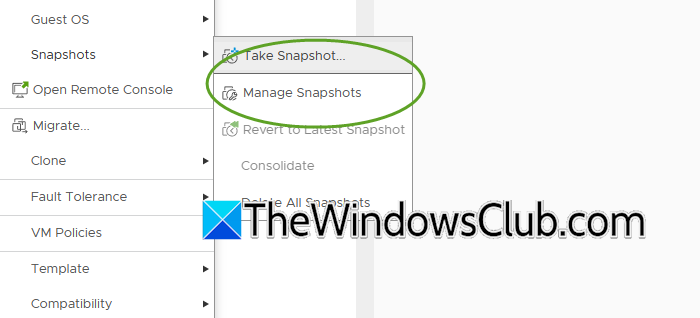
If you’ve deleted a file from a virtual machine, a snapshot might save you. Think of a snapshot as a photo of the entire VM at a specific moment. However, to recover, you need an existing snapshot taken before the file was deleted.
Use this if you want to roll the VM back to its previous state, which will also undo any subsequent changes. Follow the steps below to do the same.
- Shutdown the virtual machine.
- In your vSphere Client, right-click on the powered-off VM. Go to Snapshots > Manage Snapshots.
- Review the list and select the snapshot created before you deleted the important file.
- Click the Revert to button. Confirm the action. The VM will be restored to its exact state as of the snapshot.
- Start the VM. Your deleted file should now be back in its original location. You can copy it to a safe place.
To recover just the deleted file without rolling back your entire VM, you can attach the snapshot’s disk to another working VM. First, locate the correct snapshot VMDK file in the datastore. Then add that file to an existing hard disk in a helper VM. Once added, log in to the helper VM’s operating system, mount the new disk, locate your file, and copy it to a safe location. Finally, remember to safely detach and remove the disk from the helper VM when you’re done.
2] Using Backup
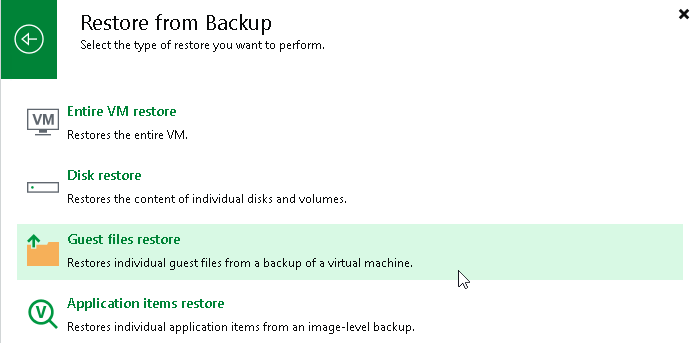
Using a backup is the safest and most reliable way to recover your files. It’s the best practice because it doesn’t risk your live environment. You can use Veeam, Commvault, or a VMware-native tool such as vSphere Data Protection for backup and restore. We will use Veeam for this tutorial.
Follow the steps mentioned below to do the same.
- Open the Veeam console and go to the Home tab.
- Click Restore, then select VMware vSphere.
- Choose Restore from backup > Guest files restore.
- In the wizard, select the virtual machine that lost the files.
- From the list of restore points, pick the one from before the deletion.
- Click Next.
- Select a running helper host (like the original VM) and click Next to mount the backup.
- In the file browser window, navigate to and select the files you need to recover.
- To restore, you have two choices:
- Click the Copy To button to save files to your computer or a network share.
- Click the Restore button to return files to their original location.
- After the files are recovered, go back to the Veeam console.
- Find the active restore session and click Stop Recovery Session.
Hopefully, this helps you restore your file.
Read:
- Veeam Backup & Replication Free lets you back up and restore Virtual machines
- Veeam Agent Free Backup software for Windows
- Veeam ONE Free Community Edition is a monitoring and reporting for VMware and Hyper-V.
VMware VM files are getting deleted upon reboot
This issue occurs when VMware Workstation configuration, snapshot, or virtual disk files are stored in a temporary or non-persistent location. Upon reboot, these directories are cleared, making the VM appear lost or corrupt. Common causes include accidentally storing files in the OS temp folder, misconfigured snapshot management, or issues with cloud sync services like OneDrive.
Verify and relocate VM Storage
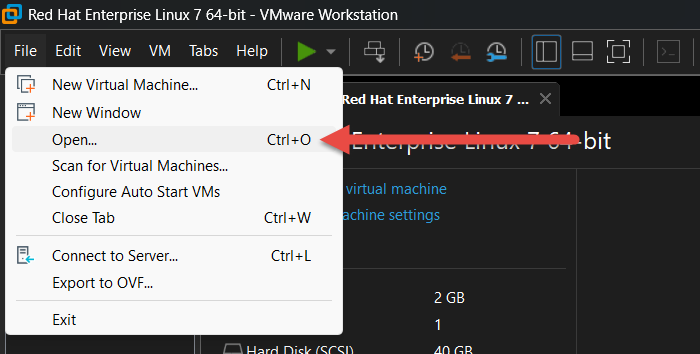
VMware Workstation VMs must be stored in a permanent user directory. In order to relocate VM Storage, you need to follow the steps mentioned below.
- Shut down VMware Workstation.
- Navigate to the folder where your missing VM was stored. Common incorrect locations include C:\Windows\Temp or any temporary download folder.
- If you find .vmx, .vmdk, or snapshot files here, move the entire VM folder to a safe location like C:\Users\[YourName]\Documents\Virtual Machines.
- In VMware Workstation, use File > Open to browse to and open the .vmx file from the new location.
Now start your machine and see if that helps.
2] Restore from a known Snapshot
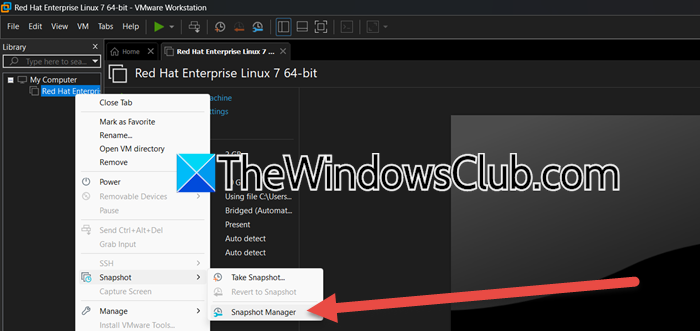
If your VM still opens but is in a clean state, it may have reverted to an old snapshot.
- Make sure that you VM is powered off, go to VM > Snapshot > Snapshot Manager.
- Look for a snapshot from before your files went missing. Snapshots are often named by date.
- Select the desired snapshot and click Revert. This will restore the VM’s disk and memory state to that point in time
Now, boot your machine and check whether your file has been recovered.
3] Recover Files from a Backup Copy
If you have a backup copy, use it to restore your file.
- Locate your backup drive or folder containing a copy of the VM.
- Do not run the VM directly from the backup location. Instead, copy the entire VM folder to your main storage (e.g., C:\Users\[YourName]\Documents\Virtual Machines\).
- Open the copied .vmx file with VMware Workstation.
Once done, you can start your machine.
4] Disable Problematic Cloud Sync
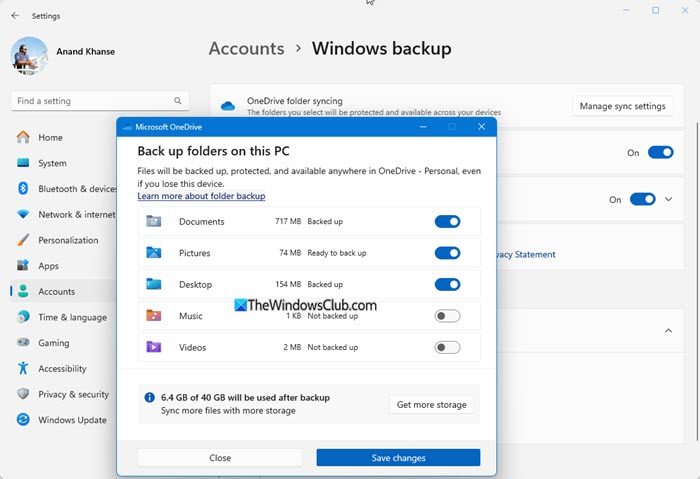
This solution resolved the issue for many users, including me. OneDrive was automatically backing up VMware files and deleting them simultenously.
- Open the settings for your cloud storage service (e.g., iCloud, OneDrive).
- Ensure the folder where you store your VMs (e.g., Documents) is excluded from syncing.
- For long-term safety, consider creating a dedicated folder for VMs (e.g., C:\VMs) outside of any cloud-synced directory.
You can also disable automatic syncing if you want, but that’s not an ideal long-term solution.
Read: VMware Workstation Insufficient permission to access the file [Fix]
How do I restore guest OS files?
To restore individual guest OS files, you typically use the file-level restore feature of your backup software (like Veeam, which we discussed earlier). This process involves mounting a backup image of the virtual machine at a specific point in time as a read-only drive on a recovery helper system, allowing you to browse its file system, locate deleted or required files, and copy them to a safe destination without restoring the entire VM.
Also Read: The virtual machine appears to be in use VMware.
