
No matter how much effort you put into keeping your Windows computer running properly, it will eventually behave erratically. The reasons could be many, starting with a ransomware attack, an incompatible installation, software expiry, or even a hardware failure. Such times are definitely few and once in a while but still there is a need to ensure that your data is secure when such incidences happen.
To safeguard your PC data, you need to back it up regularly and have a recovery plan in case a mishap occurs. This is when you may need a tool that can help you back up your data and provide recovery options.
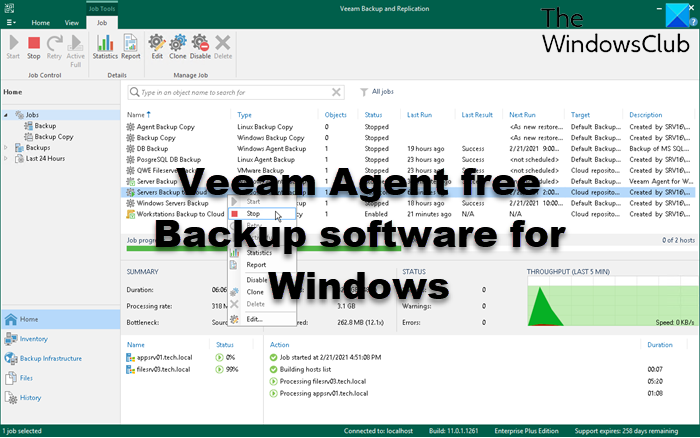
Veeam Agent for Microsoft Windows is a useful backup and recovery software for Windows-based desktops and laptops and is compatible with the latest Windows 11/10. This freeware can help in backing up your files, volumes, or the entire PC.
Please note that Veeam Agent was earlier called Veeam Endpoint Backup Free. Here is a look at the features and how to use them.
Veeam Agent Free Backup software for Windows PC
Backing up your data
Veeam Agent Free Backup software provides Image-based backups of your files, drives or even the whole PC. The tool saves only the blocks of data that have changed since the last backup. When it comes to where to back up, Veeam offers a variety of options.
You can back up to a USB drive, External hard disk, or network location. The recent update to Veeam has now added the possibility to actually eject the USB drive after the backup is completed. Hence, although the drive is physically connected, there is no chance of malware or viruses leaking into the backed-up files.
Recovery of the data
Veeam Agent Free Backup software provides flexibility in recovering the data too, all from the image-level backup. You can restore using any of the below options,
- Removable storage devices: Using a USB storage device, which is the best option if the PC is infected with a virus, malware or ransomware.
- Taskbar: Using the taskbar icon you can also restore full volumes. You can use this option if your PC can boot.
- Start Menu: The third option is through the Windows start menu.
Recovery types include
- Bare-metal Restore: Restore your entire system to the same or different hardware
- Volume-level restore: Restore a failed hard drive or corrupted partition
- File-level restore: Restore individual files from ANY backup type in minutes
Using Veeam Agent Free Backup software
The program requires you to create an account on the site before you are allowed to download the free backup tool. Those with corporate email addresses get full access. The installation file is a bit bulky, and if you have weak internet access, then it will take time to download 197 MB. However, these are the only two drawbacks.
Step 1: Choosing Backup Drive
During the installation, the program prompts you to insert a backup target. As shown in the below screenshot, you can configure backup later as well.
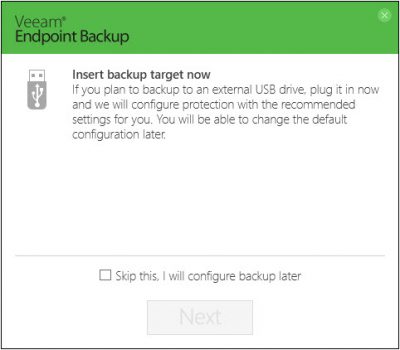
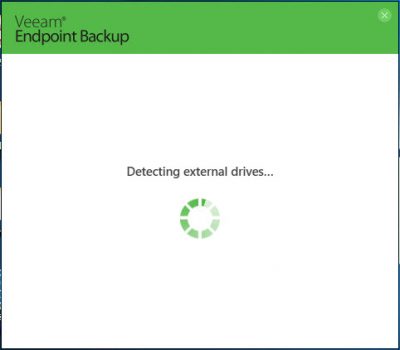
If you insert an external drive now, the tool automatically detects it and prompts you to choose it for backup.
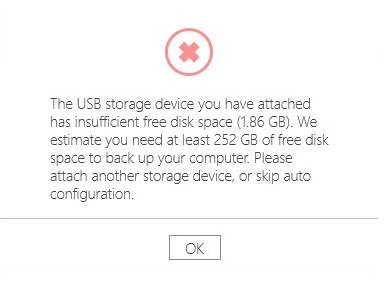
In case the chosen storage device doesn’t have sufficient storage memory, the program automatically pop-up a message to attach another device or skip auto configuration.
Step 2: Create Recovery Media
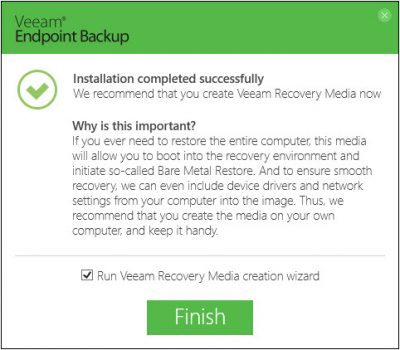
As soon as the installation is completed, you are prompted to create recovery media which you can use if the Windows system fails to boot. You may create recovery media from within the program as well if you don’t create it during installation.
Veeam Endpoint Backup Free also includes device drivers and network settings into the backup image so as ensure a smooth recovery.
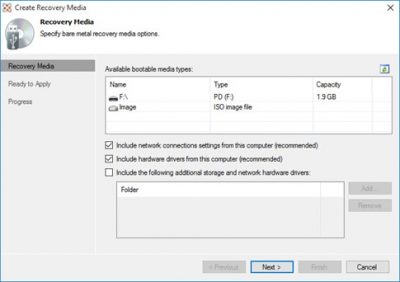
The recovery media is easy to configure, and the recovery image can be placed either on a removable storage device, a CD, a DVD or a BD media or within an ISO file and used as an alternative booting method, in case your computer fails to start. The program shows you the size of the recovery image as below.
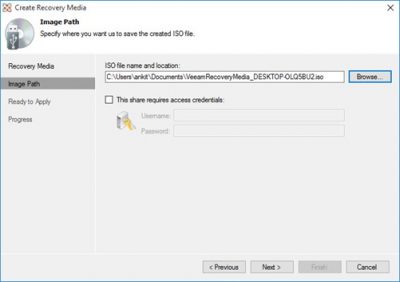
Once you have selected the type of recovery media (I selected ISO as shown below) you can choose the location where you want to save the file. Veeam also lets you put a username and password to the recovery media so that it is not accessible to others.
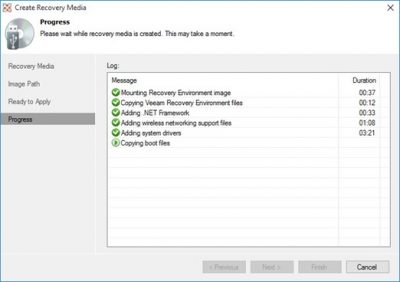
While testing, it took around 2 minutes for the ISO file to be generated. The below screenshot shows the progress while recovery is completed.
Step 3: Choosing Backup Drive
Backing up any drive anytime is easy. You just have to click > Configure Backup and select the drive you want to backup.
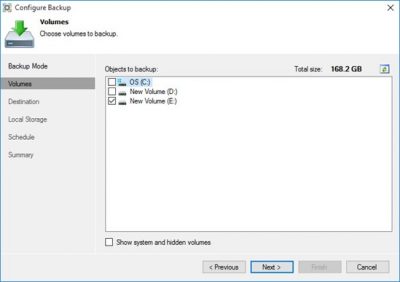
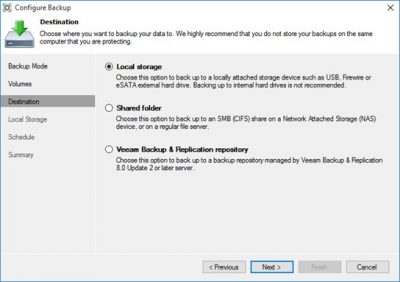
Once you have selected the drive, choose the destination where you want to save the backup.
Veeam Agent Free Backup software lets you save backups either on your local drive, shared folder or Veeam backup and replication repository.
How to schedule backup using Veeam Agent Free Backup software
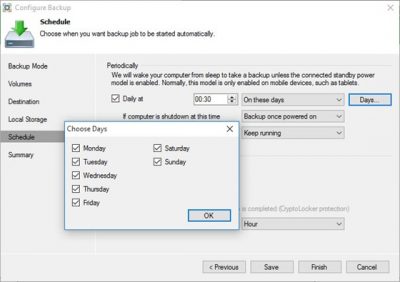
While creating backups, you can schedule the days of the week when you want the backup to run.
Select the drive you want to take backup > select the destination and browse through Schedule. Under Schedule, click on “Days” tab and then select “On these days”. As shown below, you can easily select the days you want the backups to happen
Veeam Agent Free Backup software can protect from ransomware
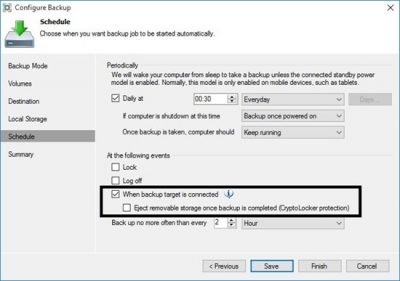
Veeam Agent Free Backup software offers CryptoLocker ransomware protection for USB Storage. This feature allows backing up a system with a USB drive connected where, at the end of the backup, it gets disconnected but not unplugged. Hence, although a Cryptolocker may sneak in the PC after the backup was taken, it is not able to spread to the backups.
Email notification for reports
To keep track of what was backed up and what remains, especially if you are managing multiple PCs, you can enable email notification under “Settings” to receive reports on your email address.
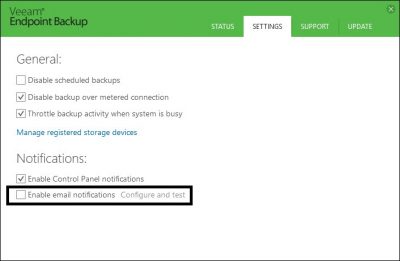
Apart from above, there are several other features that come with Veeam Agent Free Backup software. Here are they,
- Battery drain prevention. To reduce power consumption and save battery life, job retries are now automatically suspended while your device is running off of the battery.
- Protection from a missed daily backup.
- File-level backup optimizations to improve performance by 10% on average, increase stability and reduce VSS warnings.
- File exclusion logic enhancement
- Ability to skip bad blocks
- Full backup to a custom location.
- Job progress monitors progress indicator on the Veeam Endpoint Backup taskbar icon.
- Wi-Fi signal strength display. Current Wi-Fi signal strength is now displayed on the Wi-Fi icon of the Recovery
- Media screen to inform you about possible connectivity issues that may result in slow or failed recovery.
- Backup history chart switch. You can now switch the backup chart mode between size and duration from the right-click menu without going into Control Panel settings.
- Volume resize UI to prevent conversion mistakes due to large numbers.
New features in Veeam Agent include:
- Direct backup to Veeam Data Cloud Vault and Microsoft Azure Blob Storage for ransomware-resilient, immutable backups.
- Users can access and restore data from historical backups even after replacing or reassigning a device.
- Unlimited backup retention settings help organizations meet long-term compliance and data retention requirements.
- Certificate-based authentication for Active Directory protection groups improves security by reducing credential exposure.
- Enhanced agent management with scalable deployment, stronger security, improved backup reliability, and more flexible recovery options.
Conclusion
Veeam Agent Free Backup software is useful freeware that lets you quickly restore volumes and backups of important data. The tool has built-in several features that are not commonly found with other backup tools.
In case you haven’t backed up your data, it is worth using Veeam Agent Free Backup software. Click here to visit the veeam.com site for sign-up and download.
More freeware from this publisher:
- Veeam Backup & Replication Community Edition Free lets you backup, restore and manage Virtual machines
- Veeam ONE Free Community Edition is a monitoring and reporting for VMware and Hyper-V.
