
This post features different solutions to try if Propnight is crashing, freezing, or not loading on Windows PC. Propnight is a multiplayer, physics-based prop hunt mixed with a classic horde survival game, available for Windows PC. You can enjoy the game on your system via Steam. But many users have reported experiencing crashes, freezes, and loading issues with the game.
Propnight crashing, freezing, not loading on Windows PC
If Propnight is crashing, freezing, stuttering or not loading on a Windows 11/10 PC, then you might want to take a look at these suggestions that have worked for many.
- Close unnecessary background applications
- Run with administrative rights
- Update Graphics Driver
- Run Propnight on dedicated GPU
- Turn on Game Mode
- Whitelist Propnight from Windows Firewall
- Verify Integrity of Game Files
Now, let’s check out all the solutions in detail.
1] Close unnecessary background applications
The first thing you can try in this situation is to close all unnecessary background-running applications. As it turns out, different background-running applications keep consuming the system resources, leaving the main application with limited resources. Below are the steps you need to follow to close all the unnecessary background-running applications.
- Press the Ctrl + Shift + Esc shortcut key to open the Task Manager.
- Right-click on all the unnecessary applications and choose End task from the context menu.
Once you have closed all unnecessary applications, launch the game and check whether the problem persists. If yes, try the next solution on the list.
2] Run with administrative rights
Sometimes, not having administrative rights can be the primary reason for the problem. As it turns out, games like Propnight require administrative privileges to run without any issue. If this isn’t the case, you will always find yourself surrounded by issues.
- To begin with, right-click on the Propnight icon, and choose the Properties option.
- Switch to the Compatibility tab.
- Checkmark Run this program as an administrator.
- Click on Apply > OK.
Now, open Steam and launch the game. Check if you are still facing the problem. If yes, try the next solution on the list.
See: FIFA Stuttering, Freezing, Lagging, Crashing Issues on PC
3] Update Graphics Driver
Propnight is a modern graphics-oriented game. It requires the latest graphics driver update to run without any issues. If this isn’t the case, you will always have to deal with crashes and freezes. Below are the steps you need to follow to download the latest graphics driver update.
- You can download the latest Graphics driver update using Settings > Windows Update > Advanced options > Optional updates feature.
- Alternatively, you can visit the official device manufacturer’s website to download the drivers.
After installing the update, launch the game and check if the problem continues. Check if you are still facing the problem. If yes, continue with the guide.
4] Run Propnight on dedicated GPU
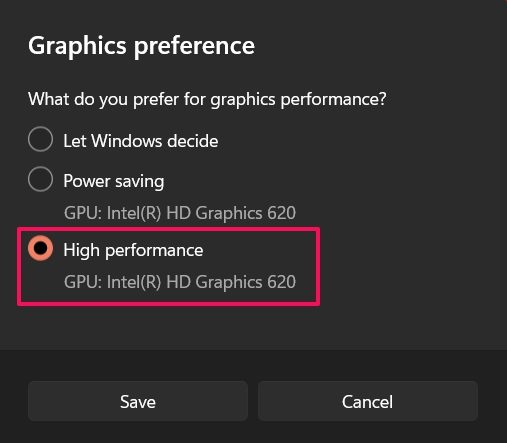
The next solution on the list is to run Propnight on a dedicated GPU. You can do so by following the steps below.
- Launch the Settings window by pressing the Windows + I shortcut key.
- Navigate to System > Display > Graphics.
- Locate Propnight, and tap on it.
- Click on Options.
- Select High performance in the following window.
- Click on Save.
Launch the game, and check if the problem persists.
See: Halo Infinite keeps freezing, crashing, stuttering or not working on PC
5] Turn on Game Mode
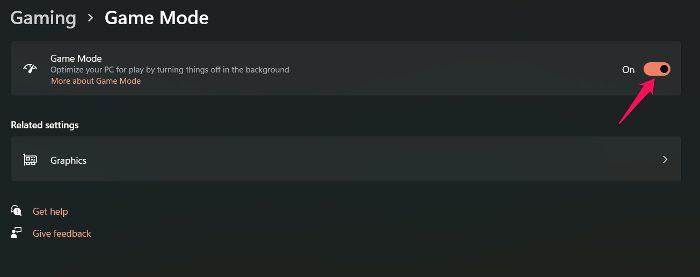
On Windows 11/10, you can enable Game Mode to enhance gaming performance. It is one of the best way to eliminate the crashing issue in the game. Below are the steps you need to follow.
- Launch Settings by using the Windows + I hotkeys.
- Click on the Gaming present on the left panel of the screen.
- Click on the Game Mode option.
- In the following window, enable the Game Mode toggle.
Open the game and check if the problem continues. If yes, continue with the guide.
6] Whitelist Propnight from Windows Firewall
It has been noticed that Windows Firewall interferes with the game’s launch and causes the freezing issue. As a solution to it, you will have to allow Propnight from the Windows Firewall. Also, you can temporarily disable any third-party antivirus program installed on your PC before running the game.
7] Verify Integrity of Game Files
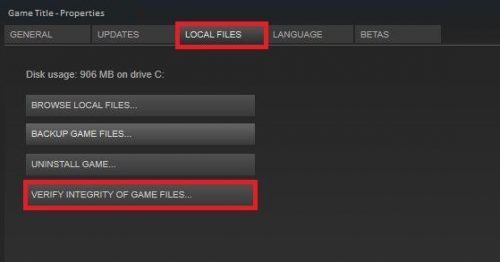
The next possible cause of the problem is corrupted game files. But thankfully, you can resolve the issue using Steam’s Verify integrity of game files feature. Here’s how it’s done.
- First off, open the Steam client and click on the LIBRARY menu present at the top.
- Now, look for Propnight from the list of installed games.
- Right-click on it, and from the context menu, choose the Properties option.
- Click on the LOCAL FILES tab and click on Verify integrity of game files.
- Let the verification process be complete, and once done, relaunch Propnight and see if the issue is now resolved.
Read: PUBG Crashing or Freezing on Windows PC
Why is my game suddenly crashing?
If the game is crashing on your Windows PC, it’s likely that the system doesn’t meet the game’s minimum requirements. The problem can also occur due to outdated graphics drivers. You will have to update the driver to resolve all the issues.
Can I run Propnight on my PC?
You can run Propnight on PC if the system matches the minimum requirements. Below are the recommended requirements to run the game.
- OS: Windows 11/10 64-bit
- RAM: 16 GB RAM
- GPU: NVIDIA GTX 1060 or AMD Radeon 570 with at least 6GB of VRAM
- DirectX: Version 12
- Free Storage: 15 GB available space
That’s it.
Read Next: Call of Duty Vanguard keeps freezing or crashing.
