
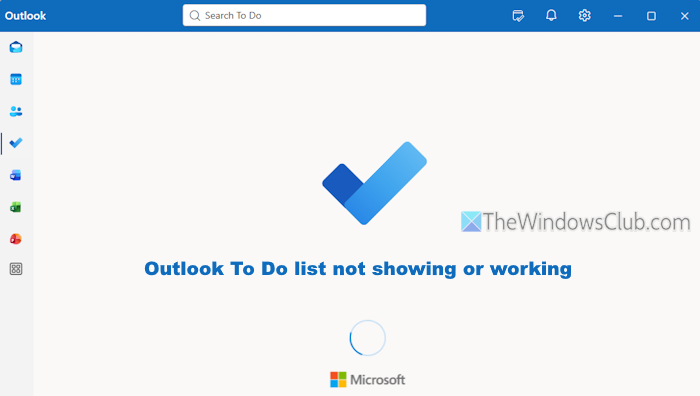
Some users have reported that the To-Do list is not showing or working on their Outlook desktop and/or web app. Clicking the To-Do icon in Outlook’s Navigation bar displays an empty page, and the To-Do items are not displayed or loaded. For some users, the To-Do icon or shortcut is missing in the Navigation pane, or it disappears automatically. If you also face this problem, the working solutions covered in this post will help.
Why isn’t my To Do list working in Outlook?
Your To Do list may not work in Outlook if there are sync issues or the Outlook app is outdated. On the other hand, temporary bugs, corrupt files, or cache can also cause this issue. You should restart Outlook and update it to the latest version. Also, make sure that you are signed in with the same Microsoft account.
Outlook To Do list not showing or working
If the Outlook To Do list is not showing or working, use the following fixes:
- Re-pin the To Do shortcut in the Navigation bar
- Open To Do list in a new window
- Clear the Outlook cache
- Repair Office
- Use the dedicated Microsoft To Do app.
Let’s check these solutions one by one.
1] Re-pin the To Do shortcut in the Navigation bar
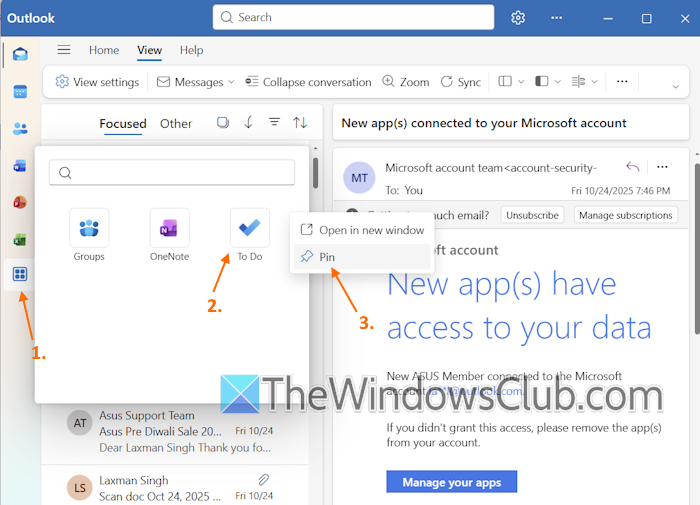
This option is helpful when the To Do shortcut keeps disappearing or there’s no To-Do shortcut in the Navigation bar or Navigation pane. Follow these steps to re-pin the To Do shortcut to the Navigation bar:
- Open the new Outlook app or web app where you face this issue
- Click on the More apps icon in the Navigation bar, and you will see a To Do option in the box that opens
- Right-click on the To Do icon and select the Pin option
- Rearrange the position of the To Do icon in the Navigation bar by drag and drop action if needed.
If the above steps don’t help, click on the My Day icon available in the top right corner of the Outlook app (just before the Notifications icon). A panel will open in the right section. Select the To Do option in that panel. Click on the Open To Do icon.
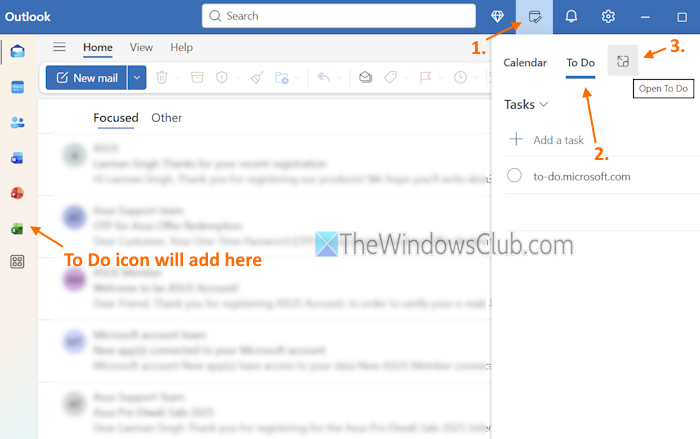
This will add the To-Do icon in the Navigation bar. Now, right-click on the To Do shortcut and select Pin.
Your problem should be gone now.
Related: New Outlook app not working or opening
2] Open To Do list in a new window
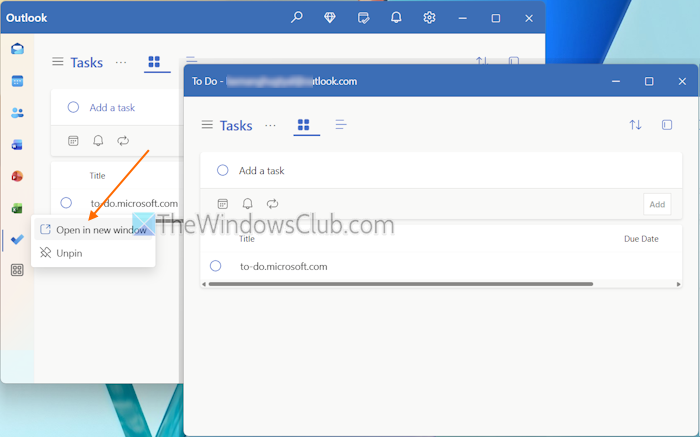
If the Microsoft To Do icon is already pinned to the Navigation bar and clicking that icon doesn’t show your To-Do items, open the To Do list in a new window in Outlook. The steps are:
- Open the Outlook app
- Right-click on the To Do icon in the Navigation bar
- Click the Open in new window option. A separate To Do window will open that you can maximize or restore.
3] Clear the Outlook cache
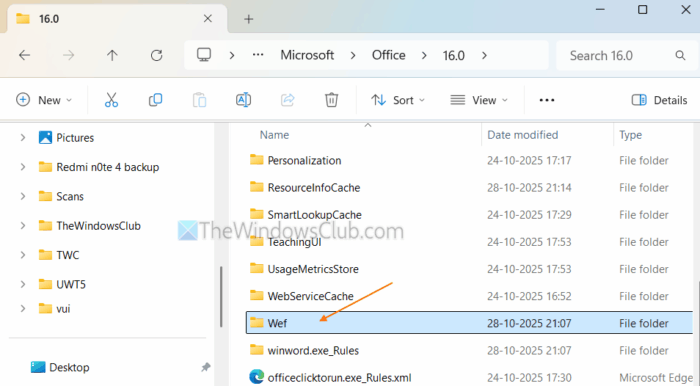
This is one of the best solutions as it has helped some users. Reset or clear the Outlook cache, which includes deleting the Wef folder and HubAppFileCache folder (if applicable). Use the following steps:
- Close the Outlook app
- Open the File Explorer
- Navigate to the following locations one by one and delete the wef and HubAppFileCache folders:
%LOCALAPPDATA%\Microsoft\Office\16.0\Wef
%userprofile%\AppData\Local\Microsoft\Outlook
Launch the Outlook app and click the To Do icon to access your tasks.
TIP: Switch from Outlook (new) to Outlook (classic)
4] Repair Office

This fix worked for one of the users with the same issue. He performed Online Repair for the Office, and the problem was gone. So, repair the Office in Windows 11 with Online Repair mode, and see if it helps.
5] Use the dedicated Microsoft To Do app
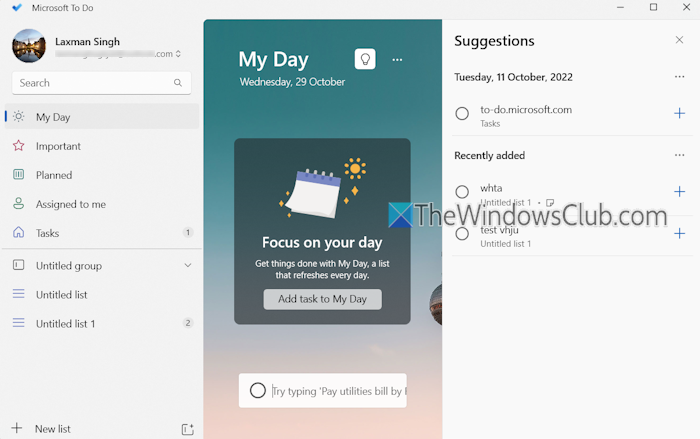
If the above solutions don’t work, use the dedicated Microsoft To Do desktop app or web app on your Windows 11 PC.
That’s all.
Now read: How to recover and restore deleted Microsoft To-Do Lists and Tasks
Outlook To Do list stuck on We are getting your tasks list ready
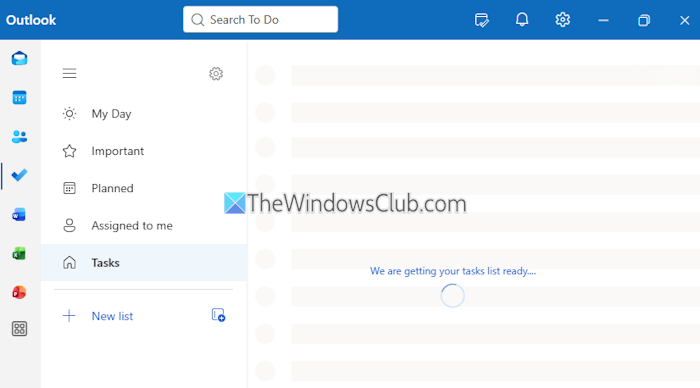
If the Outlook To Do list is stuck on displaying We are getting your tasks list ready…, rename or delete the Wef and/or HubAppFileCache folders. In addition, update the Outlook app, then sign out and sign in again with your Microsoft account. Alternatively, you can use the standalone Microsoft To Do app.
Read next: How to use Outlook Calendar as a To-Do list app.
