
You may experience occasional glitches with your Outlook search option, a common error being the search indexing is not working on Outlook. In this post, we will be looking at some practical solutions to fix the issue where your Outlook Search is not working.
Fix Outlook Search not working
Search indexing not working in Outlook can cause hiccups when loading emails or even freeze Outlook. Microsoft acknowledged this issue, saying that POP and IMAP account users may experience it if their emails are stored locally in PST files. Let us now look at how to fix this issue on a Windows computer.
- Run the Windows Search & Indexing Troubleshooter
- Verify the indexing status on Outlook
- Ensure that Windows Search is enabled
- Rebuild the Windows Search Catalog
- Modify Windows Indexing Options
- Repair the Microsoft Office Suite
1] Run the Windows Search & Indexing Troubleshooter
The first thing you should try is running the Search & Indexing troubleshooter available for use in Windows Settings. This can help you shell out the reason behind Outlook’s Search Indexing not working, and even fix it.
- Open the Windows Settings with a Win + ‘I’ keyboard shortcut
- From the System tab, select the Troubleshoot option and click on other troubleshooters
- From the list of available troubleshooters, locate the Search and Indexing troubleshooter
- Check-mark the issues you are having a problem with and click on Next
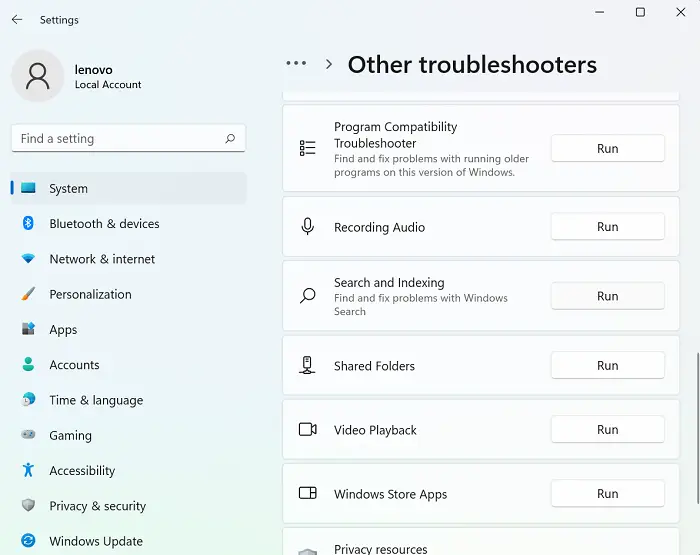
Wait for the troubleshooting process to finish; after that, Windows may detect the problem causing Outlook Search Indexing to not work and implement a fix.
If this yields no results, you’re advised to opt for one of the other methods below.
Read: Search Indexer always Resetting & Restarting after reboot.
2] Verify the indexing status on Outlook
Another possible reason Outlook’s search isn’t working is an error on Outlook’s end. Thus, you’re also recommended to verify the Outlook indexing status.
- Open Outlook and click on Search
- Click on Search Tools from the top-right corner of the Search bar and further select the Indexing Status option
- Wait a while for all the items to get indexed and once done, check again if this issue on Outlook has been fixed or not
Read: Windows Search Failed to Initialize
3] Ensure that Windows Search is enabled
Another key factor in avoiding the issue is ensuring that the Windows Search services are up and running. This can be done through the services manager.
- Open the Run command window with the Win + ‘R’ key combination
- Here, scroll down to find Windows Search
- Right-click on it and open its properties
- Now open the “Startup type:” dropdown under the General tab and select “Automatic”
- Click on Apply to save this change
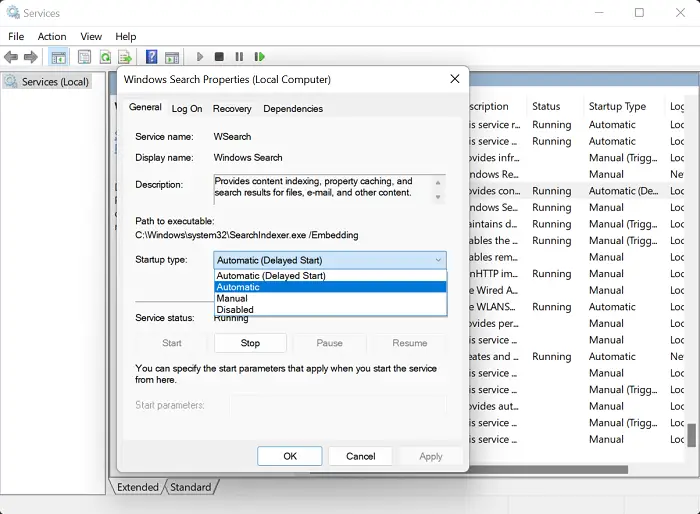
Now restart your computer and check whether the search option in Outlook still has a problem.
Read: How to remove Metered connection warning in Outlook
4] Rebuild the Windows Search Catalog
Another way to try to fix Outlook’s search indexing not working is to rebuild the Windows search catalog of all previously searched data. You can do that via the Indexing Options.
- Search for Indexing Options from the Search bar available at the Taskbar
- From the Indexing Options dialog box, select Advanced to open the Advanced Settings
- Further click on Rebuild
- Save this by clicking on Ok and then selecting Close
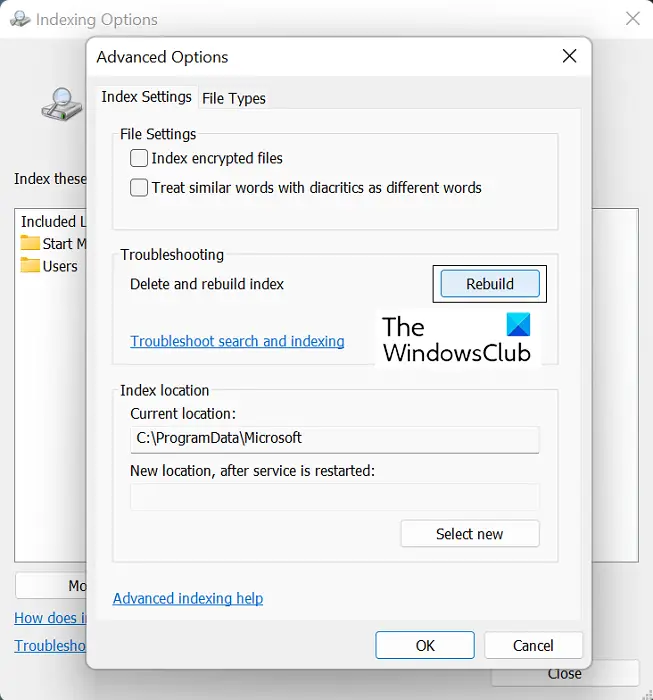
Once it is done, check in Outlook to see if its search indexing has started working.
TIP: Indexer Diagnostics Tool will help fix Windows Search Indexer problems.
5] Modify Windows Indexing Options
Indexing on Windows is the process by which files, messages, and other data are cataloged on a computer. It’s a way of making searching for items easier on your PC. Sometimes, tweaking these Indexing Options on Windows can also do the trick for you with the Outlook error in question.
- Click on the Search bar present on the Windows Taskbar and search for Indexing Options present in the Control Panel
- Click on Advanced as you’d done in the 4th workaround above
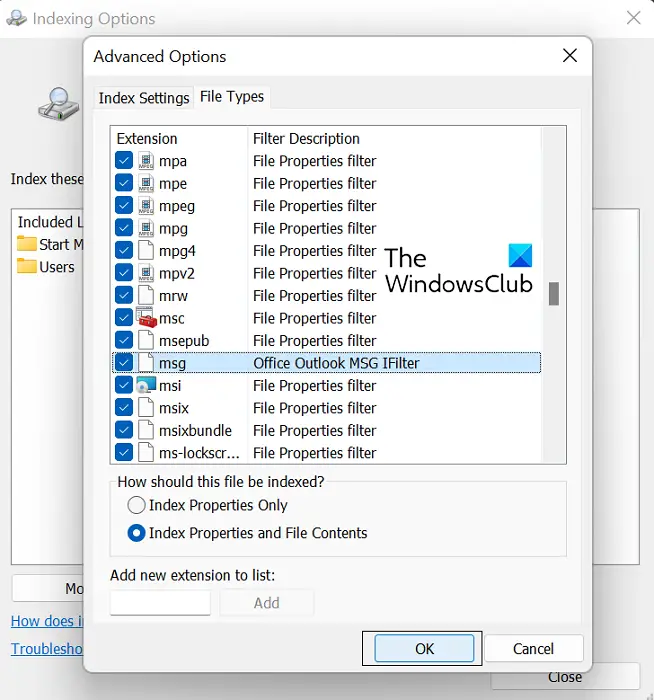
- Select the File Types tab above and from the list of files present, locate the ‘msg’ extension file
- Click on that file, select the Index Properties and File Contents option, and finally click on Ok
If none of those mentioned above solutions are of any help to you, then your last option is to initiate an online repair of the Microsoft Office Suite.
Related: Microsoft Outlook Search grayed out
6] Repair the Microsoft Office Suite
To repair the Microsoft Office Suite application on your PC, follow the steps below:
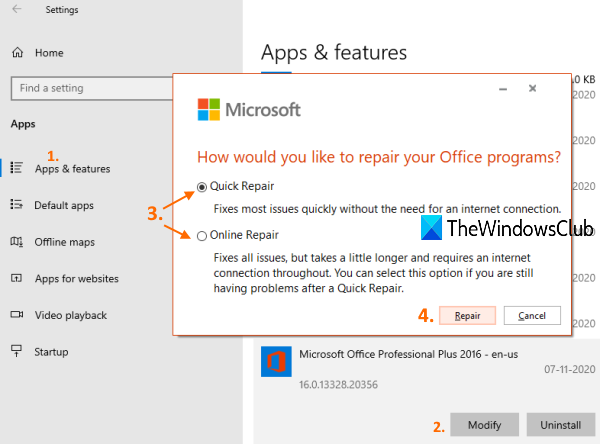
- Open Windows Settings and click on the Apps tab from the options bar to the left of the screen
- Click on Apps & features and search for Microsoft Office from the “App list” search bar
- This search will yield the Microsoft Office Suite. Click on the triple-dotted icon and select “Modify”
- Select the Online Repair option and click on Repair
Please wait a while for this process to complete, and once it is, restart your computer to apply the changes and complete the repair. Hopefully, this would resolve any issues you’re facing with your Outlook’s Search Indexing.
We hope our comprehensive guide to Outlook’s Search Indexing problem helps you resolve all relevant issues.
Why does Outlook not show all emails in search?
Another common issue users faced with Outlook was that after installing the Windows 10 update KB5008212 or upgrading to Windows 11, Outlook didn’t show the most recent emails in its search results. This issue primarily affected users with POP, IMAP, and offline Exchange accounts. Microsoft acknowledged this problem and rolled out updates to address it in Windows 11.
How can I tell if Outlook is indexing complete?
If you think that Outlook hasn’t indexed all your items, i.e., upon performing a search, you get a result saying that the item wasn’t found, then you can troubleshoot the indexing function. To do that, open Outlook and click on the Search Box. Click on the Search Tools drop-down here, and further click on Indexing options. If all items have been indexed properly, you’ll see the message “Outlook has finished indexing all of your items. 0 items remaining to be indexed.” pop up. If not, wait for a few minutes for the unindexed items to get registered in the index.
