
Is Oculus Air Link not working or responding on your Windows PC? Oculus Air Link allows you to play PC VR games without wires on Quest or Quest 2. However, many users have encountered issues where Oculus Air Link fails to work or respond. This keeps them from playing their favorite virtual games. If you are also experiencing the same issue, this guide is for you. Here, we will outline fixes that can help you resolve the issue and get your Oculus Air Link to work properly. So, without much ado, let us check out the solutions now!
Why is Oculus Air Link not working or responding on PC?
There can be different reasons why your Oculus Air LInk is not working or responding on your PC. Here are the potential causes of the problem at hand:
- The issue can be caused because of outdated device drivers, especially USB and graphics drivers. Hence, make sure you have up-to-date device drivers on your system for Air Link to work properly.
- If too many devices are using the same WiFi channel as Oculus Air Link, it can deteriorate its performance and you might experience the problem at hand. So, you can modify your device’s WiFi channel to fix the issue.
- In case a conflicting program with Oculus is running in the background, you are likely to face the problem at hand. So, what you can do is close all conflicting programs to resolve the issue.
- You will encounter this issue if you haven’t configured Oculus Air Link correctly. In that case, open Oculus Debug Tool and configure the settings rightly.
There may be other scenarios that trigger the problem. You can try a suitable fix from the ones listed below, based on the scenario that best suits you.
Oculus Air Link not working or responding on Windows PC
Here are the methods you can try to fix the problem of Oculus Air Link not working correctly on your Windows PC:
- Relaunch Oculus software from Task Manager.
- Update all your device drivers.
- Modify the Wi-Fi channel.
- Close all conflicting programs.
- Check with Oculus Debug Tool.
- Factory reset your Quest.
1] Relaunch Oculus software from Task Manager
When Oculus Air Link is not working on your PC, the first step is to close the Oculus software and any related processes. Then, relaunch the Oculus software and check if Air Link is working. You can do so using the Windows inbuilt Task Manager. First, press Ctrl + Shift + Esc to launch Task Manager. After that, from the Processes tab, select processes related to Oculus one by one and use the End task button to close them. Once done, reopen Oculur and see if the problem is now fixed.
If you still get the same problem, try the next potential fix to resolve it.
2] Update all your device drivers
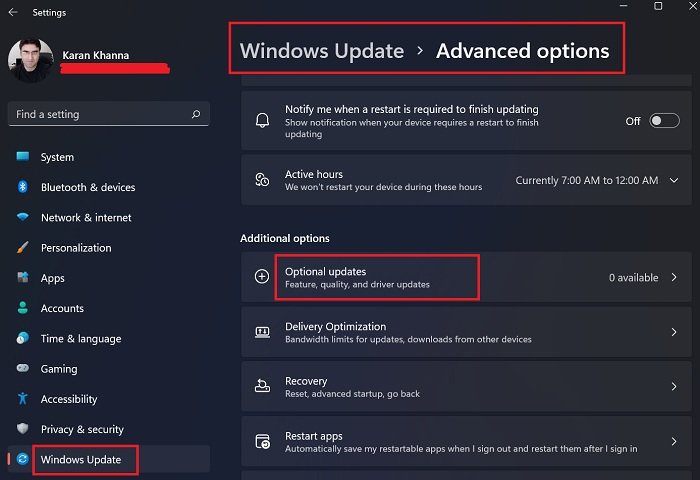
This problem could be facilitated by outdated and faulty device drivers. Mostly corrupted graphics and USB drivers cause this issue. So, if the scenario is applicable, you should be able to fix it by updating all the drivers on your device. You can use any of the below methods to update device drivers on Windows 11/10:
- You can simply launch the Settings app using the Win+I hotkey and then go to the Windows Update tab > Optional Updates section. From here, you can easily install all available driver updates.
- Another conventional method is to go to the official website of the device manufacturer and get the most recent version of your device drivers.
- Try the Device Manager app to update your device drivers.
- Install free driver update software to automatically update your device drivers.
Once you have updated all outdated drivers on your PC, reopen Oculus and check if the issue is resolved.
If you’re still experiencing issues even with up-to-date drivers, try the next potential fix to resolve the problem.
See: VirtualBox displays the Black screen and not Booting guest OS.
3] Modify the Wi-Fi channel
You can try adjusting your device’s WiFi channel to fix the problem. There is a chance that Oculus Air Link is not working or responding due to too many devices utilizing the same Wi-Fi channel. So, for optimal performance of Oculus Air Link, you can follow the below tips and tricks:
- Try using a modern router that has dual-band connections.
- Set up Quest/ Quest 2 headset in the 5 GHz band range. Make sure no other device is connected to the 5 GHz band. And, set up your printers, monitors, etc., in the 2.4GHz spectrum.
- Try using an ethernet cable for connecting your computer or laptop with your router.
- Ensure that your headset and routers and not far away from each other to enjoy optimal performance.
If you have followed the above tips and still the problem remains, try the next potential fix to resolve it.
Read: Oculus has detected a problem with your graphics drivers.
4] Close all conflicting programs
The issue may also be caused by a conflicting program running on your PC. If a program is conflicting with Oculus and causing Air Link to crash or not respond due to some programming bugs, you can try closing it.
As per an online report, the programs that might conflict with the Oculus software include Asus GameFirst V, Geforce Experience, McAfee, Avast / AVG / ESET/ Norton antivirus, MSI Afterburner, NordVPN, Bitdefender VPN, PIA, Proton VPN, Razer Cortex, Lenovo Nerve Sense, Lenovo Vantage, Riots Vanguard, Steam VR, TeamViewer, WebRoot, MalwareBytes, and Windows Xbox Game Bar.
In case any of the above-listed programs are running on your PC and Oculus Air Link is not responding or working, close the conflicting programs. After that, check if Oculus Air Link starts working properly or not. If yes, great. However, if it doesn’t help you fix the problem, move on to the next potential fix.
RELATED: Fix Oculus Rift errors and problems.
5] Check with Oculus Debug Tool
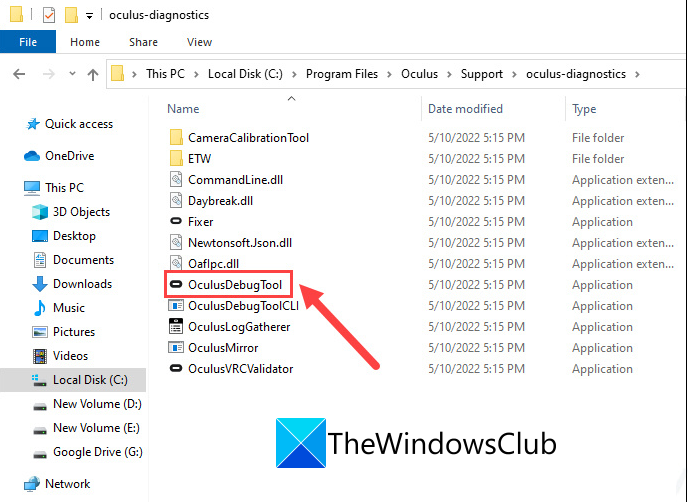
The Oculus Debug Tool is an advanced tool that comes with Oculus Using it, you can check and set up your game’s performance and debugging settings. Hence, if Oculus Air Link is not working, you can check with the Oculus Debug Tool if there is an issue with your settings. Here is how you can do that:
- Firstly, press Win+E to open Windows File Explorer and then navigate to the below location:
C:\Program Files\Oculus\Support\oculus-diagnostics
- Now, from the above location, run the OculusDebugTool application.
- Next, in the Oculus Debug Tool window, expand the Oculus Link category and check if the Encode Dynamic Bitrate option is set to Default or not. If not, select the option and choose the Default option for it.
- After that, check for the Encode Bitrate (Mbps) option and see if it is set to “0”. In case it is not set to 0, click on it and change it to 0.
- Finally, check if the problem is resolved.
If the issue persists, try the next potential fix to resolve it.
6] Factory reset your Quest
If none of the above solutions worked for you, the last resort to fix the problem is to factory reset your Quest. Doing so will clear errors and bugs in the Oculus software and your headset. However, do remember that this will clear all your game data. So, try this method only if you are sure of what you are doing or if nothing else worked for you to fix the problem.
Here are the steps to perform a factory reset using the headset:
- Firstly, press the power and volume buttons simultaneously and hold them until the device switches on.
- Now, highlight the Factory reset option and then press the Power button.
- Next, choose the Yes, erase and factory reset option and tap on the Power button to start the reset process.
Hopefully, this method will work for you, and Oculus Air Link will now start working for you.
How do I get my Oculus Air Link to work?
To get your Oculus Air Link to work on your PC, open the Oculus PC app and go to the Settings tab. Now, navigate to the Beta section and find the Air Link option. Next, enable the toggle associated with the Air Link option. This will activate Oculus Air Link on your PC.
Fix: Oculus Link Black Screen problem
How do I fix the Oculus Link not working?
If Oculus Link is not working on your PC, you can resolve the issue by updating all your device drivers to the latest version. Other than that, lower your PC’s resolution, disable in-game overlays, opt out of the Public Test Channel, or run an SFC scan on your PC to fix the problem.
Why is my Oculus Link a black screen?
If you are getting a black screen on Oculus Link, it could be caused due to outdated device drivers including GPU and USB drivers. Also, if you are using a higher resolution on your PC, you might experience a black screen on Oculus Link.
Now read:
