
We hear of many Microsoft Office users wanting to what is Microsoft AU Daemon, and whether or not if this tool will affect their Windows 11/10 or Mac computer system. This is not something that usually makes itself known to regular users; therefore, we can understand why some folks have been quite concerned by it. We can say for certain that the Microsoft AU Daemon tool is not a threat, and in fact, it is a very important system file.
What is Microsoft AU Daemon
Microsoft AU Daemon is the Microsoft AutoUpdate program that keeps your installation of Office up to date. It is safe & runs in the background, watching the Microsoft servers to see if there’s been a new update to your Office apps. We will discuss this in detail and touch upon the following subjects:
- What is the Microsoft AU Daemon
- Is it possible to disable the AU Daemon
- How to disable the AU Daemon
- You are opening the application Microsoft AU Daemon for the first time
- There was a problem with Microsoft AU Daemon.
Microsoft AU Daemon is associated with the many Office programs the software giant provides for its Windows operating system. The programs in question are Word, PowerPoint, Excel, OneNote, Outlook, Access, Publisher, and SharePoint.
Now, every single one of these programs come with the Microsoft AU Daemon installed, and whenever the user launches them, the tool runs in the background. The AU Daemon is responsible for checking for updates to all Office programs, ensuring the user has the latest version of these software tools.
Here’s the thing: as soon as the system detects that an update is available, the AutoUpdates Daemon triggers the process of automatically downloading and installing the update for the respective Office tools. There is no need to install this program, as it comes pre-installed. Furthermore, from what we can determine, there is currently no way to uninstall it.
How to disable Microsoft AU Daemon
Can you disable Microsoft AU Daemon? Yes, the answer is a resounding yes. The thing is, do you even want to disable it in the first place? It’s important in the sense that it makes sure your Microsoft Office programs are kept updated with the latest features and security patches, so we wouldn’t recommend disabling it.
However, if it is something you truly want to get done, well, we can help with that, no problem.
On Windows 11/10
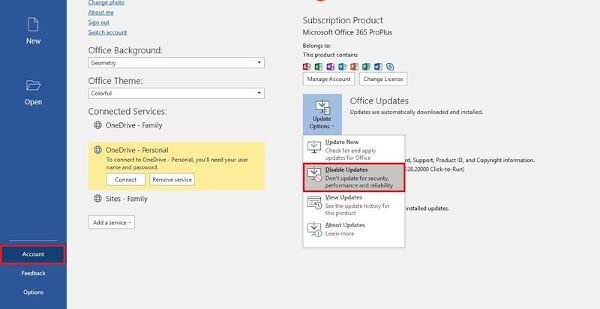
First, you will need to fire up the Office program of choice, for example, Microsoft Word because it’s highly popular. You will want to create a blank document, and from there, click on File. At the bottom of the drop-down menu, select Account, and you should now see a new window.
From that window, then, click on Update Options, then select Disable Updates. Finally, confirm by clicking ‘Yes,’ then restart Windows to ensure it has been initialized.
On macOS
- Open System Preferences.
- Select Accounts
- Select the Connection inputs
- Select Microsoft AU Daemon
- Click on the ‘-‘ icon to delete it.
You are opening the application Microsoft AU Daemon for the first time, Are you sure you want to open this application?
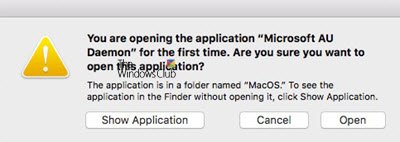
When you open any Office application, you may see this message – You are opening the application Microsoft AU Daemon for the first time, Are you sure you want to open this application?
You should know that this message comes from Apple when you update Mac OS to a new full version. When you open an Office app for the first time, Apple displays this message.
There was a problem with Microsoft AU Daemon and your recent work might be lost
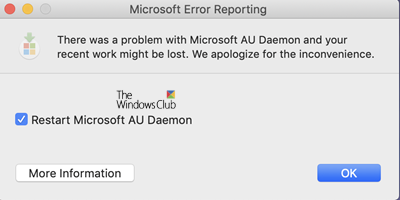
If you see this message – There was a problem with Microsoft AU Daemon and your recent work might be lost, then you may need to restart the process or the Office app. There is not much else that you can do.
Hope this bit of info helps.
Want to know about these processes, files or file types?
mDNSResponder.exe | Windows.edb files |csrss.exe | Thumbs.db files | NFO and DIZ files | Index.dat file | Swapfile.sys, Hiberfil.sys & Pagefile.sys | Nvxdsync.exe | Svchost.exe | RuntimeBroker.exe | TrustedInstaller.exe | DLL or OCX files. | StorDiag.exe | MOM.exe | Host Process for Windows Tasks | ApplicationFrameHost.exe | ShellExperienceHost.exe | winlogon.exe | atieclxx.exe | Conhost.exe | Host Process for Windows Tasks | Taskhostw.exe | Sppsvc.exe.
